Best Parental Control Software Under $50 in 2026: 8 Compared

- 1
 Qustodioparental controls under $50 a yearVisit
- 2
 Barkmonitoring for online risksVisit
- 3
 Net Nannyweb filtering for familiesVisit
- 4
 Norton Familyparental controls with NortonVisit
- 5
 Aura Parental Controlsfamily safety with controlsVisit
- Qustodio, Kaspersky Safe Kids and the free Google and Microsoft tools are the strongest under $50 options.
- Bark suits families focused on monitoring risks, while Qustodio and Net Nanny suit filtering and time limits.
- No tool replaces conversation: explain rules, agree screen time and review settings together.
- Check device coverage before paying: a tool that misses your child's main device will not help.
Quick comparison
| Product | Ideal for | Price from | Free version | |
|---|---|---|---|---|
| Qustodio | parental controls under $50 a year | See website | Yes | Visit |
| Bark | monitoring for online risks | See website | Free trial | Visit |
| Net Nanny | web filtering for families | See website | No | Visit |
| Norton Family | parental controls with Norton | See website | No | Visit |
| Aura Parental Controls | family safety with controls | See website | Free trial | Visit |
 Google Family Link | free controls for Android and Chrome | See website | Yes | Visit |
 Microsoft Family Safety | free controls for Windows and Xbox | See website | Yes | Visit |
 Kaspersky Safe Kids | affordable parental controls | See website | Yes | Visit |
The best parental control software under $50
Parental control software under $50 a year needs to cover the devices children actually use, without a high subscription. Free tools from Google and Microsoft help, while paid tools add filtering and monitoring. This guide compares options by price and coverage.
Qustodio
Ideal for: parental controls under $50 a year
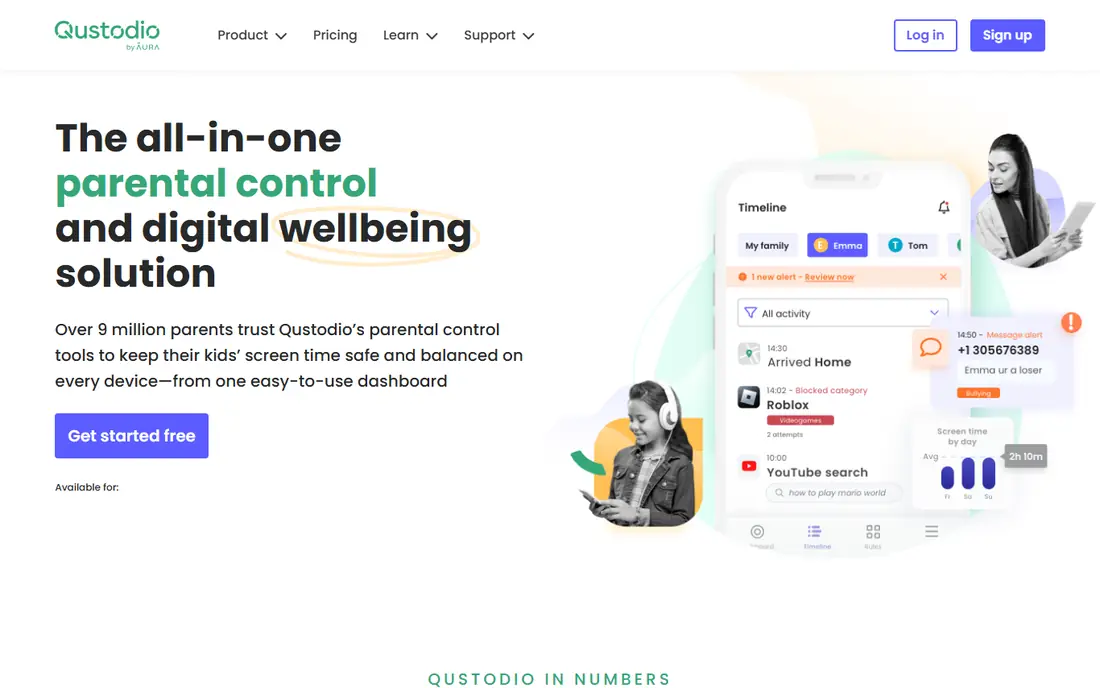
For many buyers, this is the natural starting point. Qustodio offers web filtering, screen time limits and activity reports for families. Its plans are aimed at keeping costs within a family budget, with a free tier for basic use. On pricing, the starting price is listed above, and where a vendor does not publish a clear price we list it as See website. Check what is included at that level, because seats, usage limits and add-ons often change the real monthly cost. Some features, such as location, sit on higher tiers, so check the plan that fits your needs. That trade-off does not make this a poor choice, but it does decide who should pick it. If the weakness touches your main use case, look at another option on this list. If it touches only a secondary need, the strengths here may still make it our pick for you.
- Web filtering
- Screen time
- Location on some plans
- Some features need higher tiers
- Setup per device
Bark
Ideal for: monitoring for online risks
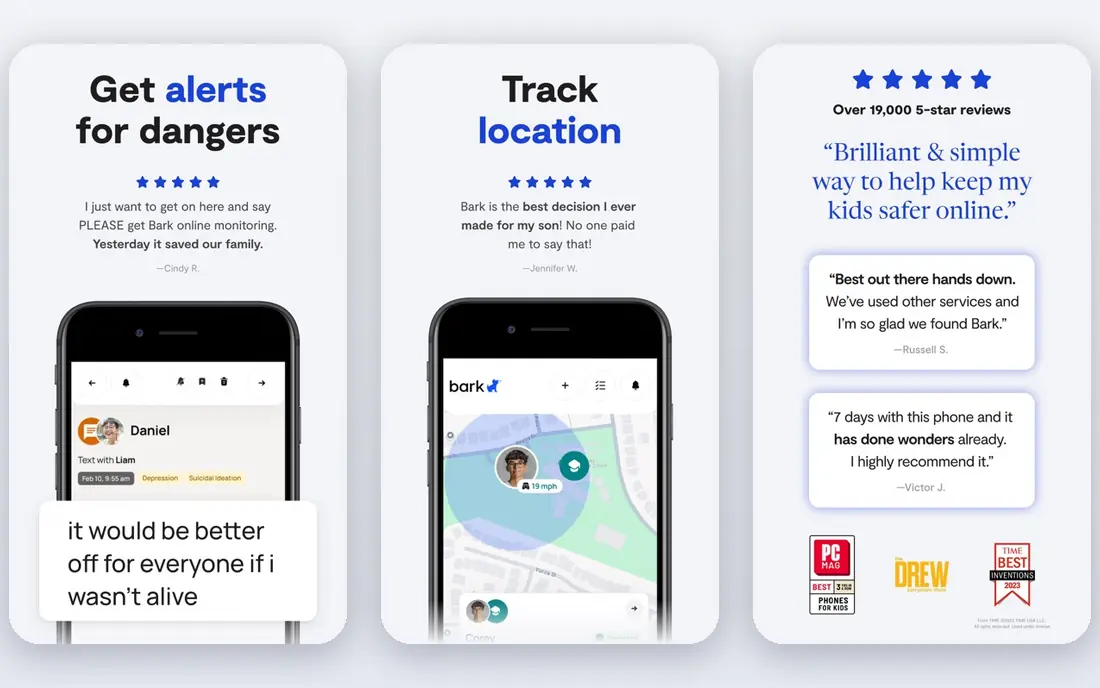
This is a strong choice when the basics matter most. Bark monitors texts, email and social activity for signs of bullying, self harm and other risks. It alerts parents to concerning content rather than showing every message. On pricing, the starting price is listed above, and where a vendor does not publish a clear price we list it as See website. Check what is included at that level, because seats, usage limits and add-ons often change the real monthly cost. Monitoring raises privacy questions, so families should discuss it with children and use it transparently. That trade-off does not make this a poor choice, but it does decide who should pick it. If the weakness touches your main use case, look at another option on this list. If it touches only a secondary need, the strengths here may still make it our pick for you.
- Monitoring for texts and social
- Alerts
- Screen time
- Monitoring can feel intrusive
- Pricing per family
Net Nanny
Ideal for: web filtering for families

What sets this option apart is its focus on a clear use case. Net Nanny focuses on web filtering, screen time and app blocking for families. It suits parents who mainly want to control web access and time. On pricing, the starting price is listed above, and where a vendor does not publish a clear price we list it as See website. Check what is included at that level, because seats, usage limits and add-ons often change the real monthly cost. The interface feels dated, and pricing depends on device count. That trade-off does not make this a poor choice, but it does decide who should pick it. If the weakness touches your main use case, look at another option on this list. If it touches only a secondary need, the strengths here may still make it our pick for you.
- Web filtering
- Screen time
- App blocking
- Pricing varies by devices
- Interface is dated
Norton Family
Ideal for: parental controls with Norton
Teams that want a straightforward setup should look closely here. Norton Family offers web supervision, time limits and location tools for families. It suits households already using Norton security products. On pricing, the starting price is listed above, and where a vendor does not publish a clear price we list it as See website. Check what is included at that level, because seats, usage limits and add-ons often change the real monthly cost. It needs a Norton account, and device support is mainly Windows and mobile. That trade-off does not make this a poor choice, but it does decide who should pick it. If the weakness touches your main use case, look at another option on this list. If it touches only a secondary need, the strengths here may still make it our pick for you.
- Web supervision
- Time limits
- Location
- Needs Norton account
- Windows and mobile focus
Aura Parental Controls
Ideal for: family safety with controls
This option earns its place through a different strength than the leaders. Aura offers parental controls beside wider family safety tools. It suits families that want content filtering, screen time and location in one app. On pricing, the starting price is listed above, and where a vendor does not publish a clear price we list it as See website. Check what is included at that level, because seats, usage limits and add-ons often change the real monthly cost. Some features sit on higher plans, so check the tier that includes the controls you need. That trade-off does not make this a poor choice, but it does decide who should pick it. If the weakness touches your main use case, look at another option on this list. If it touches only a secondary need, the strengths here may still make it our pick for you.
- Content filtering
- Screen time
- Location
- Pricing varies
- Some features need higher plans
Google Family Link
Ideal for: free controls for Android and Chrome
For buyers with a specific need, this one deserves a closer look. Google Family Link is a free tool for managing Android devices and Chrome use. Parents can approve apps, set screen time and see location for supervised accounts. On pricing, the starting price is listed above, and where a vendor does not publish a clear price we list it as See website. Check what is included at that level, because seats, usage limits and add-ons often change the real monthly cost. It is mainly for Android and Chrome, with limits on Apple devices. That trade-off does not make this a poor choice, but it does decide who should pick it. If the weakness touches your main use case, look at another option on this list. If it touches only a secondary need, the strengths here may still make it our pick for you.
- Free app management
- Screen time
- Location
- Android and Chrome focused
- Apple limits
Microsoft Family Safety
Ideal for: free controls for Windows and Xbox
This is worth considering when budget or simplicity is a priority. Microsoft Family Safety offers free screen time, content filters and location for family accounts. It suits households using Windows PCs and Xbox consoles. On pricing, the starting price is listed above, and where a vendor does not publish a clear price we list it as See website. Check what is included at that level, because seats, usage limits and add-ons often change the real monthly cost. Apple device support is limited, so mixed device families need another tool for iPhones. That trade-off does not make this a poor choice, but it does decide who should pick it. If the weakness touches your main use case, look at another option on this list. If it touches only a secondary need, the strengths here may still make it our pick for you.
- Free screen time
- Content filters
- Location
- Windows and Xbox focused
- Apple limits
Kaspersky Safe Kids
Ideal for: affordable parental controls
Our shortlist would feel incomplete without this option. Kaspersky Safe Kids offers web filtering, screen time and location tools at a low cost. Its free tier covers basics, with premium features on a paid plan. On pricing, the starting price is listed above, and where a vendor does not publish a clear price we list it as See website. Check what is included at that level, because seats, usage limits and add-ons often change the real monthly cost. The free tier is limited, so check whether the paid plan stays within your budget. That trade-off does not make this a poor choice, but it does decide who should pick it. If the weakness touches your main use case, look at another option on this list. If it touches only a secondary need, the strengths here may still make it our pick for you.
- Web filtering
- Screen time
- Location
- Free tier limited
- Premium features need paid plan
How we picked these
We compared official feature pages, pricing pages, app store listings, privacy policies and public reviews for each product on this list. We checked that each product exists, works in October 2026 and truly fits the topic, and we left out products that did not fit even when they were well known in a nearby category. We also weighed who each product suits, what it does well and where it falls short. Prices change, so where we could not verify a current price from the vendor we wrote See website. We did not claim hands-on testing that did not happen, and we focused on facts a buyer can check before paying.
How to choose parental control software under $50
First, start here
List devices first. A tool for Android only will not help an iPhone household, and a Windows tool will not help a Chromebook. Check every device your child uses, including tablets, consoles and school devices, before choosing.
Next, check the details
Decide between filtering, time limits and monitoring. Filtering blocks harmful sites. Time limits manage screen use. Monitoring alerts parents to risks in messages and social activity. Different families need different mixes, and monitoring needs a conversation with your child.
Finally, decide with confidence
Check total cost for your device count. Some plans charge per device or per family, and prices change with device numbers. Confirm the yearly total, including any renewal price, and test the free tier or trial on real devices first.
Frequently asked questions
What is the best parental control software under $50?
Qustodio and Kaspersky Safe Kids are strong paid options under $50 for many families. Google Family Link and Microsoft Family Safety are free and suit Android, Chrome, Windows and Xbox households. The best choice depends on devices and whether you need filtering or monitoring.
Is Google Family Link free?
Yes, Google Family Link is free for managing supervised Android devices and Chrome use. It covers app approvals, screen time and location. It has limits on Apple devices, so iPhone families need another tool.
What does Bark monitor?
Bark monitors texts, email and social activity for signs of bullying, self harm and other risks, and alerts parents to concerning content. It does not show parents every message by default. Families should discuss monitoring openly with children.
Can parental controls block apps and websites?
Yes, most parental control tools can block websites, filter content and limit apps and screen time. Exact controls vary by device and plan. Check app blocking and web filtering for your child's devices before subscribing.
Do parental controls work on iPhones?
Some parental control tools work on iPhones, but Apple limits what third party apps can control. Qustodio, Bark and Net Nanny offer iOS support with limits. Check iOS features specifically, because Android and iOS coverage often differ.