Best PDF Reader App in 2026: 7 Options Compared

- 1
 Adobe Acrobat ReaderMost people who read PDFsVisit
- 2
 Foxit PDF ReaderReaders who want a lighter alternativeVisit
- 3
 PDF ExpertApple users who annotate PDFsVisit
- 4
 SumatraPDFWindows users who want speedVisit
- 5
 XodoReaders who sync across devicesVisit
- Our top pick for most readers is Adobe Acrobat Reader, because it fits most people who read PDFs and covers the core features well.
- Free options exist on this list, including Adobe Acrobat Reader, Foxit PDF Reader, SumatraPDF, though free plans limit features in most cases.
- Prices vary widely, and several vendors do not publish a simple starting price, so check the official pricing page for the current figure before you decide.
- The honest catch matters as much as the headline feature, so read the cons for each product and match them against the work you do most often.
Quick comparison
| Product | Ideal for | Price from | Free version | |
|---|---|---|---|---|
| Adobe Acrobat Reader | Most people who read PDFs | Free | Yes | Visit |
| Foxit PDF Reader | Readers who want a lighter alternative | Free | Yes | Visit |
| PDF Expert | Apple users who annotate PDFs | See website | Free trial | Visit |
| SumatraPDF | Windows users who want speed | Free | Yes | Visit |
| Xodo | Readers who sync across devices | Free | Yes | Visit |
 PDFgear | Readers who want free editing basics | Free | Yes | Visit |
 Nitro PDF | Business users who edit PDFs often | See website | Free trial | Visit |
The best pdf reader app
We compared 7 options for best pdf reader app, looking at official feature pages, pricing, app store listings, privacy policies, and public reviews, and we did not claim hands on testing we did not do.
Adobe Acrobat Reader
Ideal for: Most people who read PDFs
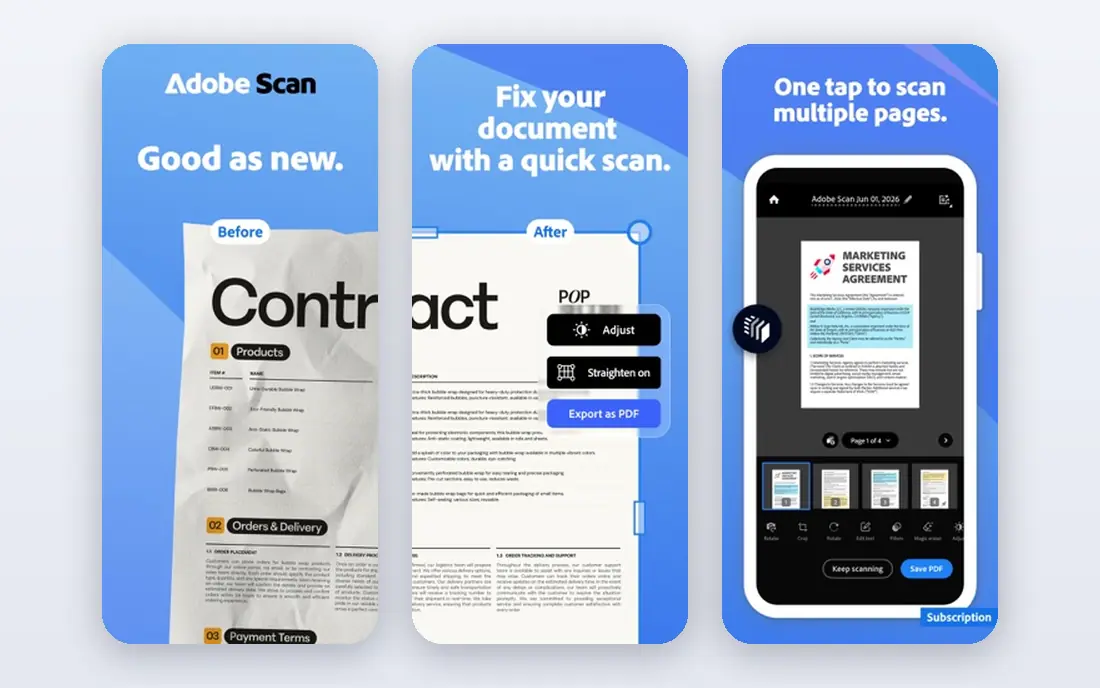
Acrobat Reader is the reference PDF reader, and it handles complex documents, forms, and signatures with fewer surprises than most rivals. It is best for most people who read PDFs. We put Adobe Acrobat Reader near the top because it fits its audience well.
On pricing, we list the starting price as Free, and the free plan field as Yes. Where a price is shown as See website, that means the vendor does not publish a simple starting price, or the price depends on seats, usage, or a quote, so check the official pricing page for the current figure.
The honest catch is full editing needs a paid plan; app is large. Before you commit, try the free plan or trial if one is offered, and check that the features you need are on the plan you pick. Our view is that Adobe Acrobat Reader is worth a close look if its best fit matches your situation, and worth skipping if the catch touches the part of the work you do most often.
- Reliable rendering
- Annotation and signing
- Widely supported
- Full editing needs a paid plan
- App is large
Foxit PDF Reader
Ideal for: Readers who want a lighter alternative
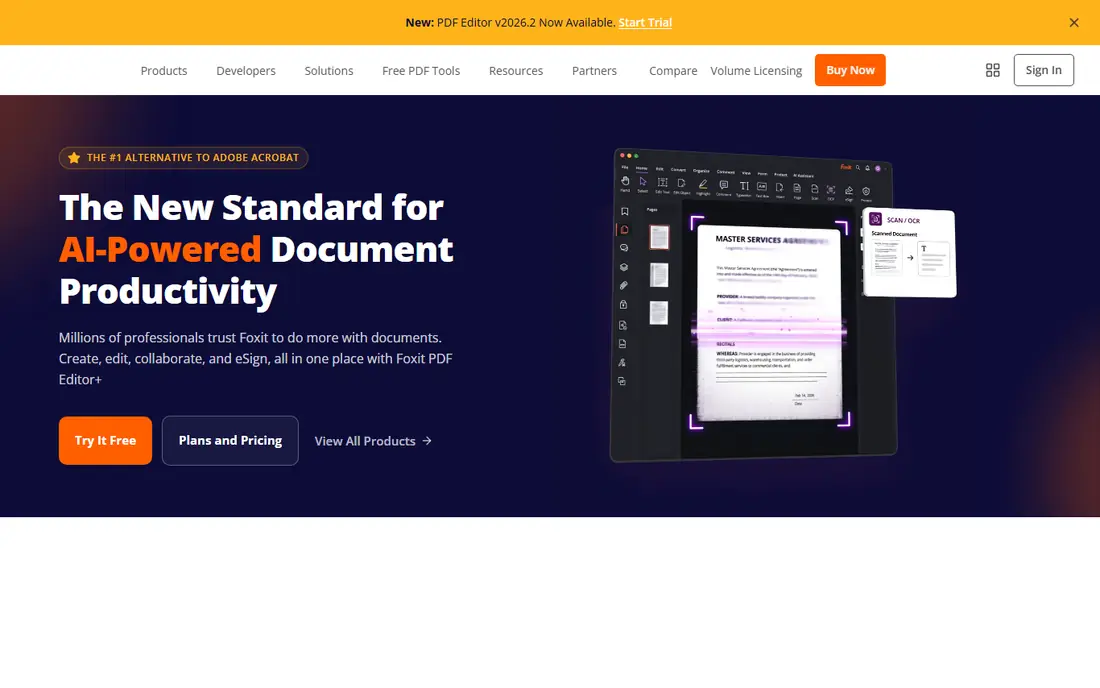
Foxit opens quickly and covers reading, annotation, and form filling, which makes it a strong free alternative to Adobe. It is best for readers who want a lighter alternative. For many readers, Foxit PDF Reader is the practical choice in this list.
On pricing, we list the starting price as Free, and the free plan field as Yes. Where a price is shown as See website, that means the vendor does not publish a simple starting price, or the price depends on seats, usage, or a quote, so check the official pricing page for the current figure.
The honest catch is some features need a paid upgrade; installer offers extras. A short trial run with your own data or workflow will tell you more than any feature list, so test the fit before paying. Our view is that Foxit PDF Reader is worth a close look if its best fit matches your situation, and worth skipping if the catch touches the part of the work you do most often.
- Fast startup
- Annotation tools
- Tabbed reading
- Some features need a paid upgrade
- Installer offers extras
PDF Expert
Ideal for: Apple users who annotate PDFs
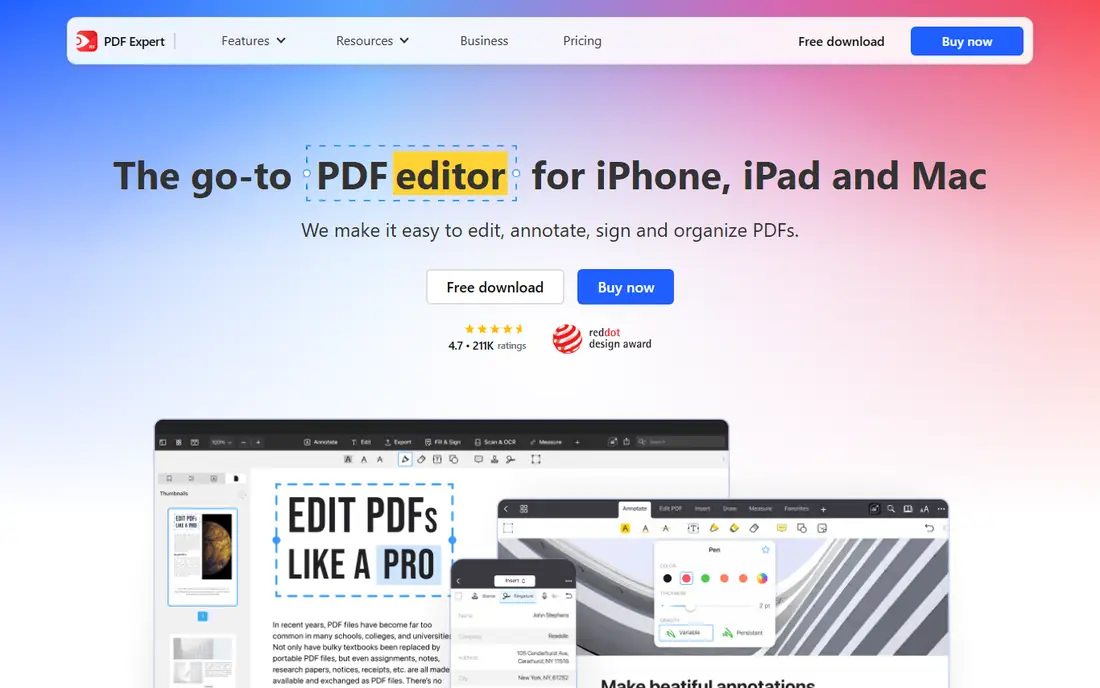
PDF Expert is built for iPhone, iPad, and Mac, with annotation and page management that feel native to those devices. It is best for apple users who annotate PDFs. What stands out about PDF Expert is how clearly it states its purpose.
On pricing, we list the starting price as See website, and the free plan field as Free trial. Where a price is shown as See website, that means the vendor does not publish a simple starting price, or the price depends on seats, usage, or a quote, so check the official pricing page for the current figure.
The honest catch is apple only; advanced editing needs a subscription. Check the pricing page and the plan limits carefully, since the details that matter most are often in the plan notes. Our view is that PDF Expert is worth a close look if its best fit matches your situation, and worth skipping if the catch touches the part of the work you do most often.
- Polished Apple apps
- Strong annotation
- Good file organization
- Apple only
- Advanced editing needs a subscription
SumatraPDF
Ideal for: Windows users who want speed
SumatraPDF opens large documents almost instantly and stays out of the way, which suits readers who value speed over editing tools. It is best for windows users who want speed. We kept SumatraPDF on the list because it solves a specific problem well.
On pricing, we list the starting price as Free, and the free plan field as Yes. Where a price is shown as See website, that means the vendor does not publish a simple starting price, or the price depends on seats, usage, or a quote, so check the official pricing page for the current figure.
The honest catch is windows only; annotation is limited. If you are unsure, start small and upgrade only when you hit a real limit in daily use. Our view is that SumatraPDF is worth a close look if its best fit matches your situation, and worth skipping if the catch touches the part of the work you do most often.
- Very fast and light
- Open source
- No clutter
- Windows only
- Annotation is limited
Xodo
Ideal for: Readers who sync across devices
Xodo works on phones, tablets, and the web, so annotations made on one device show up on the next without extra steps. It is best for readers who sync across devices. Among the options here, Xodo earns its place for steady, focused tools.
On pricing, we list the starting price as Free, and the free plan field as Yes. Where a price is shown as See website, that means the vendor does not publish a simple starting price, or the price depends on seats, usage, or a quote, so check the official pricing page for the current figure.
The honest catch is some advanced tools need a paid plan; interface is busy. Ask support a direct question before you buy, since the answer often reveals how the service treats customers after signup. Our view is that Xodo is worth a close look if its best fit matches your situation, and worth skipping if the catch touches the part of the work you do most often.
- Cross platform sync
- Annotation
- Works in a browser
- Some advanced tools need a paid plan
- Interface is busy
PDFgear
Ideal for: Readers who want free editing basics
PDFgear offers editing, conversion, and annotation without charge for its core tools, which is rare among desktop readers. It is best for readers who want free editing basics. Readers who want a focused option should look closely at PDFgear.
On pricing, we list the starting price as Free, and the free plan field as Yes. Where a price is shown as See website, that means the vendor does not publish a simple starting price, or the price depends on seats, usage, or a quote, so check the official pricing page for the current figure.
The honest catch is newer product with a smaller track record; some tools are basic. Compare the total cost over a year, not just the monthly figure, since add ons and seat counts change the picture. Our view is that PDFgear is worth a close look if its best fit matches your situation, and worth skipping if the catch touches the part of the work you do most often.
- Free editing and conversion tools
- Clean interface
- No account needed for basics
- Newer product with a smaller track record
- Some tools are basic
Nitro PDF
Ideal for: Business users who edit PDFs often
Nitro is aimed at workplaces that edit, convert, and sign PDFs all day, with batch tools that save time on large document sets. It is best for business users who edit PDFs often. We like Nitro PDF for readers who know what they need and want to get started.
On pricing, we list the starting price as See website, and the free plan field as Free trial. Where a price is shown as See website, that means the vendor does not publish a simple starting price, or the price depends on seats, usage, or a quote, so check the official pricing page for the current figure.
The honest catch is paid only for full use; Mac version is limited. Make sure the tool works with the systems you already use, since a good product that does not connect can slow you down. Our view is that Nitro PDF is worth a close look if its best fit matches your situation, and worth skipping if the catch touches the part of the work you do most often.
- Full editing and conversion
- Batch tools
- Business deployment
- Paid only for full use
- Mac version is limited
How we picked these
We started from the topic itself and looked for products that exist and work in October 2026 and truly fit it, rather than padding the list with near misses. For each product we checked its official homepage, its feature pages, its pricing page or app store listing, and its privacy policy where one mattered, and we used public reviews to spot common complaints. Where we could not verify a price from the vendor, we wrote See website instead of guessing, and where a homepage could not be confirmed we dropped or replaced that product. We favored a mix of well known leaders and strong smaller options, and we weighed who each product is really for, one concrete strength, and one honest weakness. That mix matters, because the best product for a large team is rarely the best product for a solo user, and a low price means little if the plan limits block the work you do daily.
How to choose the right app
What to check before you install
Start with the job you need done, not the store rating. Check the free plan limits, what the paid plan adds, and whether your data syncs across the devices you actually use. Read the privacy policy for what the app collects and how it shares data, since a free app often pays for itself with data or ads. Look at recent reviews for reports of bugs, battery use, or support problems, and weigh those against the feature list.
How to run a fair trial
Use each finalist for the same task over the same week, and judge by the result. Keep notes on what felt easy, what needed a workaround, and what annoyed you daily, since small frictions grow with use. Check export options early, so your notes, files, or history are not trapped if you switch later.
Mistakes worth avoiding
The most common mistake is picking the app with the longest feature list, then using only three features. Another is ignoring the subscription cost over a year, since small monthly fees add up. A third is granting every permission at install without checking what the app actually needs. Avoid all three by trialing first, adding up the yearly cost, and reviewing permissions after install.
Frequently asked questions
What is the best pdf reader app for most people?
For most readers we point to Adobe Acrobat Reader, since it fits most people who read PDFs and covers the core features without a steep learning curve. That said, the right pick depends on your budget, your team size, and the features you will use weekly, so compare the top two or three on this list before you decide. If you also search for best pdf reader apps, the same shortlist applies, since it covers that need too.
Are there free pdf reader app options?
Yes, in most cases, though free plans limit features. On this list, Adobe Acrobat Reader, Foxit PDF Reader, SumatraPDF offer free access in some form. Read the free plan limits before you rely on them, since storage, seats, or exports are often capped.
How much does pdf reader app cost?
It varies by product and plan, and several vendors on this list do not publish a simple starting price. We list See website where the price depends on seats, usage, or a quote, and we recommend checking the official pricing page for the current figure. Add up the yearly cost, including any add ons, before you compare monthly figures.
What should I check before choosing a pdf reader app option?
Check the plan limits, the support hours, the privacy policy, and whether the product works with the tools you already use. Run a short trial with a real task, and judge by the result rather than the demo. If the product will hold your data, check export options early, so you are not trapped if you switch later.
Can I switch later if I pick the wrong pdf reader app option?
In most cases yes, but switching costs time and sometimes data. Check export tools, contract terms, and cancellation rules before you commit, and keep a copy of your data outside the product. Starting with a trial or a monthly plan, rather than a long contract, keeps switching cheap if the fit is wrong.