Best PDF Scanning Apps in 2026: 8 Apps Compared

- 1
 Adobe ScanMost people who want free OCRVisit
- 2
 Genius ScanSimple scanning with clear pricingVisit
- 3
 Scanner ProiPhone and Mac usersVisit
- 4
 CamScannerPower users who want many toolsVisit
- 5
 SwiftScanPrivacy-minded scanning and faxingVisit
- Adobe Scan is our pick for most people: the app is free to download, and its listing highlights OCR, glare and shadow cleanup, and sync with Acrobat.
- Genius Scan has the clearest pricing. Its free Basic plan allows unlimited scans, and the Ultra plan adds OCR and cloud export for $39.99 per year.
- CamScanner and SwiftScan offer a lot of features, but their App Store listings show many subscription tiers, so read the price screen carefully before you pay.
- If you already use Google Drive, OneDrive or Dropbox, the scanner built into those apps may be all you need.
- Microsoft Lens was retired in late 2025, so look at OneDrive or the Microsoft 365 Copilot app if you used it before.
Quick comparison
| Product | Ideal for | Price from | Free version | |
|---|---|---|---|---|
| Adobe Scan | Most people who want free OCR | Free | Yes | Visit |
| Genius Scan | Simple scanning with clear pricing | Free | Yes | Visit |
| Scanner Pro | iPhone and Mac users | See website | Yes | Visit |
| CamScanner | Power users who want many tools | See website | Yes | Visit |
| SwiftScan | Privacy-minded scanning and faxing | See website | Free trial | Visit |
 Google Drive | Android users and Gmail households | Free | Yes | Visit |
 Microsoft OneDrive | Microsoft 365 households | Free | Yes | Visit |
 Dropbox | Teams that already store files there | Free | Yes | Visit |
The best PDF scanning apps
A good scanner app turns a phone camera into a flatbed scanner: it finds the page edges, straightens the image, and saves a clean PDF. The eight apps below cover dedicated scanners and the scanning tools inside big cloud apps.
Adobe Scan
Ideal for: Most people who want free OCR

Adobe describes Adobe Scan as completely free to download, and the app covers the basics well. It corrects perspective, sharpens text and reduces glare and shadows, then saves the result as a searchable PDF. Files can be sorted into folders, shared by link or email, or sent to cloud apps.
The catch sits behind the paywall. Adobe's page says features such as combining files and password protection need a trial of Acrobat Pro, and the iOS listing says paid subscriptions raise OCR capacity from 5 to 100 pages. The same listing shows a 4.9 rating from about 1.6 million ratings on iOS.
This is the one we would try first. It runs on iOS 15 or later and Android 8.0 or later, and anything you scan shows up in Acrobat once you sign in with an Adobe ID.
- Free to download
- OCR makes scans searchable and editable
- Scans open in Acrobat on desktop and web
- Combining files and password protection need a paid Acrobat plan or trial
- Free OCR is limited per the iOS listing
Genius Scan
Ideal for: Simple scanning with clear pricing
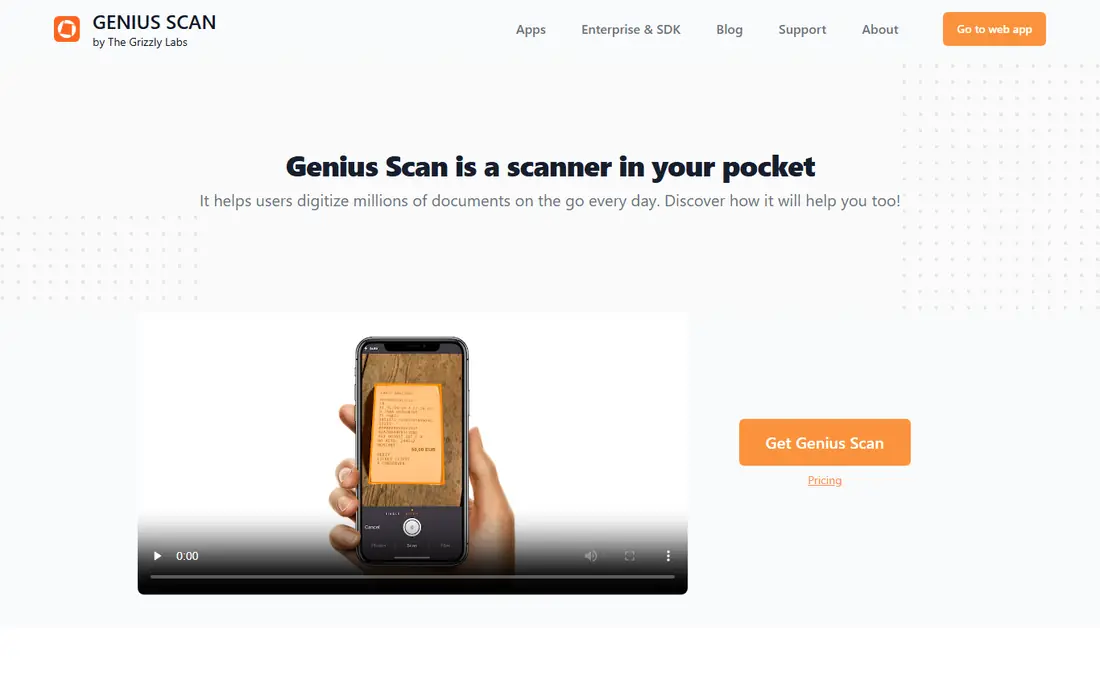
Genius Scan is the easiest app here to understand financially. The pricing page lists a free Basic plan described as a fully functional scanner with unlimited scans, and an Ultra plan at $39.99 per year. Ultra adds OCR, export to major cloud providers, enhanced security, unlimited cloud backups, cross-device sync, storage saving and web access.
The scanning itself covers automatic document detection, perspective correction and color enhancement. You can add pages, rearrange them, merge documents and tag them for search later. A team plan is listed at $40 to $20 per license per year, with volume discounts.
The honest downside is that searchable text is not free. If you need OCR every week, count on Ultra. If you mostly scan receipts and forms to email, Basic may be enough.
- Free Basic plan has unlimited scans
- Ultra costs a flat $39.99 per year
- Merge, rearrange and tag documents
- OCR is a paid feature
- Cloud export and sync sit in the Ultra plan
Scanner Pro
Ideal for: iPhone and Mac users

Scanner Pro from Readdle is the polished choice for Apple households. It scans documents, receipts, IDs, business cards and printed photos, then lets you crop, merge pages, erase marks, sign and annotate. It also offers OCR, PDF password protection, QR capture and iCloud backup.
Pricing is the weak spot. The iOS listing calls the app free with in-app purchases and shows rows labeled Scanner Pro Plus at several prices between $3.99 and $59.99, without saying which is which. Readdle's own site shows no price, so check the in-app screen for the current Plus plan and any trial before you subscribe.
The listing shows a 4.9 rating from about 337,000 ratings. We would pick it over cheaper options if you live in the Apple ecosystem and want one scanner on every device.
- Works across iPhone, iPad and Mac
- OCR, signing and annotation tools
- Translates PDFs into 20+ languages on device
- Apple devices only
- Plus pricing is hard to read from the App Store listing
CamScanner
Ideal for: Power users who want many tools

CamScanner, from INTSIG, is the feature-heavy veteran. Its site lists iOS, Android, HarmonyOS, macOS, Windows and web versions. Beyond scanning, it handles page merging and splitting, e-signatures, watermarks, compression, and conversion between PDF, Word, Excel, PowerPoint and JPG.
The free version covers basic scanning, saving, sharing and uploading, with limited OCR. CamScanner's FAQ says to upgrade to Premium to remove ads and watermarks, which is a real consideration if you send scans to clients. The iOS listing shows Premium options at many price points, including a one-week plan at $9.99, plus a 4.8 rating from about 2 million ratings.
It earns a place for breadth. Just check the plan length and renewal terms on the purchase screen, because the list of tiers is long.
- Wide platform support, including Windows, macOS and the web
- ID and passport modes plus OCR in 41 languages
- Converts between PDF and Office formats
- Free version may include ads and watermarks
- Many Premium tiers with confusing prices
SwiftScan
Ideal for: Privacy-minded scanning and faxing
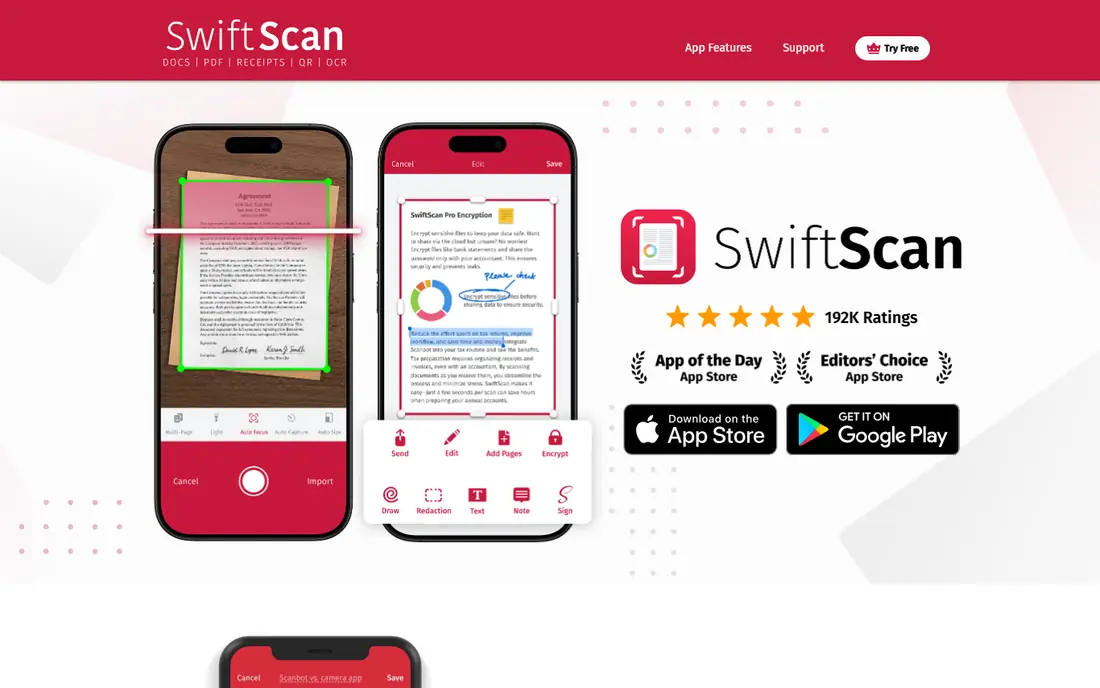
SwiftScan, made by Maple Media Apps, leans on privacy and utility. Its site says text recognition happens on the device and that no data in your documents is sent to the company or a third party. It captures at 200+ dpi, offers five color modes, and can fax at one credit per page to more than 50 countries.
On iOS the listing shows AI summaries and translation, annotations, e-signatures, redaction, and WebDAV, FTP and SFTP uploads. The site links to a seven-day free promotion. The plans in the listing include a VIP annual tier at $34.99 and a Plus annual tier at $59.99, but the page repeats some names at different prices, so confirm in the app.
Read the App Store privacy label alongside the site's privacy claims, since the label lists some data types such as identifiers and usage data. The iOS listing shows a 4.8 rating from about 19,000 ratings.
- Text recognition runs on the device, per its site
- Can send faxes to 50+ countries
- Connects to iCloud, Google Drive, Dropbox and OneDrive
- Pricing varies by tier and platform
- The iOS listing mentions ads and carries an 18+ rating
Google Drive
Ideal for: Android users and Gmail households

The Google Drive app has a scanner built in, and for many people it is enough. Google's help page says that on Android you tap the camera icon, photograph the page, then crop, rotate, apply filters, clean up stains, add or retake pages and name the file. You can save as PDF or JPG, and the page describes the results as searchable PDFs. The help page also has separate steps for iPhone and iPad.
Every Google account includes 15 GB of free storage, shared across Gmail, Drive and Photos. There is no separate scanner subscription, which makes this the simplest route when a form just needs to land in a folder.
The trade-off is depth. You will not find merge-and-sign tools, ID modes or fax credits here, so power users will want a dedicated app.
- Free with a Google account and 15 GB of storage
- Saves searchable PDFs straight to your Drive
- Crop, rotate, filter and clean up stains
- Fewer editing and signing tools than dedicated apps
- Storage is shared with Gmail and Photos
Microsoft OneDrive
Ideal for: Microsoft 365 households
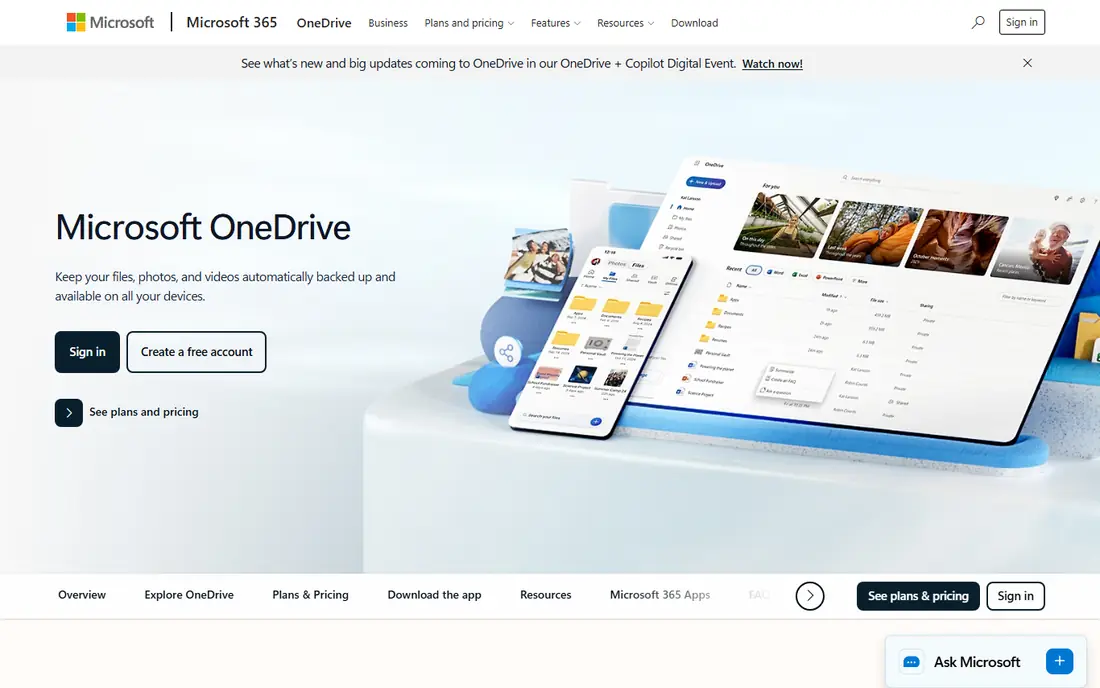
If you relied on Microsoft Lens, note that Microsoft retired it. Its support page says the app was removed from the app stores on November 15, 2025, and that creating new scans stopped after December 15, 2025. Microsoft points users to the scan feature in the Microsoft 365 Copilot app, and the OneDrive mobile app also scans.
According to Microsoft's OneDrive scanning page, you tap the camera icon in the mobile app to turn documents, receipts, whiteboards and ID cards into PDFs, then mark them up. The page lists 5 GB of free storage with the mobile app.
OneDrive is a sensible pick when your files already live in Microsoft 365. Reports note that some Lens features, such as direct saving to OneNote and business card scanning, are missing in Copilot, so check that your workflow still fits.
- Scans documents, receipts, whiteboards and ID cards to PDF
- Markup with notes, highlights, drawings and shapes
- 5 GB of free storage
- Free storage fills up quickly
- Not a full replacement for Microsoft Lens features
Dropbox
Ideal for: Teams that already store files there

Dropbox offers a document scanner inside its iOS and Android apps. You tap the plus icon, choose Scan Document, and the result is saved as a PDF in your Dropbox. You can add pages, apply filters, reorder pages, rename the file and pick where it saves. Dropbox says the scanner is free for all users.
The limits are plan-related. Dropbox lists OCR text search for Standard, Advanced and Enterprise plans, and its page does not say whether Plus includes it. The Basic plan includes 2 GB of storage, and Plus is $9.99 per month for 2 TB.
It makes the most sense when Dropbox is already your filing cabinet. If it is not, start with one of the dedicated scanners above instead.
- Scanner is free for all users
- Saves multi-page PDFs with filters and reordering
- Scans are available offline
- Mobile app only
- OCR text search depends on the plan
How we picked these
We built this list from official feature pages, pricing pages, help-center articles and App Store listings, not from hands-on testing. For each app we checked platform support, OCR, watermark and ad policy, cloud export, and how clearly the vendor explains its prices. Where a price was unclear or varied across plan rows, we wrote See website instead of guessing.
We also looked for a mix of dedicated scanners and cloud apps that include scanning, so the list suits people who want a specialist tool and people who want nothing new to install. Ratings quoted here come from the iOS App Store listings when we checked in October 2026, and they will change over time.
How to choose a scanner app
Start with what you do most. A few receipts a month call for a free tool, while a stack of contracts calls for OCR, signing and cloud backup.
Check OCR and search
OCR (optical character recognition) turns a picture of a page into text you can search and copy. Some apps include it free, some cap it by pages, and some lock it behind a subscription. If you need to find a number in an old invoice, make sure the plan you choose includes it.
Read the subscription terms
Several apps on this list show weekly, monthly and annual tiers, and sometimes the same plan name at different prices. Open the purchase screen, check the billing period, and set a reminder before any trial ends. A flat annual price, like Genius Scan Ultra, is easier to budget for.
Think about privacy
Scans of IDs, tax forms and medical papers are sensitive. Look for on-device processing, encryption, and a clear privacy policy, and avoid sending sensitive pages to an app you cannot find a policy for. Good lighting and a dark, plain background also give cleaner results and fewer retakes.
Frequently asked questions
What is the best PDF scanning app?
For most people we would start with Adobe Scan, since it is free to download and includes OCR and cleanup tools. If you prefer clear flat pricing, Genius Scan is a strong alternative. Apple users who want a Mac companion should look at Scanner Pro.
What is the best free scanner app?
Adobe Scan and Genius Scan Basic are both free to start, and Google Drive, OneDrive and Dropbox include scanners at no extra cost. Free tiers usually limit OCR, ads or watermarks, so check what each one restricts.
Can a phone scanner replace a flatbed scanner?
For documents, receipts and forms, yes in most cases. Apps correct perspective and lighting, and the PDFs are good enough for email and filing. For fragile photos or very high-resolution archiving, a flatbed still gives more control.
Do I need OCR in a scanning app?
You need it if you want to search, copy or edit the text inside a scan. If you only store a picture of a receipt, you can skip it. Genius Scan and Adobe Scan both keep OCR on paid tiers, at least for heavier use.
Which scanner app is best for sensitive documents?
Choose one that processes text on the device or encrypts your files, and read its privacy policy first. SwiftScan states that text recognition runs on the device, and Genius Scan lists enhanced security in its Ultra plan. When in doubt, scan inside a cloud account you already trust.
Sources
- https://www.adobe.com/acrobat/mobile/scanner-app.html
- https://apps.apple.com/us/app/adobe-scan-pdf-scanner-ocr/id1199564834
- https://thegrizzlylabs.com/genius-scan/pricing
- https://readdle.com/scannerpro
- https://apps.apple.com/us/app/scanner-pro-pdf-scanner-app/id333710667
- https://www.camscanner.com/
- https://apps.apple.com/us/app/camscanner-pdf-scanner-app/id388627783
- https://swiftscan.app/
- https://apps.apple.com/us/app/swiftscan-pdf-scanner-app/id834854351
- https://support.google.com/drive/answer/3145835
- https://one.google.com/about/plans
- https://www.microsoft.com/en-us/microsoft-365/onedrive/document-scanning
- https://support.microsoft.com/en-gb/topic/retirement-of-microsoft-lens-fc965de7-499d-4d38-aeae-f6e48271652d
- https://www.dropbox.com/features/productivity/doc-scanner-app
- https://www.dropbox.com/plans