Best Photo Animation App in 2026: 7 Apps Compared

- 1
 MotionleapAnimating still photosVisit
- 2
 StoryZPhoto motion storiesVisit
- 3
 PixaMotionQuick moving photosVisit
- 4
 VimageCinemagraph-style clipsVisit
- 5
 Loopsie3D and template effectsVisit
- Motionleap suits still photos with moving skies, water, and hair, while StoryZ and PixaMotion suit quick social clips.
- MyHeritage suits animating old family photos, while Kaiber suits creators who want stylized AI video from images.
- Vimage and Loopsie suit people who want fast, template-driven results without learning video editing.
- Free plans usually add watermarks or limit exports, so check export quality before sharing a finished clip.
- Animated photos work best with a clear subject and one or two moving elements, rather than motion across the whole frame.
Quick comparison
| Product | Ideal for | Price from | Free version | |
|---|---|---|---|---|
| Motionleap | Animating still photos | See website | Yes | Visit |
| StoryZ | Photo motion stories | See website | Yes | Visit |
| PixaMotion | Quick moving photos | See website | Yes | Visit |
| Vimage | Cinemagraph-style clips | See website | Yes | Visit |
| Loopsie | 3D and template effects | See website | Yes | Visit |
 MyHeritage | Animating old portraits | See website | Yes | Visit |
 Kaiber | AI video from images | See website | Yes | Visit |
The best photo animation apps
We compared official feature pages, pricing pages, app store listings, and public reviews for seven photo animation apps. Our pick for most people is Motionleap for its control over motion in still photos, with StoryZ close behind for quick social stories.
Motionleap
Ideal for: Animating still photos
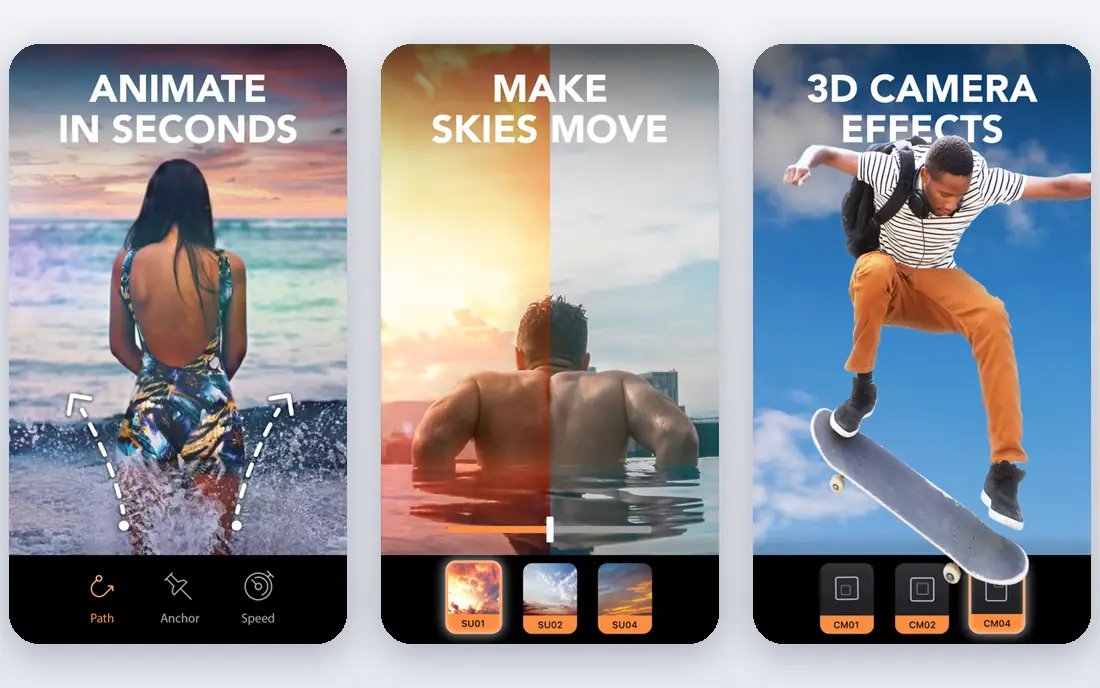
Motionleap, from Lightricks, lets you paint motion onto parts of a still photo, so skies drift, water flows, and hair moves while the rest of the image stays still. You can add overlays, camera movement, and sound, then export a loop or video for social sharing. That control is why it leads this list: you decide what moves and how fast, instead of accepting a generic effect.
The free version gives a taste, but high-quality exports and many effects sit behind a subscription. Fine edits also take practice, since masking the wrong area can make motion look odd. For creators who want polished moving photos rather than a one-tap filter, Motionleap is worth the learning time.
- Precise motion controls
- Sky and water effects
- Good export options
- Best features need a subscription
- Learning curve for fine edits
StoryZ
Ideal for: Photo motion stories
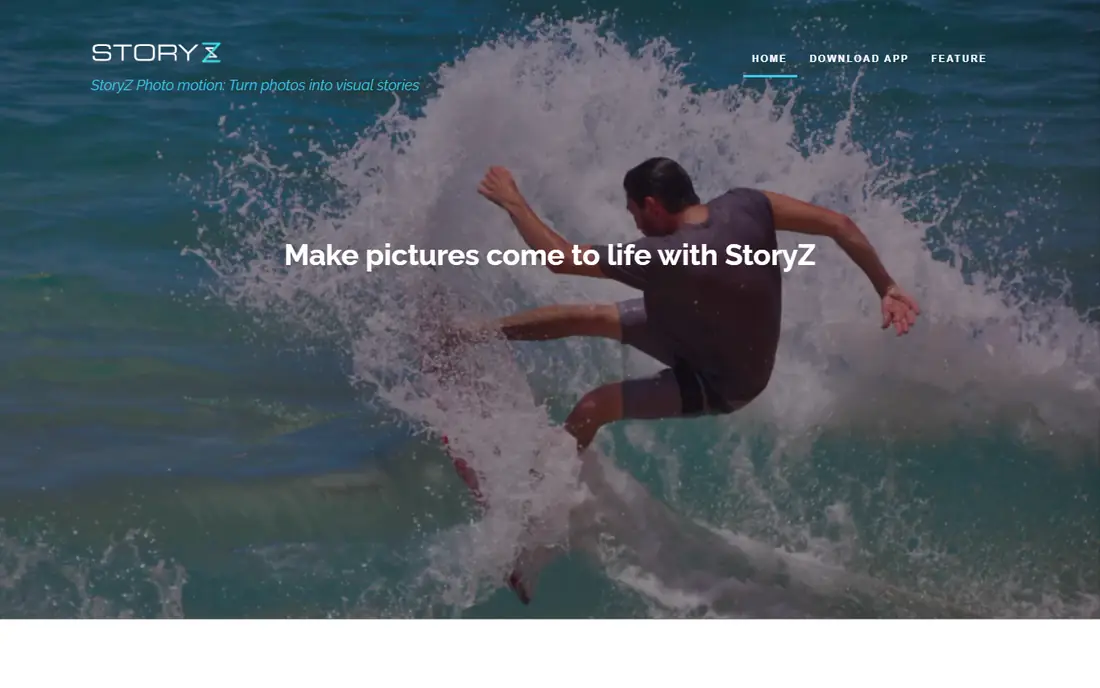
StoryZ offers two main paths: motion photos, where parts of an image move, and video stories, where photos combine with effects and music. You can add text, stickers, and transitions, which suits social posts, greetings, and short promos. The app is friendly for beginners, since templates and guided tools do much of the work.
The trade-off is control. StoryZ will not match Motionleap for precise masking and motion paths, and free exports can carry branding. For quick, fun clips rather than fine art edits, that trade is fair. If you post often and want speed over precision, StoryZ is a good daily tool.
- Motion and video story modes
- Text and music options
- Easy sharing
- Free exports may carry branding
- Fewer fine controls than Motionleap
PixaMotion
Ideal for: Quick moving photos
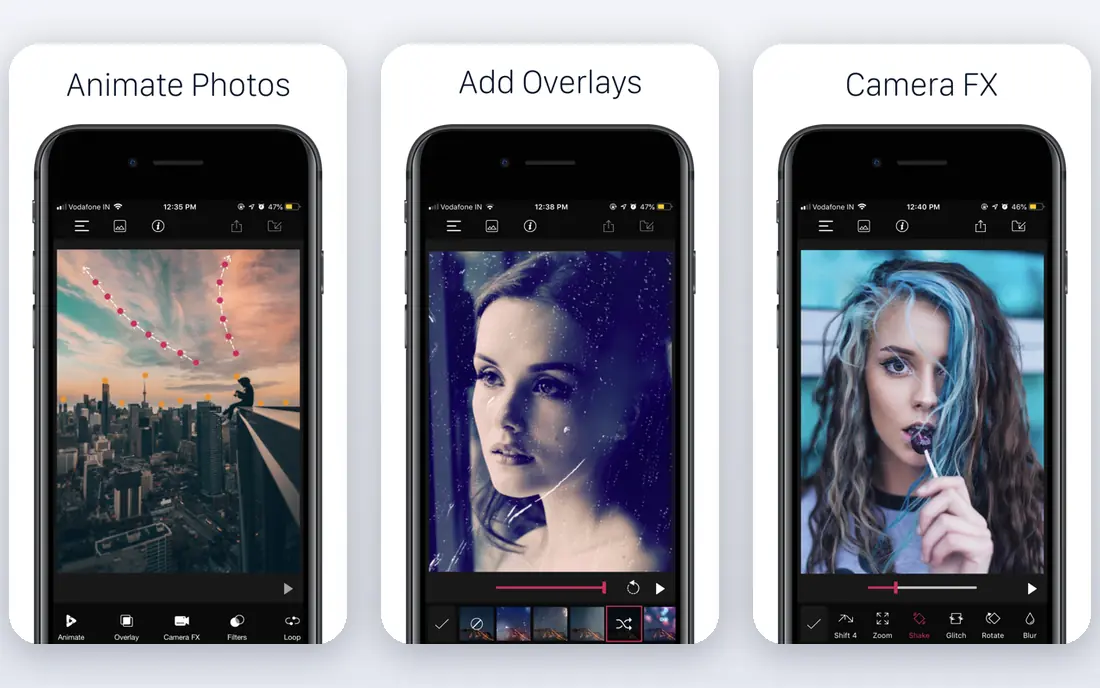
PixaMotion focuses on fast moving photos with simple controls. You select an area, set a motion direction, add overlays if you like, and export a loop. Geometric masks and preset effects help beginners get a decent result in minutes. That speed suits social media managers and casual creators who need content often.
Depth is limited compared with Motionleap, and the free plan restricts some exports. PixaMotion is not the tool for a careful, realistic animation of a complex scene. For everyday posts, memes, and quick experiments, it is one of the easiest options here.
- Simple motion tools
- Geometric and overlay effects
- Fast results
- Smaller feature set
- Export limits on free plan
Vimage
Ideal for: Cinemagraph-style clips
Vimage turns photos into cinemagraphs, where one part moves and the rest stays frozen, using a large library of effects for rain, fire, steam, and light. You pick an effect, adjust its strength and placement, and export a loop for social feeds. The effect library is the draw: it covers moods and seasons that would take time to build by hand.
The risk is sameness, since popular effects appear in many posts. Paid effects also add up if you use the app often. For creators who want a fast, good-looking cinemagraph without manual masking, Vimage is a strong choice, especially for product and travel photos.
- Large effect library
- Cinemagraph focus
- Easy loop exports
- Many effects need payment
- Results can look generic
Loopsie
Ideal for: 3D and template effects
Loopsie is known for 3D photo effects and trendy templates that turn a selfie or portrait into a moving clip in a few taps. The app suits short-form video feeds, where a bold effect in the first second matters more than subtle realism. Templates update with trends, so regular users can keep posts feeling current without editing skill.
Template tools have limits. Results can look like other Loopsie posts, and fine control is thinner than in Motionleap. Free exports may also limit resolution. For fun, fast, trend-driven clips, Loopsie is a good pick. For careful photo work, choose a more precise tool.
- 3D photo effects
- Trendy templates
- Quick social exports
- Template-heavy results
- Free plan limits quality
MyHeritage
Ideal for: Animating old portraits
MyHeritage Deep Nostalgia animates faces in old photos, so a grandparent portrait can blink, smile, and turn its head in a short clip. The same platform offers photo repair, colorization, and enhancement, which helps old, damaged photos look better before animation. For family historians, the emotional result is the point, and few tools in this list do this specific job.
The animation works best on clear, front-facing portraits and is not a general photo animation tool. Full access needs a subscription, and free use is limited. Treat the result as a tribute rather than a record, since the motion is generated, not real footage. For family photos, MyHeritage is in a class of its own.
- Brings old portraits to life
- Photo repair and color tools
- Family history context
- Animation is portrait-focused
- Full features need a subscription
Kaiber
Ideal for: AI video from images
Kaiber turns images and text prompts into stylized AI video, which suits musicians, artists, and creators who want a dreamlike or animated look rather than realistic motion. You upload a photo, choose a style, add a prompt, and get a short video clip. That makes it useful for music visuals, art projects, and experimental social content.
Results vary. A good prompt and a clear source image help, but you may need several tries for a usable clip, and free credits run out fast. Kaiber is not a replacement for precise photo animation tools. For creators who want AI style and motion together, it is the most creative option here.
- Stylized AI video from photos
- Music video styles
- Prompt-based control
- Results vary by prompt
- Credits limit free use
How we picked these
We compared official feature pages, pricing pages, app store listings, and public reviews for each app, and we favored apps that still work in October 2026 and truly animate photos rather than only applying filters. We did not claim hands-on testing, and we weighed motion control, export quality, ease of use, and free plan limits. Where a price was unclear at writing time we wrote "See website" rather than guessing.
What to check before you choose
Start with the photo you want to animate. A clear subject and a simple background give better results than a busy scene, and portraits suit MyHeritage and Loopsie while scenes suit Motionleap and Vimage. Check export options before you invest time: resolution, length, watermark, and format decide whether a clip is usable for your feed or only for a preview.
Think about volume too. A one-off family clip can use a free plan, while daily social posting may need a subscription. Read the terms for commercial use if you animate photos for a business, and never animate a photo of another person in a misleading way. For personal photos, a short test with two or three apps will show which control style suits you fastest.
Also think about where the finished clip will live. A loop for a social feed needs different length, size, and format than a clip for a presentation or a family slideshow, so check export settings before you invest time in a detailed edit. Short loops under ten seconds tend to hold attention on social feeds, while longer clips suit stories and presentations where viewers expect more. Test the same edit on your phone and on a larger screen, since motion that looks smooth on a small screen can look jittery when enlarged. Pay attention to file size as well, since large video files can fail to upload or lose quality when a platform compresses them. If you post often, build a simple routine: pick one moving element, set its speed, preview the loop twice, then export.
Budget also shapes the choice more than feature lists suggest. Free plans suit one-off clips, but watermarks and resolution limits make them awkward for business posts or gifts you want to keep. A monthly subscription pays off only if you animate several photos a month, so count your real output before subscribing. Annual plans usually cost less per month, but only commit after a trial month proves you use the app. Keep original photos backed up separately, since animation apps may store projects in their own format. Finally, respect the people in your photos: animate your own images or images you have clear permission to edit, and label AI-generated motion honestly when viewers might mistake it for real footage.
Frequently asked questions
What is the best photo animation app for beginners?
StoryZ and PixaMotion are good beginner picks because they guide you through motion and templates quickly. Motionleap gives more control but takes longer to learn. Start with a free plan and try the same photo in two apps to compare results.
Can I animate a photo for free?
Yes, most apps here offer free plans, but free exports may carry watermarks or limit resolution and length. For a one-off personal clip, free use is often enough. For regular posting or business use, a paid plan gives cleaner exports and more effects.
What makes a good photo for animation?
A sharp photo with a clear subject and a simple background works best. Motion looks natural when only one or two elements move, such as sky, water, or hair. Busy scenes with many moving parts often look messy, so keep the motion focused.
Are AI photo animations real footage?
No. AI and motion tools generate movement from a still image, so the result is an artistic effect rather than a record of what happened. That matters for old family photos and for any image where viewers might mistake animation for real video.
Which app is best for animating old family photos?
MyHeritage is the best pick for old portraits, since its tools repair, colorize, and animate faces in one place. For old outdoor or group photos, Motionleap may work better, but portrait animation is MyHeritage territory.