Best Photo Apps in 2026: 8 Apps Compared

- 1
 Google PhotosMost people who want backup and organizationVisit
- 2
 Apple PhotosApple users who want simple organizationVisit
- 3
 Adobe LightroomPhotographers who want serious editingVisit
- 4
 SnapseedMobile editors who want free powerVisit
- 5
 VSCOCreators who love film style presetsVisit
- Our pick for most people is Google Photos, which stands out for most people who want backup and organization.
- Apple Photos is the strongest alternative if you want apple users who want simple organization, and it is worth comparing side by side with our top pick.
- 7 of the 8 options here offer a free plan, so you can test the core features before paying anything.
- Prices vary widely, and several options use quote based pricing, so check the official pricing page for your team size before you decide.
- The right choice depends on your budget, your must have features, and how much setup time you can spare, so use the buying guide below to narrow the list to two or three finalists.
Quick comparison
| Product | Ideal for | Price from | Free version | |
|---|---|---|---|---|
| Google Photos | Most people who want backup and organization | Free | Yes | Visit |
| Apple Photos | Apple users who want simple organization | Free | Yes | Visit |
| Adobe Lightroom | Photographers who want serious editing | See website | Free trial | Visit |
| Snapseed | Mobile editors who want free power | Free | Yes | Visit |
| VSCO | Creators who love film style presets | Free | Yes | Visit |
 Flickr | Photographers who want community and storage | Free | Yes | Visit |
 Amazon Photos | Prime members who want unlimited photo storage | Free | Yes | Visit |
 Polarr | Editors who want custom filters and masks | Free | Yes | Visit |
The best photo apps
We compared 8 options for best photo app, looking at features, pricing, free plans, and honest weaknesses, so you can choose with confidence. The list below mixes well known leaders with smaller options that punch above their weight, and every product block sets out who it fits best and where it falls short.
Google Photos
Ideal for: Most people who want backup and organization
Google Photos backs up photos automatically, organizes them with search, and makes sharing simple. Face and object search helps you find old photos fast, and albums and sharing links work across devices.
Original quality storage counts against your Google storage limit, and editing tools are basic compared with Lightroom. As an organizer and backup, it remains the default for many users.
Before you commit to Google Photos, weigh the trade offs in the pros and cons above against your own priorities, and use the free plan to test it with a real task. Free access makes it easy to check the core experience, but watch for the limits that matter to you, such as the drawbacks noted above, before you build a routine around it.
- Automatic backup and search
- Easy sharing
- Free basic storage
- Original quality storage may count against Google storage
- Editing is basic
Apple Photos
Ideal for: Apple users who want simple organization
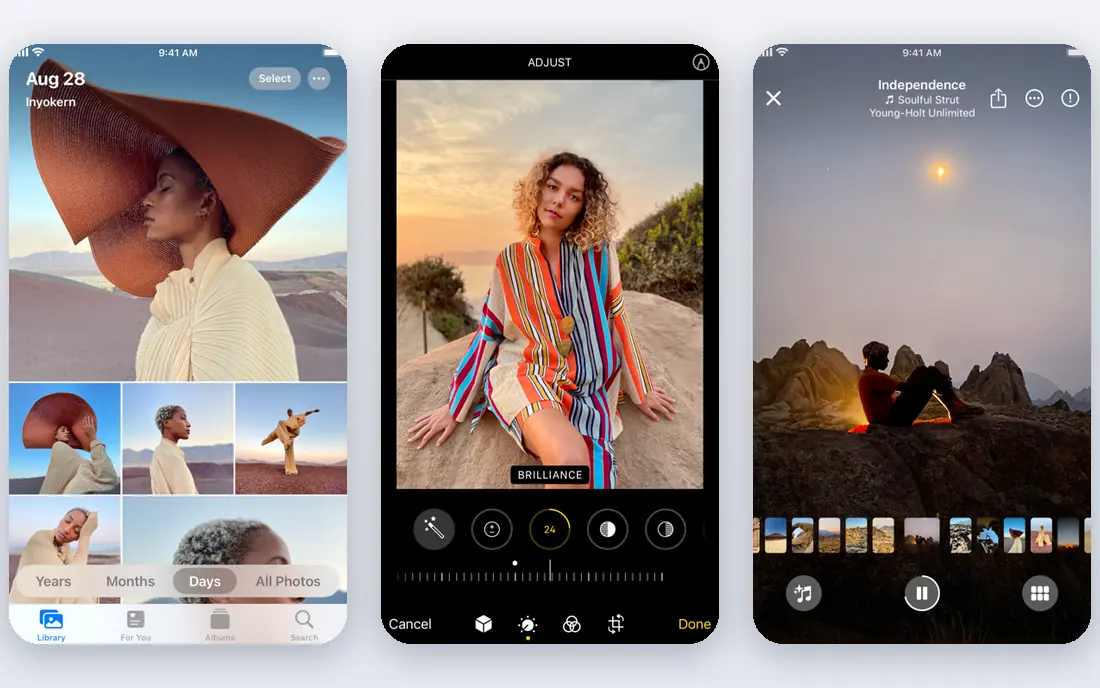
Apple Photos comes built into iPhones, iPads, and Macs, with iCloud sync across devices and simple editing tools. Memories and people albums surface old photos without effort.
It works best inside the Apple ecosystem, and large libraries need paid iCloud storage. For Apple users, the integration is smooth in daily use.
Before you commit to Apple Photos, weigh the trade offs in the pros and cons above against your own priorities, and use the free plan to test it with a real task. Free access makes it easy to check the core experience, but watch for the limits that matter to you, such as the drawbacks noted above, before you build a routine around it.
- Built into Apple devices
- ICloud sync
- Simple editing
- Apple ecosystem only
- ICloud storage costs for large libraries
Adobe Lightroom
Ideal for: Photographers who want serious editing
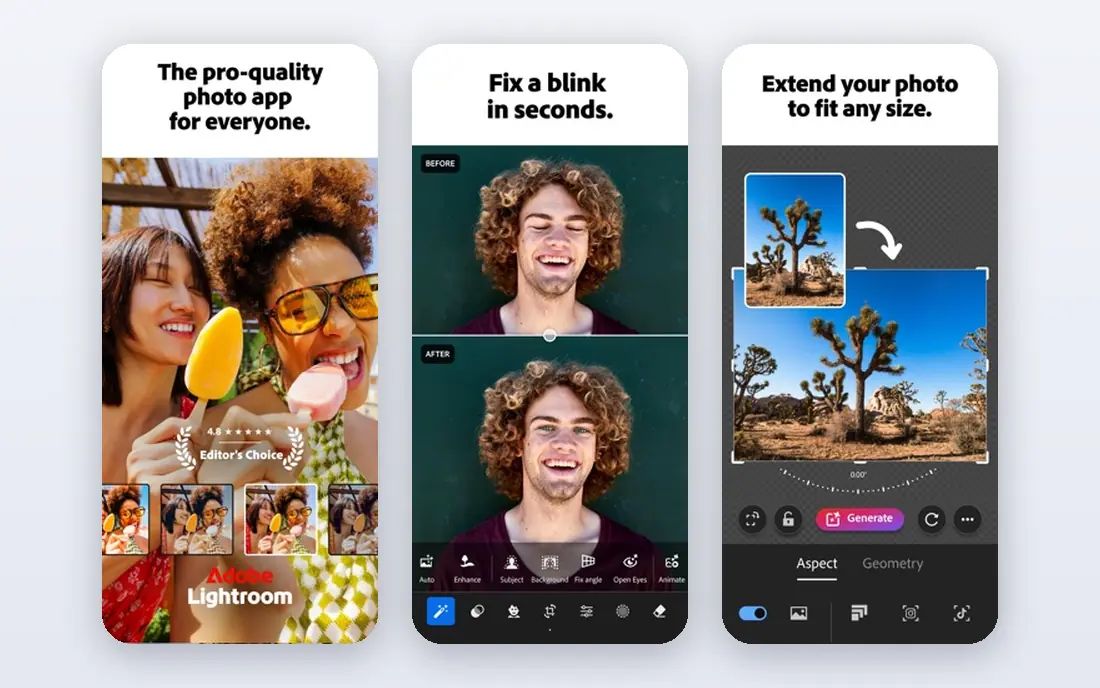
Adobe Lightroom is the standard for photographers who edit raw files, with powerful controls, presets, and cloud sync across phone and desktop. Organization tools handle large catalogs well.
It needs a subscription, and beginners face a learning curve. For photographers who edit regularly, the depth justifies the cost.
Before you commit to Adobe Lightroom, weigh the trade offs in the pros and cons above against your own priorities, and use the free trial to test it with a real task. A trial is the best way to learn whether the strengths outweigh the drawbacks noted above, so run it with your actual workload rather than a sample project.
- Powerful raw editing
- Presets and cloud sync
- Organizer tools
- Subscription cost
- Learning curve for beginners
Snapseed
Ideal for: Mobile editors who want free power
Snapseed from Google is a free mobile editor with selective adjustments, healing, and fine control that rivals paid apps. There are no ads, and exports keep good quality.
There is no cloud sync or desktop version, and the interface takes a little learning. For free mobile editing, Snapseed is the benchmark.
Before you commit to Snapseed, weigh the trade offs in the pros and cons above against your own priorities, and use the free plan to test it with a real task. Free access makes it easy to check the core experience, but watch for the limits that matter to you, such as the drawbacks noted above, before you build a routine around it.
- Free and powerful mobile editing
- Selective adjustments
- No ads
- No cloud sync or desktop version
- Interface takes learning
VSCO
Ideal for: Creators who love film style presets
VSCO is known for film style presets that give photos a consistent, analog look. The editor is simple, and the community features let creators share work without the noise of larger social apps.
The full preset library needs a subscription, and social features will not appeal to everyone. For a consistent photo look, VSCO presets remain popular.
Before you commit to VSCO, weigh the trade offs in the pros and cons above against your own priorities, and use the free plan to test it with a real task. Free access makes it easy to check the core experience, but watch for the limits that matter to you, such as the drawbacks noted above, before you build a routine around it.
- Beautiful film presets
- Social community
- Simple editing
- Full preset library needs a subscription
- Social features are optional
Flickr
Ideal for: Photographers who want community and storage
Flickr remains a home for photographers who want high quality display, organization, and community feedback. Groups and albums help photographers share work with people who care about photography.
Free accounts have limits, and the community is smaller than in its peak years. For photographers who value display quality, Flickr still stands out.
Before you commit to Flickr, weigh the trade offs in the pros and cons above against your own priorities, and use the free plan to test it with a real task. Free access makes it easy to check the core experience, but watch for the limits that matter to you, such as the drawbacks noted above, before you build a routine around it.
- Photo community
- High quality display
- Organization tools
- Free account has limits
- Community is smaller than before
Amazon Photos
Ideal for: Prime members who want unlimited photo storage
Amazon Photos offers unlimited full resolution photo storage for Prime members, with automatic backup and family sharing. Prime members get real value without extra cost.
Value depends on Prime membership, and video storage is limited. For Prime households, it is an excellent backup option.
Before you commit to Amazon Photos, weigh the trade offs in the pros and cons above against your own priorities, and use the free plan to test it with a real task. Free access makes it easy to check the core experience, but watch for the limits that matter to you, such as the drawbacks noted above, before you build a routine around it.
- Unlimited photo storage for Prime members
- Automatic backup
- Family sharing
- Best value with Prime
- Video storage is limited
Polarr
Ideal for: Editors who want custom filters and masks
Polarr offers custom filters, masks, and selective editing on web and mobile, with tools that suit creators who build a consistent style. It works across devices without a desktop install.
Advanced features need a subscription, and the community is smaller than Lightroom. For filter makers and mobile editors, Polarr is flexible and capable.
Before you commit to Polarr, weigh the trade offs in the pros and cons above against your own priorities, and use the free plan to test it with a real task. Free access makes it easy to check the core experience, but watch for the limits that matter to you, such as the drawbacks noted above, before you build a routine around it.
- Custom filters
- Mask and selective tools
- Works on web and mobile
- Advanced features need a subscription
- Smaller community than Lightroom
How we picked these
We compared official feature pages, pricing pages, app store listings, privacy policies, and public reviews for each option, and we checked that every product website listed here loads and belongs to that product. We did not claim hands-on testing we did not do, and we favored products that are clearly available now, with pricing or free plan details we could verify or honestly mark as quote based.
We also weighed fit for the topic over raw popularity. A famous product that only partly covers the need lost ground to a smaller option built for the job, and we kept an eye on pricing at realistic team or household sizes rather than headline discounts that few buyers actually get.
How to pick a photo app for how you shoot
Start with your must have features
Write down the three features you cannot do without, then score each finalist against that short list. A long feature list looks impressive, but most buyers use a small set of features daily, and the product that nails those three will serve you better than a broader tool with a weak core. Check the free plan or trial limits against your real workload, not a demo, so you learn about caps before you commit.
Compare total cost, not just the headline price
Look at the price at your actual size, including per user fees, add ons, and payment or transaction charges. A free plan can be the cheapest start, but it can also cost time if it lacks a feature you need every week. Ask what happens when you grow: does the next tier jump sharply, and does the product still fit at that size?
Test before you commit
Run a short trial with a real task from your daily work, not a sample project. Invite the people who will use the product every day, and watch where they get stuck. A tool that feels easy in a sales demo but confusing in daily use will cost you adoption, so trust the trial more than the brochure.
Check support and the exit route
Look at how you get help when something breaks: live chat, email, phone, or community forums, and whether support hours match your working hours. Also check how you export your data if you leave, since a tool that locks your work inside is a long term risk. A clear export path and responsive support are worth more than a small price difference.
Frequently asked questions
What is the best photo app overall?
For most people, Google Photos is the best free organizer and backup, while Lightroom is the best editor for serious photographers. The right app depends on whether you shoot, edit, organize, or share most. Many people use two apps: one for backup, one for editing.
Are photo apps free?
Many strong apps are free, including Google Photos, Snapseed, and Apple Photos. Paid apps add advanced editing, cloud storage, or professional tools. Start free and pay only for features you actually use.
Can phone apps replace desktop photo editors?
For most editing, yes. Mobile apps now handle raw files, selective edits, and presets well. Desktop editors still win for large catalogs, batch work, and print preparation.
What about photo privacy and backup?
Cloud backup protects photos if you lose your phone, but it means trusting a provider with your images. Check storage limits, encryption, and whether original quality is kept. Keep a second backup for photos you cannot lose.
Which photo app is best for beginners?
Apple Photos and Google Photos suit beginners best, with automatic organization and simple edits. Snapseed adds more editing control without complexity. Start simple, and move to Lightroom when you want deeper control.