Best Photo Collage App Free in 2026: 8 Apps Compared

- 1
 CanvaBest overall free collagesVisit
- 2
 PicCollageQuick phone collagesVisit
- 3
 Layout from InstagramSimplest social collagesVisit
- 4
 PhotoGridGrids, video and scrapbooksVisit
- 5
 FotorCollages plus photo editingVisit
- Canva offers the best free collage experience overall, with templates, layouts and design tools in one place.
- PicCollage and PhotoGrid suit quick phone collages with stickers, grids and freestyle layouts.
- Layout from Instagram is the simplest free collage maker, ideal for fast social posts.
- Fotor, BeFunky, Moldiv and PicsArt add editing depth, with PicsArt strongest for creative effects.
Quick comparison
| Product | Ideal for | Price from | Free version | |
|---|---|---|---|---|
| Canva | Best overall free collages | Free | Yes | Visit |
| PicCollage | Quick phone collages | Free | Yes | Visit |
| Layout from Instagram | Simplest social collages | Free | Yes | Visit |
| PhotoGrid | Grids, video and scrapbooks | Free | Yes | Visit |
| Fotor | Collages plus photo editing | Free | Yes | Visit |
 BeFunky | Creative collage layouts | Free | Yes | Visit |
 Moldiv | Magazine-style collages | Free | Yes | Visit |
 PicsArt | Creative effects and stickers | Free | Yes | Visit |
The best free photo collage apps
A photo collage app combines several photos into one image, whether a clean grid, a freestyle scrapbook or a story layout for social media. The eight apps below all offer free collage making in 2026, and they differ in templates, editing depth and watermarks. We compared official app pages, pricing pages and store listings.
Canva
Ideal for: Best overall free collages
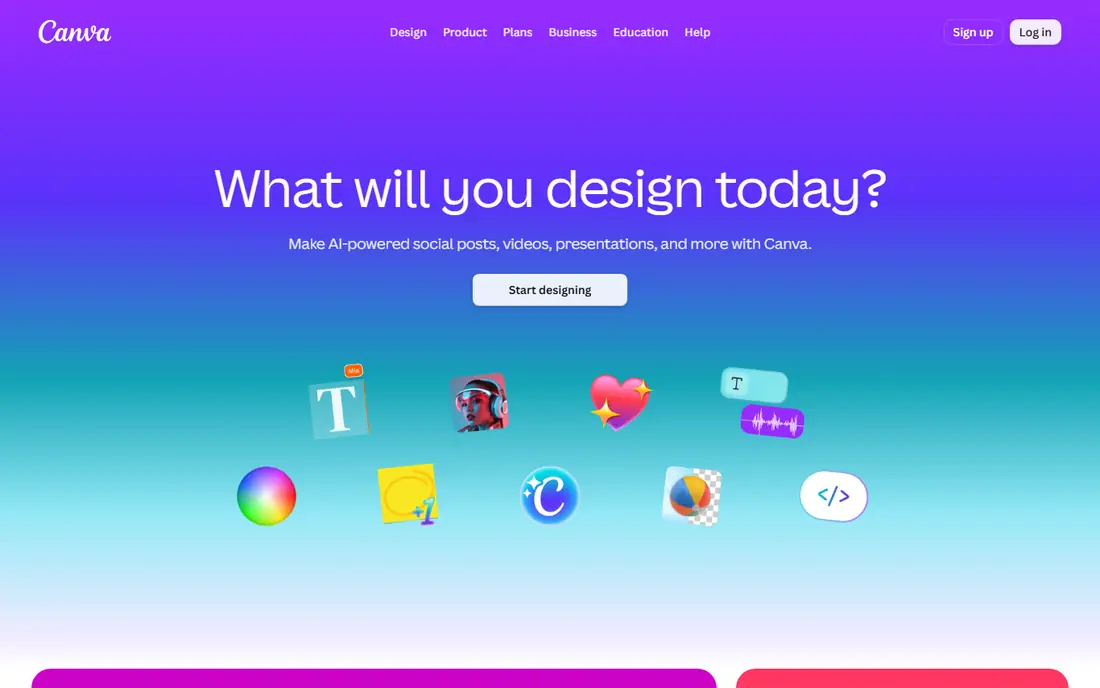
Canva is the best free collage tool for most users, with thousands of collage templates, grids and layouts, plus text, stickers and background tools in a drag-and-drop editor that works on web and mobile. A collage that looks designed, not just assembled, takes minutes.
Some premium templates and elements need Pro, and the free plan includes Canva branding on some designs. For a free collage that looks polished, Canva is the first app to try.
- Huge template and grid library
- Easy drag-and-drop design
- Works on web and mobile
- Some templates and elements need Pro
- Export options vary by plan
PicCollage
Ideal for: Quick phone collages
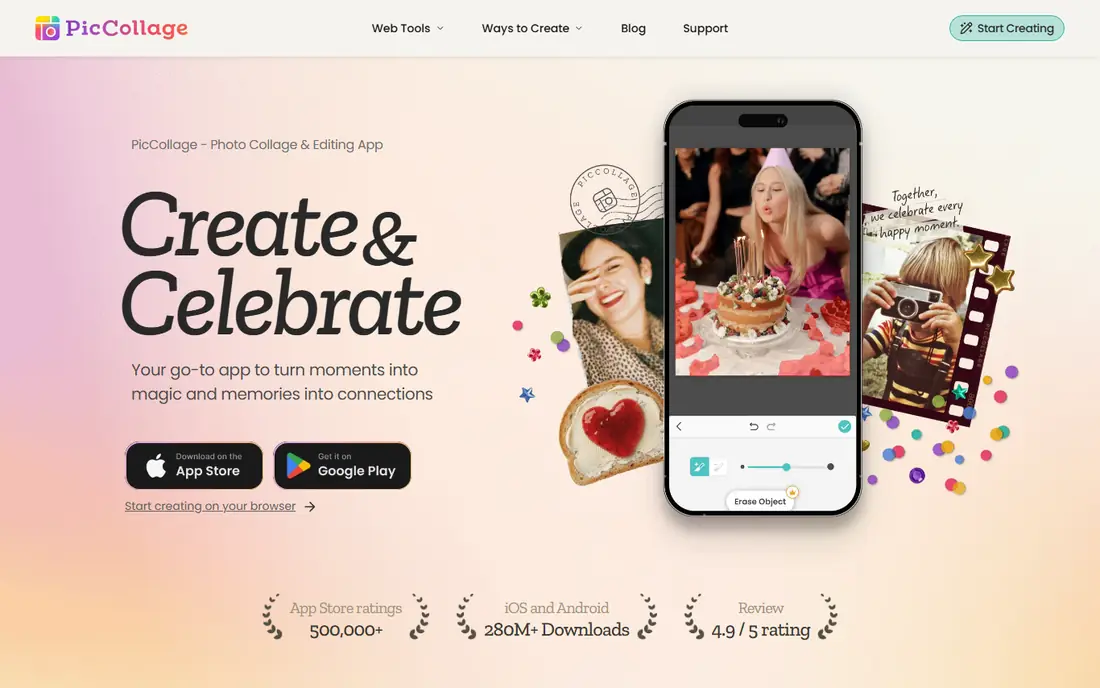
PicCollage is a phone-first collage app with grids, freestyle layouts, stickers, text and backgrounds that make a fun collage in minutes. Its simplicity suits casual users who want a quick result for social media or printing.
The free version includes ads and watermark considerations, with VIP adding more. For a fast, playful phone collage, PicCollage is a longtime favorite.
- Very easy grids and freestyle layouts
- Stickers, text and backgrounds
- Good for social sharing
- Free version includes watermark options and ads
- Some features need VIP
Layout from Instagram
Ideal for: Simplest social collages
Layout, from Instagram, is the simplest collage app here: pick photos, choose a grid, and share directly to Instagram. There is almost nothing to learn, and the result is clean and fast.
Editing is minimal, with no freestyle layouts, stickers or text tools of note. For a quick grid to post right now, Layout is perfect, and for anything fancier, use Canva or PicCollage.
- Completely free and very simple
- Fast grid layouts from camera roll
- Direct Instagram sharing
- Very limited editing and templates
- No freestyle or text tools of note
PhotoGrid
Ideal for: Grids, video and scrapbooks
PhotoGrid offers grids, scrapbook layouts and video collages, plus filters, stickers and text, making it more versatile than Layout while staying easy on a phone. Its templates cover birthdays, travel, family and social posts well.
The free version includes a watermark and ads, with Premium removing them and adding more. For a versatile free phone collage app, PhotoGrid is a strong choice.
- Many grids, scrapbook and video collage options
- Filters and stickers
- Easy sharing
- Free version includes watermark and ads
- Some features need Premium
Fotor
Ideal for: Collages plus photo editing
Fotor pairs a collage maker with a real photo editor, so you can adjust photos, apply filters and build a collage in one place on web or mobile. Its templates are clean, and its editing depth exceeds most collage-only apps.
Some features need Pro, and the interface packs a lot in. For a user who wants editing and collage together free, Fotor is a practical pick.
- Collage maker plus real photo editing
- Web and mobile
- Good templates
- Some features need Pro
- Interface can feel busy
BeFunky
Ideal for: Creative collage layouts
BeFunky is a web-based editor with creative collage layouts, templates and a full photo editor, so a user can design a collage in a browser without installing an app. Its layouts feel more designed than basic grids.
Some layouts need the Plus plan, and the free plan includes ads. For a browser-based collage with creative flair, BeFunky is a good free option.
- Creative collage layouts and templates
- Good photo editor included
- Web based, no install
- Some layouts need Plus
- Free plan includes ads
Moldiv
Ideal for: Magazine-style collages
Moldiv specializes in magazine and poster-style collages, with layouts that look editorial rather than grid-like, plus camera and editing tools for a polished result. Its design sense suits users who want collages that look like magazine pages.
Free limits and watermark considerations apply, with more available on paid plans. For a stylish, editorial collage on a phone, Moldiv stands out.
- Magazine and poster-style layouts
- Good camera and editing tools
- Clean design
- Free version has limits and watermark considerations
- IOS and Android focus
PicsArt
Ideal for: Creative effects and stickers
PicsArt is a full creative app with collage tools alongside a huge library of stickers, effects, filters and templates, plus a community for inspiration. Its collage maker benefits from that creative depth, letting users go far beyond a simple grid.
The free plan includes ads, and the interface can overwhelm a beginner. For a creative user who wants collage plus effects in one free app, PicsArt is the most expansive choice.
A further design tip is matching photo orientation to the layout. A grid of mixed portrait and wide photos needs cropping decisions, so choose a layout that fits your photos rather than forcing every photo into the same square. Letting one wide photo span the width, with portraits below, usually looks more natural than cropping everything to fit.
- Huge sticker, effect and template library
- Collage plus full editing
- Large creative community
- Free plan includes ads and some watermarks
- Interface can overwhelm beginners
How we picked these
We compared official app pages, pricing pages and store listings, focusing on free collage features, templates, editing depth, watermarks and ease of use. We favored apps that are actively maintained today and let a user make a good collage without paying.
We also checked watermark and ad behavior, since a free app that stamps every collage is less free in practice. That difference is flagged wherever it matters.
How to make a good photo collage for free
Pick photos with a theme, not just your favorites. A collage works when photos share a color, event or story, like a trip, a birthday or a season. Choose five to nine strong photos rather than twenty average ones, and let one hero photo take the largest space.
Keep grids clean and text short
Clean grids with consistent spacing look better than crowded freestyle layouts for most uses, and short text, like a date or place, beats paragraphs on a collage. If you add stickers, use a few that match the theme rather than covering photos.
Check resolution before printing
A collage for social media can use phone-resolution photos, but a printed collage needs high-resolution originals. Build print collages in Canva, Fotor or BeFunky on a computer, export at the largest size offered, and check the result at full size before ordering.
Watch for watermarks on free plans
Some free apps add watermarks or require a paid plan to remove them. Check the exported image before sharing or printing, and switch apps if a watermark spoils the result. Canva and Layout are the safest free bets for clean exports. Also export a test collage and view it on another device before sharing widely, since colors and cropping can look different on other screens than on your own phone. Also keep a copy of the original photos and the project file when the app allows it, so you can rebuild or adjust the collage later without starting from scratch. A saved project also makes it easy to create matching versions for print and social media. That small habit saves real time on future projects. Start that habit with your next collage.
If you are still unsure, start with a free plan and move to a paid plan only when you hit its limits.
Frequently asked questions
What is the best free photo collage app?
Canva is the best overall free collage app, PicCollage and PhotoGrid suit quick phone collages, and Layout is simplest for social grids. PicsArt offers the most creative effects free.
Can I make a photo collage for free without watermark?
Yes, with care. Canva and Layout generally export clean collages free, while PicCollage, PhotoGrid and Moldiv may add watermarks on free plans. Check the export before sharing.
What is the best app for picture collage on iPhone?
Canva, PicCollage, PhotoGrid and Moldiv all work well on iPhone, with Canva best for design and PicCollage best for speed. Layout is simplest for Instagram grids.
How do I make a collage on Android?
Install Canva, PicCollage, PhotoGrid or PicsArt, pick a grid or template, add photos, adjust spacing and text, and export. All four offer free Android versions with good results.
Can I print a collage made in a free app?
Yes. Export at the highest resolution offered, preferably from a web editor like Canva, Fotor or BeFunky, and check quality at full size before printing. Phone-only collages may print softer at large sizes.
How many photos should a collage include?
Five to nine photos work best for most collages, with one larger hero photo and the rest supporting it. More than twelve photos usually looks crowded, especially on a phone screen, so edit ruthlessly before building.