Best Photo Editing Software for Beginners in 2026: 8 Tools Compared

- 1
 Adobe Photoshop ElementsGuided beginner editingVisit
- 2
 CanvaQuick edits and designVisit
- 3
 Luminar NeoAI-assisted photo editingVisit
- 4
 Affinity PhotoGrowing beyond beginnerVisit
- 5
 PixlrFree browser editingVisit
- Adobe Photoshop Elements is the best beginner desktop editor, with guided edits and a one-time price.
- Canva and Pixlr suit quick online edits, with Canva best for design and Pixlr best for photo adjustments.
- Luminar Neo and Affinity Photo offer more power for beginners ready to grow, without subscriptions.
- GIMP and Photopea are free options, with Photopea easiest to start and GIMP deepest for long-term learning.
Quick comparison
| Product | Ideal for | Price from | Free version | |
|---|---|---|---|---|
| Adobe Photoshop Elements | Guided beginner editing | See website | Free trial | Visit |
| Canva | Quick edits and design | Free | Yes | Visit |
| Luminar Neo | AI-assisted photo editing | See website | Free trial | Visit |
| Affinity Photo | Growing beyond beginner | See website | Free trial | Visit |
| Pixlr | Free browser editing | Free | Yes | Visit |
 Photopea | Free Photoshop-style editing | Free | Yes | Visit |
 GIMP | Free deep learning | Free | Yes | Visit |
 Apple Photos | Mac and iPhone beginners | Free | Yes | Visit |
The best photo editing software for beginners
Beginner photo editors should be easy to learn, forgiving of mistakes, and capable enough to grow with you. The eight tools below range from guided desktop editors to free browser tools, and they differ in price, power and learning curve. We compared official feature pages, pricing pages and documentation.
Adobe Photoshop Elements
Ideal for: Guided beginner editing
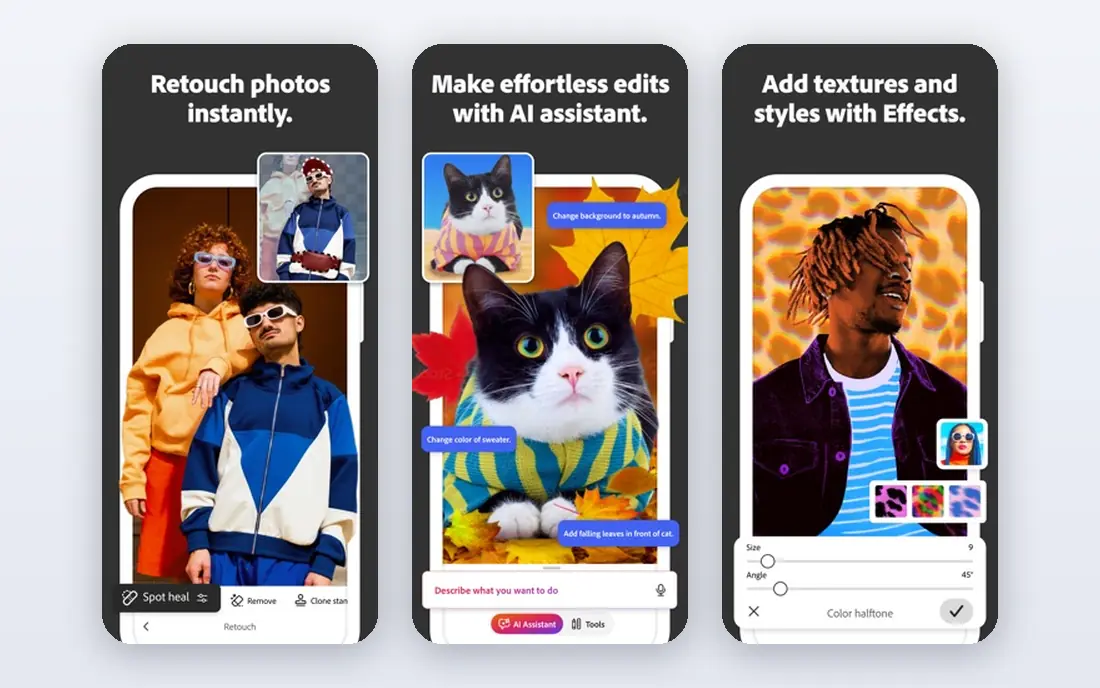
Photoshop Elements is Adobe's beginner editor, with guided edits that walk you through tasks like removing objects, fixing skies and creating collages step by step. That guidance teaches real skills while producing good results, and the organizer keeps photos tidy.
It is a one-time purchase, with new versions as paid upgrades, and it lacks the full power of Photoshop for advanced work. For a beginner who wants a desktop editor that teaches and lasts, Elements is the best pick.
- Guided edits teach as you go
- One-time purchase
- Strong organizer for photos
- Less powerful than full Photoshop
- New versions are paid upgrades
Canva
Ideal for: Quick edits and design
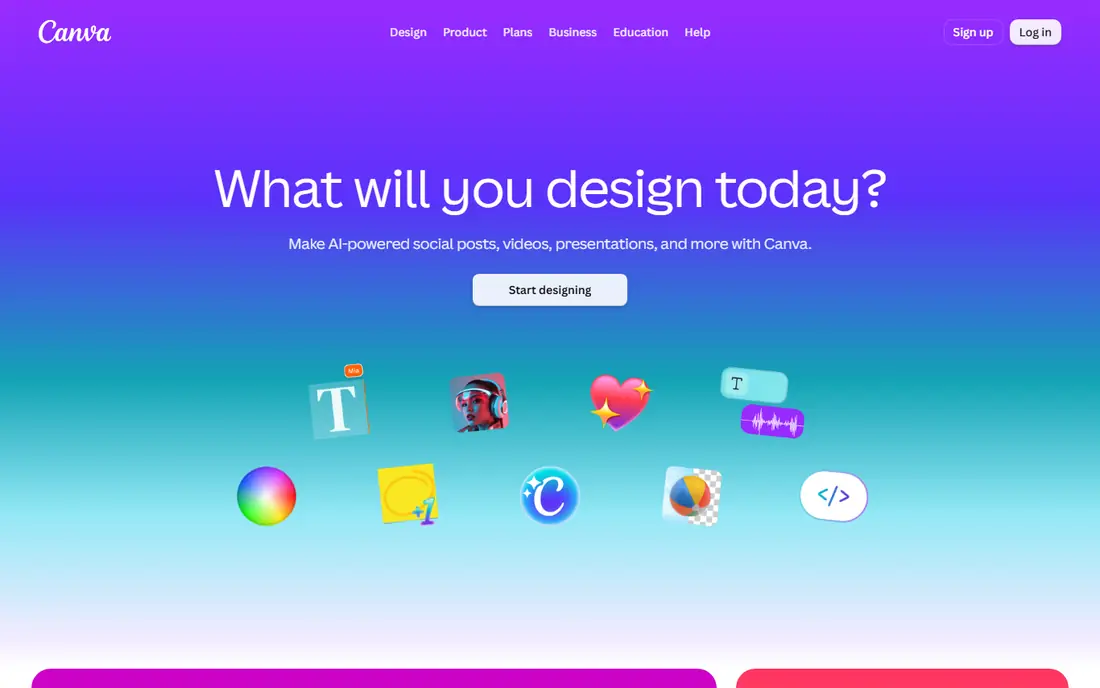
Canva is the easiest place for a beginner to improve a photo and turn it into a social post, flyer or card: one-click enhancements, filters, background removal on Pro, and thousands of templates. Its browser and mobile apps make editing possible anywhere.
Precise control over exposure, color and layers is lighter than a dedicated editor, and the best tools need Pro. For quick, good-looking results without learning curves, Canva is unbeatable for beginners.
- Very easy with templates and one-click edits
- Free plan covers most basics
- Works in browser and mobile
- Less precise photo control
- Many features need Pro
Luminar Neo
Ideal for: AI-assisted photo editing

Luminar Neo uses AI to simplify hard edits: replace a sky, relight a portrait, remove power lines or enhance scenery with sliders rather than manual masking. Presets and templates give beginners strong starting points that they can adjust.
Pricing mixes subscription and lifetime options, which takes care to compare, and performance on older machines can lag. For a beginner who wants dramatic results quickly, Luminar Neo is a fun and powerful choice.
- AI tools for sky, portrait and relighting
- Easy presets and templates
- Works as plugin or standalone
- Subscription or lifetime pricing can confuse
- Heavier on older computers
Affinity Photo
Ideal for: Growing beyond beginner
Affinity Photo gives beginners a path to professional editing at a one-time price, with layers, RAW development, retouching and panorama tools that rival Photoshop for most tasks. Its interface is clean, and its performance on modern computers is fast.
The learning curve is steeper than Photoshop Elements, and tutorials are fewer than Photoshop's vast library. For a beginner who plans to grow into serious editing, Affinity Photo is the best long-term value.
- Professional power at a one-time price
- Layers, RAW and retouching
- Fast on modern computers
- Learning curve steeper than Elements
- Fewer tutorials than Photoshop
Pixlr
Ideal for: Free browser editing
Pixlr runs in the browser with no install, offering a quick mode for one-click fixes and an advanced mode with layers, masks and adjustments for users ready to learn more. That split makes it a gentle on-ramp to real photo editing.
The free plan includes ads, and performance depends on your browser and connection. For a beginner who wants free, real editing without installing anything, Pixlr is a strong choice.
- Free browser editor with layers
- Quick and advanced modes
- No install needed
- Ads on free plan
- Less powerful than desktop editors
Photopea
Ideal for: Free Photoshop-style editing
Photopea is a free browser editor that looks and works much like Photoshop, opening PSD, XCF and RAW files with layers, masks and adjustments. For a beginner who wants Photoshop skills without paying, it is the closest free equivalent.
The interface can overwhelm a true beginner, and the free plan includes ads. For a motivated learner who wants real power free, Photopea is remarkable.
- Free browser editor similar to Photoshop
- Opens PSD, XCF and RAW files
- No install needed
- Ads on free plan
- Interface can overwhelm true beginners
GIMP
Ideal for: Free deep learning
GIMP is the free, open-source editor with the deepest toolset on this list, from layers and masks to scripting and plugins, backed by a large tutorial community. It runs on Windows, Mac and Linux, and it costs nothing forever.
The interface is dated and the learning curve is steep, and RAW editing needs a plugin. For a beginner willing to invest time for free, professional-level power, GIMP rewards patience like no other free tool.
- Free and open source with deep tools
- Huge plugin and tutorial community
- Works on all platforms
- Dated interface and steep learning curve
- RAW editing needs a plugin
Apple Photos
Ideal for: Mac and iPhone beginners
Apple Photos is free on Mac and iPhone, with simple tools for cropping, auto-enhance, filters and light adjustments, plus organization by people, places and memories. Its sync across Apple devices keeps edits everywhere.
Advanced editing is limited, and it is Apple only. For an Apple user who wants quick, good edits without learning an editor, Photos is the simplest place to start.
A further skill worth learning early is non-destructive editing. Work with layers, adjustment layers and copies so every change can be undone or adjusted later, rather than permanently altering pixels. That habit saves beginners from ruined photos and makes experimentation safe, which is how editing skill actually grows.
- Free on Apple devices
- Simple, good auto-enhance and crop tools
- Syncs across devices
- Apple only
- Limited advanced editing
How we picked these
We compared official feature pages, pricing pages and documentation, focusing on ease of learning, guided help, core editing tools, price model and file support. We favored tools that are actively maintained today and let beginners produce good results quickly.
We also weighed growth: the best beginner tool teaches skills that transfer, rather than trapping you in one-click filters. That is why guided and layered editors score higher than template-only tools here.
How to learn photo editing as a beginner
Start with five tools: crop, exposure, white balance, saturation and straighten. Those five fix most photos, and learning them well beats collecting fifty filters. Practice on your own photos daily for a week, and you will see improvement faster than any tutorial promises.
Edit a copy, not the original
Always work on a copy or use non-destructive editing where the app supports it, so a bad edit never loses the original. Most editors here preserve originals, but check before you start, especially with free browser tools.
Learn layers when you are ready
Layers let you adjust one part of a photo without affecting the rest, and they are the gateway to serious editing. Affinity Photo, Photopea and GIMP teach layers well, while Canva and Elements introduce the idea gently. Move to layers once basic edits feel easy.
Judge edits on a big screen
Phone screens hide noise, soft focus and color shifts that a laptop or monitor reveals. Review finished edits on the largest screen you have before printing or posting, and check skin tones and skies especially, since those show errors first. Also save edited photos in a separate folder from originals, so you always keep the untouched file for a fresh start.
Frequently asked questions
What is the best photo editing software for beginners?
Adobe Photoshop Elements is the best guided desktop editor, Canva is easiest for quick edits, and Affinity Photo is best for beginners who want to grow. Photopea and GIMP are the best free options.
Is there free photo editing software for beginners?
Yes. Photopea, GIMP, Pixlr and Apple Photos are free, and Canva offers a strong free plan. Photopea is closest to Photoshop, while Canva is easiest for quick results.
Is Photoshop too hard for beginners?
Full Photoshop has a steep learning curve, which is why Photoshop Elements exists with guided edits at a lower price. Beginners should start with Elements, Affinity Photo or Photopea, and move to Photoshop only if needed.
Can I edit photos on my phone as a beginner?
Yes. Canva, Apple Photos and the mobile versions of several editors here cover basic edits well. For precise work, a desktop editor with a larger screen is better, but phones handle most social edits fine.
What is the easiest photo editor to learn?
Canva is easiest for quick results, Apple Photos is easiest on Apple devices, and Photoshop Elements is easiest among desktop editors thanks to guided edits. Pick based on whether you want design, simplicity or growth.
What is the best way to learn photo editing?
Practice on your own photos daily, learn crop, exposure, white balance and saturation first, then move to layers. Short tutorials for one technique at a time beat long courses, and editing a copy protects your originals while you learn.