Best Photo Filter Tool Online in 2026: 8 Tools Compared

- Pixlr is our pick for most online filter users, with a large filter and effect library plus full editing in a browser, no install needed.
- Fotor and BeFunky suit casual creators who want one-click filters and templates, while Photopea suits advanced users who want Photoshop-style control free.
- Canva and Adobe Express suit creators who need filters inside a design workflow, with social templates and brand tools beside photo editing.
- Filters improve a good photo; they cannot rescue a blurry or badly exposed shot, so start with light, exposure and composition before adding a look.
Quick comparison
| Product | Ideal for | Price from | Free version | |
|---|---|---|---|---|
 Pixlr | All-round online filters | See website | Yes | Visit |
 Fotor | One-click filters | See website | Yes | Visit |
 BeFunky | Fun filters and templates | See website | Yes | Visit |
 Canva | Filters inside design | See website | Yes | Visit |
 Adobe Express | Filters inside Adobe workflow | See website | Yes | Visit |
 Photopea | Advanced free editing | See website | Yes | Visit |
 Polarr | Preset and filter control | See website | Yes | Visit |
 VSCO | Film-style presets | See website | Yes | Visit |
The best photo filter tool online
Online photo filter tools let you apply a look to a photo in a browser, without installing software. They differ in filter quality, editing depth, batch handling and export rules. We compared filter libraries, preset control, editing tools, free tiers and pricing for tools still operating in October 2026.
Pixlr
Ideal for: All-round online filters
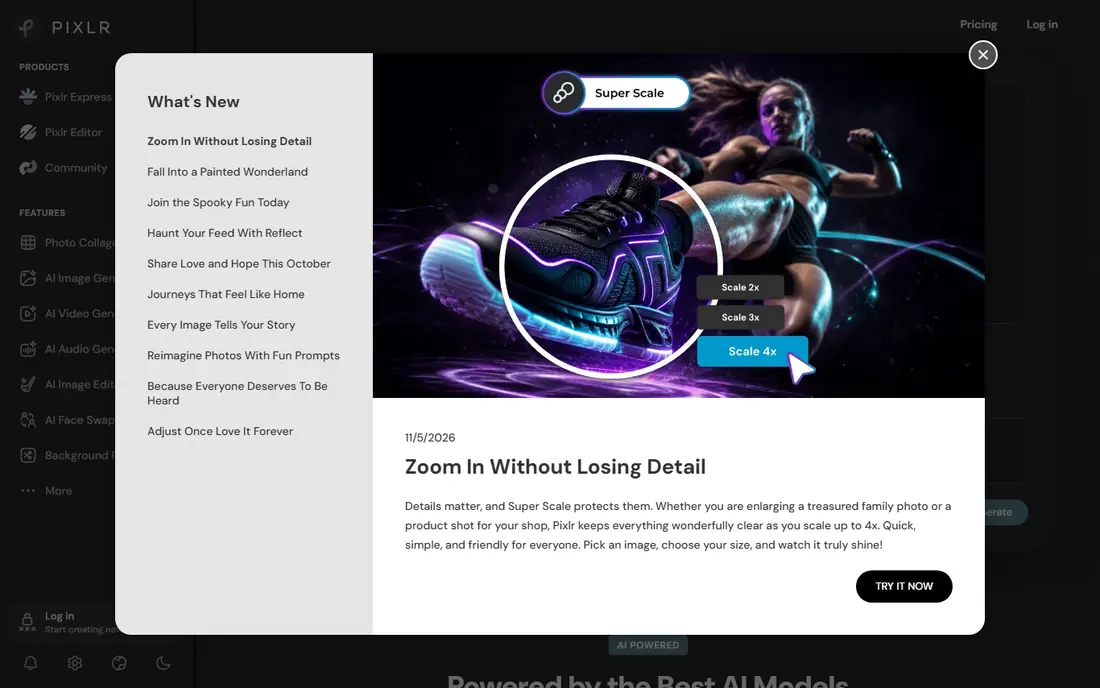
Pixlr is the all-round online pick. It offers a large library of filters and effects, plus full editing tools such as layers, adjustments, cropping and text, all in a browser. That combination suits a user who wants a quick filter today and deeper editing tomorrow, without switching apps.
The catch is the free tier. Ads appear on free use, and some premium filters, assets and features need a paid plan, so heavy users should check Premium pricing. For a free, capable online filter tool, Pixlr still leads this list.
- Large filter and effect library
- Full browser editing with layers
- No install needed
- Free tier includes ads and limits
- Premium filters and features need a paid plan
Fotor
Ideal for: One-click filters
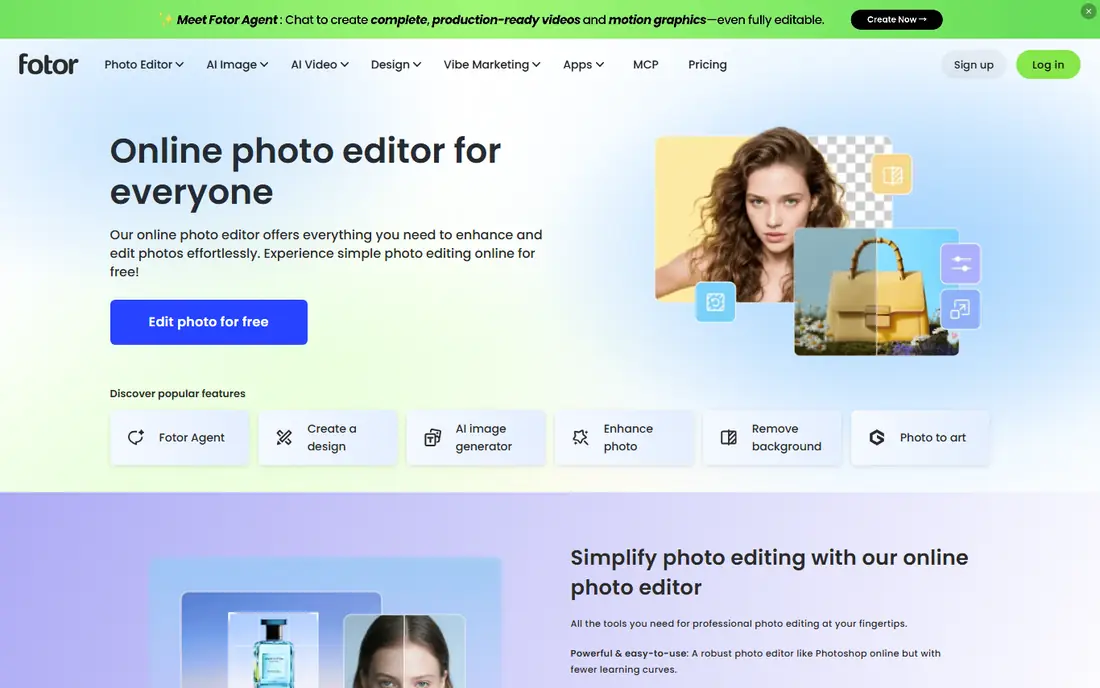
Fotor suits casual creators who want a fast, pretty result. Its one-click filters cover vintage, film, portrait and seasonal looks, with templates, collage makers and basic adjustments beside them. A free tier covers core filters, while a paid Pro plan adds more filters, batch editing and ad-free use.
The limit is depth. Fotor editing is lighter than Photopea or Pixlr advanced tools, so a user who wants layer control will outgrow it. For quick social photos with a consistent look, Fotor is fast and forgiving.
- Easy one-click filters
- Templates and collage tools
- Batch editing on higher tiers
- Free tier has limits and watermarks on some features
- Advanced editing trails Photopea
BeFunky
Ideal for: Fun filters and templates
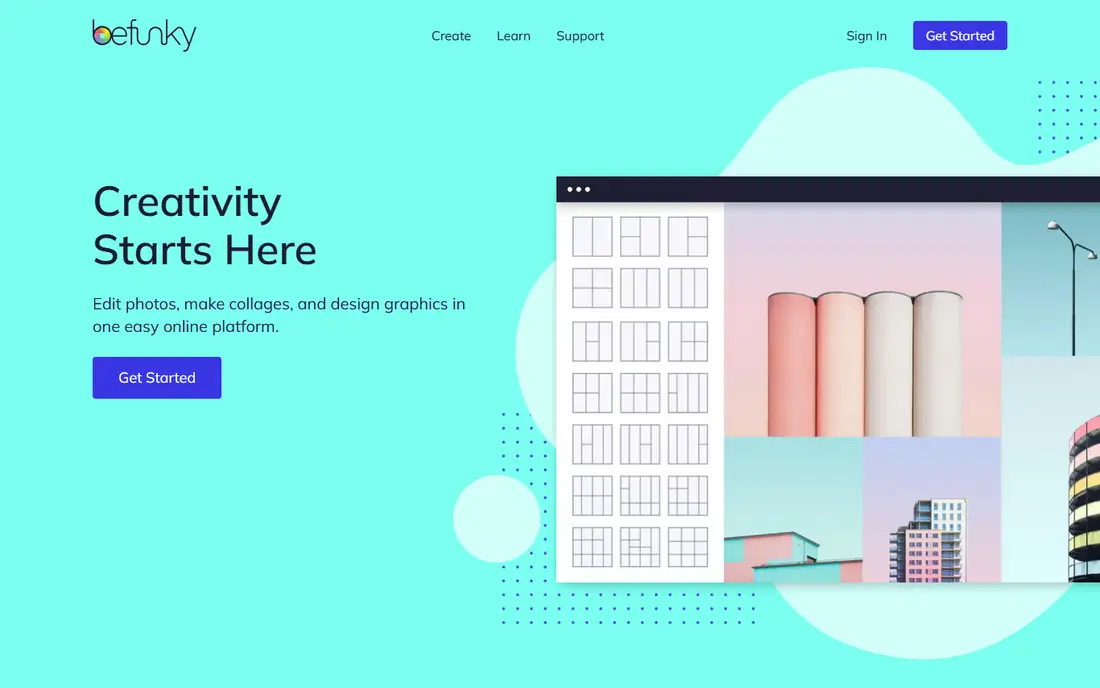
BeFunky suits users who enjoy playful filters and design. Its library includes artsy, vintage and pop-art effects beside standard photo filters, plus collage and graphic design tools that turn a filtered photo into a social post in minutes. A free tier covers core filters, with a paid Plus plan adding premium effects and ad-free use.
The weakness is pro depth. BeFunky is design-first and fun-first, so advanced retouching and layer work trail Pixlr and Photopea. For a casual creator who wants a distinctive look fast, BeFunky is a cheerful choice.
- Fun filter library with artsy effects
- Collage and graphic design tools
- Easy interface for beginners
- Free tier limits premium filters
- Advanced photo editing is lighter than Pixlr
Canva
Ideal for: Filters inside design
Canva suits creators who filter photos as part of a design, not as a standalone job. Its photo editor offers filters, adjustments and effects inside a platform with thousands of social, presentation and marketing templates, plus brand kits and team tools. A free tier covers core filters and templates, with Pro adding premium assets and features.
The catch is editing depth. Canva filters are good, but fine retouching, masking and layer control trail Pixlr and Photopea. Canva fits a creator who needs a filtered photo inside a post, story or flyer today, not a photographer who needs pixel-level control.
- Filters inside a huge design platform
- Social templates and brand tools
- Easy sharing and scheduling
- Photo editing depth trails dedicated editors
- Premium filters and assets need a Pro plan
Adobe Express
Ideal for: Filters inside Adobe workflow
Adobe Express suits Adobe users who want quick filters with Adobe polish. Its editor offers filters, effects, text and templates for social posts, flyers and short videos, with access to Adobe fonts and stock assets. A free tier covers core use, while a Premium plan adds more assets, brand tools and advanced features.
The limit is ceiling. Adobe Express is a quick design tool, not a replacement for Lightroom or Photoshop, so serious retouching still needs those apps. For a fast, polished social image with Adobe assets, Express is a strong pick.
- Adobe-quality filters and effects
- Templates for social and marketing
- Integration with Adobe libraries
- Premium filters and assets need a paid plan
- Advanced editing still needs Lightroom or Photoshop
Photopea
Ideal for: Advanced free editing
Photopea suits advanced users who want real editing power free. It runs Photoshop-style layers, masks, adjustments and filters in a browser, opens PSD files and common formats, and costs nothing for core use. That depth is unmatched among free online tools, and it suits a user who already understands layers.
The weakness is friendliness. Photopea interface is dense, filter presets are fewer than casual tools, and ads appear on the free tier. For a beginner who wants one-click looks, Fotor or BeFunky will feel faster, while an experienced editor will prefer Photopea control.
- Photoshop-style layers, masks and adjustments free in a browser
- Opens PSD and common formats
- No install needed
- Interface is complex for beginners
- Ads on the free tier
- Filter presets are fewer than Fotor
Polarr
Ideal for: Preset and filter control
Polarr suits users who love presets and want to tune them precisely. Its filter and preset tools offer fine control over strength, masks and adjustments, plus face-aware tools for portraits, and a community for sharing custom filters. A free tier covers core presets, with a paid Pro plan adding premium filters and advanced tools.
The limit is ecosystem. Polarr templates and design tools are thinner than Canva, so it fits photo-first users rather than design teams. For a photographer who builds a signature look and applies it consistently, Polarr control is excellent.
- Strong preset controls with fine tuning
- Face and object tools
- Filter creation and sharing
- Smaller template ecosystem than Canva
- Premium presets and features need a paid plan
VSCO
Ideal for: Film-style presets
VSCO suits photographers who love film looks. Its presets mimic film stocks with subtle, muted tones that suit portraits, travel and street photography, and its editing interface stays clean and focused. A free tier covers basic presets and editing, with a paid membership access to the full preset library and advanced tools.
The catch is breadth. VSCO presets are distinctive but narrower than Pixlr or Fotor libraries, and its social features are lighter than a full social network. For a consistent film-style feed, VSCO is the most tasteful preset pick here.
- Film-inspired presets with a distinctive look
- Clean editing interface
- Community for photo sharing
- Membership needed for full preset library
- Social and sharing features are lighter than Instagram
How we picked these
We compared filter libraries, preset control, editing depth, batch handling, export rules and pricing for online tools still operating in October 2026. We kept casual, design-led and advanced tools in the list, since filter users range from phone photographers to experienced editors. We did not run a colour science test, and we did not repeat vendor claims about filter quality as measured facts.
What to check before you buy
Start with your photo source. Filters work best on well-exposed, sharp photos, so fix exposure, white balance and cropping before applying a strong look. A heavy filter on a dark, blurry photo only makes flaws more obvious, while a light filter on a good photo looks intentional.
Next, check export rules. Confirm output resolution, file format and whether free exports add watermarks, since a filter tool that caps exports at low resolution will disappoint for prints or large screens. Paid plans usually remove watermarks and raise resolution, so test a full-size export before committing.
Finally, build a consistent look rather than chasing every filter. Pick two or three presets that suit your subjects, tune their strength down from full, and apply them consistently across a set or feed. Consistency makes a collection look professional, while a different dramatic filter on every photo looks random.
Frequently asked questions
What is the best free photo filter tool online?
Pixlr is our pick for most free online users because of its large filter library plus full browser editing. Photopea suits advanced free users, while Fotor and BeFunky suit casual users who want one-click looks without a learning curve.
Can I use online filter tools without installing software?
Yes. All tools in this list run in a browser, so you can filter photos on a computer, tablet or phone without installing an app. Photopea and Pixlr are the most capable browser editors, while Canva and Adobe Express add design tools beside filters.
Do free photo filter tools add watermarks?
Some free tiers add watermarks to certain features or limit export resolution, while core filters on Pixlr, Fotor and Photopea usually export without a watermark. Check the export terms for your exact tool and feature before using a filtered photo commercially.
Are VSCO presets worth paying for?
VSCO membership suits photographers who want its full film-style preset library and a consistent look across a feed. Casual users will find enough free presets in Pixlr, Fotor or Polarr, so pay for VSCO only if its specific film looks match your style.
How do I make filters look natural?
Lower the filter strength, fix exposure and white balance first, and avoid stacking several strong effects. A subtle filter that enhances colour and contrast looks professional, while a full-strength vintage or HDR effect on every photo quickly looks dated.