Best Photo Recovery Software in 2026: 8 Options Compared
- 1
 Disk DrillPhoto recovery with preview for most usersVisit
- 2
 R-StudioAdvanced recovery for technical usersVisit
- 3
 RecuvaFree first try for Windows usersVisit
- 4
 PhotoRecFree open source recoveryVisit
- 5
 EaseUS Data Recovery WizardGuided recovery for beginnersVisit
- Disk Drill and R-Studio lead for recovering deleted photos from drives and cards.
- Recuva suits Windows users who want a free first try.
- PhotoRec is the free open source option for technical users.
- Stop using the drive immediately after deletion, since new writes overwrite lost photos.
Quick comparison
| Product | Ideal for | Price from | Free version | |
|---|---|---|---|---|
| Disk Drill | Photo recovery with preview for most users | See website | Free | Visit |
| R-Studio | Advanced recovery for technical users | See website | Free trial | Visit |
| Recuva | Free first try for Windows users | Free | Yes | Visit |
| PhotoRec | Free open source recovery | Free | Yes | Visit |
| EaseUS Data Recovery Wizard | Guided recovery for beginners | See website | Free trial | Visit |
 Stellar Photo Recovery | Photo focused recovery with preview | See website | Free trial | Visit |
 Wondershare Recoverit | Recovery with a polished interface | See website | Free trial | Visit |
 TestDisk | Free partition and file recovery | Free | Yes | Visit |
The best best photo recovery software
Photo recovery software scans drives and memory cards for deleted images that have not yet been overwritten. The tools below cover Windows, Mac, and cross platform use, free and paid.
Disk Drill
Ideal for: Photo recovery with preview for most users
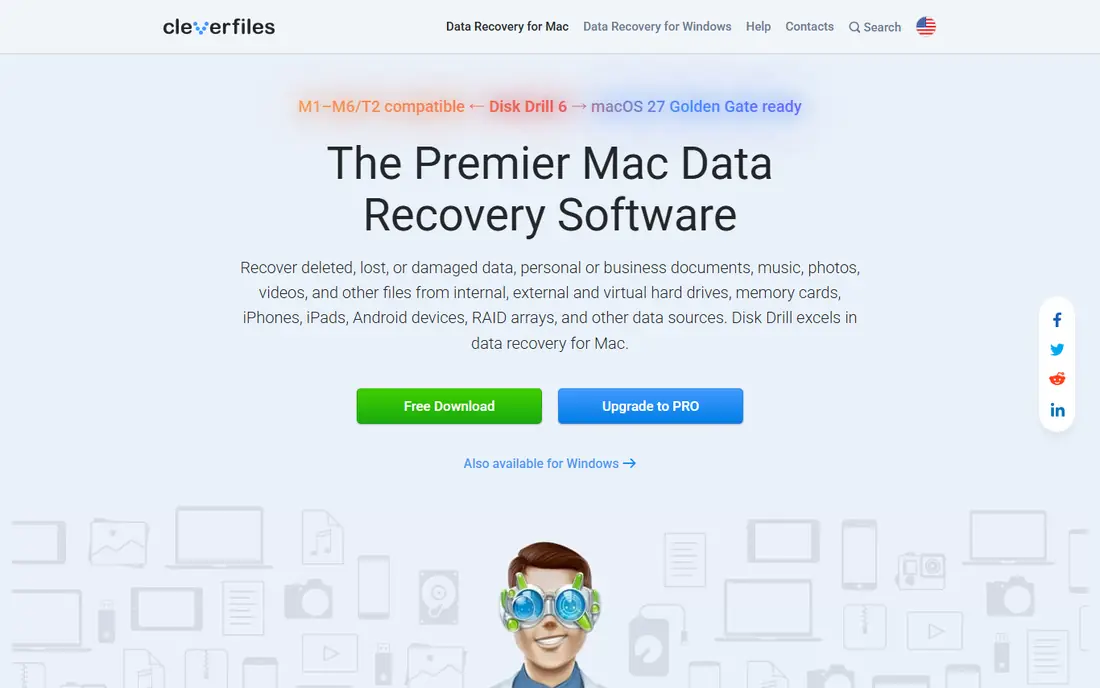
Disk Drill scans drives and cards for deleted photos, letting you preview found files before recovery. It suits most users with a clear interface and broad file system support. Mac and Windows versions exist.
The free version limits how much you can recover, and the full version is paid. For most users, Disk Drill is our pick.
- Preview before recovery
- Broad drive support
- Mac and Windows
- Free version limits recovery amount
- Full version is paid
R-Studio
Ideal for: Advanced recovery for technical users
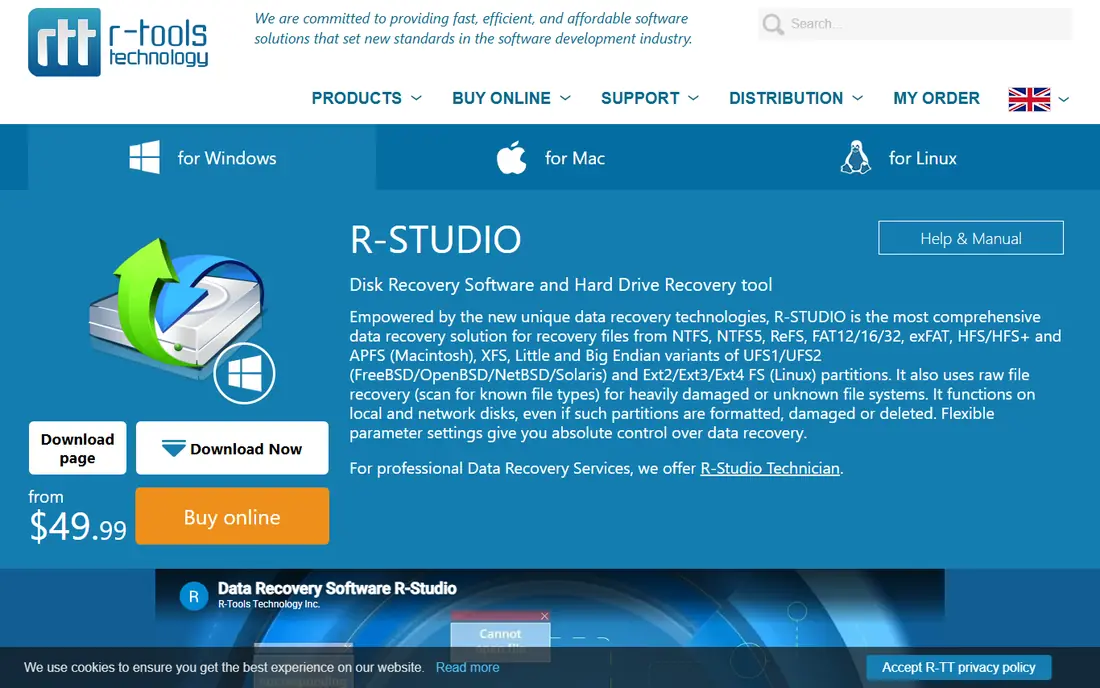
R-Studio offers deep recovery with RAID and network support, suited to advanced users and professionals. Its scan depth and file system coverage are strong. It handles damaged and complex cases well.
The interface is complex, and pricing is per license. For advanced recovery, R-Studio is a top choice.
- Deep scan and RAID support
- Network recovery
- Broad file systems
- Complex interface
- Pricing per license
Recuva
Ideal for: Free first try for Windows users
Recuva, from Piriform, offers a free Windows recovery tool with a simple wizard and deep scan option. It suits Windows users with recent deletions who want a free first try. The interface is straightforward.
It is Windows only, and support is limited. For a free Windows try, Recuva is a good start.
- Free version
- Simple wizard
- Deep scan option
- Windows only
- Support is limited
PhotoRec
Ideal for: Free open source recovery
PhotoRec is a free open source tool that recovers files by scanning raw data, ignoring file systems. It suits technical users who want a powerful free option. It works across platforms.
The command line interface is daunting, and preview is limited. For free technical recovery, PhotoRec is powerful.
- Free and open source
- Cross platform
- Ignores file systems
- Command line interface
- No preview by default
EaseUS Data Recovery Wizard
Ideal for: Guided recovery for beginners
EaseUS Data Recovery Wizard guides beginners through recovery with a wizard, preview, and broad device support. It suits users who want a simple process. The interface is friendly.
The free version limits recovery amount, and the full version is paid. For guided recovery, EaseUS is a solid choice.
- Guided wizard
- Preview
- Broad device support
- Free version limits recovery
- Full version is paid
Stellar Photo Recovery
Ideal for: Photo focused recovery with preview
Stellar Photo Recovery focuses on photos and videos, with preview and strong card support. It suits photographers recovering from SD cards and drives. The interface is clear.
Pricing is per license, and deep case results vary. For photo focused recovery, Stellar is a good option.
- Photo and video focus
- Preview
- Card support
- Pricing is per license
- Deep cases vary
Wondershare Recoverit
Ideal for: Recovery with a polished interface
Wondershare Recoverit offers recovery with a polished interface, preview, and support for many file types. It suits users who want a modern, easy tool. Video recovery features add value.
The free version limits recovery, and pricing leans subscription. For a polished recovery tool, Recoverit is worth trying.
- Polished interface
- Preview
- Many file types
- Free version limits recovery
- Subscription pricing
TestDisk
Ideal for: Free partition and file recovery
TestDisk, from the PhotoRec team, recovers lost partitions and repairs file systems, complementing PhotoRec. It suits technical users facing partition loss. It is free and cross platform.
The command line interface needs technical knowledge. For free partition recovery, TestDisk is a strong tool.
- Free and open source
- Partition recovery
- Cross platform
- Command line interface
- Technical knowledge needed
How we picked these
We compared official feature pages, pricing, and documentation for each tool, checking supported file systems, preview features, and scan depth. We favored tools that offer a preview before purchase. We did not claim hands-on testing; our comparison rests on published features and public reviews. Stop writing to the affected drive as soon as you notice loss.
We also checked whether each option is still offered and supported, and we left out products with unclear pricing, broken pages, or a poor fit for the topic. Where a price or free tier could not be confirmed from the vendor site, we wrote See website rather than guessing. Readers should still check the vendor page before buying, since prices and plans change.
How to recover deleted photos
Stop using the drive right away. Deleted photos remain until new data overwrites them, so every new file, download, or photo reduces recovery chances. Remove the card or drive from use and run recovery from a different drive.
Choose the scan type carefully. A quick scan finds recently deleted files fast, while a deep scan searches raw data and takes longer. Start with a quick scan, then run a deep scan if files are missing. Preview found photos before paying for a full version.
Recover to a different drive. Saving recovered files to the same drive can overwrite other lost photos. Use a separate drive with enough space, then verify the recovered photos open correctly before reformatting the original.
Prevent the next loss with backups. A simple 3-2-1 approach, with copies on two media types and one offsite, protects against most loss. Cloud backup plus an external drive covers most home users well.
Before you pay, confirm the total cost for the first year, including any add ons, renewal prices, and fees that only appear at checkout. A low starting price can hide a higher renewal rate, and a free tier can limit the feature you need most. Write down the features you will use weekly, and pay only for those.
After you choose, give the option a fair trial with your real workload, not just a quick tour. Set a reminder to review it after two to four weeks, and note what worked, what annoyed you, and what you never used. That review tells you whether to keep, upgrade, or switch before a renewal locks you in.
If the option disappoints, switch sooner rather than later. Export your data first, check whether you can keep your account history or settings, and confirm any cancellation terms. A good provider makes leaving straightforward, and a difficult exit is itself useful information about the service.
Talk to people who already use the option before you commit, especially for a business purchase. A short conversation with a current user reveals support quality, setup effort, and daily friction that marketing pages omit. Ask what surprised them after the first month, since early impressions often differ from longer use.
Keep a simple record of why you chose the option, including the price you were quoted and the features that mattered. That note makes renewal talks easier and helps a colleague or future you understand the decision. If the price rises or a key feature changes, the note shows whether the original reasons still hold.
Finally, plan the first week of use before you pay. List the setup steps, the data you need to move, and the people who need access. A clear first week plan turns a promising choice into a working routine, and it exposes missing features while you can still change your mind.
Save the vendor support page and the cancellation instructions in the same place as your receipt. When something goes wrong, you will want support details at hand rather than searching for them under pressure. A tidy record saves time and keeps a small problem from becoming a long one.
Keep notes on the first month of use, including any issues and how support handled them. Those notes give you clear evidence if you need a refund, an upgrade, or a switch, and they help you advise a friend or colleague who asks about the same choice later.
Frequently asked questions
What is the best photo recovery software?
Disk Drill is our pick for most users, with a clear preview and broad drive support. R-Studio suits advanced users who need deep recovery. Recuva is a good free first try on Windows, while PhotoRec is the free open source option.
Can I recover permanently deleted photos?
Sometimes. If the files have not been overwritten, recovery software can often find them. If the drive has been heavily reused, formatted with overwrite, or physically damaged, recovery may be partial or impossible. Act quickly for the best chance.
Is free photo recovery software good enough?
For recent deletions on Windows, Recuva free often works. For deeper cases or Mac drives, paid tools such as Disk Drill offer better previews and support. PhotoRec is powerful and free but needs technical comfort.
Can I recover photos from an SD card?
Yes, most recovery tools support SD cards through a card reader. Stop using the card immediately, run recovery from a computer, and save recovered files to a different drive. Avoid phone based recovery apps that write to the same card.
What should I do if my drive is physically damaged?
Do not run recovery software repeatedly on a failing drive, since it can worsen damage. If you hear clicking or the drive is not detected, contact a professional data recovery service. Physical recovery costs more but gives the best chance.
How often should I review my choice?
Review it at least once a year, and sooner if your needs, budget, or team size change. Prices, features, and policies shift over time, and a better fit may appear. A short yearly check, comparing your current option with two alternatives, keeps you from paying for features you no longer use.