Best Productivity Apps in 2026: 8 Apps Compared

- Todoist is the best pure task app for most solo users, with a clear free tier and a Pro plan at about $5 per month billed yearly.
- Notion suits readers who want notes, docs, and tasks in one workspace, but it needs setup time before it feels simple.
- Trello is the easiest board for visual planning, while Asana and ClickUp handle larger team projects better.
- Start free, test one workflow for two weeks, and only pay for the features you actually use every day.
Quick comparison
| Product | Ideal for | Price from | Free version | |
|---|---|---|---|---|
 Todoist | Pure task lists for solo users | $5 per month | Yes | Visit |
 Notion | Notes, docs, and tasks in one place | $10 per month | Yes | Visit |
 Asana | Structured team task coordination | $10.99 per month | Yes | Visit |
 Trello | Visual boards anyone can use | $5 per month | Yes | Visit |
 ClickUp | Feature-rich all-in-one work hub | $7 per month | Yes | Visit |
 TickTick | Tasks, habits, and calendar in one app | $35.99 per year | Yes | Visit |
 Microsoft To Do | Free daily lists for Microsoft users | Free | Yes | Visit |
 Google Tasks | Free lists inside Gmail and Calendar | Free | Yes | Visit |
The best productivity apps
We compared official feature pages, pricing pages, app store listings, privacy policies and public reviews to build this list, focusing on products that fit the topic closely and are still available in October 2026.
Todoist
Ideal for: Pure task lists for solo users
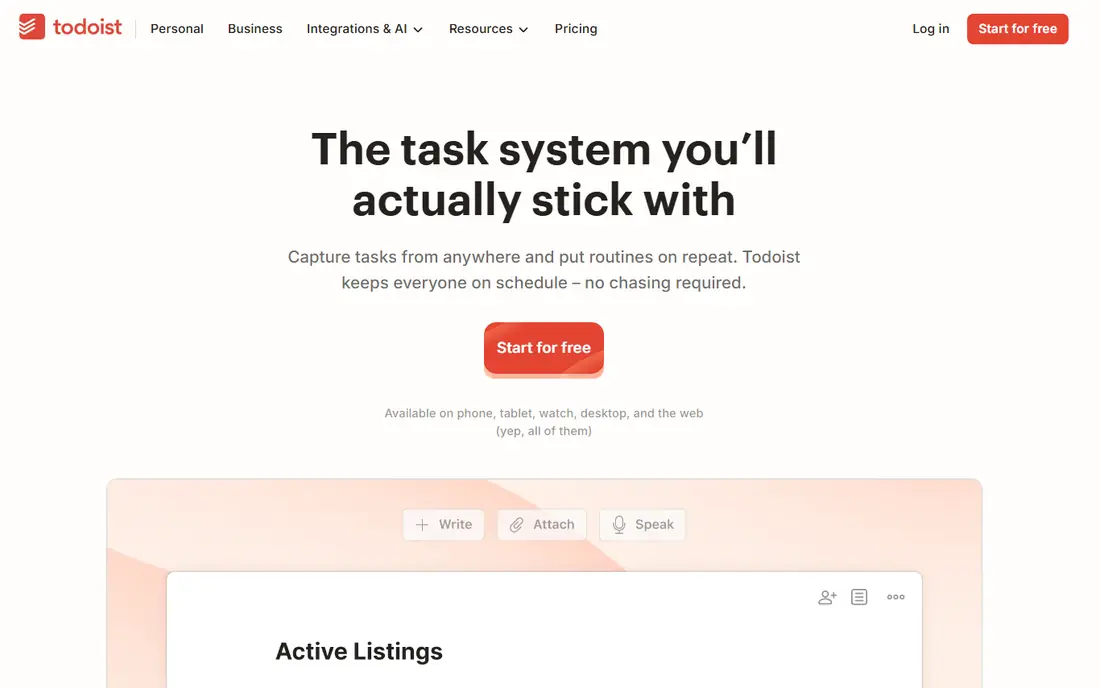
Todoist is the app we recommend first when the job is simply getting tasks done. You can add a task in seconds, set a date with plain language, and organise work into projects without learning a project system. The free tier covers five active projects, which is enough for many solo users, and Pro adds reminders, filters, and longer history.
The limit is scope. Todoist does not try to be a docs tool or a wiki, so notes and long documents live elsewhere. That focus is also its strength, because the app stays fast and uncluttered. If your work is mainly a list of next actions, Todoist will feel lighter than a full workspace tool.
- Clean task lists with projects, filters, and reminders
- Fast on mobile and desktop
- Good free tier
- Board view and some filters are paid
- No built-in docs or wiki
Notion
Ideal for: Notes, docs, and tasks in one place

Notion suits readers who want one workspace for notes, docs, databases, and tasks. You can build a content calendar, a client wiki, or a personal knowledge base from the same blocks, and templates help you start without a blank page. The free plan works well for solo use, and Plus adds larger uploads and longer history.
The freedom is also the friction. A new workspace can feel empty, and it is easy to spend a day building a system instead of doing the work. Notion is best when you have a repeating workflow to organise, such as publishing, client work, or study. If you only need a task list, a simpler app will get you moving faster.
- Flexible pages and databases
- Good templates
- Strong for wikis and content planning
- Setup can take time
- Offline use is limited
- Paid plan needed for larger teams
Asana
Ideal for: Structured team task coordination

Asana is a solid choice for small teams that need clear ownership of tasks. You can assign work, set due dates, and see progress in list, board, or calendar form without a steep learning curve. The Personal free plan suits very small groups, while Starter adds timeline views and automation rules for growing teams.
Asana is less flexible than Notion for docs, and its pricing rises per user, so a larger team should budget carefully. It shines when work has owners and deadlines, rather than when you need a free-form wiki. Try the free plan with a real project first, and check whether timeline and reporting matter enough to pay.
- Clear list, board, and calendar views
- Good for assigning work and deadlines
- Strong integrations
- Free Personal plan is limited to a small team
- Timeline and rules are paid
Trello
Ideal for: Visual boards anyone can use
Trello remains the easiest board to explain to a new team member. Cards move across columns, checklists track steps, and attachments keep files with the work. The free tier includes unlimited cards and up to ten boards per workspace, which covers many small projects without paying.
The simplicity has limits. Trello is not the best tool for complex dependencies, detailed reporting, or large portfolios of projects. Paid Standard adds calendar, timeline, and more automation, but even then it stays a board first. If your work fits on a board and you value speed over depth, Trello is hard to beat.
- Simple Kanban boards
- Easy to learn
- Good free tier with unlimited cards
- Reporting and dependencies are thin
- Calendar and timeline views are paid
ClickUp
Ideal for: Feature-rich all-in-one work hub
ClickUp tries to replace several tools at once, with tasks, docs, goals, whiteboards, and time tracking in one workspace. The free tier is generous, with unlimited tasks and members, which makes it attractive for small teams that want to test a full system without paying. Views can be switched per project, so different teams can work their own way.
That breadth can overwhelm a new user. There are many settings, and a team needs agreement on how to use them or the workspace becomes messy. ClickUp suits teams that want one hub and are willing to set it up carefully. Solo users who only need tasks may find Todoist or Trello faster.
- Many views including list, board, and Gantt
- Docs, goals, and time tracking in one place
- Generous free tier
- Feature depth can feel overwhelming
- Setup takes time to get right
TickTick
Ideal for: Tasks, habits, and calendar in one app
TickTick is a good pick for personal productivity because it combines tasks, habits, and a calendar in one app. You can plan the day, track a habit, and run a focus timer without switching tools. Premium is priced per year rather than per month, which keeps the annual cost lower than many rivals, and the free tier covers the basics well.
For team work, TickTick is not as strong as Asana or ClickUp. Sharing and reporting are more limited, and the app is clearly built for individuals first. That is fine if your goal is personal organisation. If you need to assign work across a team and report on it, pick a team tool instead.
- Tasks, habits, calendar, and Pomodoro timer together
- Affordable Premium
- Good mobile app
- Collaboration features are thinner than Asana or ClickUp
- Desktop app is simpler than some rivals
Microsoft To Do
Ideal for: Free daily lists for Microsoft users
Microsoft To Do is the simplest option here, and it is fully free. It offers lists, a My Day planner, reminders, and steps inside each task, which is enough for many daily routines. If you already use Outlook or Microsoft 365, tasks can flow from email into To Do without extra cost or setup.
The trade-off is depth. There is no Kanban board, no Gantt view, and less automation than Todoist, Asana, or ClickUp. That is not a flaw if you want a calm daily list, but it will frustrate a team that needs project views. For personal use, especially on Windows and Outlook, it is a strong free choice.
- Fully free
- Simple lists with My Day planning
- Integrates with Microsoft 365 and Outlook
- Fewer views and automation than paid rivals
- Best inside the Microsoft ecosystem
Google Tasks
Ideal for: Free lists inside Gmail and Calendar
Google Tasks suits readers who live in Gmail and Google Calendar and want tasks without another app. You can create a task from an email, see it beside your calendar, and check it off on your phone. There is no learning curve, no subscription, and no separate workspace to maintain.
The simplicity is also the ceiling. Google Tasks lacks boards, team reporting, and rich automation, so it will not carry a complex project. Use it for personal errands and follow-ups, and move to Asana, ClickUp, or Notion when a project needs owners, views, and deadlines. For many people, that split works well.
- Free
- Built into Gmail, Calendar, and Google Workspace
- Very simple to use
- Very basic
- No boards, no collaboration depth, no advanced reminders
How we picked these
We compared official feature pages, pricing pages, app store listings, privacy policies and public reviews for each option in this guide. We checked that each product is still offered in October 2026, that its homepage loads, and that its price or free tier could be confirmed or marked as See website when it could not. We did not claim hands-on testing. We favoured products that fit the topic closely, explain their limits clearly, and give readers a practical way to try them before paying. Where prices change often, we say so and point readers to the vendor page for the current figure.
How to pick a productivity app
Match the tool to the shape of your work, not to the longest feature list. A solo user with a daily list needs speed and reminders. A small team needs assignment, deadlines, and a shared view of progress. A content or knowledge worker needs docs and databases. Test one real workflow for two weeks before you pay, and check mobile speed, offline access, and export options.
Before you pay,try the free tier or trial first and check the exact limits that matter to you, such as device support, export options, or cancellation terms. Read the privacy policy for any app that handles personal, financial, or health data, and check whether your data can be exported or deleted. The cheapest option is not always the best value if it lacks a feature you will use every week, and the most expensive option is rarely worth it if you only need the basics.
Frequently asked questions
What is the best productivity app for most people?
Todoist is our pick for pure task management, while Notion is better if you also need docs and wikis. Try both free tiers with the same week of tasks and keep the one you actually open every morning.
Are free productivity apps enough?
Often, yes, for solo use. Todoist, Trello, ClickUp, and Notion all offer useful free tiers. Paid plans mainly add views, automation, history, and team controls, so pay only when a free limit blocks your work.
What is the best productivity app for teams?
Asana and ClickUp are the strongest team picks here. Asana is cleaner for assigning tasks and deadlines, while ClickUp offers more views and built-in docs. Trello works for small, visual teams that do not need complex reporting.
Should I use one app or several?
One app is simpler, but many people use two: a task app for actions and a notes app for reference. Avoid using three or four overlapping tools, since that creates duplicate lists and missed tasks.
How do I avoid wasting time setting up a productivity app?
Start with a template or a single project, add only the fields you need, and review after two weeks. If setup takes longer than the work it organises, simplify the system or switch to a simpler tool.