Best PDF Merging Software in 2026: 8 Options Compared

- 1
 Adobe Acrobatpeople who already work with PDFs dailyVisit
- 2
 Smallpdfquick merges in the browserVisit
- 3
 iLovePDFbrowser users who merge oftenVisit
- 4
 PDFsam Basicfree desktop merging without uploadsVisit
- 5
 Sejdaoccasional merges with privacy careVisit
- PDFsam Basic and PDF24 Tools are the best free starting points for simple desktop or browser merges.
- Smallpdf, iLovePDF and Sejda suit quick browser jobs, with free limits to watch.
- Adobe Acrobat, Foxit and Nitro suit workplaces that also need editing, signing and batch handling.
- For private documents, prefer a desktop tool over uploading files to a browser service.
Quick comparison
| Product | Ideal for | Price from | Free version | |
|---|---|---|---|---|
| Adobe Acrobat | people who already work with PDFs daily | See website | Free trial | Visit |
| Smallpdf | quick merges in the browser | See website | Free | Visit |
| iLovePDF | browser users who merge often | See website | Free | Visit |
| PDFsam Basic | free desktop merging without uploads | Free | Free trial | Visit |
| Sejda | occasional merges with privacy care | See website | Free | Visit |
 PDF24 Tools | free online and desktop PDF tools | Free | Free | Visit |
 Foxit PDF Editor | business users who want an Acrobat alternative | See website | Free trial | Visit |
 Nitro PDF Pro | Windows teams that merge and edit often | See website | Free trial | Visit |
The best pdf merging software
We compared official feature pages, pricing, app store listings, privacy policies and public reviews for this list. The options below cover different budgets and needs, so read the best for line first and then the full write up for the products that match your situation.
Adobe Acrobat
Ideal for: people who already work with PDFs daily
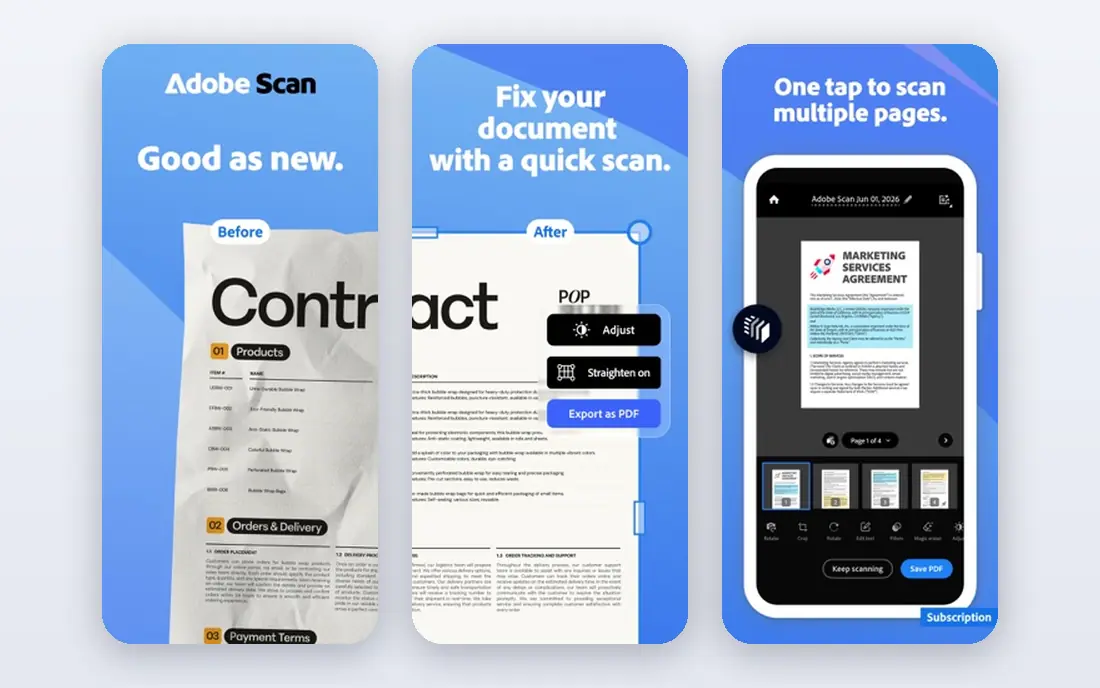
Adobe Acrobat fits people who already work with PDFs daily. It merges, edits and secures PDFs with the consistency that workplaces expect from Adobe. The strengths we noted were reliable merging and editing; strong document handling; wide format support. For many readers, that mix makes it worth a close look before deciding.
The honest catch is that buyers who only merge files occasionally should compare the price with free tools first. Pricing is listed as See website, with a free plan status of Free trial. Before you commit, try the free tier or trial with your real work, and check the limits that matter for your use. That short test will tell you more than any feature list.
- Reliable merging and editing
- Strong document handling
- Wide format support
- Subscription cost is high for merging alone
- The full app can feel heavy for simple tasks
Smallpdf
Ideal for: quick merges in the browser
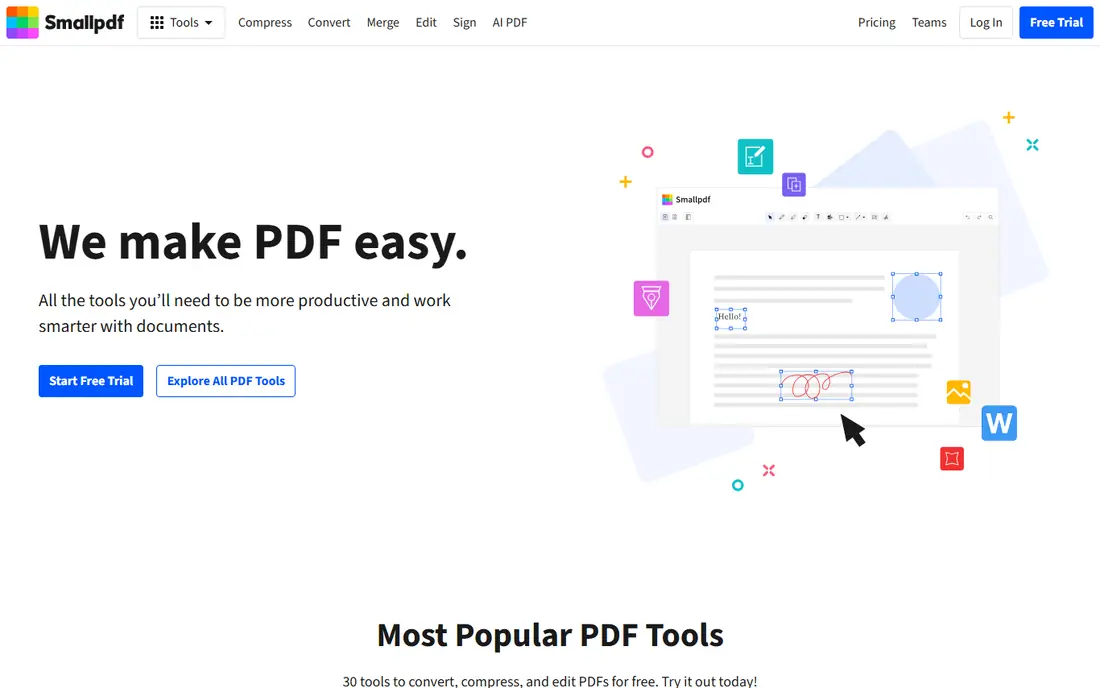
For quick merges in the browser, Smallpdf is a natural first candidate. Its browser merge tool is fast for occasional jobs, with no install and clear page ordering. In practice, that means simple browser merging; drag and drop ordering; other pdf tools in the same account. It is not perfect for everyone, but the fit is clear for this use.
On the downside, heavy users will hit free limits and need to weigh the paid plan against desktop options. The starting price is See website, and the free plan status is Free. We suggest testing it with a real task, checking support and export options, and confirming that the plan you need covers your team or household size.
- Simple browser merging
- Drag and drop ordering
- Other PDF tools in the same account
- Free use has daily limits
- Some features need a paid plan
iLovePDF
Ideal for: browser users who merge often
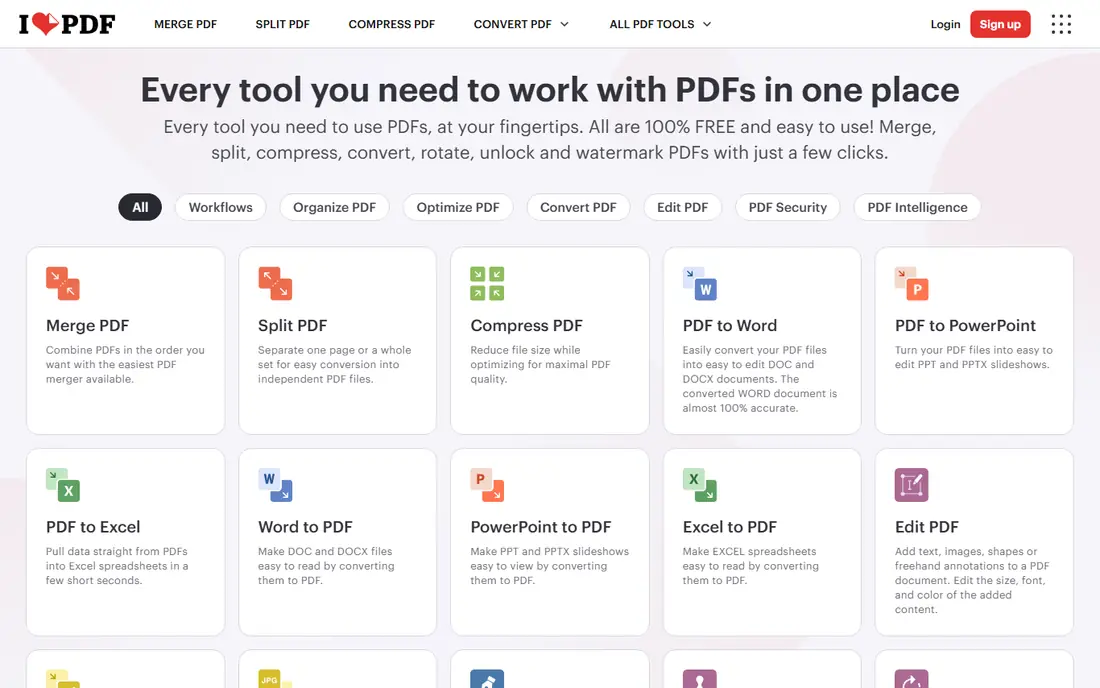
iLovePDF is aimed at browser users who merge often, and the fit shows in daily use. It covers merging plus most everyday PDF jobs in one browser workspace. Readers who value wide set of pdf tools online; merge, split and compress in one place; mobile apps will see the appeal quickly.
The trade off is that large or sensitive files may suit a desktop tool better than an online upload. Starting price is See website, with free plan status Free. A trial with your own data is the best next step, since it reveals setup time, limits and everyday friction that a sales page hides.
- Wide set of PDF tools online
- Merge, split and compress in one place
- Mobile apps
- Free tier has limits and file size caps
- Desktop app is a separate paid product
PDFsam Basic
Ideal for: free desktop merging without uploads
If you need a tool for free desktop merging without uploads, start with PDFsam Basic. Its free desktop app merges files without sending them to a server, which suits private documents. The result is a product that covers free desktop merging and splitting; no file upload needed; open source base without forcing a complex setup.
Keep in mind that users who want polished design or editing tools should look at paid alternatives. It lists a starting price of Free and a free plan status of Free trial. Compare the total cost for your real use, including any add ons, before you settle on it.
- Free desktop merging and splitting
- No file upload needed
- Open source base
- Interface is plain
- Advanced features sit in paid editions
Sejda
Ideal for: occasional merges with privacy care
Sejda fits occasional merges with privacy care. It is a careful choice for occasional merges, with stated file deletion after processing. The strengths we noted were browser merging with clear privacy handling; files deleted after processing; simple interface. For many readers, that mix makes it worth a close look before deciding.
The honest catch is that frequent users should check hourly limits against their real workload. Pricing is listed as See website, with a free plan status of Free. Before you commit, try the free tier or trial with your real work, and check the limits that matter for your use. That short test will tell you more than any feature list.
- Browser merging with clear privacy handling
- Files deleted after processing
- Simple interface
- Free tier limits tasks per hour
- Larger files need a paid plan
PDF24 Tools
Ideal for: free online and desktop PDF tools
For free online and desktop PDF tools, PDF24 Tools is a natural first candidate. Its free tools cover merging without an account, plus a desktop option for offline work. In practice, that means free online tools plus a desktop creator; merging, splitting and conversion; no account needed for basics. It is not perfect for everyone, but the fit is clear for this use.
On the downside, teams needing support or advanced editing may prefer a paid product. The starting price is Free, and the free plan status is Free. We suggest testing it with a real task, checking support and export options, and confirming that the plan you need covers your team or household size.
- Free online tools plus a desktop creator
- Merging, splitting and conversion
- No account needed for basics
- Design is functional rather than polished
- Support is lighter than paid rivals
Foxit PDF Editor
Ideal for: business users who want an Acrobat alternative
Foxit PDF Editor is aimed at business users who want an Acrobat alternative, and the fit shows in daily use. It gives business users merging plus editing and signing at a lower profile than Adobe. Readers who value merging, editing and signing; lighter feel than acrobat for many users; business plans will see the appeal quickly.
The trade off is that casual users may find the paid editions more than they need for simple merges. Starting price is See website, with free plan status Free trial. A trial with your own data is the best next step, since it reveals setup time, limits and everyday friction that a sales page hides.
- Merging, editing and signing
- Lighter feel than Acrobat for many users
- Business plans
- Full features need a paid license
- Pricing varies by edition
Nitro PDF Pro
Ideal for: Windows teams that merge and edit often
If you need a tool for Windows teams that merge and edit often, start with Nitro PDF Pro. Its batch handling suits teams that merge and convert files in volume on Windows. The result is a product that covers merging, editing and conversion; batch handling; business deployment options without forcing a complex setup.
Keep in mind that Mac heavy teams should test the Mac version before committing. It lists a starting price of See website and a free plan status of Free trial. Compare the total cost for your real use, including any add ons, before you settle on it.
- Merging, editing and conversion
- Batch handling
- Business deployment options
- Mac support is more limited than Windows
- Subscription or license costs apply
How we picked these
We compared official feature pages, pricing pages, app store listings, privacy policies and public reviews. We checked that each product exists and works today, that it truly fits the topic, and that its official homepage loads. We favoured products with clear pricing or a clear free tier, honest limits, and a distinct use case, rather than listing near duplicates.
We did not claim hands on testing that did not happen. Where pricing was quoted rather than listed, we wrote See website rather than guessing a number. Where a product had a known limit, such as a watermark on a free plan or a state limit on cover, we stated it plainly so readers can judge the trade off. Readers should also check the current plan details on the vendor site before buying, since prices and free tiers change over time.
How to choose PDF merging software
Start with privacy. If the PDFs contain contracts, medical forms or client data, a desktop tool keeps files on your computer. Browser tools are convenient, but you should check how files are stored and deleted before uploading sensitive pages.
Next, check page control. Merging is not just joining files. You may need to reorder pages, remove blank pages or merge only part of a file. Test those steps with your real documents, not just a two page sample.
Finally, weigh frequency against price. Occasional merges are well served by free tools, while daily merging, editing and signing justify a paid editor. Confirm file size limits and whether a free plan covers your busiest days.
Frequently asked questions
Is it safe to merge PDFs online?
Browser tools are fine for non sensitive files, but check the privacy policy for storage and deletion. For private documents, use a desktop tool such as PDFsam Basic so files stay on your device.
Can I merge PDFs for free?
Yes. PDFsam Basic and PDF24 Tools offer free merging, and Smallpdf, iLovePDF and Sejda offer free browser merges with limits. Paid tools add editing, batch work and support.
How do I reorder pages when merging?
Most tools here let you drag pages or files into order before merging. Check that the tool supports page level control if you need to merge only part of a document.
Will merging change my PDF quality?
Merging alone should not reduce quality, but compression settings can. Keep original files until you check the merged result, especially for scanned pages and images.
What is the best PDF merger for business use?
Adobe Acrobat, Foxit and Nitro suit business use because they add editing, signing and deployment options. For merging alone, a free desktop tool may be enough.