Best Rated Windows Backup Software in 2026: 8 Tools Compared

- 1
 Acronis Cyber Protect Home OfficeFull protection plus securityVisit
- 2
 EaseUS Todo BackupHome system and file backupVisit
- 3
 Macrium ReflectReliable system imagingVisit
- 4
 AOMEI BackupperEasy scheduled backupsVisit
- 5
 Paragon Backup and RecoveryDisk imaging and migrationVisit
- Acronis and Macrium lead for full system images that can restore a whole PC after a drive failure.
- EaseUS Todo Backup and AOMEI Backupper are strong picks for home users who want scheduled backups without a steep learning curve.
- IDrive is the best fit in this list when the priority is off-site cloud backup across several computers.
- A backup you have never tested is only a hope, so restore at least one file and one full image before you rely on any tool.
- Keep one local copy and one off-site copy when you can, since a single backup can fail for the same reason as the original.
Quick comparison
| Product | Ideal for | Price from | Free version | |
|---|---|---|---|---|
| Acronis Cyber Protect Home Office | Full protection plus security | See website | Free trial | Visit |
| EaseUS Todo Backup | Home system and file backup | See website | Free trial | Visit |
| Macrium Reflect | Reliable system imaging | See website | Free trial | Visit |
| AOMEI Backupper | Easy scheduled backups | See website | Free trial | Visit |
| Paragon Backup and Recovery | Disk imaging and migration | See website | Free trial | Visit |
 Veeam Agent for Windows | Business grade endpoint backup | Free | Yes | Visit |
 Hasleo Backup Suite | Free Windows backup | Free | Yes | Visit |
 IDrive | Cloud backup for many devices | See website | Free trial | Visit |
The best rated Windows backup software
Backup software falls into two broad groups. Imaging tools copy your whole system so you can restore it after a failure, while cloud tools keep copies of your files off-site. The tools below cover both jobs, and the right pick depends on what you are most afraid of losing: a working PC, a folder of files, or both.
Acronis Cyber Protect Home Office
Ideal for: Full protection plus security
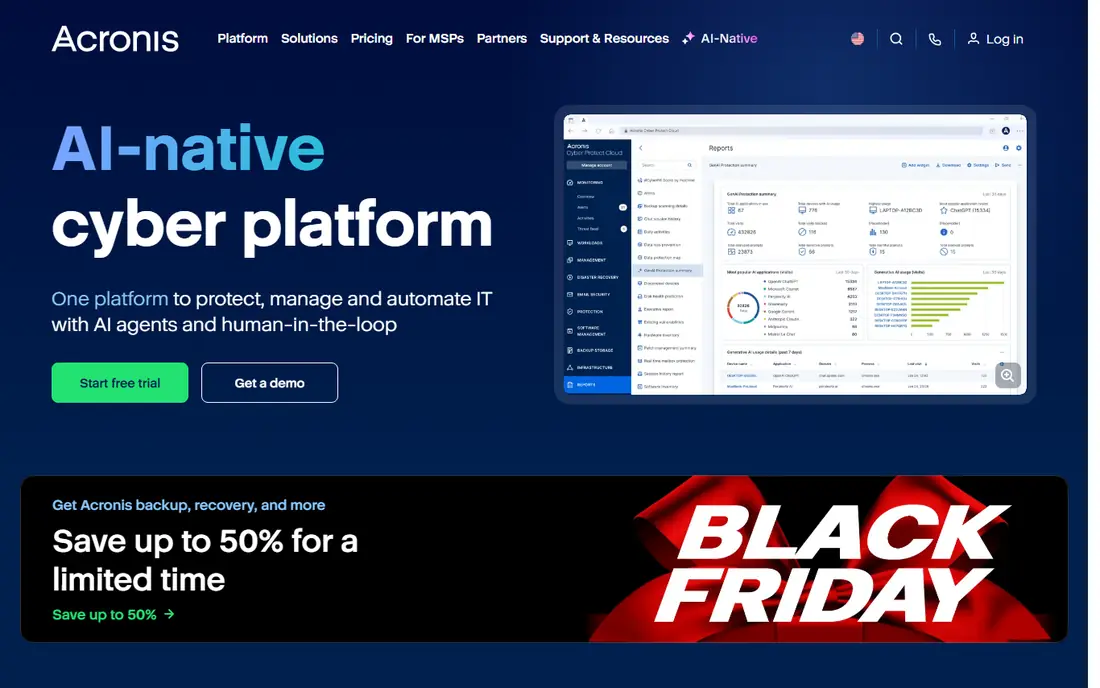
Acronis is a long-standing name in backup, and its home product pairs imaging with security features in one subscription. That combination appeals to households that want one app to handle backups and add a layer of protection against malware that targets files. Its site now presents a wider platform, but the home backup product remains the entry point for personal users.
The trade-off is scope. If you only want a simple scheduled image once a week, Acronis may offer more than you need, and the subscription model means an ongoing cost. Still, for a family PC holding photos, documents, and work files, the breadth is a fair trade for the price of a single tool.
- Full disk imaging plus file backup
- Built-in security features against ransomware
- Cloud and local destinations
- The full feature set can feel busy for simple needs
- Pricing depends on the plan and storage chosen
EaseUS Todo Backup
Ideal for: Home system and file backup
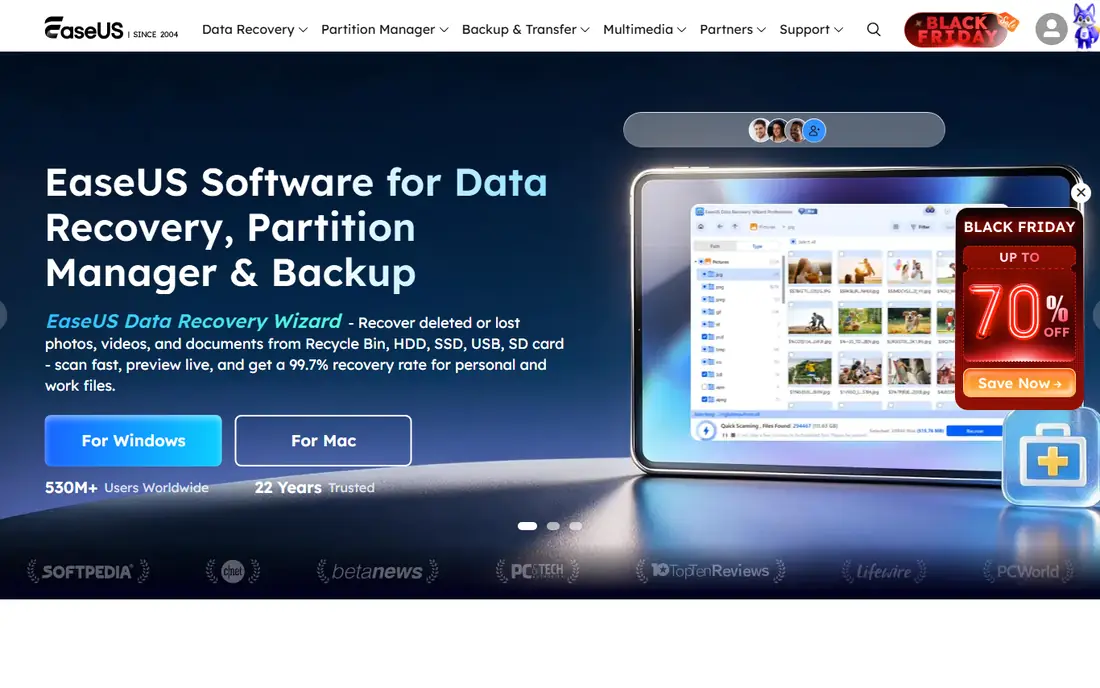
EaseUS Todo Backup is a comfortable pick for home users who want to set a schedule and stop thinking about backups. Its homepage presents it as a professional system and data backup tool, and the workflow covers the common cases: back up the system drive, back up chosen folders, and clone a drive when you upgrade to a larger SSD.
We would check the edition carefully before buying, since backup tools often split features such as Outlook backup or cloud destinations across tiers. For a single home PC with an external drive, the standard feature set usually covers the job well.
- Clear interface for system, disk, and file backups
- Scheduling and incremental backups
- Cloning for drive upgrades
- Some advanced features sit in higher tiers
- The free edition has limits that matter for larger setups
Macrium Reflect
Ideal for: Reliable system imaging
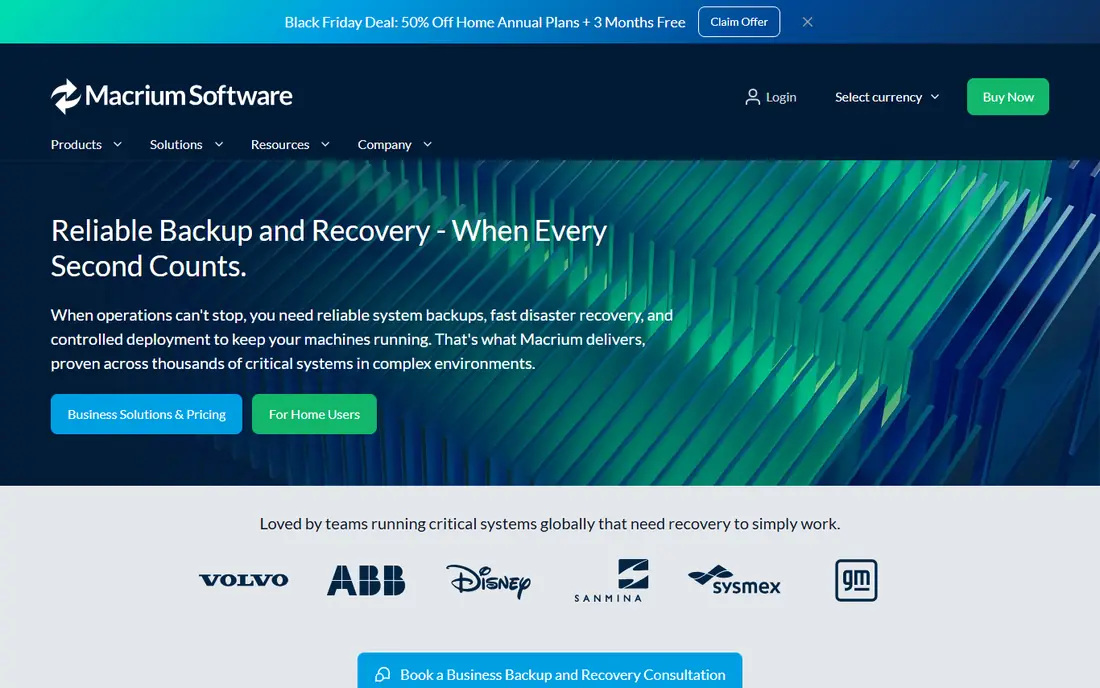
Macrium has built its name on imaging that works when it matters, and its site stresses recovery in demanding environments, from workshops to critical systems. For home users, the practical benefit is the same: a system image you can restore to a new drive with confidence. Rapid delta restore, which restores only changed blocks, can cut recovery time on large images.
The interface is less hand-holding than EaseUS or AOMEI, so beginners may need a little patience on first setup. If you are comfortable with disk tools, though, Macrium is one of the most trusted names in this list, and it is our pick for people who value restore reliability above all else.
- Long track record in system imaging
- Rapid delta restore for faster recovery
- Broad Windows compatibility, including older versions
- The interface is more technical than some rivals
- Business licensing is a separate conversation from home use
AOMEI Backupper
Ideal for: Easy scheduled backups
AOMEI Backupper is a solid middle ground between simplicity and control. It covers system backup, disk backup, partition backup, and file backup, plus cloning for drive moves. Its site notes more than a decade of backup work, and the tool has a large user base among home and small business users.
One note from its recent news page is worth a mention. AOMEI published a fix for a supply-chain tampering incident affecting software distribution, which is a reminder to download backup tools only from the vendor site and to keep the app updated. That is good practice for any system tool, not just this one.
- Simple setup for system, disk, and file backups
- Cloning and sync options
- Long history in Windows utilities
- The product range is wide, so confirm you are looking at Backupper
- Some features need a paid edition
Paragon Backup and Recovery
Ideal for: Disk imaging and migration
Paragon has sold disk tools for many years, and its backup product fits users who are already comfortable managing partitions and drives. If your plan includes moving Windows to a new SSD or reorganizing disks, Paragon pairs backup with the disk tools that make that job easier.
The main drawback is discovery. The current homepage puts Linux file system tools first, so a new visitor may need to search for the backup product by name. Once found, though, it is a capable imaging tool, and it deserves a place on a shortlist alongside Macrium.
- Disk imaging and partition tools from a veteran vendor
- Migration help for moving to a new drive
- Windows and Mac products available
- The homepage now leads with file system tools, so the backup product takes a little finding
- Pricing is plan dependent
Veeam Agent for Windows
Ideal for: Business grade endpoint backup
Veeam Agent is the free endpoint tool from a vendor best known for business data protection. It backs up whole machines, volumes, or files, and it can send backups to local storage, a shared folder, or a Veeam repository. For a small office that already runs Veeam elsewhere, it is a natural fit.
Home users can use the free agent too, but they should expect a more business-like setup than a consumer tool. If you want the simplest possible home backup, EaseUS or AOMEI will feel friendlier. If you want a free tool with a business pedigree, Veeam Agent is hard to beat.
- Free agent for Windows endpoints
- Image and file backup with scheduling
- Strong fit for offices already using Veeam
- The full platform is enterprise focused, so small users may find the wider range heavy
- Cloud features depend on the setup chosen
Hasleo Backup Suite
Ideal for: Free Windows backup
Hasleo Backup Suite is a free option that covers the core jobs well: back up Windows, disks, partitions, and files, then restore them when needed. Its site presents it plainly as free and professional backup software, and for a home user with an external drive, that may be all that is required.
The honest catch is scale. Hasleo lacks the wider platform, cloud storage, and business management features of Acronis or Veeam. If your needs are simple and local, that does not matter. If you need central management across many machines, a paid business tool will fit better.
- Free system, disk, partition, and file backup
- Straightforward restore options
- No subscription for the core features
- Smaller vendor with a narrower support footprint
- Fewer cloud and business features than paid rivals
IDrive
Ideal for: Cloud backup for many devices
IDrive answers a different question from the imaging tools above. Instead of asking where your local backup drive is, it keeps copies in its own data centers, with version history and point-in-time snapshots that help after a ransomware attack. One account can cover several computers and phones, which suits households with more than one machine.
The limit is bandwidth. A first backup of several terabytes over a slow upload connection can take days, though IDrive offers a physical drive shipment option for very large restores. Pair IDrive with a local image tool if you want both fast local recovery and off-site safety.
- One account covers Windows, Mac, phones, and servers
- Version history and snapshots for ransomware recovery
- Storage priced per account, not per machine
- Cloud backup speed depends on your upload connection
- Very large first backups take time
How we picked these
We compared official feature pages, pricing pages, and public reviews for Windows backup tools that are still sold and supported, and we kept tools that cover at least one of system imaging, file backup, or cloud backup. We favored tools with a trial or free edition, since backup software should be tested before it is trusted. We left out tools with no clear vendor homepage and tools that only sync files without keeping backup history.
How to set up a backup you can trust
Start by deciding what you would miss most if the PC failed tomorrow. For most people, that is photos, documents, and the time it would take to reinstall Windows and apps. A system image covers the reinstall, while file backup covers the irreplaceable items, and the two together give the best coverage for the least fuss.
Next, set a schedule you will not have to remember. A weekly full or incremental image to an external drive, plus continuous or daily file backup to the cloud, is a workable pattern for many households. Keep the external drive disconnected when it is not in use if you can, since a drive that is always attached can be hit by the same ransomware that hits the PC.
Finally, test the restore. Pick a file you can afford to delete from a test folder, restore it from backup, and confirm it opens. Once a year, or after any major change, restore a system image to a spare drive if you have one. A backup that has never been restored is an assumption, and assumptions are a poor safety net.
Frequently asked questions
What is the best Windows backup software for home users?
EaseUS Todo Backup and AOMEI Backupper are the easiest starting points for most home users, with clear scheduling and imaging. Macrium Reflect is our pick if restore reliability matters most and you are comfortable with a more technical interface. IDrive is the better choice when off-site cloud backup is the priority.
Is free backup software good enough?
For a single PC with an external drive, free tools such as Veeam Agent and Hasleo Backup Suite can be enough, provided you set a schedule and test restores. Paid tools add convenience, cloud storage, and support, which matter more as the number of machines grows. The schedule and the restore test matter more than the price tag.
How often should I back up Windows?
A weekly system image plus daily file backup is a sensible baseline for most people. If you create important files every day, shorten the file backup interval or use continuous backup where the tool offers it. After a major change, such as installing a new drive or finishing a big project, run a fresh backup right away.
What is the difference between a system image and file backup?
A system image copies the whole drive, including Windows, apps, and settings, so you can restore a working PC after a drive failure. File backup copies chosen folders and files, which is faster and simpler for recovering a deleted document. Many people use both, since each covers a failure the other handles poorly.
Should I use cloud backup or a local drive?
Use both when you can. A local drive gives fast recovery after a failure, while cloud backup protects against theft, fire, and flood at home. If you must pick one, pick the risk you fear most: a local drive for fast restores, or cloud backup for off-site safety.