Best Recovery Software in 2026: 8 Compared

- 1
 Recuvafree file recovery on WindowsVisit
- 2
 Disk Drillfile recovery for Mac and WindowsVisit
- 3
 EaseUS Data Recoverysimple data recoveryVisit
- 4
 R-Studioadvanced data recoveryVisit
- 5
 Stellar Data Recoverydata recovery for home and businessVisit
- Recuva and PhotoRec suit free recovery attempts, while Disk Drill and EaseUS suit simpler paid recovery.
- Stop using a drive after data loss: new writes overwrite deleted files and reduce recovery chances.
- For physically damaged drives, use a professional lab instead of software, because DIY attempts can worsen damage.
- Preview recoverable files before paying, and recover to a different drive than the source.
Quick comparison
| Product | Ideal for | Price from | Free version | |
|---|---|---|---|---|
| Recuva | free file recovery on Windows | See website | Yes | Visit |
| Disk Drill | file recovery for Mac and Windows | See website | Yes | Visit |
| EaseUS Data Recovery | simple data recovery | See website | Free trial | Visit |
| R-Studio | advanced data recovery | See website | No | Visit |
| Stellar Data Recovery | data recovery for home and business | See website | Free trial | Visit |
 PhotoRec | free open source recovery | See website | Yes | Visit |
 Wondershare Recoverit | recovery for many devices | See website | Free trial | Visit |
 DMDE | low cost advanced recovery | See website | Yes | Visit |
The best recovery software
Recovery software helps retrieve deleted or lost files from drives, cards and USB devices. Success depends on how files were lost, whether they were overwritten and whether the drive is physically damaged. This guide compares options for home and technical users.
Recuva
Ideal for: free file recovery on Windows

For many buyers, this is the natural starting point. Recuva is a free Windows tool for recovering deleted files from drives and cards. It suits users who deleted files recently and want a simple recovery attempt. On pricing, the starting price is listed above, and where a vendor does not publish a clear price we list it as See website. Check what is included at that level, because seats, usage limits and add-ons often change the real monthly cost. Recovery success drops if files were overwritten, and it is Windows only. That trade-off does not make this a poor choice, but it does decide who should pick it. If the weakness touches your main use case, look at another option on this list. If it touches only a secondary need, the strengths here may still make it our pick for you.
- Free recovery
- Deep scan
- Simple use
- Windows only
- Success depends on overwrite
Disk Drill
Ideal for: file recovery for Mac and Windows
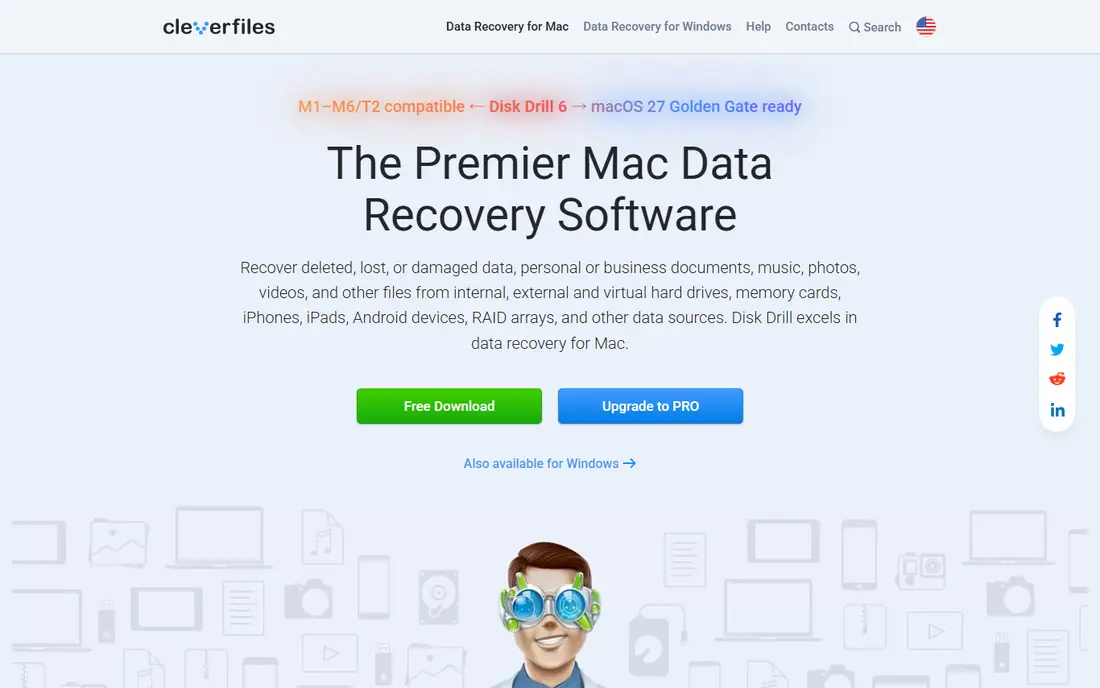
This is a strong choice when the basics matter most. Disk Drill offers file recovery for Mac and Windows with preview and many file types. It suits users who want to preview recoverable files before paying. On pricing, the starting price is listed above, and where a vendor does not publish a clear price we list it as See website. Check what is included at that level, because seats, usage limits and add-ons often change the real monthly cost. The free version limits how much can be recovered, so check limits before use. That trade-off does not make this a poor choice, but it does decide who should pick it. If the weakness touches your main use case, look at another option on this list. If it touches only a secondary need, the strengths here may still make it our pick for you.
- Recovery preview
- Many file types
- Mac and Windows
- Free version limits recovery amount
- Pricing varies
EaseUS Data Recovery
Ideal for: simple data recovery
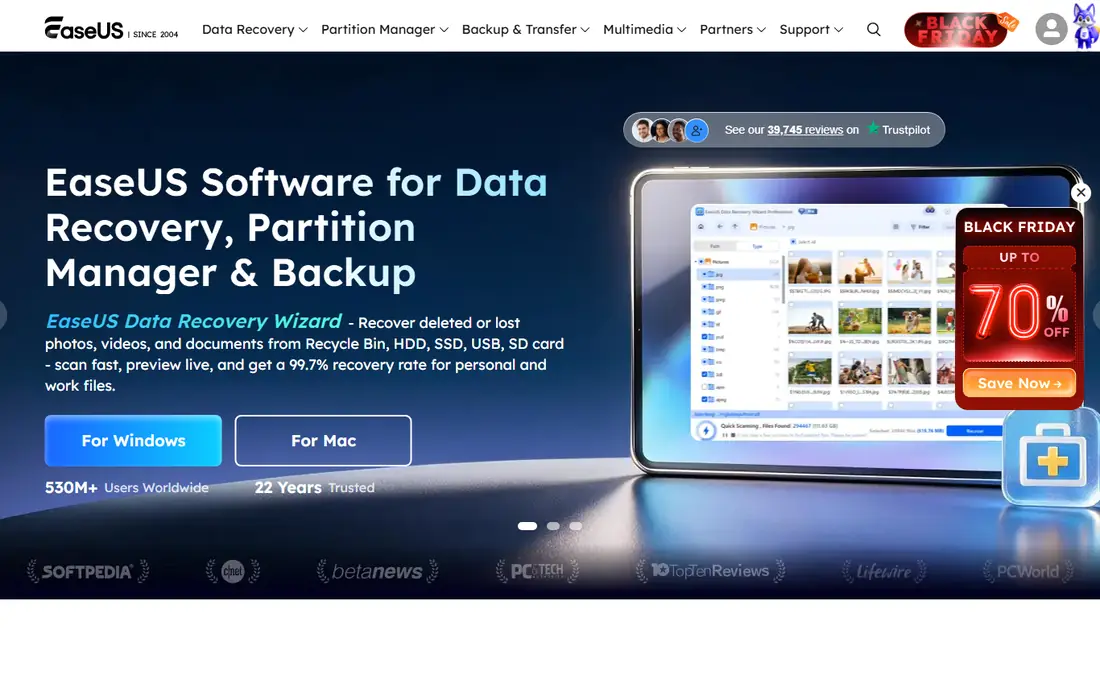
What sets this option apart is its focus on a clear use case. EaseUS Data Recovery Wizard offers simple file recovery with preview. It suits users who want a straightforward recovery tool without technical setup. On pricing, the starting price is listed above, and where a vendor does not publish a clear price we list it as See website. Check what is included at that level, because seats, usage limits and add-ons often change the real monthly cost. The free version limits recovery amount, and paid licences vary by features. That trade-off does not make this a poor choice, but it does decide who should pick it. If the weakness touches your main use case, look at another option on this list. If it touches only a secondary need, the strengths here may still make it our pick for you.
- Simple interface
- Many file types
- Preview
- Free version limits
- Pricing per licence
R-Studio
Ideal for: advanced data recovery
Teams that want a straightforward setup should look closely here. R-Studio is an advanced data recovery tool for technicians and power users. It suits RAID recovery, damaged partitions and network recovery cases. On pricing, the starting price is listed above, and where a vendor does not publish a clear price we list it as See website. Check what is included at that level, because seats, usage limits and add-ons often change the real monthly cost. The interface is technical, and pricing is higher than simple tools. That trade-off does not make this a poor choice, but it does decide who should pick it. If the weakness touches your main use case, look at another option on this list. If it touches only a secondary need, the strengths here may still make it our pick for you.
- Advanced recovery
- RAID support
- Network recovery
- Technical interface
- Pricing is higher
Stellar Data Recovery
Ideal for: data recovery for home and business
This option earns its place through a different strength than the leaders. Stellar Data Recovery offers file recovery for home and business users. It suits users who want recovery plus drive health monitoring. On pricing, the starting price is listed above, and where a vendor does not publish a clear price we list it as See website. Check what is included at that level, because seats, usage limits and add-ons often change the real monthly cost. Free version limits apply, and pricing varies by edition. That trade-off does not make this a poor choice, but it does decide who should pick it. If the weakness touches your main use case, look at another option on this list. If it touches only a secondary need, the strengths here may still make it our pick for you.
- Many file types
- Drive monitoring
- Preview
- Free version limits
- Pricing varies
PhotoRec
Ideal for: free open source recovery
For buyers with a specific need, this one deserves a closer look. PhotoRec is a free open source tool for recovering files from drives and cards. It suits technical users who want a free recovery option. On pricing, the starting price is listed above, and where a vendor does not publish a clear price we list it as See website. Check what is included at that level, because seats, usage limits and add-ons often change the real monthly cost. It has a command line style interface, and recovered files may lose original names. That trade-off does not make this a poor choice, but it does decide who should pick it. If the weakness touches your main use case, look at another option on this list. If it touches only a secondary need, the strengths here may still make it our pick for you.
- Free
- Many file types
- Cross platform
- Command line style
- No file names in some cases
Wondershare Recoverit
Ideal for: recovery for many devices
This is worth considering when budget or simplicity is a priority. Wondershare Recoverit offers data recovery for computers, cards and external drives. It suits users who also need video repair beside file recovery. On pricing, the starting price is listed above, and where a vendor does not publish a clear price we list it as See website. Check what is included at that level, because seats, usage limits and add-ons often change the real monthly cost. Free version limits apply, and pricing varies by plan. That trade-off does not make this a poor choice, but it does decide who should pick it. If the weakness touches your main use case, look at another option on this list. If it touches only a secondary need, the strengths here may still make it our pick for you.
- Many file types
- Video repair
- Preview
- Free version limits
- Pricing varies
DMDE
Ideal for: low cost advanced recovery
Our shortlist would feel incomplete without this option. DMDE is a low cost, advanced data recovery and disk editor tool. It suits technicians who want powerful recovery at a lower price than enterprise tools. On pricing, the starting price is listed above, and where a vendor does not publish a clear price we list it as See website. Check what is included at that level, because seats, usage limits and add-ons often change the real monthly cost. The interface is technical, and beginners may need tutorials. That trade-off does not make this a poor choice, but it does decide who should pick it. If the weakness touches your main use case, look at another option on this list. If it touches only a secondary need, the strengths here may still make it our pick for you.
- Advanced recovery
- Low cost
- Partition tools
- Technical interface
- Learning curve
How we picked these
We compared official feature pages, pricing pages, app store listings, privacy policies and public reviews for each product on this list. We checked that each product exists, works in October 2026 and truly fits the topic, and we left out products that did not fit even when they were well known in a nearby category. We also weighed who each product suits, what it does well and where it falls short. Prices change, so where we could not verify a current price from the vendor we wrote See website. We did not claim hands-on testing that did not happen, and we focused on facts a buyer can check before paying.
How to choose recovery software
First, start here
Stop writing to the affected drive first. Deleted files remain recoverable only until new data overwrites them. Install recovery software on a different drive, and recover files to a different drive as well. This single step matters more than tool choice.
Next, check the details
Check file type and preview. Good tools preview recoverable files before payment, so you can see whether your files are actually there. Check your file types, especially photos, videos and documents, in the preview before buying.
Finally, decide with confidence
Know when to use a lab. Software helps with deleted files and logical damage. Clicking, grinding or non detected drives need a professional data recovery lab. Running software on a failing drive can cause further damage, so stop and seek help in those cases.
Frequently asked questions
What is data recovery software?
Data recovery software scans drives, memory cards and USB devices for deleted or lost files and restores them. It works when files were deleted but not yet overwritten, or when file system damage hides files. It does not fix physically damaged drives.
Can deleted files be recovered?
Often yes, if files were deleted recently and not overwritten. Recovery software can find file data that the system has marked as free space. Success falls sharply after new files overwrite the old data, so act quickly and stop using the drive.
What is the best free data recovery software?
Recuva suits free Windows recovery, while PhotoRec suits free cross platform recovery for technical users. Disk Drill and EaseUS offer free versions with recovery limits. Preview results before paying for a full version.
Should I use recovery software on a damaged drive?
For logical damage and deletions, software can help. For clicking, grinding or undetected drives, stop and use a professional lab. Software attempts on a physically failing drive can worsen damage and reduce lab recovery chances.
How do I avoid data loss in future?
Use automatic backups to an external drive and cloud storage, with version history where possible. Test restores occasionally. Backups are far more reliable than recovery software after loss.