Best Remote Access Software for Personal Use in 2026: 7 Options Compared

- 1
 TeamViewerPeople who want reliable remote access across devicesVisit
- 2
 AnyDeskUsers who want fast, lightweight remote accessVisit
- 3
 Chrome Remote DesktopGoogle users who want free browser remote accessVisit
- 4
 Splashtop PersonalUsers who want high-quality remote desktop streamingVisit
- 5
 RemotePCUsers who want low-cost remote access for home PCsVisit
- TeamViewer is our pick for most buyers, thanks to its broad coverage and clear workflow for best remote access software for personal use.
- AnyDesk is the strongest alternative if you want a different balance of price and features.
- Free plans exist from Splashtop Personal and others, but paid tiers add reporting, controls and support that matter at scale.
- Pricing is mostly quote-based in this category, so shortlist two or three tools and ask each vendor for a written quote.
- Check integrations, data export and support hours before you commit, because switching later costs more time than a careful trial now.
Quick comparison
| Product | Ideal for | Price from | Free version | |
|---|---|---|---|---|
| TeamViewer | People who want reliable remote access across devices | Free | Yes | Visit |
| AnyDesk | Users who want fast, lightweight remote access | Free | Yes | Visit |
| Chrome Remote Desktop | Google users who want free browser remote access | Free | Yes | Visit |
| Splashtop Personal | Users who want high-quality remote desktop streaming | See website | Free trial | Visit |
| RemotePC | Users who want low-cost remote access for home PCs | See website | Free trial | Visit |
 Zoho Assist | Zoho users who want remote support and access | Free | Yes | Visit |
 RealVNC Connect | Users who want secure VNC-based remote access | Free | Yes | Visit |
The best remote access software for personal use
We looked at official feature pages, pricing pages, app store listings, privacy policies and public reviews to compare best remote access software for personal use. The tools below stood out for different reasons, so the right pick depends on your budget, team size and how much setup you want to handle. Our overall pick for most buyers is TeamViewer, because it covers the core job well and is easy to explain to a team, but the other six options each win in a specific situation. Read the short profiles, check the comparison table, and use the buying guide at the end to narrow the list to two or three finalists before you start a trial.
TeamViewer
Ideal for: People who want reliable remote access across devices
TeamViewer is a strong choice for people who want reliable remote access across devices. Remote access and file transfer. That matters in daily use, because a tool that fits the job from the start needs less workaround and less training. Beyond that first strength, TeamViewer also offers cross-platform and free for personal use. Pricing is listed as free, with a free plan status of yes, so check the current pricing page before you budget, since tiers change and some features sit behind higher plans. The honest catch is that free use detection can block commercial-looking use, and paid plans are costly. That does not rule it out, but it does mean you should test those weak spots during a trial with your own data and your own workflow. If those limits do not affect your team, TeamViewer is an easy shortlist pick. If they do, one of the other options below will probably fit better.
- Remote access and file transfer
- Cross-platform
- Free for personal use
- Free use detection can block commercial-looking use
- Paid plans are costly
AnyDesk
Ideal for: Users who want fast, lightweight remote access
AnyDesk is a strong choice for users who want fast, lightweight remote access. Fast remote sessions. That matters in daily use, because a tool that fits the job from the start needs less workaround and less training. Beyond that first strength, AnyDesk also offers lightweight app and free for personal use. Pricing is listed as free, with a free plan status of yes, so check the current pricing page before you budget, since tiers change and some features sit behind higher plans. The honest catch is that free version has session limits, and advanced features need paid tiers. That does not rule it out, but it does mean you should test those weak spots during a trial with your own data and your own workflow. If those limits do not affect your team, AnyDesk is an easy shortlist pick. If they do, one of the other options below will probably fit better.
- Fast remote sessions
- Lightweight app
- Free for personal use
- Free version has session limits
- Advanced features need paid tiers
Chrome Remote Desktop
Ideal for: Google users who want free browser remote access
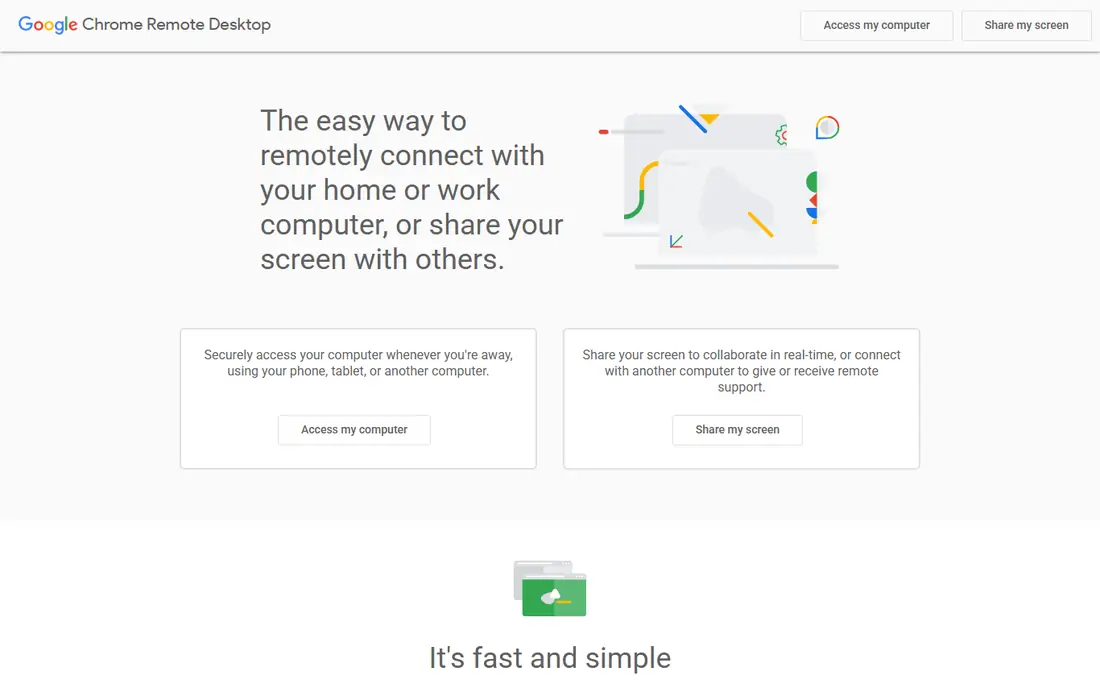
Chrome Remote Desktop is a strong choice for google users who want free browser remote access. Free remote access through Chrome. That matters in daily use, because a tool that fits the job from the start needs less workaround and less training. Beyond that first strength, Chrome Remote Desktop also offers simple setup and cross-platform. Pricing is listed as free, with a free plan status of yes, so check the current pricing page before you budget, since tiers change and some features sit behind higher plans. The honest catch is that feature set is basic, and no advanced file or session tools. That does not rule it out, but it does mean you should test those weak spots during a trial with your own data and your own workflow. If those limits do not affect your team, Chrome Remote Desktop is an easy shortlist pick. If they do, one of the other options below will probably fit better.
- Free remote access through Chrome
- Simple setup
- Cross-platform
- Feature set is basic
- No advanced file or session tools
Splashtop Personal
Ideal for: Users who want high-quality remote desktop streaming
Splashtop Personal is a strong choice for users who want high-quality remote desktop streaming. Fast streaming and sound. That matters in daily use, because a tool that fits the job from the start needs less workaround and less training. Beyond that first strength, Splashtop Personal also offers multi-device support and affordable personal plans. Pricing is listed as see website, with a free plan status of free trial, so check the current pricing page before you budget, since tiers change and some features sit behind higher plans. The honest catch is that free options are limited, and personal plan pricing varies. That does not rule it out, but it does mean you should test those weak spots during a trial with your own data and your own workflow. If those limits do not affect your team, Splashtop Personal is an easy shortlist pick. If they do, one of the other options below will probably fit better.
- Fast streaming and sound
- Multi-device support
- Affordable personal plans
- Free options are limited
- Personal plan pricing varies
RemotePC
Ideal for: Users who want low-cost remote access for home PCs
RemotePC is a strong choice for users who want low-cost remote access for home pcs. Remote access, file transfer and chat. That matters in daily use, because a tool that fits the job from the start needs less workaround and less training. Beyond that first strength, RemotePC also offers affordable plans and always-on access. Pricing is listed as see website, with a free plan status of free trial, so check the current pricing page before you budget, since tiers change and some features sit behind higher plans. The honest catch is that interface feels dated, and advanced features need higher tiers. That does not rule it out, but it does mean you should test those weak spots during a trial with your own data and your own workflow. If those limits do not affect your team, RemotePC is an easy shortlist pick. If they do, one of the other options below will probably fit better.
- Remote access, file transfer and chat
- Affordable plans
- Always-on access
- Interface feels dated
- Advanced features need higher tiers
Zoho Assist
Ideal for: Zoho users who want remote support and access
Zoho Assist is a strong choice for zoho users who want remote support and access. Remote support and unattended access. That matters in daily use, because a tool that fits the job from the start needs less workaround and less training. Beyond that first strength, Zoho Assist also offers free plan and zoho integration. Pricing is listed as free, with a free plan status of yes, so check the current pricing page before you budget, since tiers change and some features sit behind higher plans. The honest catch is that free plan limits sessions, and advanced features need paid tiers. That does not rule it out, but it does mean you should test those weak spots during a trial with your own data and your own workflow. If those limits do not affect your team, Zoho Assist is an easy shortlist pick. If they do, one of the other options below will probably fit better.
- Remote support and unattended access
- Free plan
- Zoho integration
- Free plan limits sessions
- Advanced features need paid tiers
RealVNC Connect
Ideal for: Users who want secure VNC-based remote access
RealVNC Connect is a strong choice for users who want secure vnc-based remote access. Secure remote access with VNC. That matters in daily use, because a tool that fits the job from the start needs less workaround and less training. Beyond that first strength, RealVNC Connect also offers cross-platform and free plan for personal use. Pricing is listed as free, with a free plan status of yes, so check the current pricing page before you budget, since tiers change and some features sit behind higher plans. The honest catch is that setup is more technical, and free plan limits devices. That does not rule it out, but it does mean you should test those weak spots during a trial with your own data and your own workflow. If those limits do not affect your team, RealVNC Connect is an easy shortlist pick. If they do, one of the other options below will probably fit better.
- Secure remote access with VNC
- Cross-platform
- Free plan for personal use
- Setup is more technical
- Free plan limits devices
How we picked these
We compared official feature pages, pricing pages, app store listings, privacy policies and public reviews for best remote access software for personal use. We favoured products that are available and supported in October 2026, that clearly fit the topic, and that publish enough pricing or plan detail for a buyer to judge value. We did not claim hands-on testing, and we did not invent ratings, user counts or awards. Where a price could not be verified on the vendor site, we wrote See website rather than guessing. We also weighed who each product is really for, not just how long its feature list is. A tool built for a large enterprise can be a poor pick for a small team, and a simple tool can be a poor pick for a regulated workflow. That is why the list mixes well-known leaders with smaller specialists, and why each profile names an honest weakness alongside its strengths.
How to choose the right option for your team
Start by writing down the one job you need best remote access software for personal use to do in the next three months. If a tool cannot do that job well, its extra features do not matter. Then list the systems it must connect to, such as your accounting, CRM, calendar or data warehouse, and confirm each integration on the vendor site rather than assuming it works. A short integration check now prevents a painful migration later. Next, run a trial with real work, not demo data. Invite the people who will use the tool every day, give them a realistic task, and watch where they get stuck. Ask about data export, user permissions, support hours and contract terms during the trial, because those details decide whether a tool stays useful after the first month. Price the full setup, including seats, add-ons and training, before you compare quotes. Finally, pick the tool your team will actually use. The best choice is rarely the one with the longest feature list. It is the one that fits your workflow, your budget and your support needs, and that your team can adopt without a long project. Shortlist two finalists, compare them side by side on your own tasks, and then commit.
Frequently asked questions
What is best remote access software for personal use?
Best Remote Access Software for Personal Use covers tools that help with the job described by that keyword, from planning and tracking to reporting and collaboration. The products above differ in scope, price and target buyer, so compare them on the specific tasks you need rather than on marketing claims.
How much does best remote access software for personal use cost?
Pricing varies widely, and many vendors in this list use quote-based pricing, so we list See website where a public price could not be verified. Free plans and trials are available from several options, including Splashtop Personal, but paid tiers usually add reporting, controls and support. Ask each vendor for a written quote for your team size.
Is there a free option for best remote access software for personal use?
Yes, several products offer a free plan or a free trial, including Splashtop Personal and TeamViewer where noted in the table. Free plans usually limit users, volume or features, so they work best for testing or for very small teams. Check the limits on the vendor pricing page before you rely on a free tier.
Which option is best for a small team?
For most small teams, TeamViewer is a sensible starting point because it covers the core job without a heavy setup. If budget is tight, start with a free plan from Splashtop Personal and upgrade only when you hit a limit. Larger or regulated teams should look at the enterprise-leaning options in the list.
How do I switch to a new tool?
Export your existing data first, map your current workflow to the new tool, and run both systems in parallel for a short period. Check import tools and support help on the vendor site, train the team on the new workflow, and confirm that reports and integrations still work before you cancel the old tool.