Best Free Remote Access Software in 2026: 7 Tools Compared

- 1
 RustDeskFree open-source accessVisit
- 2
 AnyDeskFast polished connectionsVisit
- 3
 TeamViewerReliable remote supportVisit
- 4
 Chrome Remote DesktopQuick Google-based accessVisit
- 5
 DWServiceBrowser-based remote accessVisit
- RustDesk is our pick for free, open-source remote access across platforms.
- Chrome Remote Desktop suits quick, free help sessions with a Google account.
- AnyDesk and TeamViewer suit polished, reliable connections, with free tiers for personal use.
- DWService, UltraVNC, and RealVNC suit browser-based, classic, or cross-platform needs.
Quick comparison
| Product | Ideal for | Price from | Free version | |
|---|---|---|---|---|
| RustDesk | Free open-source access | Free | Yes | Visit |
| AnyDesk | Fast polished connections | Free | Yes | Visit |
| TeamViewer | Reliable remote support | Free | Yes | Visit |
| Chrome Remote Desktop | Quick Google-based access | Free | Yes | Visit |
| DWService | Browser-based remote access | Free | Yes | Visit |
 UltraVNC | Classic Windows remote control | Free | Yes | Visit |
 RealVNC | Cross-platform VNC access | Free | Yes | Visit |
The best free remote access software
Free remote access software lets you control another computer from your own, for helping family, working from home, or managing machines. The best free tools balance ease, speed, and security.
We compared official product pages, help pages, and pricing pages for each tool below. Our pick for most people is RustDesk, because it is open-source, free, and works across Windows, Mac, Linux, and mobile.
Security matters more than convenience here. Use strong passwords, two-factor options where offered, and only connect to machines you trust.
RustDesk
Ideal for: Free open-source access
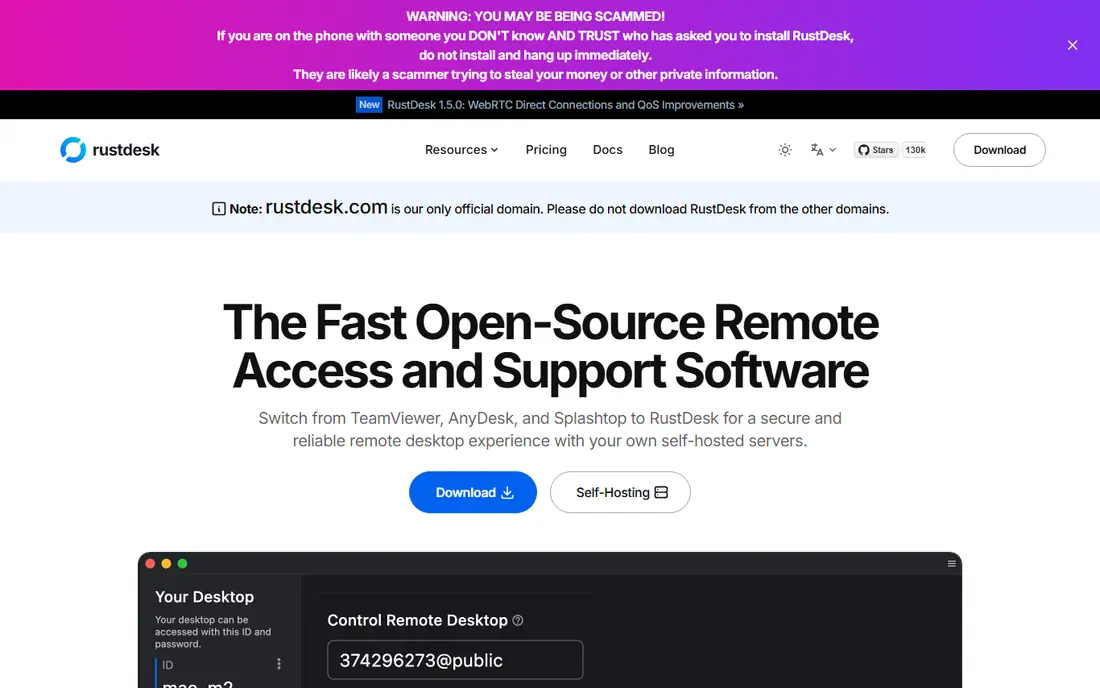
RustDesk is an open-source remote desktop tool for Windows, Mac, Linux, Android, and iOS, with file transfer, chat, and multi-monitor support. You can use its public servers or self-host your own.
Its interface is functional rather than polished, and self-hosting needs technical setup, though basic use does not. For a free tool you control, it is a standout.
Our view: the best free remote access tool for most people.
Bottom line: RustDesk is a strong fit for free open-source access, and its main draw is open-source and self-hostable. Weigh that against the limits above before you commit, and test it with your own real work during any trial or free period.
- Open-source and self-hostable
- Cross-platform
- No account needed for basic use
- Interface is functional
- Self-hosting needs technical setup
AnyDesk
Ideal for: Fast polished connections
AnyDesk offers fast, low-latency remote connections with file transfer, session recording, and cross-platform support. Its free tier covers personal use, such as helping family.
Commercial use needs a paid licence, and free sessions may prompt about upgrades. For personal help and light remote work, its speed and polish stand out.
Our view: a fast, polished free option for personal remote help.
Bottom line: AnyDesk is a strong fit for fast polished connections, and its main draw is fast, low-latency connections. Weigh that against the limits above before you commit, and test it with your own real work during any trial or free period.
- Fast, low-latency connections
- Cross-platform
- Free for personal use
- Commercial use needs a paid plan
- Free use may show upgrade prompts
TeamViewer
Ideal for: Reliable remote support
TeamViewer is a long-running remote access tool with reliable connections, file transfer, and meeting tools across Windows, Mac, Linux, and mobile. Its free tier covers personal, non-commercial use.
Commercial use detection can interrupt sessions if use looks commercial, so businesses need a paid plan. For personal help, though, its reliability is proven.
Our view: a dependable free choice for personal remote support.
Bottom line: TeamViewer is a strong fit for reliable remote support, and its main draw is reliable connections. Weigh that against the limits above before you commit, and test it with your own real work during any trial or free period.
- Reliable connections
- Wide platform support
- Meeting and file tools
- Free use is for personal use only
- Commercial detection can block sessions
Chrome Remote Desktop
Ideal for: Quick Google-based access
Chrome Remote Desktop offers free remote access through a browser or app, using a Google account. Setup is quick: install the extension, set a PIN, and connect from any device.
Features are basic compared with AnyDesk or TeamViewer, with fewer admin tools. For quick help sessions and personal access, its simplicity is ideal.
Our view: the simplest free remote access for Google users.
Bottom line: Chrome Remote Desktop is a strong fit for quick Google-based access, and its main draw is free and simple. Weigh that against the limits above before you commit, and test it with your own real work during any trial or free period.
- Free and simple
- Browser based
- Works with a Google account
- Features are basic
- Needs Chrome and a Google account
DWService
Ideal for: Browser-based remote access
DWService is a free, open-source remote access service that works through a browser, with an agent on the remote machine. It suits helpers who want no client install for quick sessions.
Its interface is plain and performance varies with network quality, but for free browser-based access it is a practical tool. Advanced admin features are thinner than paid rivals.
Our view: a handy free browser-based option for quick help.
Bottom line: DWService is a strong fit for browser-based remote access, and its main draw is free and browser based. Weigh that against the limits above before you commit, and test it with your own real work during any trial or free period.
- Free and browser based
- No install for clients
- Open-source project
- Interface is plain
- Performance varies with network
UltraVNC
Ideal for: Classic Windows remote control
UltraVNC is a classic free, open-source VNC tool for Windows remote control, with file transfer, chat, and encryption options. It suits local networks and technical users.
It is Windows only, and remote access across the internet needs network setup such as port forwarding or a VPN. For local Windows networks, it is a reliable free tool.
Our view: a solid free classic for Windows local networks.
Bottom line: UltraVNC is a strong fit for classic Windows remote control, and its main draw is free and open-source. Weigh that against the limits above before you commit, and test it with your own real work during any trial or free period.
- Free and open-source
- Windows focused
- File transfer and chat
- Windows only
- Setup needs network knowledge for remote networks
RealVNC
Ideal for: Cross-platform VNC access
RealVNC offers cross-platform remote access through its VNC Connect service, with cloud connections, file transfer, and encryption. A free tier covers personal use on limited devices.
Full features and more devices need paid plans. For cross-platform VNC access with cloud convenience, it is a polished free start.
Our view: a polished cross-platform VNC option with a useful free tier.
Bottom line: RealVNC is a strong fit for cross-platform VNC access, and its main draw is cross-platform VNC. Weigh that against the limits above before you commit, and test it with your own real work during any trial or free period.
- Cross-platform VNC
- Cloud connections
- Free tier for personal use
- Free tier limits devices
- Full features need a paid plan
How we picked these
We compared official product pages, help pages, and pricing pages, and we looked at platforms, ease of setup, security options, and free tier limits. We favoured tools that are genuinely free for personal use, not just trials.
We did not claim hands-on remote sessions. Where free use was limited to personal use, we said so plainly.
How to choose free remote access software
Start with your use case. Helping family suits Chrome Remote Desktop or AnyDesk, personal remote work suits RustDesk or RealVNC, and local Windows networks suit UltraVNC.
Check platform support on both ends. The helper and the remote machine must both run the tool, so confirm Windows, Mac, Linux, and mobile coverage before you rely on it.
Also agree a session plan before connecting to a family member machine. Note what needs fixing, what not to change, and how to confirm the fix afterwards, since remote sessions without a plan often end with new confusion.
Prioritise security settings. Use strong, unique passwords or PINs, enable two-factor options where offered, and turn off unattended access when you do not need it.
Test performance on your real network. Speed varies with internet quality, so test a session on the actual connection you will use, not just a fast office network.
Confirm commercial rules before work use. Free tiers here are mostly for personal use, so businesses need paid plans for TeamViewer, AnyDesk, and RealVNC.
Finally, keep remote software updated. Outdated remote tools are a security risk, so enable automatic updates and remove tools you no longer use.
Also review who has unattended access each month. Remove access for people who no longer need it, since stale access is a common security gap. A short monthly review takes minutes and prevents most lingering access problems. Do it on the first of each month.
If you are still unsure, start with a free plan and move to a paid plan only when you hit its limits.
Frequently asked questions
What is the best free remote access software?
RustDesk is our pick for free, open-source access, while Chrome Remote Desktop suits quick help and AnyDesk suits fast personal sessions.
Is free remote access software safe?
It can be, if you use strong passwords, enable security options, and only connect to trusted machines. Keep software updated and disable unattended access when not needed.
Can I use free remote software for business?
Most free tiers here are for personal use only, so businesses should buy paid plans for TeamViewer, AnyDesk, and RealVNC. RustDesk self-hosting suits some business cases.
Do I need to install software on both computers?
Usually yes, except for browser-based tools such as DWService and Chrome Remote Desktop, which need only a browser or extension on one side.
What is the difference between RustDesk and TeamViewer?
RustDesk is open-source and self-hostable, giving you more control, while TeamViewer is a polished commercial tool with a free personal tier and wider support.
Can I transfer files during a remote session?
Yes, on most tools here. RustDesk, AnyDesk, TeamViewer, and RealVNC all support file transfer during sessions, though limits vary by plan and tool.