8 Strong Remote Desktop Software for Multiple Monitors in 2026

- 1
 SplashtopHigh-performance remote workVisit
- 2
 Zoho AssistWeb-based remote supportVisit
- 3
 RustDeskOpen-source self-hosted accessVisit
- 4
 GoTo ResolveIT support and managementVisit
- 5
 TeamViewerGeneral remote access with multi-monitorVisit
- Splashtop sits first on this list: high-performance remote work.
- For free straightforward remote access, Chrome Remote Desktop is worth a look.
- Check the limits for Splashtop before you commit: product lineup is confusing.
- Free plans exist at 3 of 8 tools (Zoho Assist, RustDesk, Chrome Remote Desktop).
Direct answer
Splashtop is the first pick on this list for high-performance remote work. Zoho Assist fits web-based remote support; RustDesk fits open-source self-hosted access. The remaining 5 options are covered below with prices and limits.
Quick comparison
| Product | Ideal for | Price from | Free version | |
|---|---|---|---|---|
| Splashtop | High-performance remote work | See website | Free trial | Visit |
| Zoho Assist | Web-based remote support | See website | Yes | Visit |
| RustDesk | Open-source self-hosted access | Free | Yes | Visit |
| GoTo Resolve | IT support and management | See website | Free trial | Visit |
| TeamViewer | General remote access with multi-monitor | See website | Free trial | Visit |
 RemotePC | Budget-friendly always-on access | See website | Free trial | Visit |
 RealVNC | Light VNC access | See website | Free trial | Visit |
 Chrome Remote Desktop | Free straightforward remote access | Free | Yes | Visit |
The full remote desktop software for multiple monitors list
Ainotely put together this guide to remote desktop software for multiple monitors for readers who want a clear shortlist without reading every vendor page. It compares 8 tools on starting price, free plans, who each one suits and where each one falls short.
Splashtop
Ideal for: High-performance remote work

Splashtop was built for high-performance remote work. The business products add SSO, audit logs, remote print and file transfer, with security certifications that satisfy IT departments. Some features you expect are edition-specific.
Where it falls short: Some features split across editions.
You can view all remote watches simultaneously, match the remote layout to your local one and switch quickly between displays. Also, the multi-monitor experience is a highlight. Splashtop sells multiple editions (Business Access, SOS, Remote Support, Enterprise) and figuring out which one you need takes effort. Also, the streaming performance takes care of high resolutions and several displays smoothly, with 4K support and low latency that makes remote work feel local. Check the vendor site for Splashtop pricing; none is listed in this comparison. As for free access: Free trial.
- Budget-friendly business pricing
- Solid security
- Product lineup is confusing
Zoho Assist
Ideal for: Web-based remote support
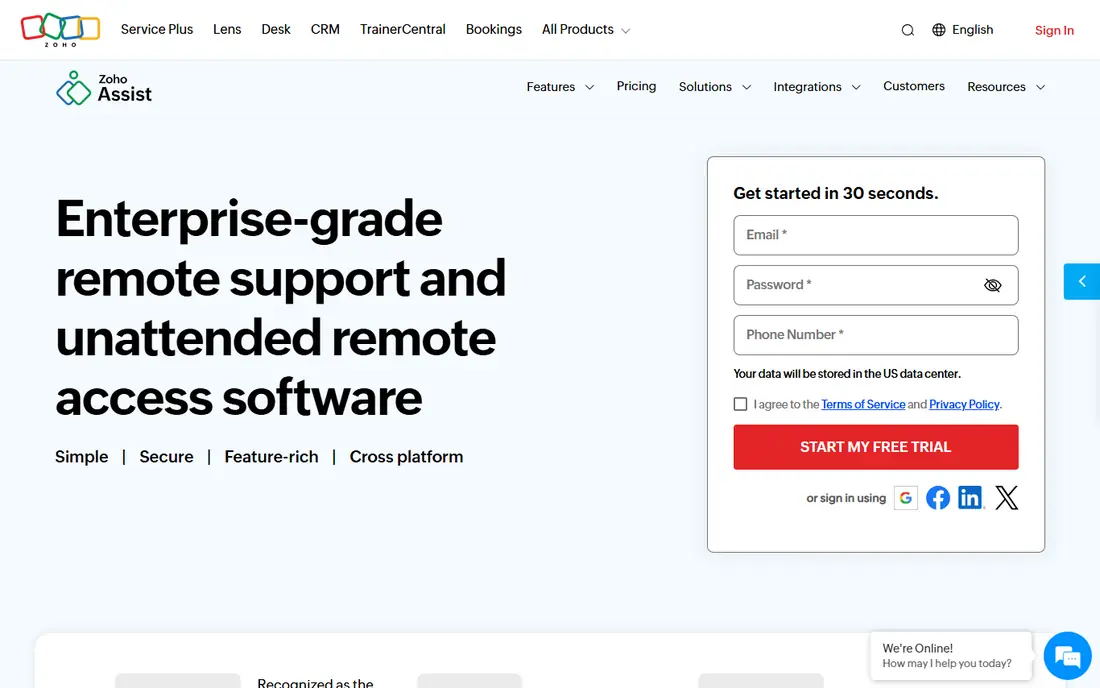
Zoho Assist is a good fit for web-based remote support. Support agents invite customers with a link, take control of the screen and manage multi-monitor setups without anyone installing software. Integration with Zoho Desk ties sessions to tickets.
The honest limits are performance and polish. The browser-based approach is the differentiator. Pricing for Zoho Assist is not stated here, so ask the vendor for current figures. Free access exists with Zoho Assist.
Where it is weaker: Performance is mid-range.
- Decent value premium levels
- Runs in the browser with no install
- Multi-monitor controls less refined
RustDesk
Ideal for: Open-source self-hosted access

Where RustDesk fits: open-source self-hosted access. RustDesk is the open-source answer to TeamViewer: a full remote desktop client with multi-monitor support, file transfer, chat and unattended access, free forever, with the choice to self-host the relay server so no traffic passes through third parties. It runs on Windows, macOS, Linux, Android and iOS.
As for the details, setup, particularly self-hosting, needs technical skill, and support comes from the community instead of a vendor SLA. It lacks the management consoles, audit features and polish of commercial products. For everyday use, the self-hosting is the killer feature for privacy-conscious organizations. RustDesk pricing: Free. A free plan is available with RustDesk.
Where it is weaker: Support is community-based.
- Free and open source
- Self-hostable relay server
- Setup needs technical skill
GoTo Resolve
Ideal for: IT support and management
GoTo Resolve is built with IT support and management in mind. The integration is the point. Rather than juggling a remote tool, a ticket system and a device manager, the help desk works from one place.
Honest limits: Some features need the full GoTo suite.
GoTo Resolve, from the company formerly known as LogMeIn, is the IT support platform that contains remote desktop as part of a larger picture. Small shops may find it more than they need. Also, Remote sessions launch from tickets, device health data is visible during the session, and typical fixes run as background tasks without interrupting the user. GoTo Resolve shows no starting price here, so confirm the cost on the vendor site. On free options: Free trial.
- Merges remote support with IT management
- Trusted vendor
- Priced for IT teams, not individuals
TeamViewer
Ideal for: General remote access with multi-monitor
TeamViewer works best for general remote access with multi-monitor. When you link to a machine with two or three displays, you can view them individually, switch between them or present all at once, with the remote screen scaling to fit your local setup.
Beyond that, TeamViewer is the remote desktop name everyone knows, and its multi-monitor support is genuinely decent. TeamViewer shows no starting price here, so confirm the cost on the vendor site. As for free access: Free trial.
Honest limits: Premium pricing.
- Steady multi-monitor display and switching
- Works across all major systems
- Free version flags commercial use aggressively
RemotePC
Ideal for: Budget-friendly always-on access
RemotePC works best for low-cost always-on access. RemotePC competes on price. For a small business that needs to reach a handful of office PCs from home, the economics are compelling.
Where it is weaker: Performance lags the leaders.
In daily use, if performance matters, pay more. On top of that, the multi-monitor controls are entry-level compared to the leaders. No starting price is listed for RemotePC here; confirm pricing on the vendor site. On free options: Free trial.
- Unlimited computers on some plans
- Very low pricing for always-on access
- Multi-monitor features are entry-level
RealVNC
Ideal for: Light VNC access
RealVNC is a good fit for light VNC access. For straightforward remote access to multi-monitor machines without the product overhead, it does the job. The honest limits are features and polish.
Main advantages: Light and cross-platform.
What to check first: Entry-level multi-monitor handling.
On top of that, the appeal is simplicity and footprint. It is light, runs on everything from Windows and macOS to Linux and Raspberry Pi. The protocol compatibility means it works with other VNC viewers and servers. Check the vendor site for RealVNC pricing; none is listed in this comparison. On free options: Free trial.
- Highly compatible
- The original VNC
- Fewer support features
Chrome Remote Desktop
Ideal for: Free straightforward remote access
In short, Chrome Remote Desktop is for free straightforward remote access. Chrome Remote Desktop is Google's free remote access tool. Its pitch is simplicity: install the extension, set a PIN and link from any Chrome browser or the mobile app.
Downsides: Multi-monitor support is rudimentary.
It is free for personal and commercial use with no catches, which no other tool here can claim. Multi-monitor support is rudimentary, there is no file transfer in the traditional sense, no session management, no unattended access controls worth mentioning and no support for IT workflows. But free is free, and for straightforward multi-monitor access it is enough. The starting price for Chrome Remote Desktop: Free. A free plan is available with Chrome Remote Desktop.
- Dead straightforward setup
- Fully free
- Minimal features
Selection criteria
Ainotely used vendor pricing pages and product documentation as the base, then compared plans, free access and documented limits for 8 tools. Seat minimums, billing terms and add-ons can move the real cost, so the starting prices here are a guide and not a quote. The order reflects how well each tool fits the most common buying scenario for remote desktop software for multiple monitors, then price clarity, then free plan access. It is a starting point, not a verdict.
What to check before you buy
- Confirm the entry price on the vendor page. For Splashtop, Zoho Assist, GoTo Resolve and others that means a quote rather than a fixed price.
- Check what the free option really includes: Zoho Assist, RustDesk and Chrome Remote Desktop offer a free plan, and usage caps differ.
- Use real work to test the free trial from Splashtop, GoTo Resolve, TeamViewer and others, rather than a demo project.
- Read the limits listed for Splashtop first: product lineup is confusing.
- Pick one real project and run it in RustDesk first; a small pilot shows fit faster than a checklist.
- Compare total cost, not headline price: for RemotePC, add extra seats, add-ons and any usage-based charges.
Frequently asked questions
Do these tools publish their prices?
Not all of them. Splashtop, Zoho Assist, GoTo Resolve and others publish no starting price, so expect a quote request for those. The rest, RustDesk included, show a starting price, though seats and billing terms still change the final cost.
Can I try these tools before paying?
Often, yes. Zoho Assist, RustDesk and Chrome Remote Desktop have a free plan and Splashtop, GoTo Resolve, TeamViewer and others offer a free trial. Use your own data and a real task during the test, and check what the free tier or trial limits before you rely on it.
How are the tools for remote desktop software for multiple monitors ordered?
Splashtop sits first and Chrome Remote Desktop last because the order follows typical fit for remote desktop software for multiple monitors, then price clarity and free access. It is a judgement call, so read each profile for fit and limits.
Do I need quick internet for multi-monitor remote desktop?
It helps a lot. Several high-resolution watches multiply the bandwidth needed. The better tools adapt quality to available bandwidth, but a slow connection will still feel laggy.
Which options for remote desktop software for multiple monitors have a free plan?
Zoho Assist, RustDesk and Chrome Remote Desktop offer a free plan in this list. Free plans usually cap users, projects or features, so check the limits on the vendor page. Several others offer a trial instead.