Best Scanner Apps in 2026: 8 Options Compared

- 1
 Adobe ScanBest free all-round scannerVisit
- 2
 Microsoft LensFree scanning for Microsoft usersVisit
- 3
 CamScannerFeature-rich scanningVisit
- 4
 SwiftScanPolished iPhone scanningVisit
- 5
 Scanner ProPower scanning on Apple devicesVisit
- Adobe Scan and Microsoft Lens are the strongest free scanners for documents and receipts.
- SwiftScan and Scanner Pro suit iPhone users who want polished scans and smart file naming.
- CamScanner offers strong features but its free tier includes ads and watermarks on some exports.
- Check export options before choosing, since PDF quality, OCR and cloud folders matter more than filters.
Quick comparison
| Product | Ideal for | Price from | Free version | |
|---|---|---|---|---|
| Adobe Scan | Best free all-round scanner | Free | Yes | Visit |
| Microsoft Lens | Free scanning for Microsoft users | Free | Yes | Visit |
| CamScanner | Feature-rich scanning | See website | Yes | Visit |
| SwiftScan | Polished iPhone scanning | See website | Free trial | Visit |
| Scanner Pro | Power scanning on Apple devices | See website | Free trial | Visit |
 Apple Notes | Built-in scanning on Apple devices | Free | Yes | Visit |
 iScanner | Scanning plus document tools | See website | Free trial | Visit |
 TurboScan | Fast, low-cost scanning | See website | Yes | Visit |
The best scanner apps
We compared scanner apps on scan quality, text recognition, export options and cost. Our pick for most people is Adobe Scan or Microsoft Lens, since both are free, reliable and export clean PDFs.
Adobe Scan
Ideal for: Best free all-round scanner
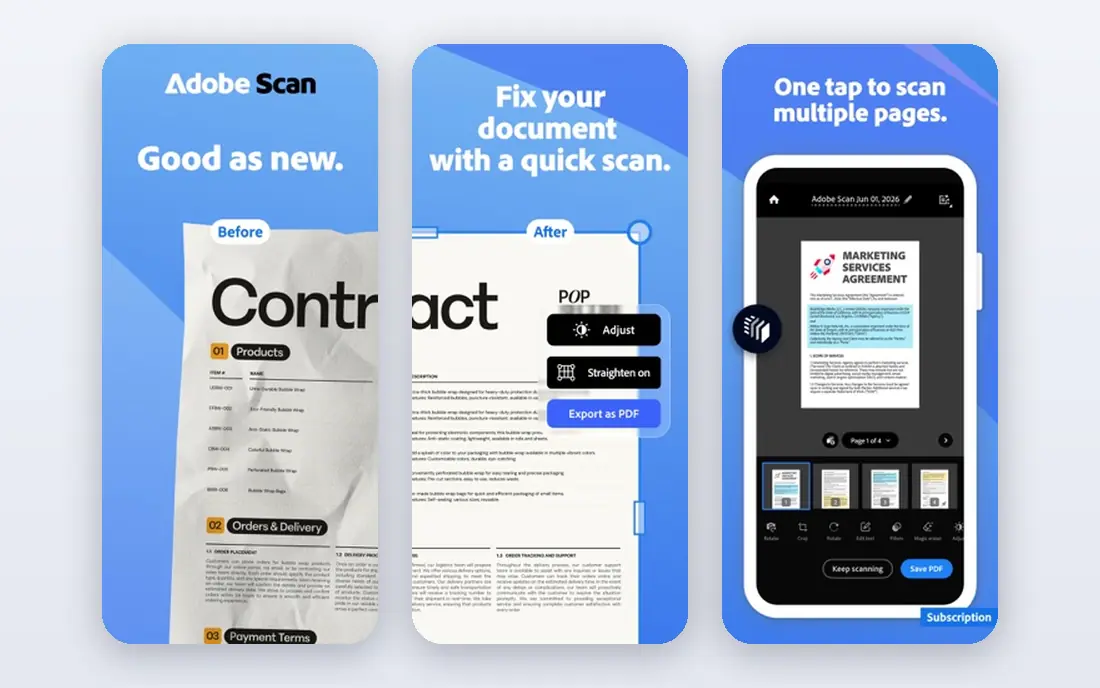
Our first look at Adobe Scan starts with who it serves best. It is the free scanner we recommend first. Adobe Scan detects edges, cleans up pages and produces searchable PDFs that look professional.
The catch is the Adobe ecosystem: the best extras sit behind paid plans. It fits anyone who scans documents and receipts regularly. Check the current pricing page before you commit, since plans in this category change often, and use the free plan or trial to confirm the fit with your own work.
Before you pay for Adobe Scan, run one real task through it, such as a full document, a full trip plan or a full project, and judge it on that result rather than on the marketing page.
- Free core scanning with auto-crop
- Clean PDFs with text recognition
- Integrates with Adobe cloud
- Some advanced features need a paid Adobe plan
- Account required for some features
Microsoft Lens
Ideal for: Free scanning for Microsoft users
For many readers, Microsoft Lens will be the most practical choice on this list. It is the best free option for Microsoft 365 households. Lens scans documents, whiteboards and business cards, and sends them straight to OneDrive or Office apps.
The catch is editing depth: it is a capture tool more than a document editor. It fits students and workers already using Microsoft apps. Check the current pricing page before you commit, since plans in this category change often, and use the free plan or trial to confirm the fit with your own work.
A useful test for Microsoft Lens is to try the exact workflow you will repeat weekly, then check how long it takes and whether the output needs heavy fixing before it is usable.
- Free with no subscription for core features
- Saves to OneDrive, Word and PDF
- Good whiteboard mode
- Fewer advanced editing tools than paid rivals
- Microsoft account helps for cloud saves
CamScanner
Ideal for: Feature-rich scanning
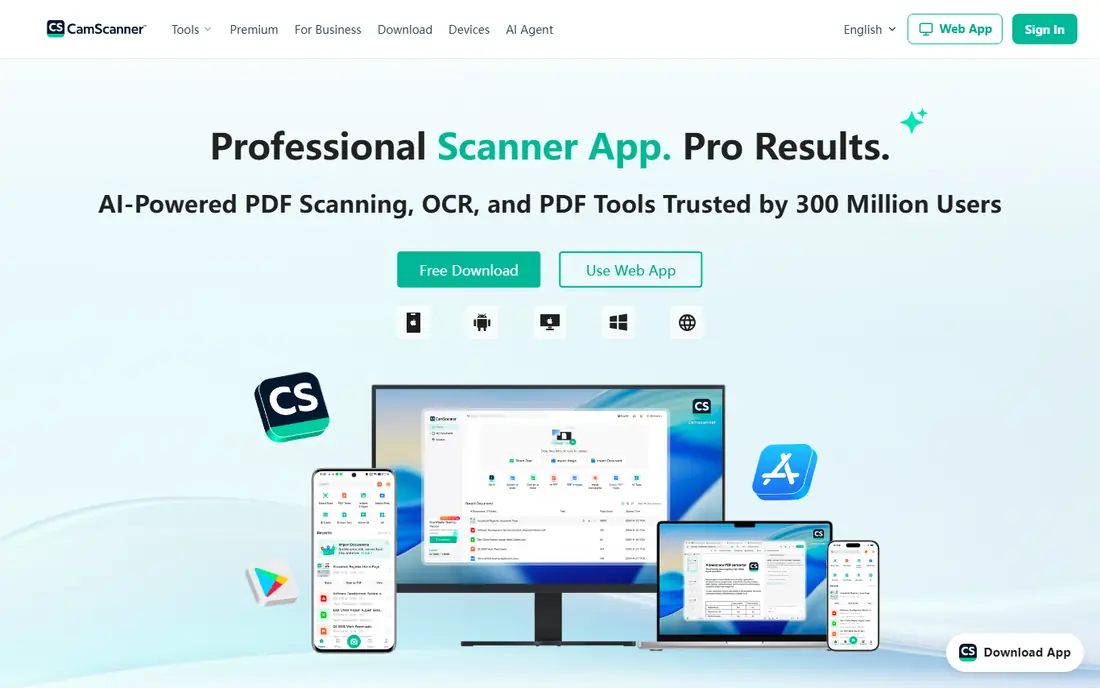
Next up is CamScanner, which takes a different approach to the same job. It packs more scanning features than most rivals. CamScanner handles batches, IDs and books, with editing and cloud sync in one app.
The catch is the free experience: ads and watermarks push users toward premium. It fits heavy scanners who want every feature in one place. Check the current pricing page before you commit, since plans in this category change often, and use the free plan or trial to confirm the fit with your own work.
When you trial CamScanner, note what is missing as well as what works, since the missing piece often decides whether a tool survives past the first month.
- Strong batch scanning and editing
- Cloud sync across devices
- ID and book modes
- Free tier includes ads and watermarks on some exports
- Premium needed for full features
SwiftScan
Ideal for: Polished iPhone scanning
SwiftScan earns its place here for a specific kind of user. It is the polished pick for iPhone users. SwiftScan produces crisp scans, names files sensibly and exports to the cloud with little effort.
The catch is platform and price: it is iOS-first and the best features are paid. It fits iPhone users who scan often and value polish. Check the current pricing page before you commit, since plans in this category change often, and use the free plan or trial to confirm the fit with your own work.
We would also check support and documentation for SwiftScan during the trial, since a tool you cannot get help with becomes expensive in staff time even when the subscription looks cheap.
- Excellent scan quality and auto-naming
- ICloud and cloud exports
- Smart workflows
- IOS-focused
- Full features need a subscription
Scanner Pro
Ideal for: Power scanning on Apple devices
If the options so far have not fit, Scanner Pro is worth a closer look. It is the power option for Apple users. Scanner Pro adds OCR, workflows and automation that turn scans into filed documents quickly.
The catch is that it is Apple-focused and the full version is paid. It fits Apple users who scan for work and want automation. Check the current pricing page before you commit, since plans in this category change often, and use the free plan or trial to confirm the fit with your own work.
Before you pay for Scanner Pro, run one real task through it, such as a full document, a full trip plan or a full project, and judge it on that result rather than on the marketing page.
- Strong OCR and workflows
- Integrates with Readdle apps
- Good for receipts and contracts
- Apple-focused
- Subscription for full features
Apple Notes
Ideal for: Built-in scanning on Apple devices
Apple Notes is the option we point to when a reader has a clear priority in mind. It is the no-fuss scanner for people who dislike extra apps. Apple Notes scans documents straight into a note with auto-cropping, which covers most everyday scanning.
The catch is platform: Android users need a different app. It fits Apple users who want a simple scanner that just works. Check the current pricing page before you commit, since plans in this category change often, and use the free plan or trial to confirm the fit with your own work.
A useful test for Apple Notes is to try the exact workflow you will repeat weekly, then check how long it takes and whether the output needs heavy fixing before it is usable.
- Free and built into Apple devices
- Scans documents into notes
- ICloud sync
- Apple-only
- Fewer scanning extras than dedicated apps
iScanner
Ideal for: Scanning plus document tools
Another strong contender is iScanner, and it stands out for one clear reason. It is a scanner plus a small document toolkit. iScanner adds signing and measuring tools, which suits field workers who handle forms on site.
The catch is that the interface packs in a lot, and full features need a subscription. It fits field workers and anyone who signs documents on a phone. Check the current pricing page before you commit, since plans in this category change often, and use the free plan or trial to confirm the fit with your own work.
When you trial iScanner, note what is missing as well as what works, since the missing piece often decides whether a tool survives past the first month.
- Scanning plus signing, measuring and file tools
- Strong export options
- Good for field work
- Subscription needed for full features
- Interface can feel busy
TurboScan
Ideal for: Fast, low-cost scanning
We round out the list with TurboScan, which fills a gap the others leave open. It is the fast, cheap option for straightforward scans. TurboScan handles multi-page documents quickly and keeps costs low.
The catch is extras: OCR and cloud depth lag the big names. It fits users who mainly need quick, clean PDFs. Check the current pricing page before you commit, since plans in this category change often, and use the free plan or trial to confirm the fit with your own work.
We would also check support and documentation for TurboScan during the trial, since a tool you cannot get help with becomes expensive in staff time even when the subscription looks cheap.
- Fast multi-page scanning
- Low price for paid features
- Simple PDF export
- Fewer cloud and OCR extras than larger rivals
- Design is basic
How we picked these
We compared official feature pages, pricing pages, app store listings, privacy policies and public reviews for each product, and kept only products that exist, work today and truly fit the topic. We favoured clear pricing, a usable free plan or trial, and honest limits over long feature lists. Where a price could not be verified on the vendor site, we wrote See website rather than guessing.
We did not claim hands-on testing we did not do. Instead, we weighed what each vendor documents, what reviewers report in practice, and where each product falls short, so the trade-offs below are stated plainly.
How to get clean scans from a phone
Use good light, hold the phone steady and let the app detect edges rather than cropping by hand. Turn on text recognition when you need searchable PDFs, and set a default export folder so scans do not pile up in a camera roll.
Frequently asked questions
What is the best scanner app?
Adobe Scan and Microsoft Lens are the best free all-round scanners. SwiftScan and Scanner Pro suit iPhone users who want extra polish and automation.
Is there a truly free scanner app?
Yes, Adobe Scan and Microsoft Lens offer strong free scanning without a subscription for core features. Some rivals limit exports or add watermarks on free tiers.
Can a scanner app replace a physical scanner?
For documents, receipts and forms, yes, modern phone cameras plus auto-cropping produce clean results. High-volume or photo archiving still benefits from a dedicated scanner.
What is OCR in a scanner app?
OCR, or optical character recognition, turns a photo of text into searchable, copyable text. It matters when you need to search or edit scanned documents later.
Which scanner app is best for receipts?
Adobe Scan and Microsoft Lens both handle receipts well, with auto-cropping and PDF export. SwiftScan adds smart naming that helps when filing expenses.