Best schedule apps in 2026: 8 Options Compared
- 1
 Calendlybooking links for meetingsVisit
- 2
 Cal.comopen source schedulingVisit
- 3
 Doodlefinding a time that suits a groupVisit
- 4
 Acuity Schedulingclient bookings with paymentsVisit
- 5
 Google Calendarfree calendar and schedulingVisit
- Our pick for most readers is Calendly, because it covers booking links for meetings with a clear pricing page and a broad set of core features.
- Cal.com is the strongest choice when open source scheduling matters most, while Doodle suits buyers who want a simpler setup.
- Prices and free plans vary widely across this list, so check the official pricing page for the plan you need rather than trusting a summary.
- The best option depends on the one or two tasks you will do every week, not on the longest feature list or the largest brand name.
- We compared official feature pages, pricing pages, app store listings, privacy policies and public reviews for each option below.
We compared eight options for best schedule app by reading official feature pages, pricing pages, app store listings and privacy policies, and by checking public reviews for recurring strengths and complaints. The list below mixes well-known leaders with smaller options that do specific jobs well. Prices change, so treat every price here as a starting point and confirm it on the vendor site before you buy.
Quick comparison
| Product | Ideal for | Price from | Free version | |
|---|---|---|---|---|
| Calendly | booking links for meetings | Free | Yes | Visit |
| Cal.com | open source scheduling | Free | Yes | Visit |
| Doodle | finding a time that suits a group | Free | Yes | Visit |
| Acuity Scheduling | client bookings with payments | See website | Free trial | Visit |
| Google Calendar | free calendar and scheduling | Free | Yes | Visit |
 Microsoft Outlook Calendar | scheduling inside Microsoft 365 | Free | Yes | Visit |
 Fantastical | natural language scheduling on Apple devices | See website | Free trial | Visit |
 Motion | auto scheduling for tasks and meetings | See website | Free trial | Visit |
The best schedule apps
Here are the eight options we would shortlist for best schedule app, in an order that balances breadth, value and ease of use. Start with the first two or three, try one with a real task, and only then decide.
Calendly
Ideal for: booking links for meetings
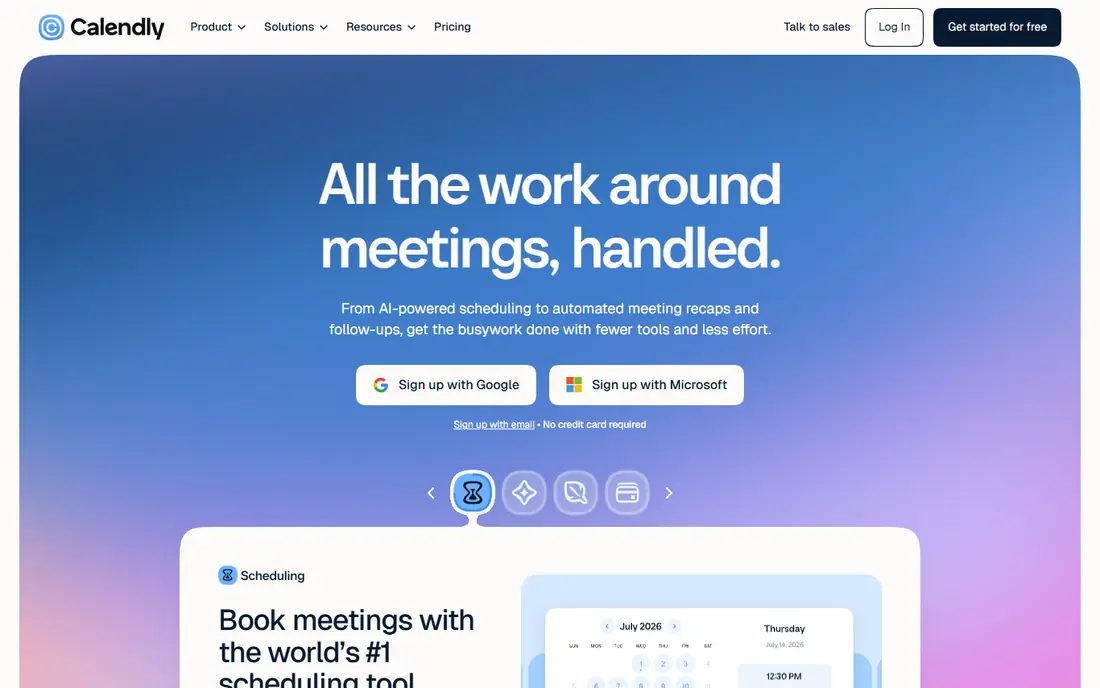
Calendly lets others book time with you through a link, checking your calendar to avoid clashes. That focus makes it a natural fit for booking links for meetings. In daily use, the parts that matter most are easy to find, and the setup steps are clearly laid out on the official site.
On pricing, the listing shows Free with a free plan status of Yes. Check the official pricing page before you commit, since plans and limits change, and the plan that looks cheapest can cost more once add-ons are included. The main trade-off to weigh is free plan limits event types, which matters more for some users than for others.
- Simple booking links
- Calendar sync
- Team scheduling
- Free plan limits event types
- Advanced routing needs paid plans
Cal.com
Ideal for: open source scheduling
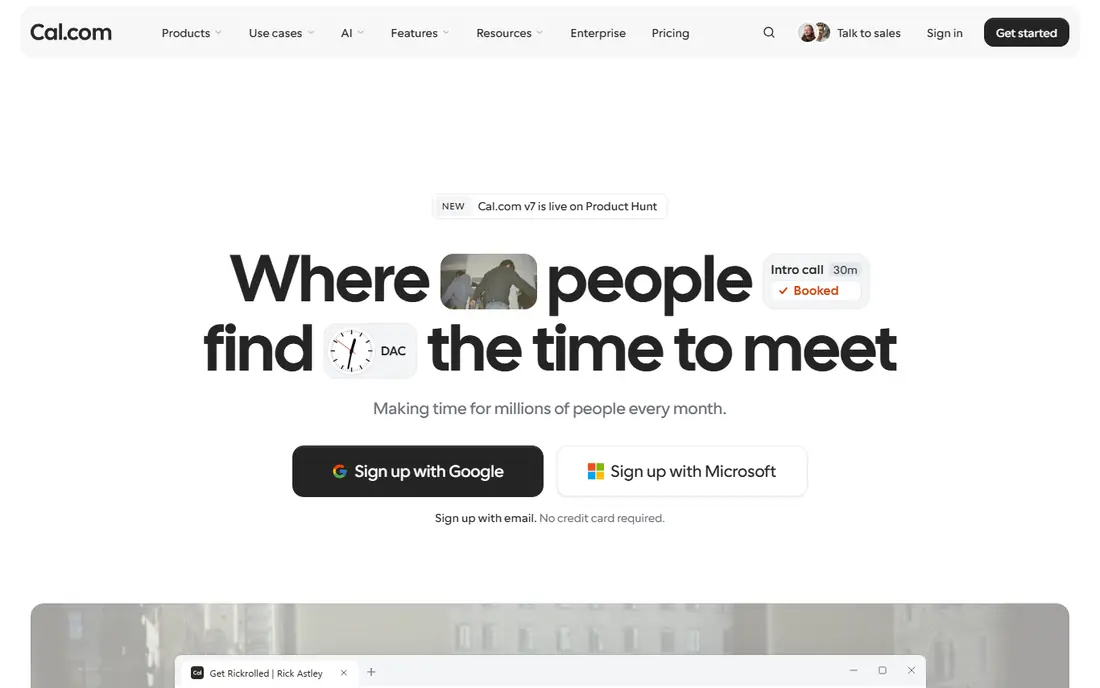
Cal.com is an open source scheduling tool with booking links, team scheduling and a self-host option. For teams and readers focused on open source scheduling, this one earns its place through breadth rather than novelty. The core tools cover the main jobs well, and the documentation helps new users get started without guesswork.
Pricing is listed as Free, and the free plan status is Yes. We suggest a short trial with a real task from your own work, not a demo task, because that is when limits and awkward steps show up. Keep an eye on setup takes more care, since it is the most common complaint in public reviews.
- Open source
- Self-host option
- Team scheduling
- Setup takes more care
- Fewer native integrations than Calendly
Doodle
Ideal for: finding a time that suits a group

Doodle polls a group for the best meeting time, which suits teams and friends who struggle to align calendars. If finding a time that suits a group is your main need, start here. The product covers the expected ground, adds a few thoughtful touches, and keeps its settings in places that are simple to reach.
The starting price is Free and the free plan status is Yes. That combination suits buyers who want to test first, but read the plan limits closely, especially around seats, storage or usage caps. The catch here is full features need subscription, so confirm it does not block the work you do most often.
- Group polls for times
- Simple setup
- No account needed to vote
- Full features need subscription
- Design is plain
Acuity Scheduling
Ideal for: client bookings with payments
Acuity Scheduling, part of Squarespace, handles client bookings with payments and intake forms. Readers who care most about client bookings with payments will find plenty to like. It handles the central tasks with care, and its help pages and guides answer the common questions in plain language.
With a starting price of See website and a free plan status of Free trial, this is easy to try before paying. Compare it on the two or three features you will use every week, rather than on a long feature list. Note that now part of squarespace may be a reason to pick a different option on this list.
- Client booking with payments
- Intake forms
- Calendar sync
- Now part of Squarespace
- Pricing by plan
Google Calendar
Ideal for: free calendar and scheduling
Google Calendar manages events and shared calendars for free, with appointment schedules for simple booking. That focus makes it a natural fit for free calendar and scheduling. In daily use, the parts that matter most are easy to find, and the setup steps are clearly laid out on the official site.
On pricing, the listing shows Free with a free plan status of Yes. Check the official pricing page before you commit, since plans and limits change, and the plan that looks cheapest can cost more once add-ons are included. The main trade-off to weigh is scheduling features are basic beside calendly, which matters more for some users than for others.
- Free
- Shared calendars
- Appointment schedules
- Scheduling features are basic beside Calendly
- Google account needed
Microsoft Outlook Calendar
Ideal for: scheduling inside Microsoft 365
Outlook Calendar pairs email and calendar, with scheduling polls and sharing for business users. For teams and readers focused on scheduling inside Microsoft 365, this one earns its place through breadth rather than novelty. The core tools cover the main jobs well, and the documentation helps new users get started without guesswork.
Pricing is listed as Free, and the free plan status is Yes. We suggest a short trial with a real task from your own work, not a demo task, because that is when limits and awkward steps show up. Keep an eye on full features need microsoft 365, since it is the most common complaint in public reviews.
- Calendar plus email in one place
- FindTime style polls
- Business fit
- Full features need Microsoft 365
- Interface is busy
Fantastical
Ideal for: natural language scheduling on Apple devices
Fantastical lets Apple users type events in plain language, with calendar views that are clear and pleasant. If natural language scheduling on Apple devices is your main need, start here. The product covers the expected ground, adds a few thoughtful touches, and keeps its settings in places that are simple to reach.
The starting price is See website and the free plan status is Free trial. That combination suits buyers who want to test first, but read the plan limits closely, especially around seats, storage or usage caps. The catch here is apple only for full use, so confirm it does not block the work you do most often.
- Natural language event entry
- Beautiful calendar views
- Apple focus
- Apple only for full use
- Subscription needed
Motion
Ideal for: auto scheduling for tasks and meetings
Motion auto-schedules tasks and meetings around your calendar, blocking time for deep work as well as calls. Readers who care most about auto scheduling for tasks and meetings will find plenty to like. It handles the central tasks with care, and its help pages and guides answer the common questions in plain language.
With a starting price of See website and a free plan status of Free trial, this is easy to try before paying. Compare it on the two or three features you will use every week, rather than on a long feature list. Note that pricey may be a reason to pick a different option on this list.
- Auto schedules tasks and meetings
- Calendar blocking
- Project views
- Pricey
- Learning curve for auto planning
How we picked these
We started from the topic itself, best schedule app, and kept only products that exist and work in October 2026 and truly fit that topic. For each one we read the official feature page, the pricing page, the app store listing where one exists, and the privacy policy, then checked public reviews for patterns rather than single comments. Options with a dead homepage, a vague pricing page or a poor fit were left out.
We did not claim hands-on testing we did not do, and we did not invent prices, ratings, awards or user counts. Where a price could not be verified from the vendor site, the listing says See website. That is a deliberate choice: a guessed price helps no one, and the vendor page is the only source that stays current.
Choosing a schedule app that fits your calendar
Start by writing down the two tasks you will do most often, then score each option on those tasks alone. A product that wins on your daily work beats one that wins on a feature you will never open. Next, check the total cost, including seats, storage, usage limits and any paid add-ons, and read the cancellation terms before you pay for a year in advance.
Try the free plan or trial with real data and a real deadline, and ask support one genuine question so you learn how help works before you need it urgently. Check privacy and data handling too, especially who can see your data, how long it is kept, and whether you can export it and leave. Finally, pick the option your whole team or household will actually use, because the best tool on paper is of little use if no one opens it.
Frequently asked questions
What is the best option for best schedule app?
For most readers, Calendly is a sound starting point because it covers booking links for meetings with clear pricing. That said, the right pick depends on your budget, your team size and the specific tasks you do most often, so shortlist two options and trial both.
Is there a free option worth trying?
Several options on this list offer a free plan or a free trial, and the table above shows the status for each one. Free plans usually limit seats, storage or usage, so check those limits against your real workload before relying on one.
How much should I expect to pay?
Prices vary by plan, seats and usage, and several vendors on this list do not publish a single price, which is why some listings say See website. Compare the plan that covers your actual needs, not the cheapest headline price, and check renewal terms.
What should I check before I commit?
Confirm pricing, plan limits, privacy terms, export options and support hours on the official site. Run a short trial with a real task, and read recent public reviews for recurring problems rather than one-off praise or complaints.
Can I switch later if I pick the wrong one?
In most cases yes, but switching costs time, especially if your data is hard to export. Before you commit, confirm you can export your data in a usable form, and keep a copy of anything important outside the product.