Best screenshot tool in 2026: 7 Options Compared

- Snagit suits professionals who want capture plus editing and sharing in one app.
- ShareX and Greenshot suit Windows users who want powerful free capture.
- Lightshot suits users who want the fastest simple capture and share link.
- CleanShot X, Monosnap and Droplr suit Mac users and teams that share often.
Quick comparison
| Product | Ideal for | Price from | Free version | |
|---|---|---|---|---|
 Snagit | professionals who want capture plus editing | See website | Free trial | Visit |
 ShareX | Windows users who want free power | See website | Yes | Visit |
 Greenshot | Windows users who want simple free capture | See website | Yes | Visit |
 Lightshot | users who want the fastest simple capture | See website | Yes | Visit |
 CleanShot X | Mac users who want polished capture | See website | Free trial | Visit |
 Monosnap | teams that want capture plus cloud sharing | See website | Yes | Visit |
 Droplr | teams that want fast sharing at scale | See website | Free trial | Visit |
The best screenshot tool
A good screenshot tool does more than copy the screen: it captures scrolling pages, annotates, blurs private details and shares a link quickly. We compared official product pages, pricing pages and public reviews, focusing on capture modes, editing, sharing and platform support. Prices vary from free to one time or subscription, so we note the model rather than quoting a figure we could not confirm.
Snagit
Ideal for: professionals who want capture plus editing
Snagit, from TechSmith, covers full screen, region, window and scrolling capture, plus an editor with arrows, callouts, blur and step numbering. It suits support, training and documentation work where a screenshot needs explanation, not just an image. Templates for guides and sharing to common destinations keep the workflow in one app.
Before you pay, check the limits that apply to your own use, including seats, storage, monthly usage and support hours. A plan that looks generous on the headline page can still cap the one feature you rely on most, so read the plan comparison page rather than the marketing summary. A trial or free tier is the safest way to test this, and it also shows whether support answers promptly when you need help.
It is a paid product, so casual users may prefer a free tool, and it runs on Windows and Mac rather than Linux. Try the trial on a real guide, including scrolling capture, before buying.
- Scrolling capture
- Strong editor
- Templates and sharing
- Paid licence
- Windows and Mac only
ShareX
Ideal for: Windows users who want free power

ShareX is a free, open source Windows tool with a very large capture range: region, window, scrolling, screen recording, colour picker and OCR. It can upload to many destinations automatically and run actions after capture, which suits power users and developers. For a free tool, its depth is hard to match.
The price on the headline page is only part of the cost, so check renewal pricing, per-seat charges and any paid add-ons before you commit. Free tiers help for light use, but they often cap the features that matter once work grows, and trials end on a fixed date whether you have finished testing or not. Set a reminder before a trial ends, and confirm cancellation steps in advance so you are not locked into a plan you no longer need.
It is Windows only and its settings panel can overwhelm a new user. Start with the default hotkeys and one upload destination, then explore workflows once the basics feel natural.
- Free and open source
- Many capture modes
- Automation
- Windows only
- Interface takes learning
Greenshot
Ideal for: Windows users who want simple free capture
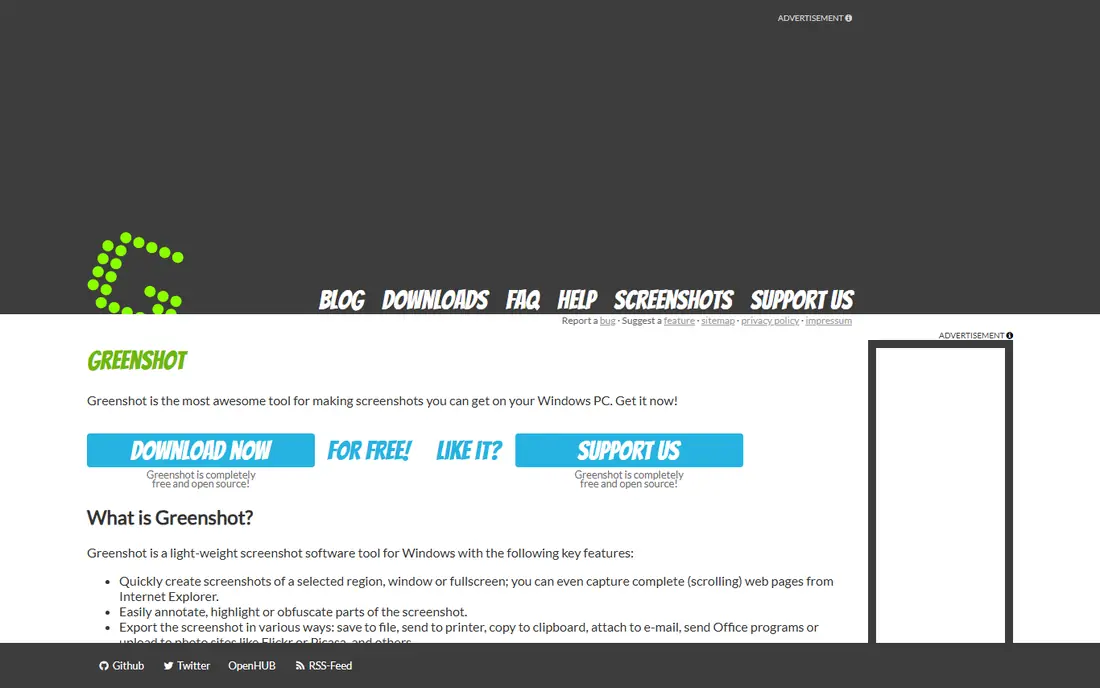
Greenshot is a lightweight, free and open source Windows screenshot tool with region, window and full screen capture plus a simple editor. It suits users who want fast annotation with arrows, highlights and blur without a large app. Export to file, clipboard, printer or email keeps sharing simple.
Pricing is where many readers get caught out, so look past the headline figure and check what the plan actually includes for your level of use. Seats, usage limits, add-ons and renewal terms can change the real monthly cost, and a cheaper plan that lacks one feature you need is not a saving. If a free tier or trial is offered, use it for real work before paying, and confirm how cancellation works while you still have time to change your mind.
Its Mac version is more limited than the Windows version, and its feature range is smaller than Snagit or ShareX. For everyday capture and quick notes, that simplicity is a strength rather than a weakness.
- Free and open source
- Quick annotation
- Simple sharing
- Windows focused
- Mac version is limited
Lightshot
Ideal for: users who want the fastest simple capture
Lightshot focuses on speed: select an area, annotate lightly, and share a link or save the file. That minimal flow suits users who take many quick screenshots for chat, support or social posts. It runs on Windows and Mac, with browser extensions as well.
Before you pay, check the limits that apply to your own use, including seats, storage, monthly usage and support hours. A plan that looks generous on the headline page can still cap the one feature you rely on most, so read the plan comparison page rather than the marketing summary. A trial or free tier is the safest way to test this, and it also shows whether support answers promptly when you need help.
Editing is basic compared with Snagit, and a public share link is not suitable for private or sensitive screenshots. For private work, save locally instead of uploading, and check the link privacy settings.
- Very fast
- Simple editor
- Instant share link
- Editing is basic
- Cloud links need care for private shots
CleanShot X
Ideal for: Mac users who want polished capture
CleanShot X is a polished Mac screenshot and recording tool with scrolling capture, annotation, blur and a clean cloud sharing flow. Its interface feels native to macOS, and its scrolling capture handles long web pages well. Mac users who share screenshots daily often prefer its speed and finish.
The price on the headline page is only part of the cost, so check renewal pricing, per-seat charges and any paid add-ons before you commit. Free tiers help for light use, but they often cap the features that matter once work grows, and trials end on a fixed date whether you have finished testing or not. Set a reminder before a trial ends, and confirm cancellation steps in advance so you are not locked into a plan you no longer need.
It is Mac only and subscription priced, so Windows users and budget buyers need another pick. Try the trial on scrolling pages and video capture to judge whether the polish justifies the cost.
- Polished Mac app
- Scrolling capture
- Cloud sharing
- Mac only
- Subscription pricing
Monosnap
Ideal for: teams that want capture plus cloud sharing
Monosnap covers screenshots and screen video with annotation, blur and cloud sharing, and it works on Windows, Mac and as a browser extension. Teams can share links, comment and organise captures in one place, which suits support and product teams. Its free tier covers light personal use.
Pricing is where many readers get caught out, so look past the headline figure and check what the plan actually includes for your level of use. Seats, usage limits, add-ons and renewal terms can change the real monthly cost, and a cheaper plan that lacks one feature you need is not a saving. If a free tier or trial is offered, use it for real work before paying, and confirm how cancellation works while you still have time to change your mind.
Free cloud storage is limited, and its editor is lighter than Snagit for long guides. Check storage limits against your monthly capture volume, and save important captures locally as well.
- Capture and video
- Cloud storage
- Team sharing
- Free tier limits storage
- Advanced editing is lighter
Droplr
Ideal for: teams that want fast sharing at scale
Droplr combines screenshots, screen recordings and file sharing with a team workspace, so a support or product team can capture, annotate and share from one link. Its speed suits high volume users who share dozens of captures a week. Short links and boards keep team captures organised.
Before you pay, check the limits that apply to your own use, including seats, storage, monthly usage and support hours. A plan that looks generous on the headline page can still cap the one feature you rely on most, so read the plan comparison page rather than the marketing summary. A trial or free tier is the safest way to test this, and it also shows whether support answers promptly when you need help.
It is subscription priced and aimed at teams, so a casual single user may find a free tool enough. Trial it with your team workflow, including permissions and board organisation, before committing.
- Fast capture and sharing
- Team workspace
- Analytics
- Subscription priced
- Best value for teams
How we picked these
We compared official feature pages, pricing pages, app store listings, privacy policies and public reviews for each option in this guide. We kept only products that exist and work in October 2026 and that fit the topic directly, and we checked that each official homepage loads and belongs to the product named. Prices and free tiers are taken from the vendor site where we could verify them, and we wrote See website where a price could not be confirmed, rather than guessing. Our pick in each guide reflects fit for ordinary readers, not a claim of hands-on testing, and we note the honest limits of each option alongside its strengths.
How to choose a screenshot tool
Start with your platform and your sharing habit: Windows power users suit ShareX, Mac users suit CleanShot X, and cross platform teams suit Monosnap or Droplr. If you write guides, prioritise scrolling capture and a strong editor, while chat support work prioritises speed and a share link. Test the tool on a real task, such as a scrolling page or a blurred private detail, before deciding.
Check privacy handling for sensitive screenshots, since a cloud link can expose data if shared widely. Prefer local saving for private captures, and use blur or redaction rather than a simple highlight. For teams, confirm storage limits, permissions and whether captures remain accessible if a subscription lapses.
Frequently asked questions
What is the best screenshot tool?
Snagit suits professionals who need capture plus editing, ShareX and Greenshot suit free Windows capture, and Lightshot suits fast simple sharing. CleanShot X suits Mac users, while Monosnap and Droplr suit teams. Choose by platform and sharing needs.
Is ShareX free?
Yes, ShareX is free and open source for Windows, with no watermark or subscription for its core capture features. It offers many capture modes and upload destinations. It is Windows only, so Mac users need another tool.
How do I take a scrolling screenshot?
Snagit, ShareX, CleanShot X and Monosnap all offer scrolling capture for web pages and long documents. Open the page, choose scrolling capture, and let the tool stitch the full length. Check the result for stitching errors on pages with sticky headers.
Can I blur private information in a screenshot?
Yes, Snagit, Greenshot, CleanShot X and Monosnap include blur or pixelate tools for text and faces. Apply blur before sharing, and avoid using a translucent highlight that can be reversed. For highly sensitive data, crop the area out entirely.
What is the best free screenshot tool?
ShareX and Greenshot are the strongest free options on Windows, while Lightshot is a fast free option on Windows and Mac. Built in tools on Windows, Mac and phones also cover basic capture. Paid tools add editing, scrolling and team sharing.