Best Slack Apps for Productivity in 2026: 8 Apps Compared

- 1
 PollyPolls and surveys inside SlackVisit
- 2
 DonutRandom coffee chats for remote teamsVisit
- 3
 GeekbotAsync standups inside SlackVisit
- 4
 Reclaim AIFocus time and calendar blocking from SlackVisit
- 5
 Todoist for SlackTasks from Slack messagesVisit
- Polly and Geekbot cut meeting time with polls and standups.
- Donut helps remote teams build connection.
- Reclaim AI protects focus time on your calendar.
- Install one app at a time, and check usage after two weeks.
Quick comparison
| Product | Ideal for | Price from | Free version | |
|---|---|---|---|---|
| Polly | Polls and surveys inside Slack | Free | Yes | Visit |
| Donut | Random coffee chats for remote teams | Free | Yes | Visit |
| Geekbot | Async standups inside Slack | Free | Yes | Visit |
| Reclaim AI | Focus time and calendar blocking from Slack | See website | Free trial | Visit |
| Todoist for Slack | Tasks from Slack messages | Free | Yes | Visit |
 Asana for Slack | Asana tasks and updates inside Slack | Free | Yes | Visit |
 Notion for Slack | Notion pages and updates inside Slack | Free | Yes | Visit |
 Zoom for Slack | Start Zoom meetings from Slack | Free | Yes | Visit |
The best Slack apps for productivity
Slack apps can cut meetings, speed up standups and bring other tools into chat. The apps below cover polls, social connection, standups, focus time and task links, so the right pick depends on what slows your team down most.
Polly
Ideal for: Polls and surveys inside Slack
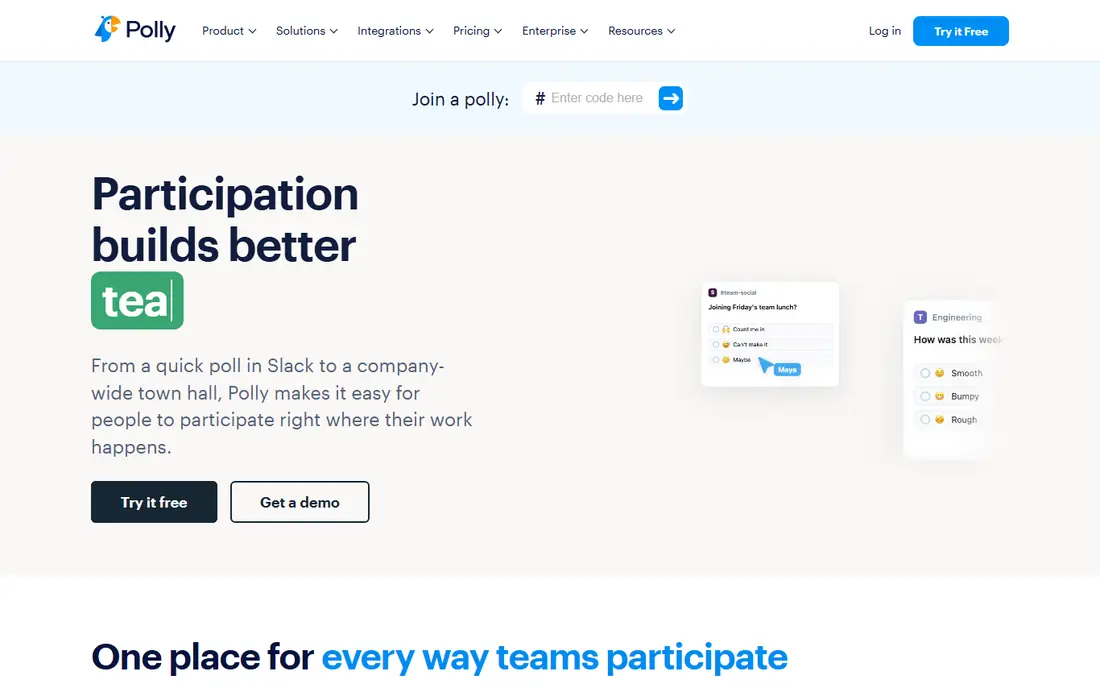
Polly is a practical option for polls and surveys inside slack. Polly adds polls, surveys and feedback inside Slack with easy setup and reports. On its official feature and pricing pages, the strengths that stand out most are easy polls and surveys and good reports. We compared its official pages with the other tools here.
For day to day use, Polly suits people who want polls and surveys inside slack without a long setup process. Polly adds polls, surveys and feedback inside Slack with easy setup and reports. Try the free option or trial first if one is offered, and check current plan details on the official site.
The honest catch is advanced features need paid plans. Survey depth is limited compared with a dedicated survey tool, but for quick team polls it is excellent. If that trade-off matters, compare the next option on price and setup effort.
- Easy polls and surveys
- Good reports
- Free plan available
- Advanced features need paid plans
- Survey depth is limited
Donut
Ideal for: Random coffee chats for remote teams

For random coffee chats for remote teams, Donut deserves a close look. Donut pairs team members for random coffee chats, helping remote teams build connection. Its official pages point to pairs team members for chats as a core strength. We checked its feature pages, pricing and app store listing against the other options here.
What makes Donut useful in practice is the way it handles the main job without adding extra steps. Donut pairs team members for random coffee chats, helping remote teams build connection. Try the free plan or trial first on a real task from your own routine before you commit.
No tool is free of trade-offs, and here the main one is free plan has limits. Value depends on participation, so it works best when managers encourage it. Weigh that against price and the features you need most.
- Pairs team members for chats
- Good for remote culture
- Easy setup
- Free plan has limits
- Value depends on team participation
Geekbot
Ideal for: Async standups inside Slack
Geekbot takes a different approach to async standups inside slack, and that is why it is on this list. Geekbot runs async standups inside Slack, collecting updates without a meeting. The official feature page highlights async standups.
In use, Geekbot is best judged on one question: does it handle your main task with less effort than the tool you use now? Geekbot runs async standups inside Slack, collecting updates without a meeting. If the answer is yes, the price is easier to justify. If not, compare the next product side by side.
The catch to note is advanced features need paid plans. Setup needs care for large teams, but small teams will find it quick to start. Read the pricing page carefully and confirm the plan covers the features you will rely on.
- Async standups
- Good reports
- Free plan available
- Advanced features need paid plans
- Setup needs care for large teams
Reclaim AI
Ideal for: Focus time and calendar blocking from Slack
If your priority is focus time and calendar blocking from slack, Reclaim AI is worth shortlisting. Reclaim AI blocks focus and habit time on your calendar and works with Slack. We compared its official pages with the other products here, and ai focus time blocking came through as its clearest advantage.
Day to day, Reclaim AI is straightforward to pick up. Reclaim AI blocks focus and habit time on your calendar and works with Slack. Use any free plan or trial to run a real task through it, since that tells you more than a feature list.
Be aware of one limit: best inside google calendar. It works best inside Google Calendar, so Outlook teams should check support first. Check the official pricing page before you pay.
- AI focus time blocking
- Calendar links
- Habit scheduling
- Best inside Google Calendar
- Some features need paid plans
Todoist for Slack
Ideal for: Tasks from Slack messages
Todoist for Slack is a practical option for tasks from slack messages. Todoist for Slack lets you turn messages into tasks without leaving Slack. On its official feature and pricing pages, the strengths that stand out most are create tasks from messages and good todoist links. We compared its official pages with the other tools here.
For day to day use, Todoist for Slack suits people who want tasks from slack messages without a long setup process. Todoist for Slack lets you turn messages into tasks without leaving Slack. Try the free option or trial first if one is offered, and check current plan details on the official site.
The honest catch is needs a todoist account. You need a Todoist account, and advanced features need a paid plan. If that trade-off matters, compare the next option on price and setup effort.
- Create tasks from messages
- Good Todoist links
- Free plan available
- Needs a Todoist account
- Advanced features need paid plans
Asana for Slack
Ideal for: Asana tasks and updates inside Slack
For asana tasks and updates inside slack, Asana for Slack deserves a close look. Asana for Slack brings Asana tasks and notifications into Slack channels. Its official pages point to create asana tasks from slack as a core strength. We checked its feature pages, pricing and app store listing against the other options here.
What makes Asana for Slack useful in practice is the way it handles the main job without adding extra steps. Asana for Slack brings Asana tasks and notifications into Slack channels. Try the free plan or trial first on a real task from your own routine before you commit.
No tool is free of trade-offs, and here the main one is needs an asana account. You need an Asana account, and the best features need a paid Asana plan. Weigh that against price and the features you need most.
- Create Asana tasks from Slack
- Notifications
- Good team links
- Needs an Asana account
- Advanced features need paid plans
Notion for Slack
Ideal for: Notion pages and updates inside Slack
Notion for Slack takes a different approach to notion pages and updates inside slack, and that is why it is on this list. Notion for Slack lets teams share pages and get notifications inside Slack. The official feature page highlights share notion pages in slack.
In use, Notion for Slack is best judged on one question: does it handle your main task with less effort than the tool you use now? Notion for Slack lets teams share pages and get notifications inside Slack. If the answer is yes, the price is easier to justify. If not, compare the next product side by side.
The catch to note is needs a notion account. You need a Notion account, and advanced features need a paid Notion plan. Read the pricing page carefully and confirm the plan covers the features you will rely on.
- Share Notion pages in Slack
- Notifications
- Good workspace links
- Needs a Notion account
- Advanced features need paid plans
Zoom for Slack
Ideal for: Start Zoom meetings from Slack
If your priority is start zoom meetings from slack, Zoom for Slack is worth shortlisting. Zoom for Slack lets teams start and join Zoom meetings directly from Slack. We compared its official pages with the other products here, and start meetings from slack came through as its clearest advantage.
Day to day, Zoom for Slack is straightforward to pick up. Zoom for Slack lets teams start and join Zoom meetings directly from Slack. Use any free plan or trial to run a real task through it, since that tells you more than a feature list.
Be aware of one limit: needs a zoom account. You need a Zoom account, and meeting limits depend on your Zoom plan. Check the official pricing page before you pay.
- Start meetings from Slack
- Easy join links
- Good for remote teams
- Needs a Zoom account
- Meeting limits depend on Zoom plan
How we picked these
We compared official feature pages, pricing pages, app store listings, privacy policies and public reviews for each product in this list. We kept only products that exist and work in October 2026 and that fit the topic directly, and we left out products that only partly matched. Where a price could not be verified from the vendor site or app store listing, we wrote See website rather than guessing.
How to choose Slack apps for your team
Start with the biggest time drain. If meetings eat your week, try standup and poll apps first. If lost tasks are the problem, try task integrations. If focus time is the issue, try calendar blocking. One clear problem beats a bundle of apps.
Then measure use after two weeks. Check how many team members actually use the app, whether meetings fell, and whether tasks got lost less often. Remove apps with low use, since unused apps add noise to Slack without helping anyone.
Frequently asked questions
What is the best option for best slack apps for productivity?
There is no single winner for every reader, because the right pick depends on budget, team size and the features you will use daily. Start with the best_for note in the comparison table, then test the free plan or trial on a real task. That short test usually shows which tool fits your routine best.
Are there free options for best slack apps for productivity?
Yes, several products in this list offer a free plan or a free trial, and the table shows which ones do. Free plans usually limit volume, seats or advanced features, so check those limits before you rely on one. A paid plan is often worth it once the free limits start to slow you down.
How do I switch from my current tool for best slack apps for productivity?
Export your data first, then set up the new tool alongside the old one for a short overlap period. Move one project or workflow at a time and check that the important data carried over correctly. Cancel the old plan only after the new setup has handled a full week of normal work.
Which option is best for a small team or a single user?
A single user or small team should favour a tool with a clear free or low cost plan and a short learning curve. Larger teams should weigh admin controls, permissions and support more heavily. The product notes in this list call out which audience each tool suits best.
Do I need to pay straight away for best slack apps for productivity?
No, most tools here let you start free or on a trial, and you should use that period well. Test the features you will use most, not just the headline features on the marketing page. Pay only when the tool has already proved useful on real work.