Best Software for Ripping Blu-ray in 2026: 8 Tools Compared

- 1
 MakeMKVLossless Blu-ray backupVisit
- 2
 HandBrakeFree conversion after rippingVisit
- 3
 DVDFab Blu-ray RipperBroad formats and presetsVisit
- 4
 Leawo Blu-ray RipperSimple ripping and presetsVisit
- 5
 AnyMP4 Blu-ray RipperEasy presets and editingVisit
- MakeMKV and HandBrake suit users who want free, reliable ripping and conversion.
- DVDFab Blu-ray Ripper and Leawo offer broader format and device presets for paid users.
- AnyMP4 and VideoByte fit users who want simple presets and faster workflows.
- DumboFab and WinX DVD Ripper suit users with older discs and varied formats.
- Check disc compatibility, output quality, and hardware needs before buying.
Quick comparison
| Product | Ideal for | Price from | Free version | |
|---|---|---|---|---|
| MakeMKV | Lossless Blu-ray backup | See website | Free trial | Visit |
| HandBrake | Free conversion after ripping | See website | Yes | Visit |
| DVDFab Blu-ray Ripper | Broad formats and presets | See website | Free trial | Visit |
| Leawo Blu-ray Ripper | Simple ripping and presets | See website | Free trial | Visit |
| AnyMP4 Blu-ray Ripper | Easy presets and editing | See website | Free trial | Visit |
 VideoByte BD-DVD Ripper | Fast ripping workflows | See website | Free trial | Visit |
 DumboFab Blu-ray Ripper | Older discs and formats | See website | Free trial | Visit |
 WinX DVD Ripper Platinum | DVD and Blu-ray support | See website | Free trial | Visit |
The best software for ripping Blu-ray
We compared official feature pages, pricing pages, and public reviews for eight disc ripping tools. Ripping quality, format support, and hardware acceleration differ widely, so the best pick depends on whether you want lossless backup or smaller files for playback on phones and TVs.
Lawful-use note: Only rip discs you own, and respect copyright law and platform terms. Ripping rented, borrowed, or borrowed-library discs, or bypassing protections to share copies, is not covered here. Check the law in your country before ripping any disc.
MakeMKV
Ideal for: Lossless Blu-ray backup
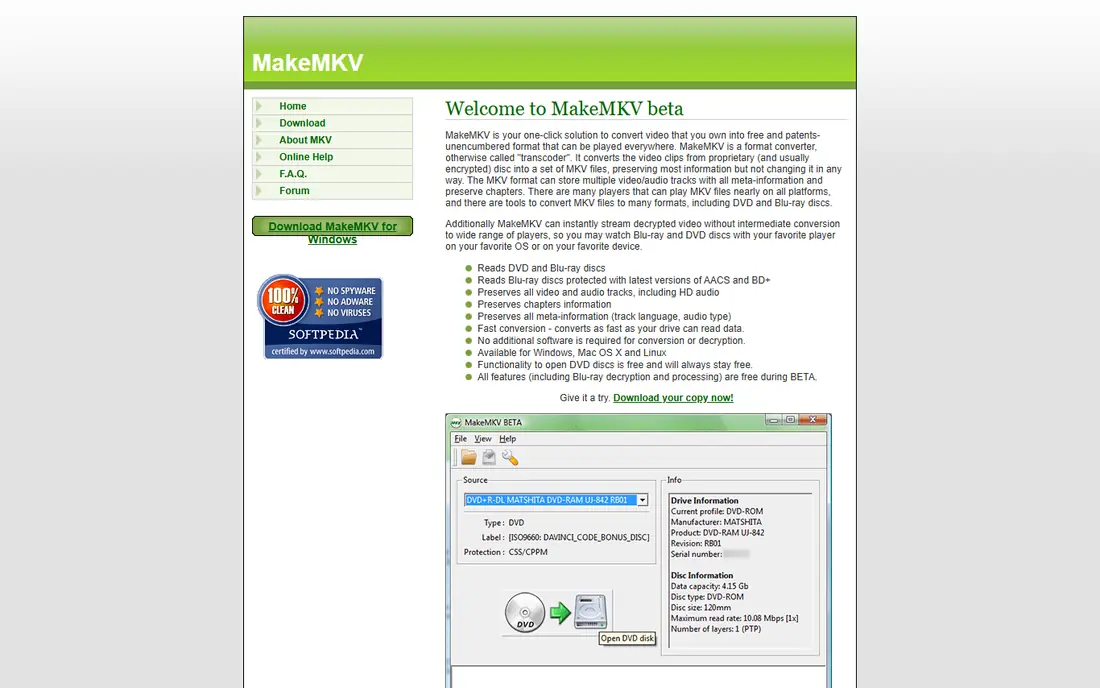
MakeMKV is a favorite for users who want a faithful copy of a disc without quality loss. It reads Blu-ray and DVD discs and writes video, audio, and subtitles into MKV files, keeping original quality. The workflow is simple: pick the disc, choose titles, and rip.
Files are large, since MakeMKV does not compress, so most users pair it with HandBrake to shrink files later. Blu-ray support has long been offered with a time-limited beta key, which users must renew. For a personal archive of discs you own, MakeMKV is a reliable first step.
- Lossless MKV output
- Reads Blu-ray and DVD
- Simple workflow
- No built-in compression
- Blu-ray support is in beta with a time-limited key
HandBrake
Ideal for: Free conversion after ripping
HandBrake is a free, open-source video converter that turns ripped files into smaller MP4 or MKV files for phones, tablets, and TVs. Presets cover common devices, and advanced settings control quality, subtitles, and audio tracks. It is the standard second step after MakeMKV for many users.
HandBrake alone does not bypass disc copy protection, so it needs decrypted input from another tool for protected discs. Settings can confuse beginners, though presets cover most needs. For free, high-quality conversion, HandBrake is hard to beat.
- Free and open-source
- Strong compression
- Many presets
- Does not decrypt protected discs alone
- Learning curve for settings
DVDFab Blu-ray Ripper
Ideal for: Broad formats and presets
DVDFab Blu-ray Ripper handles ripping and conversion in one tool, with presets for phones, tablets, TVs, and consoles. Hardware acceleration speeds up conversion on supported systems, and the tool is updated often for new discs. Editing features such as trimming and subtitle selection sit inside the same workflow.
Pricing is higher than free tools, and the many options can overwhelm new users. For users who want one paid tool for ripping and conversion, DVDFab is a capable all-in-one choice. Check trial limits before buying.
- Broad format and device support
- Hardware acceleration
- Regular updates
- Paid plans cost more
- Interface has many options
Leawo Blu-ray Ripper
Ideal for: Simple ripping and presets
Leawo Blu-ray Ripper offers a straightforward path from disc to digital file, with presets for common devices and formats. Users pick titles, subtitles, and audio tracks, then convert to MP4, MKV, or other formats. The interface suits users who do not want deep settings.
Speed depends on hardware, and the free version has limits. For a simple paid ripper that covers common needs, Leawo is easy to learn. Compare output quality with a trial disc before committing to a full library.
- Simple interface
- Many output formats
- Device presets
- Conversion speed varies by hardware
- Paid version needed for full features
AnyMP4 Blu-ray Ripper
Ideal for: Easy presets and editing
AnyMP4 Blu-ray Ripper combines ripping with basic editing, including trimming, cropping, and effects. Device presets cover phones, tablets, and TVs, and hardware acceleration helps on supported machines. The workflow suits users who want to rip and lightly edit in one place.
The free version limits output, and the interface includes upgrade prompts. For users who value presets and light editing over lossless archiving, AnyMP4 is a practical pick. Test with a disc you own before buying.
- Easy presets
- Basic editing tools
- Hardware acceleration
- Free version has limits
- Interface includes upsells
VideoByte BD-DVD Ripper
Ideal for: Fast ripping workflows
VideoByte BD-DVD Ripper focuses on speed and simplicity, with presets for common devices and formats. Users can rip Blu-ray and DVD discs, choose audio and subtitle tracks, and convert to MP4, MKV, or other files. The interface keeps steps clear for new users.
The brand is newer than DVDFab or Leawo, so long-term update history is shorter. For users who want a fast, simple ripper and are willing to test a newer tool, VideoByte is worth a trial. Check trial output limits first.
- Fast conversion options
- Broad format support
- Simple presets
- Newer brand than rivals
- Free version has limits
DumboFab Blu-ray Ripper
Ideal for: Older discs and formats
DumboFab Blu-ray Ripper covers Blu-ray and DVD ripping with presets for phones, tablets, and TVs. It suits users with mixed collections, including older discs, who want a simple conversion path. Editing options cover trimming and basic adjustments.
The interface is plain, and the brand is less known than larger rivals. For a straightforward ripper at a lower price point, DumboFab is a reasonable option. Test compatibility with your drive and discs during the trial.
- Handles varied disc types
- Simple conversion
- Device presets
- Interface is plain
- Brand recognition is lower
WinX DVD Ripper Platinum
Ideal for: DVD and Blu-ray support
WinX DVD Ripper Platinum, from Digiarty, has a long history in disc ripping, with a focus on DVD and support for Blu-ray discs. Hardware acceleration speeds conversion, and presets cover common devices. Users with large DVD collections plus some Blu-ray discs may find it a good fit.
Blu-ray depth is lighter than DVDFab or MakeMKV, and the interface feels dated. For a mixed collection where DVD matters most, WinX is a solid choice. For Blu-ray-first archives, start with MakeMKV or DVDFab instead.
- Long history with disc tools
- Hardware acceleration
- DVD focus with Blu-ray support
- Blu-ray features are lighter than dedicated rippers
- Interface is dated
How we picked these
We compared official feature pages, pricing pages, and public reviews for disc ripping tools in October 2026. We favored tools with clear disc support, output formats, device presets, and hardware acceleration, and we mixed free and paid options. We did not claim hands-on testing, and we list prices as shown on vendor sites, using See website where pricing varies.
What to check before you buy
Start with your drive and discs. Confirm the tool supports your Blu-ray drive and disc types, since compatibility varies. Then decide on quality: lossless MKV files preserve full quality but need large storage, while compressed MP4 files suit phones and streaming but lose some detail.
Next, test speed with a real disc, since hardware acceleration and CPU matter greatly. Check subtitle and audio track handling, especially for foreign-language films and commentaries. Finally, confirm output formats for your playback devices, and keep your original discs as backup, since digital files can be lost or corrupted.
A final check before you commit
Trials reveal more than demos when they use real work, so set aside time to run a genuine task through each finalist before deciding. Invite the staff who will use the tool daily, not only the person buying it, and collect notes on speed, clarity, and frustration points. A tool that the daily team resists will sit unused, even if managers like its reports, so adoption signals from a trial carry real weight. Keep the trial short and focused, with two or three tasks that mirror a normal week.
When two tools tie on features, choose the one with clearer reporting and simpler admin, since those qualities compound over time. Managers need reports they can read without help, and admins need permission settings they can adjust without vendor support for every change. A tool that is easy to administer stays correct as staff join and leave, while a tool that needs expert help for routine changes slowly drifts out of date. Simplicity in admin is a feature, not a compromise, and it pays off across the whole life of the system.
Frequently asked questions
Is it legal to rip Blu-ray discs I own?
Law varies by country, and ripping protected discs can raise copyright issues even for personal use in some places. Only rip discs you own, respect copyright law and platform terms, and check local rules before ripping.
Do I need MakeMKV and HandBrake together?
Many users do. MakeMKV creates a lossless copy, and HandBrake compresses it for smaller files. Paid tools such as DVDFab combine both steps in one app.
What format should I rip to?
MKV preserves quality and tracks well for archiving, while MP4 plays on the widest range of devices. Choose MKV for a home archive and MP4 for phones, tablets, and sharing.
How long does ripping a Blu-ray take?
Time varies by drive, hardware, and settings, from under an hour to several hours for full-quality rips with compression. Hardware acceleration helps greatly on supported systems.
Can I rip 4K Ultra HD Blu-ray discs?
Some tools support 4K discs, but drive and software support vary, and legal limits apply. Check the vendor page for your exact disc type before buying.