Best Software For UI UX Design in 2026: 7 Options Compared

- Our pick for most readers is Figma, because it covers the core needs of this topic with the fewest compromises.
- Free options exist here: Penpot, Lunacy all offer a free plan, so you can start without paying.
- Prices and free tiers change, so check the vendor site for the current plan before you buy, and treat any price in this article as a starting point.
- The right choice depends on your size and budget: the cheapest option is not always the best fit, and the biggest platform is not always needed.
Quick comparison
| Product | Ideal for | Price from | Free version | |
|---|---|---|---|---|
 Figma | teams designing interfaces together | See website | Free | Visit |
 Adobe XD | designers already using Adobe tools | See website | Free trial | Visit |
 Sketch | Mac designers wanting a native design app | See website | Free trial | Visit |
 Framer | designers wanting design plus live sites | See website | Free | Visit |
 Penpot | teams wanting open source design | Free | Yes | Visit |
 Lunacy | Windows designers wanting a free design app | Free | Yes | Visit |
 Axure | designers wanting detailed prototypes | See website | Free trial | Visit |
The best best software for ui ux design
We compared 7 options for this guide, looking at official feature pages, pricing pages, app store listings, privacy policies, and public reviews. We did not claim hands-on testing we did not do. Instead, we weighed what each product actually offers, what it costs, and where it falls short, so you can compare them on equal terms. The list below mixes well-known leaders with strong smaller options. Some readers will want the cheapest start, others will want depth or support, and the notes under each product say which group it suits best. Read the comparison table first for a quick view, then the product notes for the detail that matters to your choice.
Figma
Ideal for: teams designing interfaces together
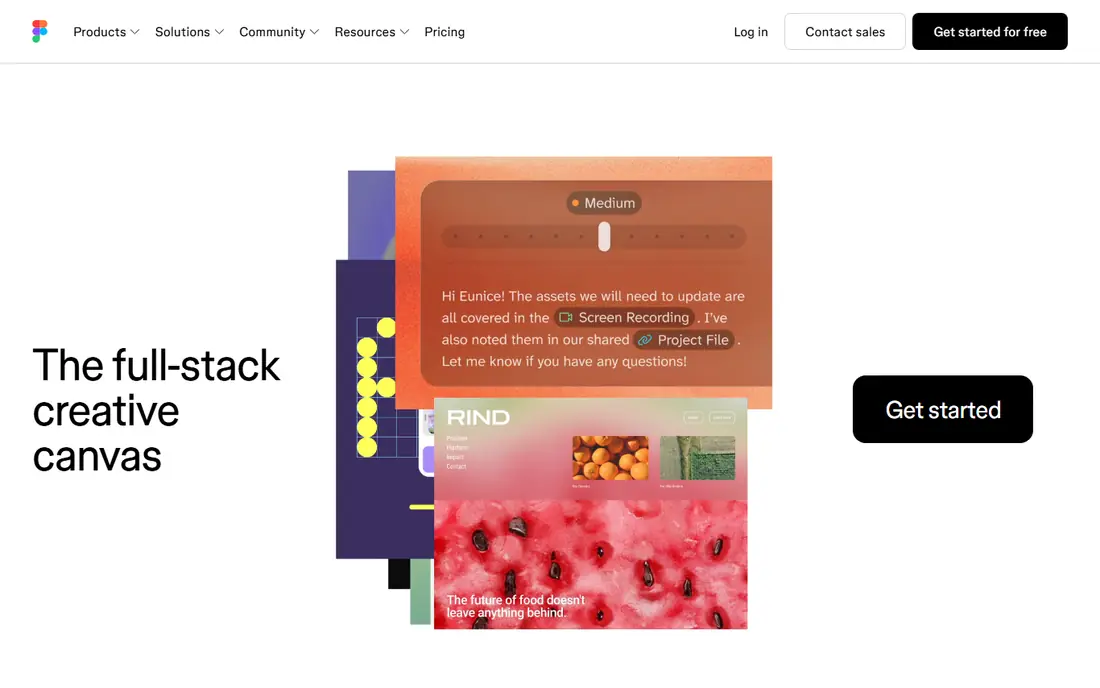
Figma suits teams that design interfaces together in the browser, with live collaboration built in. That makes it a natural fit for teams designing interfaces together, where the daily workflow matters more than a long feature list. Its collaboration is the strength, since several designers can work on one file at once. Pricing is listed on the vendor site, so check the current plan before you commit. The catch is online focus, since offline work is limited.
- Browser-based design with live collaboration
- Huge plugin and community library
- Free starter plan
- Advanced features need paid plans
- Offline work is limited
Adobe XD
Ideal for: designers already using Adobe tools
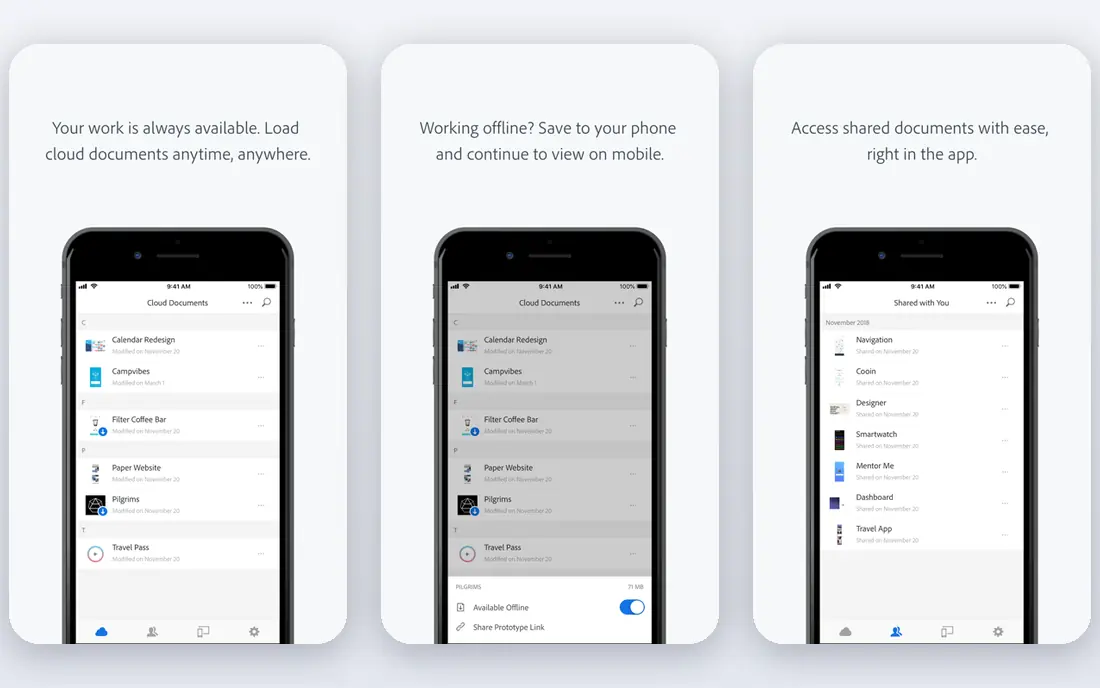
Adobe XD suits designers already using Adobe tools who want interface design inside that world. For designers already using Adobe tools, that combination of focus and simplicity is what keeps it on this list. Its Adobe link is the draw, since libraries and assets flow from Photoshop and Illustrator. Pricing is listed on the vendor site, so check the current plan before you commit. The catch is future, since Adobe has slowed XD development in favor of other directions.
- Interface design with prototyping
- Works with Adobe libraries
- Good for Adobe shops
- Development has slowed as Adobe focuses elsewhere
- Collaboration is weaker than Figma
Sketch
Ideal for: Mac designers wanting a native design app
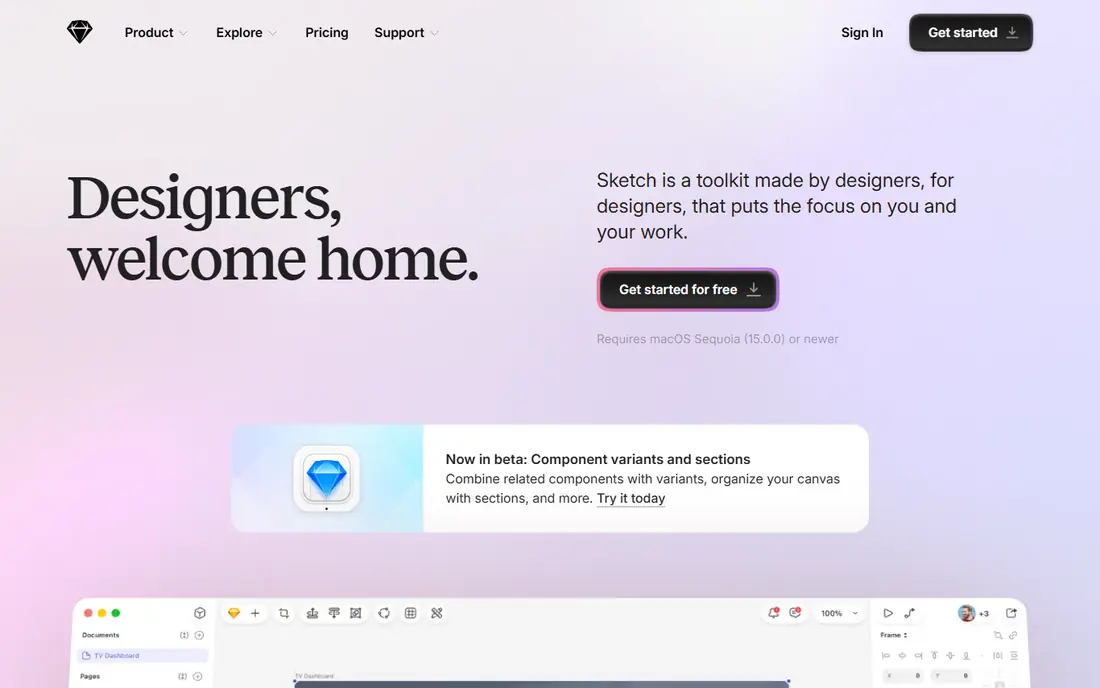
Sketch suits Mac designers who want a native app for interface design, with symbols and libraries. It is a practical choice for Mac designers wanting a native design app, especially when setup time is short. Its Mac-native feel is the strength, since the app is fast and familiar on Apple hardware. Pricing is listed on the vendor site, so check the current plan before you commit. The catch is platform, since Windows designers cannot use it.
- Native Mac design app with symbols and libraries
- Strong plugin ecosystem
- One-time or subscription options
- Mac only
- Collaboration needs Sketch Cloud
Framer
Ideal for: designers wanting design plus live sites
Framer suits designers who want to design a site and publish it live without handing off to developers. That is why it earns a place here for designers wanting design plus live sites, even with the limits noted below. Its publishing is the draw, since a design can become a working website quickly. Pricing is listed on the vendor site, so check the current plan before you commit. The catch is scope, since app design is less central than web design.
- Design and publish live websites from one tool
- Good templates
- Free starter plan
- Focus is websites, less suited to app design
- Advanced features are paid
Penpot
Ideal for: teams wanting open source design
Penpot suits teams that want an open source design tool they can host themselves. For teams wanting open source design, the balance of price and features is hard to beat in this group. Its openness is the strength, since the tool is free and self-hosting is possible. It starts free, which keeps the first step low risk while you test it. The catch is ecosystem, since plugins and community resources are smaller than Figma's.
- Open source design tool in the browser
- Collaboration and self-hosting
- Free to use
- Smaller community and plugin range
- Interface is less polished than Figma
Lunacy
Ideal for: Windows designers wanting a free design app
Lunacy suits Windows designers who want a free design app that opens Sketch files. It deserves a close look from Windows designers wanting a free design app, provided the limits below are acceptable. Its Windows focus is the draw, since a capable free app exists where Figma needs a browser. It starts free, which keeps the first step low risk while you test it. The catch is community, since plugins and resources are fewer than for larger tools.
- Free design app for Windows with Sketch file support
- Built-in graphics and icons
- Offline use
- Smaller community than Figma
- Mac and web versions are newer
Axure
Ideal for: designers wanting detailed prototypes
Axure suits designers who need detailed, interactive prototypes with logic and conditions. That profile fits designers wanting detailed prototypes well, as long as the trade-offs below are clear. Its prototyping depth is the strength, since complex flows can be tested before any code is written. Pricing is listed on the vendor site, so check the current plan before you commit. The catch is learning, since the interface takes time and feels dated.
- Detailed interactive prototypes with logic
- Good for complex apps
- Documentation features
- Learning curve is steep
- Interface feels dated next to Figma
How we picked these
We started from the topic itself and kept only products that truly fit it, exist, and work in October 2026. We checked each product homepage to confirm it loads and belongs to that product, and we read official feature and pricing pages rather than relying on review roundups alone. Where a price could not be verified from the vendor site, we wrote See website instead of guessing a number. We then compared the shortlist on fit for the stated use, price and free tier, ease of setup, and honest weaknesses. A product with a strong feature set but a poor fit for ordinary readers was left out, and we did not pad any list with products that only partly match the topic.
What to check before you choose
Start with the job you need done, not the longest feature list. A product that covers your main task well beats a larger platform whose extra features you never open, and a cheaper plan that fits your workflow beats a premium tier bought for status. Write down your must-have features before you compare, and use that list to judge each option below. Budget and total cost. Compare the starting price with what you will actually pay after a few months, including per-user fees, add-ons, and renewal prices. Free plans are useful for testing, but check their limits on users, storage, or usage before you build a workflow around them. Fit and switching cost. Check whether the product works with the tools you already use, and whether your data can be exported if you leave. A short trial answers both questions better than a sales page, so test the exact task you will do every week, not just the demo flow. Support and trust. Read the privacy policy and support options before you commit, especially when the product handles money, health, children, or private data. Public reviews help here, but weigh recent reviews more than old ones, since products and prices change. Once you have a shortlist of two or three, test them side by side for a few days. The right choice usually becomes clear once you use it for real work, and a careful trial now saves a painful switch later.
Frequently asked questions
What is the best best software for ui ux design?
For most readers, Figma is our pick, because it covers the core needs with the fewest compromises. That said, the best choice depends on your budget and workflow, so readers with a tight budget or a special requirement may prefer one of the other options in this list.
Is there a free best software for ui ux design?
Yes. Penpot, Lunacy offer free plans, though each free plan has limits worth checking before you rely on it.
How much does best software for ui ux design cost?
Costs vary widely across this list, from free plans to quote-based enterprise pricing. Check the starting price in the comparison table, then read the vendor pricing page for the plan that matches your team size, since per-user fees and add-ons change the total.
Which option is best for beginners or small teams?
Adobe XD is a good starting point for beginners or small teams, since it is easier to set up than the larger platforms here. If budget is the main concern, start with one of the free options and upgrade only when you hit a limit.
How did you choose these products?
We compared official feature pages, pricing pages, app store listings, privacy policies, and public reviews, and we checked each product homepage to confirm it belongs to that product. We kept only products that exist, work in October 2026, and truly fit the topic.
Can I switch later if I change my mind?
In most cases, yes, but switching costs time, especially if your data lives inside one tool. Before you commit, check whether you can export your data, and keep a backup of anything important so a future move stays possible.