Best Software to Reduce PDF Size in 2026: 8 Tools Compared

- 1
 Adobe AcrobatProfessional compression controlVisit
- 2
 SmallpdfQuick online compressionVisit
- 3
 iLovePDFFree online PDF toolkitVisit
- 4
 SejdaOnline compression with privacy careVisit
- 5
 PDF24 ToolsFree unlimited-feeling toolkitVisit
- Adobe Acrobat gives the most control over compression quality, which matters for print and professional files.
- Smallpdf, iLovePDF, Sejda and PDF24 are the easiest free online options for quick, occasional compression.
- Foxit and PDFelement suit users who already edit PDFs daily and want compression built into their editor.
- PDF Candy is a useful free alternative for simple compression without installing software.
Quick comparison
| Product | Ideal for | Price from | Free version | |
|---|---|---|---|---|
| Adobe Acrobat | Professional compression control | See website | Free trial | Visit |
| Smallpdf | Quick online compression | See website | Yes | Visit |
| iLovePDF | Free online PDF toolkit | See website | Yes | Visit |
| Sejda | Online compression with privacy care | See website | Yes | Visit |
| PDF24 Tools | Free unlimited-feeling toolkit | Free | Yes | Visit |
 Foxit PDF Editor | Everyday PDF editing with compression | See website | Free trial | Visit |
 Wondershare PDFelement | Affordable full PDF editor | See website | Free trial | Visit |
 PDF Candy | Simple free online compression | Free | Yes | Visit |
The best software to reduce PDF size
Large PDFs cause problems: email limits, slow uploads and forms that refuse attachments. Compression tools shrink files by reducing image resolution, removing unused data and optimizing fonts, ideally without visibly hurting quality. The eight tools below all compress PDFs today, from full editors to free web tools, and we compared official feature pages and pricing pages to sort them.
Adobe Acrobat
Ideal for: Professional compression control

Adobe Acrobat is the standard PDF editor, and its compression tools reflect that: you can optimize images, fonts and objects, preview the result, and choose settings for screen, print or archive use. For a file that must look right after compression, that control matters.
It is a paid subscription, and occasional users may not need a full editor just to shrink a file. For professionals who handle PDFs daily, though, Acrobat's compression quality and reliability are the benchmark.
- Finest control over image quality and file size
- Trusted standard for PDF work
- Works offline on desktop
- Subscription cost
- More tool than occasional users need
Smallpdf
Ideal for: Quick online compression

Smallpdf is the easiest online compressor for most people: drop a PDF on the page, pick basic or strong compression, and download the smaller file in under a minute. Its interface is clean, its results are consistent, and it handles other PDF tasks too.
Free use is limited per day, and strong compression needs a paid plan, while privacy-conscious users may prefer a desktop tool for sensitive files. For occasional, non-sensitive PDFs, Smallpdf is the fastest option here.
- Very easy drag-and-drop compression
- Free for basic use
- Strong compression option on paid plans
- Free use is limited per day
- File handling happens online
iLovePDF
Ideal for: Free online PDF toolkit
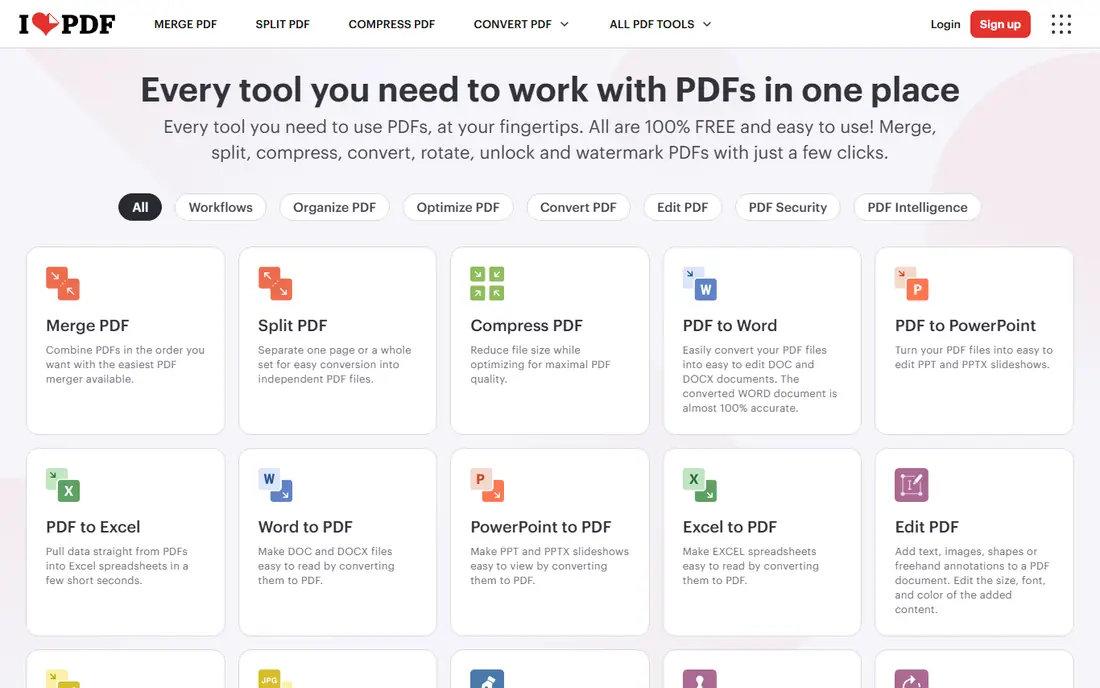
iLovePDF pairs compression with a full toolkit of PDF tools: merge, split, convert, sign and more, all from one site. Its compressor is straightforward, with a choice of compression levels, and the free plan covers everyday needs.
Task limits apply on the free plan, and batch work needs a paid plan. For a user who needs several PDF tools in one place without installing software, iLovePDF is a strong free starting point.
- Free compression with a full PDF toolkit
- Batch processing on paid plans
- Simple interface
- Free plan has task limits
- Online processing for web use
Sejda
Ideal for: Online compression with privacy care
Sejda is an online PDF editor with a compressor that stands out for privacy: files are deleted from its servers after a few hours, and a desktop app lets you process files locally if you prefer. Its compression options are clear and its results are reliable.
The free plan limits tasks per hour, which can frustrate batch work, and editing features are lighter than Acrobat. For users who care about file privacy and want a clean online tool, Sejda is a thoughtful pick.
- Free for a few tasks per day
- Files deleted from servers after processing
- Desktop app option
- Free hourly limits
- Fewer editing features than full editors
PDF24 Tools
Ideal for: Free unlimited-feeling toolkit
PDF24 Tools offers a large free toolkit, including compression, with generous use and no account needed for most tasks. Its desktop PDF Creator app adds offline options for Windows users, which suits offices that process files often.
The interface is practical rather than beautiful, and web tools process files online. For a free, no-signup compressor that also handles most other PDF jobs, PDF24 is one of the best options available.
- Free with generous use
- Many PDF tools in one place
- Desktop creator app available
- Interface is functional rather than polished
- Online processing for web tools
Foxit PDF Editor
Ideal for: Everyday PDF editing with compression
Foxit PDF Editor is a full Acrobat alternative with PDF optimization built in, letting you reduce file size as part of normal editing, signing and form work. It is often cheaper than Acrobat and lighter on system resources, which appeals to business users.
It is still a paid subscription, and new users need a short learning period. For a team that edits PDFs daily and wants compression included, Foxit is a strong and proven choice.
- Full PDF editor with optimization tools
- Lighter and cheaper than Acrobat for many users
- Good business features
- Subscription cost
- Interface takes a little learning
Wondershare PDFelement
Ideal for: Affordable full PDF editor
Wondershare PDFelement combines editing, conversion, forms and optimization in one editor, with a perpetual license option alongside subscriptions. Its optimizer reduces file size while keeping documents readable, and its price undercuts Acrobat for many users.
Advanced preflight and print features trail Acrobat, and the interface packs a lot in. For a small business that wants a capable editor with compression at a lower price, PDFelement is worth trying.
- Full editing, conversion and optimization
- Perpetual license option
- Good for small teams
- Some advanced features trail Acrobat
- Interface can feel busy
PDF Candy
Ideal for: Simple free online compression
PDF Candy offers a simple online compressor alongside a wide set of PDF tools, with free basic use and no signup needed to start. Its compressor is easy: upload, compress, download, with a desktop app for users who prefer offline work.
Free limits apply to heavier use, and compression controls are simpler than Acrobat's. For a quick, free shrink of an everyday PDF, PDF Candy does the job without fuss.
A further tip is to compress in stages for mixed documents. If a PDF contains both scanned pages and digital text, try compressing images first while leaving text untouched, then check whether embedded fonts or unused objects still add weight. Staged compression preserves text sharpness while removing the bulk that usually comes from images, and it gives you a fallback if one stage hurts quality.
- Free online tools with no signup for basic use
- Simple compressor
- Desktop app available
- Free limits apply
- Fewer advanced controls than Acrobat
How we picked these
We compared official feature pages and pricing pages, focusing on compression options, quality control, file privacy, batch handling and whether a desktop option exists. We favored tools that are actively maintained today and state their limits clearly.
We also weighed the privacy question: online tools upload your file to a server, while desktop editors process it locally. For sensitive documents, a desktop tool is the safer choice, and we flag that difference in each write-up.
How to shrink a PDF without ruining it
Start by finding what makes the file big. Scanned images and high-resolution photos are the usual culprits, and image compression helps most there. A text-only PDF that is still large may carry embedded fonts or unused objects, which an optimizer can strip without touching visible quality.
Pick the right compression level
Screen use tolerates stronger compression than print. For email and web sharing, a strong setting is usually fine. For a file that will be printed or archived, use a lighter setting and check the result at full size before sending it on. Always keep the original until the compressed copy is approved.
Check quality on the pages that matter
Open the compressed file and inspect photos, small text and charts, not just the first page. Compression artifacts show up in fine detail first, and a file that looks fine in thumbnails can fail in print. If quality drops, step back one compression level and try again.
Prefer desktop tools for sensitive files
Contracts, medical records and financial documents should not pass through an online compressor unless you trust the provider's deletion policy. Desktop editors like Acrobat, Foxit and PDFelement process files locally, which removes that risk entirely.
Frequently asked questions
What is the best software to reduce PDF size?
Adobe Acrobat gives the most control for professional files, while Smallpdf, iLovePDF and PDF24 are the easiest free online options for everyday files. Foxit and PDFelement suit users who already edit PDFs daily.
How can I reduce PDF size for free?
Use Smallpdf, iLovePDF, Sejda, PDF24 Tools or PDF Candy online, all of which offer free compression with daily or task limits. For unlimited free use, PDF24 Tools and desktop options are the most generous.
Does compressing a PDF reduce quality?
It can, especially for images. Strong compression lowers image resolution and may soften photos and small text. Use a lighter setting for print files, and always check the compressed result before sharing it.
Is it safe to compress PDFs online?
For everyday files, reputable tools with deletion policies are generally safe, but sensitive documents are better compressed locally with a desktop editor. Check the tool's privacy policy and deletion timing before uploading private files.
Why is my PDF so large?
High-resolution images and scans are the most common cause, followed by embedded fonts and unoptimized objects. A compressor that targets images first usually gives the biggest reduction with the least visible loss.
Can I compress a PDF without losing image quality?
Often yes, if the file contains unused data, oversized images or unoptimized fonts. Use a light or medium setting first and inspect photos at full size. If quality drops, step back one level or compress only the largest images rather than the whole file.