Best task management software for small business in 2026: 7 compared

- Our pick for most people is Asana, because it covers the core needs of this category with a clear setup and broad support.
- 6 of the 7 options offer a free plan, so you can test the basics before you pay for a subscription.
- Trello is a strong second choice for readers who want a simpler setup, while ClickUp suits readers who need more depth.
- Prices and free plans change often, so check the official pricing page linked in Sources before you buy.
- The best choice depends on your budget, your device, and how much setup time you are willing to spend, not only on the feature list.
Quick comparison
| Product | Ideal for | Price from | Free version | |
|---|---|---|---|---|
 Asana | Team task tracking | Free | Yes | Visit |
 Trello | Visual boards | Free | Yes | Visit |
 Monday.com | Custom workflows | See website | Free trial | Visit |
 ClickUp | All in one workspace | Free | Yes | Visit |
 Todoist | Personal and small team lists | Free | Yes | Visit |
 Notion | Docs plus tasks | Free | Yes | Visit |
 Zoho Projects | Budget friendly project work | Free | Yes | Visit |
The best task management software for small business
We compared official feature pages, pricing pages, app store listings, privacy policies, and public reviews for best task management software for small business. The seven options below cover well known leaders and strong smaller choices, and each one is suited to a different kind of reader. Read the short comparison above first, then use the detailed notes to narrow the list to two or three options worth a trial.
Asana
Ideal for: Team task tracking
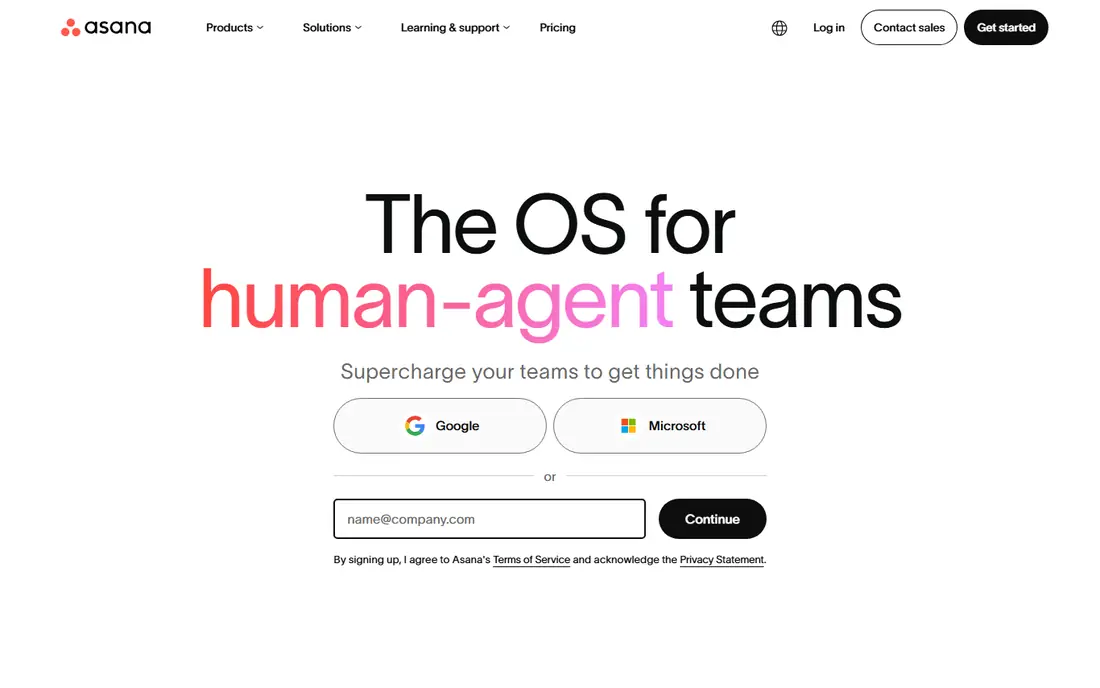
Asana organizes work into projects, tasks, and timelines so a small team can see who owns what and when it is due. For readers who want team task tracking, this is a natural first option to test, and our notes below explain where it shines and where it falls short. We based this assessment on the official feature and pricing pages, plus app store listings and public reviews, rather than on marketing claims alone. The strengths are clear in daily use. Clear task views and timelines; strong integrations; easy onboarding If you compare this option with the others in the list, pay attention to how those strengths fit your own workflow, since a strength that you never use adds no value. The honest catch is worth weighing before you commit. Paid plans needed for advanced reporting; can feel large for tiny teams We would suggest a short trial with your real tasks, and a check of the pricing page for your exact plan, before you move important work into this product.
- Clear task views and timelines
- Strong integrations
- Easy onboarding
- Paid plans needed for advanced reporting
- Can feel large for tiny teams
Trello
Ideal for: Visual boards
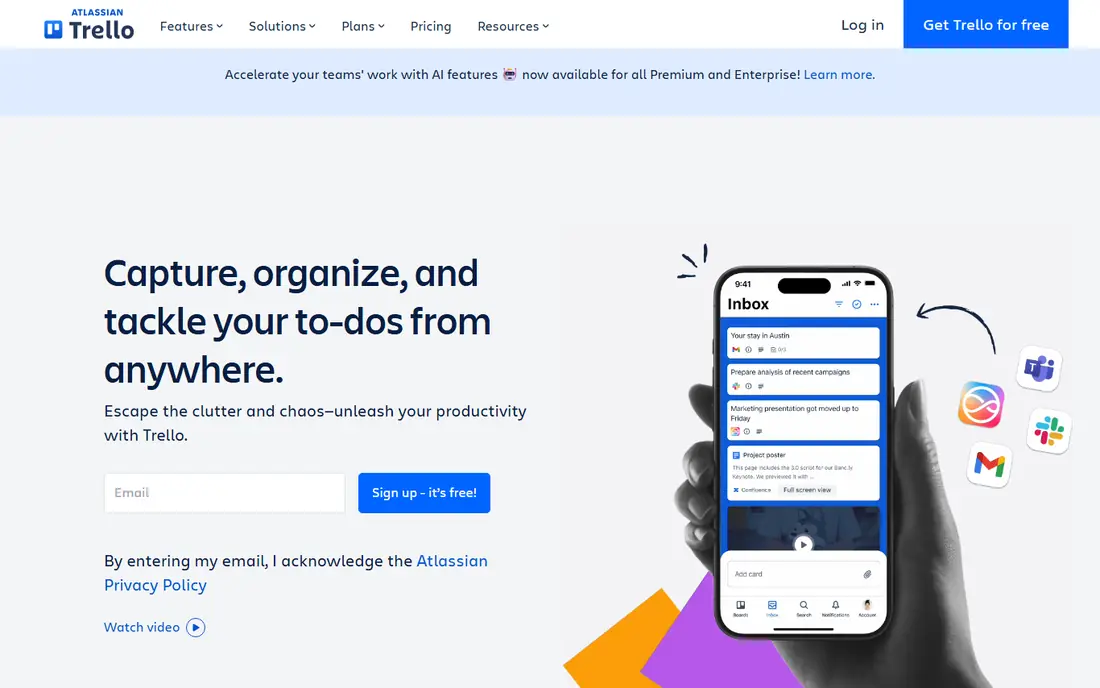
Trello uses cards and boards to track work in a visual way that suits teams that prefer a simple, flexible layout. For readers who want visual boards, this is a natural first option to test, and our notes below explain where it shines and where it falls short. We based this assessment on the official feature and pricing pages, plus app store listings and public reviews, rather than on marketing claims alone. The strengths are clear in daily use. Simple drag and drop boards; quick setup; useful Power-Ups If you compare this option with the others in the list, pay attention to how those strengths fit your own workflow, since a strength that you never use adds no value. The honest catch is worth weighing before you commit. Limited depth for complex projects; reporting is basic on lower plans We would suggest a short trial with your real tasks, and a check of the pricing page for your exact plan, before you move important work into this product.
- Simple drag and drop boards
- Quick setup
- Useful Power-Ups
- Limited depth for complex projects
- Reporting is basic on lower plans
Monday.com
Ideal for: Custom workflows
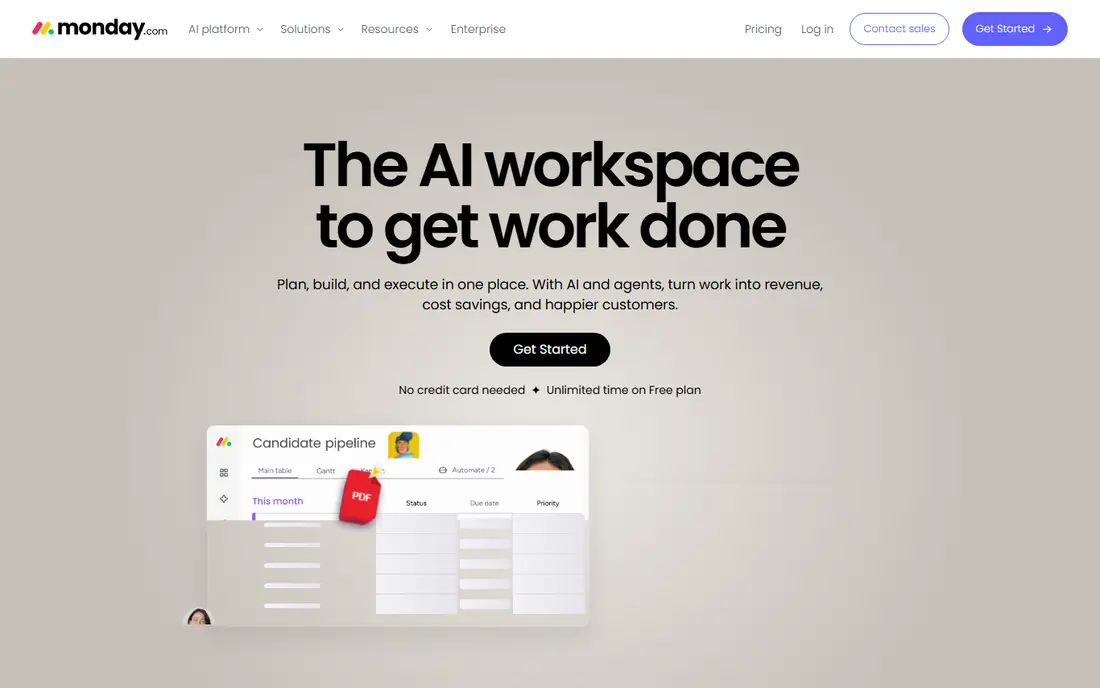
Monday.com lets teams build boards, automations, and dashboards around their own process rather than a fixed template. For readers who want custom workflows, this is a natural first option to test, and our notes below explain where it shines and where it falls short. We based this assessment on the official feature and pricing pages, plus app store listings and public reviews, rather than on marketing claims alone. The strengths are clear in daily use. Flexible boards and automations; clear status views; many templates If you compare this option with the others in the list, pay attention to how those strengths fit your own workflow, since a strength that you never use adds no value. The honest catch is worth weighing before you commit. Pricing rises with seats and features; setup takes time to tune We would suggest a short trial with your real tasks, and a check of the pricing page for your exact plan, before you move important work into this product.
- Flexible boards and automations
- Clear status views
- Many templates
- Pricing rises with seats and features
- Setup takes time to tune
ClickUp
Ideal for: All in one workspace
ClickUp combines tasks, documents, goals, and time tracking in a single workspace for teams that want fewer separate tools. For readers who want all in one workspace, this is a natural first option to test, and our notes below explain where it shines and where it falls short. We based this assessment on the official feature and pricing pages, plus app store listings and public reviews, rather than on marketing claims alone. The strengths are clear in daily use. Docs, tasks, goals, and chat in one place; many views; generous free tier If you compare this option with the others in the list, pay attention to how those strengths fit your own workflow, since a strength that you never use adds no value. The honest catch is worth weighing before you commit. The range of options can overwhelm new users; performance varies on large workspaces We would suggest a short trial with your real tasks, and a check of the pricing page for your exact plan, before you move important work into this product.
- Docs, tasks, goals, and chat in one place
- Many views
- Generous free tier
- The range of options can overwhelm new users
- Performance varies on large workspaces
Todoist
Ideal for: Personal and small team lists
Todoist focuses on fast capture, due dates, and priorities, which makes it a good fit for small teams that mainly need reliable lists. For readers who want personal and small team lists, this is a natural first option to test, and our notes below explain where it shines and where it falls short. We based this assessment on the official feature and pricing pages, plus app store listings and public reviews, rather than on marketing claims alone. The strengths are clear in daily use. Fast task capture; clean interface; works on many devices If you compare this option with the others in the list, pay attention to how those strengths fit your own workflow, since a strength that you never use adds no value. The honest catch is worth weighing before you commit. Collaboration features are lighter than full project tools; no built in timelines on lower plans We would suggest a short trial with your real tasks, and a check of the pricing page for your exact plan, before you move important work into this product.
- Fast task capture
- Clean interface
- Works on many devices
- Collaboration features are lighter than full project tools
- No built in timelines on lower plans
Notion
Ideal for: Docs plus tasks
Notion pairs task databases with notes and wikis, so a small business can keep plans and reference material together. For readers who want docs plus tasks, this is a natural first option to test, and our notes below explain where it shines and where it falls short. We based this assessment on the official feature and pricing pages, plus app store listings and public reviews, rather than on marketing claims alone. The strengths are clear in daily use. Flexible pages, databases, and wikis; good for notes alongside tasks If you compare this option with the others in the list, pay attention to how those strengths fit your own workflow, since a strength that you never use adds no value. The honest catch is worth weighing before you commit. Task features need setup; offline use is limited We would suggest a short trial with your real tasks, and a check of the pricing page for your exact plan, before you move important work into this product.
- Flexible pages, databases, and wikis
- Good for notes alongside tasks
- Task features need setup
- Offline use is limited
Zoho Projects
Ideal for: Budget friendly project work
Zoho Projects covers tasks, milestones, timesheets, and reports, and it fits teams already using Zoho tools. For readers who want budget friendly project work, this is a natural first option to test, and our notes below explain where it shines and where it falls short. We based this assessment on the official feature and pricing pages, plus app store listings and public reviews, rather than on marketing claims alone. The strengths are clear in daily use. Solid project basics at a modest price; ties into Zoho apps; time tracking included If you compare this option with the others in the list, pay attention to how those strengths fit your own workflow, since a strength that you never use adds no value. The honest catch is worth weighing before you commit. Interface feels dated in places; third party integrations are narrower We would suggest a short trial with your real tasks, and a check of the pricing page for your exact plan, before you move important work into this product.
- Solid project basics at a modest price
- Ties into Zoho apps
- Time tracking included
- Interface feels dated in places
- Third party integrations are narrower
How we picked these
We started with the topic and the related search terms for this article, then checked which products truly fit that topic and still work in October 2026. We compared official feature pages, pricing pages, app store listings, privacy policies, and public reviews for each option. We left out products that had closed, changed focus, or did not fit the topic, even when they were popular in other categories. We also weighed who each product serves best, what it costs to start, whether a free plan exists, and what users complain about most often. A product earned a place here because it serves a clear use case well, not because it topped every chart. Prices and plans change, so we used See website where a price could not be verified from the vendor, and we recommend a final check before you pay.
How to choose task software for a small team
Start with the work you actually repeat each week, then match the tool to that flow. A team that lives in lists may not need timelines and resource planning, while a team juggling client projects probably does. Check how many seats you will pay for in six months, not only today, and confirm the mobile app covers the tasks your staff do away from a desk. Try the free plan with a real project before you move every task across, and keep the setup simple enough that new hires can follow it without training. Before you pay, check the official pricing page for your exact plan and region, since prices, limits, and free plans vary. Look at the support options too, because a product with slow support can cost you more time than a slightly higher price. If you can, run a trial with a colleague or a friend, and test the one task you will do most often. That single test usually tells you more than a long feature list, and it helps you avoid a subscription you stop using after a month.
Frequently asked questions
What is the best option for most people?
For most readers, Asana is a safe starting point because it covers the core needs well and is easy to set up. Readers with a simpler need may prefer Trello, while readers who need more depth should look at ClickUp. The right answer still depends on your budget and your daily tasks, so trial two options before you commit.
Are there free options in this list?
Yes. 6 of the 7 options offer a free plan, and several others offer a free trial. Free plans usually limit advanced features, storage, or seats, so check the limits against your real use. A free plan is a good way to test the interface, but it may not show how the paid plan performs at full scale.
How much should I expect to pay?
That depends on the product and the plan, and prices change often. Some options in this list are free to start, while others use custom pricing that depends on seats, volume, or features. Where we could not verify a current price from the vendor, we wrote See website. Always check the official pricing page for your region before you budget for a year.
What should I check before I choose?
Check device support, pricing for your team size, and the limits of the free or trial plan. Read the privacy policy if the product handles personal or business data, and confirm that support is available in your time zone. A short trial with your real tasks will reveal problems that a feature list hides.
Does this guide cover best project task management software?
Yes, the options above were chosen with best project task management software in mind, along with the main topic of this article. The comparison table and the buying guide should help you weigh those related needs too. If that related need is your main priority, start with the products whose best for note matches it most closely.