Best Team Collaboration Software in 2026: 8 Tools Compared

- 1
 SlackTeam chat with a huge app ecosystemVisit
- 2
 Microsoft TeamsMicrosoft 365 teams needing chat, meetings and filesVisit
- 3
 Google ChatGoogle Workspace teams needing simple chatVisit
- 4
 Zoom Team ChatTeams that live in Zoom meetingsVisit
- 5
 NotionDocs, wikis and project tracking in one workspaceVisit
- Slack, Microsoft Teams and Google Chat each win inside their own ecosystem, so your existing email and file tools should guide the pick.
- Notion, ClickUp and monday.com suit teams that plan work in documents and boards rather than chat alone.
- Per-user pricing adds up fast, so count guests, viewers and part-time staff before comparing monthly rates.
- Free plans work for small teams, but message history and storage limits are the usual reason to upgrade.
Quick comparison
| Product | Ideal for | Price from | Free version | |
|---|---|---|---|---|
| Slack | Team chat with a huge app ecosystem | $7.25 per user per month | Yes | Visit |
| Microsoft Teams | Microsoft 365 teams needing chat, meetings and files | See website | Yes | Visit |
| Google Chat | Google Workspace teams needing simple chat | See website | Yes | Visit |
| Zoom Team Chat | Teams that live in Zoom meetings | See website | Yes | Visit |
| Notion | Docs, wikis and project tracking in one workspace | $10 per user per month | Yes | Visit |
 ClickUp | Project-heavy teams wanting chat plus tasks | $7 per user per month | Yes | Visit |
 monday.com | Visual project tracking for non-technical teams | See website | Yes | Visit |
 Trello | Simple kanban boards for small teams | See website | Yes | Visit |
The best team collaboration software
We compared official feature pages, pricing pages, app store listings, privacy policies and public reviews to build this list of 8 options for best team collaboration software. Prices were checked in October 2026 and can change, so confirm the current price on the vendor site before you buy. Our pick for most people is the first option that fits your budget and workflow, not necessarily the most expensive tool on the list. Read the quick comparison first to narrow the field, then read the full write-ups for the two or three options that fit your needs best.
Slack
Ideal for: Team chat with a huge app ecosystem
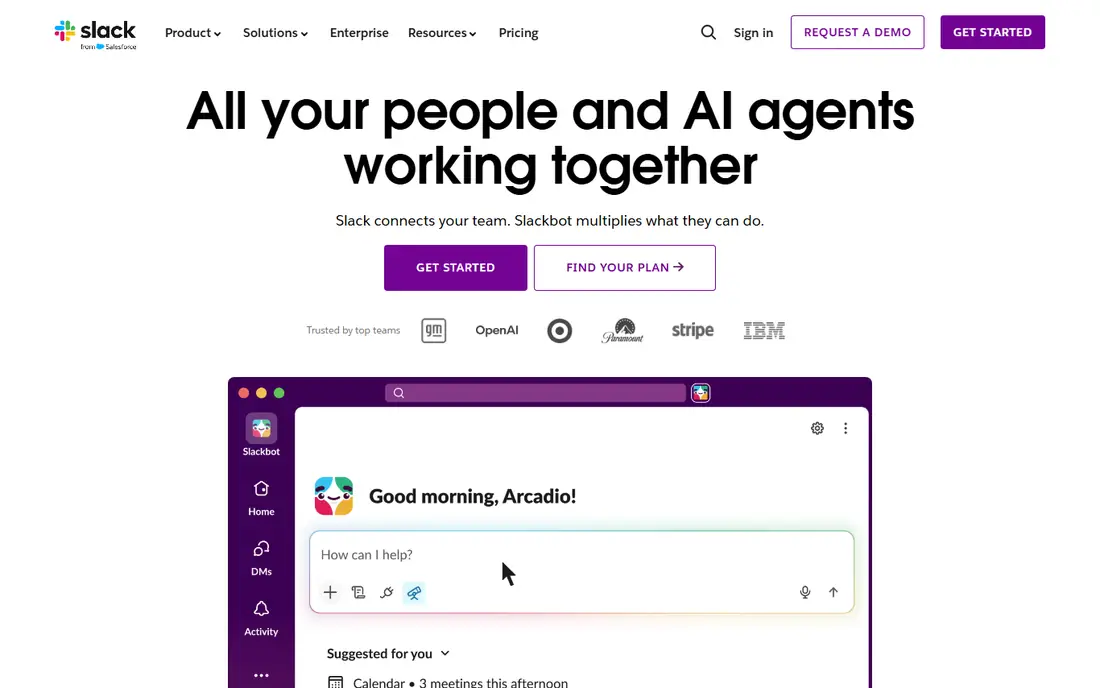
Slack remains the default team chat app for many firms because channels, threads and integrations cover most daily coordination. It connects to project tools, code hosts, support desks and file storage, so updates land where people already work. The interface is familiar to most new hires, which cuts training time.
The free plan caps message history, which frustrates teams that need to search old decisions. Paid seats also add up as a company grows, and busy channels can become noisy without clear channel rules. Slack is best when chat is the hub and other tools plug into it.
- Channels and threads keep work organized
- Thousands of app integrations
- Strong search on paid plans
- Free plan limits message history
- Cost grows with headcount
- Notification overload is common
Microsoft Teams
Ideal for: Microsoft 365 teams needing chat, meetings and files

Microsoft Teams makes sense when a firm already pays for Microsoft 365. Chat, video meetings, file storage and Office documents sit in one place, and admin controls suit larger firms. For companies standardized on Outlook and OneDrive, Teams removes the need for a separate chat purchase.
Teams can feel heavier than Slack, and its channel chat is less flexible for some workflows. Firms outside Microsoft 365 also get less value, since the best features depend on that ecosystem. Inside Microsoft shops, though, it is the obvious pick.
- Meetings, chat and Office files in one app
- Strong admin controls
- Included in many Microsoft 365 plans
- Can feel heavy
- Chat is weaker than Slack for some teams
- Best value needs a Microsoft 365 plan
Google Chat
Ideal for: Google Workspace teams needing simple chat
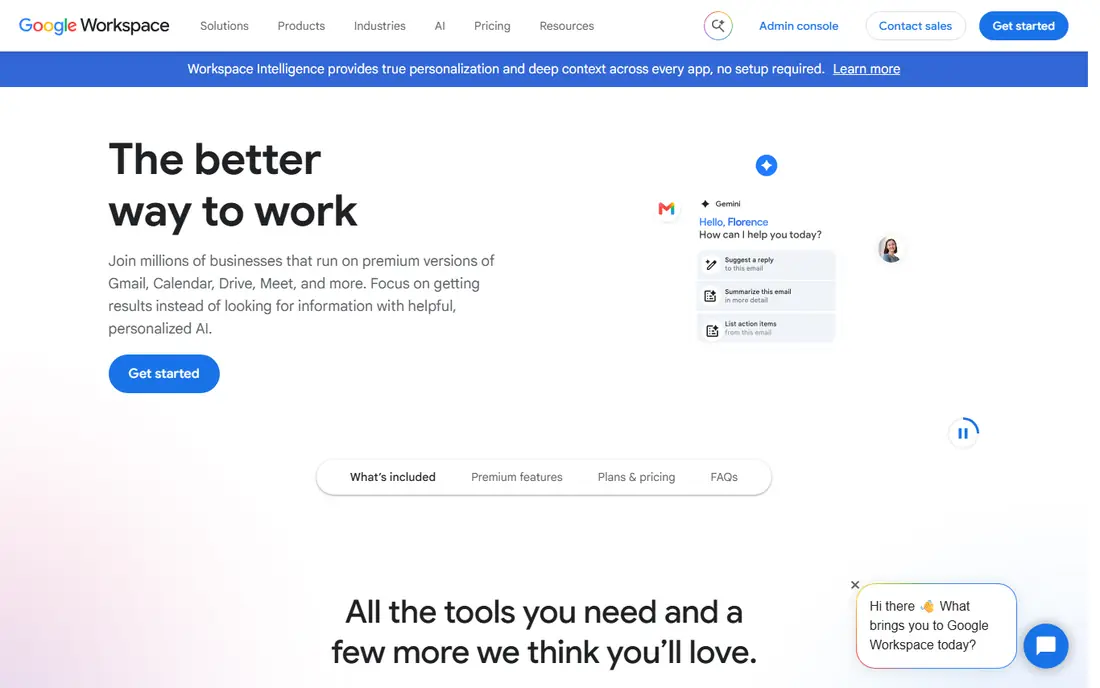
Google Chat suits teams that already live in Gmail and Drive. Spaces organize work by topic, threads keep replies tidy, and Meet handles video without a separate app. Because it is included with Workspace plans, the extra cost is often zero for existing customers.
It has fewer third-party integrations than Slack and fewer admin controls than Teams. Teams that need deep automation or a large app directory will feel the limits. For straightforward Google-based collaboration, Chat is simple and effective.
- Included with Google Workspace
- Simple spaces and threads
- Ties to Gmail, Drive and Meet
- Fewer integrations than Slack
- No standalone business pricing
- Limited advanced admin tools
Zoom Team Chat
Ideal for: Teams that live in Zoom meetings
Zoom Team Chat works best for teams whose day is already built around Zoom meetings. Chat, channels and file sharing sit beside video, so a conversation can move to a call in one click. Most staff already know Zoom, which helps adoption.
As a chat tool alone, it is less rich than Slack, with fewer integrations and weaker automation. File handling is also basic compared with Drive or SharePoint. Pick Zoom Team Chat when meetings are the center of work, not when chat is.
- Chat sits beside Zoom Meetings and Phone
- Good video quality
- Familiar to most users
- Chat features lag Slack
- Best value needs a Zoom plan
- File handling is basic
Notion
Ideal for: Docs, wikis and project tracking in one workspace
Notion suits teams that plan work in documents rather than chat threads. Pages, databases and templates cover wikis, roadmaps, meeting notes and lightweight project tracking in one workspace. It is easy to shape around a team's actual process, which is why small firms adopt it fast.
Large workspaces can slow down, and offline access is limited, which matters for field staff. Notion also lacks a full chat replacement, so most teams pair it with Slack or Teams. Use Notion as the memory of the team, not as the chat room.
- Flexible pages and databases
- Good for wikis and planning
- Strong templates
- Can slow on very large workspaces
- Offline support is limited
- Chat is not its strength
ClickUp
Ideal for: Project-heavy teams wanting chat plus tasks
ClickUp appeals to teams that want tasks and chat in one place. Docs, goals, timelines and chat views sit beside task lists, so a project does not need four separate tools. The free plan is generous enough for small teams to test it properly.
The price of flexibility is setup time. ClickUp has many views and options, and teams that skip setup end up with a busy workspace. Some reporting and automation features also need higher tiers. With a clear setup, it is a strong all-in-one pick.
- Tasks, docs, chat and goals in one app
- Highly customizable
- Generous free plan
- Setup takes time
- Interface can feel busy
- Some features need higher tiers
monday.com
Ideal for: Visual project tracking for non-technical teams
monday.com is built around visual boards that non-technical teams can read at a glance. Status columns, timelines and automations cover approvals, handoffs and deadlines without code. Templates for marketing, sales and operations shorten setup considerably.
It is primarily a work management tool, so chat and document depth lag dedicated tools. Per-user pricing also climbs as teams grow, and reporting depth sits on higher tiers. Choose monday.com when visual project tracking is the main need.
- Visual boards are easy to read
- Strong automations
- Good templates for common workflows
- Per-user cost rises fast
- Chat is secondary
- Advanced reporting needs higher plans
Trello
Ideal for: Simple kanban boards for small teams
Trello is the simplest board tool on this list, and that is its strength. Lists and cards cover to-do work, content pipelines and small projects with almost no training. The free plan handles many small teams, and Power-Ups add calendars and automation when needed.
Complex projects outgrow Trello quickly. Reporting is basic, dependencies are limited, and very large boards become hard to scan. For simple, visual task tracking, Trello is fast and cheap. For program management, pick ClickUp or monday.com instead.
- Very easy to learn
- Kanban boards suit simple workflows
- Good free plan
- Limited for complex projects
- Reporting is basic
- Large boards get unwieldy
How we picked these
We started from the topic and shortlisted products that exist and work today, then checked each vendor homepage, pricing page and free tier. We compared feature pages, app store listings, privacy policies and public reviews, and we dropped any product whose homepage could not be verified or whose price could not be checked. Where a price was unclear or varied by region, we wrote See website rather than guessing a number. That rule kept the list honest, even where a neat price would have made the comparison table look tidier.
We also weighed fit over fame. A well-known product stayed on the list only if it truly fits the topic, and smaller tools earned a place when they served a clear use case better. No product here was tested hands-on for this article, and no vendor paid for placement.
Price and free-tier details matter most when plans change often, so we favoured products with clear published pricing and a trial or free tier where one exists. If a vendor changed a plan after our check, the vendor site is the correct source, and the ranking here still reflects fit, not just price. That check takes extra time, but it prevents a shortlist built on outdated pricing or a product that no longer exists.
Choosing team collaboration software that people will actually use
Start with where your files and email already live. A team on Microsoft 365 gets more from Teams, and a Google Workspace team gets more from Chat, than either gets from a standalone chat app. Then test one real project end to end, including guests and mobile use, before rolling a tool out to everyone.
Before you pay, run a trial on a real task from your own work, not a demo file. Check export formats, mobile access and support hours, because those details decide whether a tool survives daily use. Also check renewal terms and cancellation steps, since a cheap first year can become an expensive second year if renewal jumps. Finally, ask who will own setup and training, because a tool nobody is responsible for tends to fall out of use within a few months. Keep a short note on why you picked the winner, so a future review can judge it against the same criteria instead of starting from scratch.
A useful final test is to imagine the tool in six months, when the first excitement has faded and the work is routine. If the daily steps are still quick, the cost is still clear, and the support route is still obvious, the choice is likely sound. If any of those three answers is unclear, use the trial period to get a clear answer before committing to an annual plan.
Frequently asked questions
What is the best team collaboration software for small teams?
Slack and Google Chat suit small teams that mainly need chat and file sharing. Notion or ClickUp suit teams that also plan projects, because chat alone does not track deadlines well.
Is Microsoft Teams free?
Teams is included in many Microsoft 365 business plans, and a limited free version exists for personal use. Business features, storage and admin controls depend on the Microsoft 365 plan.
How do I avoid paying for seats nobody uses?
Audit seats every quarter, move occasional collaborators to guest or viewer roles where the tool allows it, and remove leavers promptly. Per-user tools punish slow offboarding.
Can one tool replace chat, docs and project tracking?
Notion and ClickUp come closest, but most teams still use a chat tool plus a planning tool. Pick the pair that shares files and notifications cleanly, rather than forcing one tool to do everything.