Best to do list apps in 2026: 9 Options Compared

- 1
 Todoistbalanced power and simplicityVisit
- 2
 TickTickfeature depth at a low priceVisit
- 3
 Microsoft To Dofree task lists for Microsoft usersVisit
- 4
 Apple RemindersApple device usersVisit
- 5
 Google Taskssimple lists inside Google toolsVisit
- Our pick for most people depends on budget and daily use, not on brand name alone, among these 9 options for best to do list app.
- Free plans vary a lot, so check what is actually included before you rely on a free tier for regular work.
- The cheapest entry price is not always the cheapest total cost once limits, add-ons, and upgrades are counted.
- Start with the product that matches your main task, then test it for a week before you pay for a higher plan.
Quick comparison
| Product | Ideal for | Price from | Free version | |
|---|---|---|---|---|
| Todoist | balanced power and simplicity | $7 per month | Yes | Visit |
| TickTick | feature depth at a low price | $3.99 per month | Yes | Visit |
| Microsoft To Do | free task lists for Microsoft users | Free | Yes | Visit |
| Apple Reminders | Apple device users | Free | Yes | Visit |
| Google Tasks | simple lists inside Google tools | Free | Yes | Visit |
 Any.do | daily planning with a calendar view | $7.99 per month | Yes | Visit |
 Things 3 | Apple users who want elegant design | $9.99 one-time for iPhone | No | Visit |
 OmniFocus | serious GTD users on Apple devices | $9.99 per month | Free trial (14 days) | Visit |
 Superlist | shared lists for teams and households | Free | Yes | Visit |
The best to do list apps
We compared official feature pages, pricing pages, app store listings, privacy policies, and public reviews to build this list of 9 options for best to do list app. Each entry below states its price and free plan plainly, so you can compare like with like. Use the table above to narrow the field, then read the full notes for the two or three options that fit your situation best.
Todoist
Ideal for: balanced power and simplicity

If balanced power and simplicity sounds like your situation, Todoist deserves a place on your shortlist. Todoist remains a strong default because it stays fast while still handling projects, priorities, and recurring tasks well. It is positioned for balanced power and simplicity. The starting price is $7 per month, and the free option is listed as Yes. Comparing on cost first, then on features, saves time and avoids paying for tools that stay unused.
The trade-offs become clear once you look past the marketing page. Check the limits on the entry plan and what changes on a higher tier. Some readers will find the basic version enough for a long time, while others will hit a limit quickly. We compared official feature pages, pricing pages, app store listings, privacy policies, and public reviews. On that basis, Todoist earns its place here, with strengths and limits stated plainly.
- Natural language input
- Projects and filters
- All major platforms
- Reminders need Pro
- Team features are limited at entry level
TickTick
Ideal for: feature depth at a low price
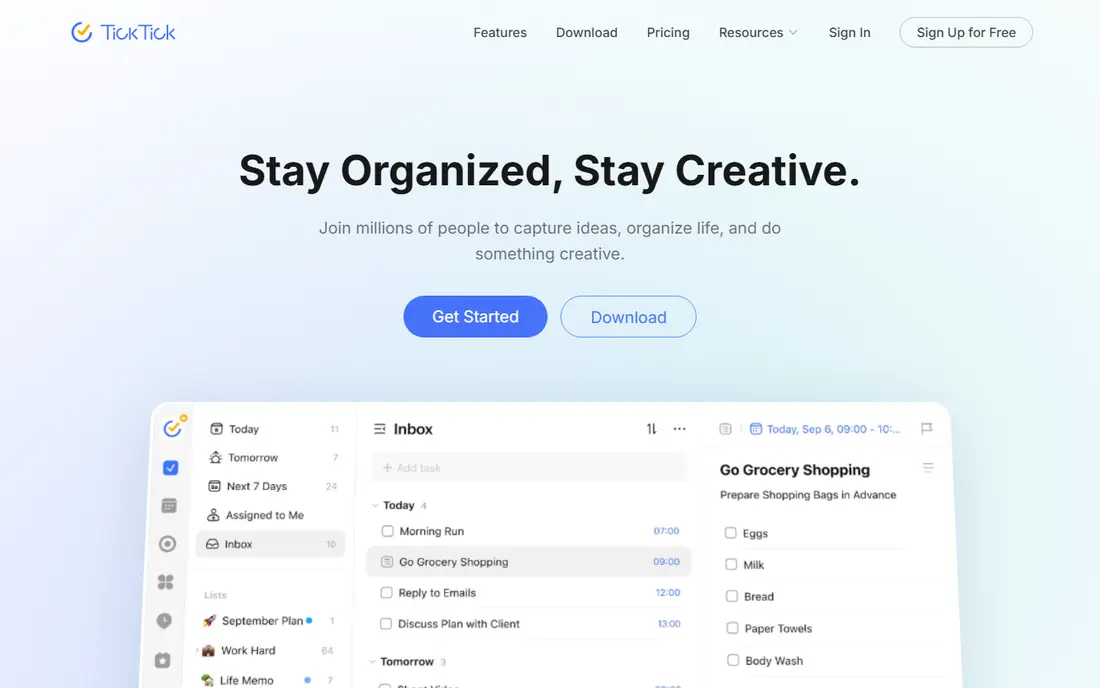
Start with what TickTick does best, and the rest of the decision gets easier. TickTick gives more built-in tools per dollar than most rivals, which suits readers who want one app to cover several habits. It is positioned for feature depth at a low price. The starting price is $3.99 per month, and the free option is listed as Yes. Comparing on cost first, then on features, saves time and avoids paying for tools that stay unused.
Before you commit, weigh how it handles the parts you will use every week. Check the limits on the entry plan and what changes on a higher tier. Some readers will find the basic version enough for a long time, while others will hit a limit quickly. We compared official feature pages, pricing pages, app store listings, privacy policies, and public reviews. On that basis, TickTick earns its place here, with strengths and limits stated plainly.
- Calendar, habits, and Pomodoro included
- Good annual value
- Free limits hit reminders and lists
- Interface can feel crowded
Microsoft To Do
Ideal for: free task lists for Microsoft users

Among the options here, Microsoft To Do stands out for a specific kind of user. Microsoft To Do is hard to beat on price, and it covers the basics cleanly for personal and family lists. It is positioned for free task lists for Microsoft users. The starting price is Free, and the free option is listed as Yes. Comparing on cost first, then on features, saves time and avoids paying for tools that stay unused.
What matters next is how it behaves when your needs grow. Check the limits on the entry plan and what changes on a higher tier. Some readers will find the basic version enough for a long time, while others will hit a limit quickly. We compared official feature pages, pricing pages, app store listings, privacy policies, and public reviews. On that basis, Microsoft To Do earns its place here, with strengths and limits stated plainly.
- Free with a Microsoft account
- Shared lists
- Outlook sync
- No advanced automation
- Weaker for large projects
Apple Reminders
Ideal for: Apple device users
Think of Apple Reminders as a practical choice rather than a showpiece option. Apple Reminders is the frictionless pick for Apple households, because it is already installed and syncs across devices. It is positioned for Apple device users. The starting price is Free, and the free option is listed as Yes. Comparing on cost first, then on features, saves time and avoids paying for tools that stay unused.
The honest test is not the first week, but the third month. Check the limits on the entry plan and what changes on a higher tier. Some readers will find the basic version enough for a long time, while others will hit a limit quickly. We compared official feature pages, pricing pages, app store listings, privacy policies, and public reviews. On that basis, Apple Reminders earns its place here, with strengths and limits stated plainly.
- Built into Apple devices
- Siri input
- Smart lists
- Apple only
- Collaboration is weaker than dedicated apps
Google Tasks
Ideal for: simple lists inside Google tools
The case for Google Tasks is straightforward, and it starts with fit. Google Tasks suits readers who want a list that appears beside email and calendar without a new system to learn. It is positioned for simple lists inside Google tools. The starting price is Free, and the free option is listed as Yes. Comparing on cost first, then on features, saves time and avoids paying for tools that stay unused.
Look closely at limits, because they shape the real cost over time. Check the limits on the entry plan and what changes on a higher tier. Some readers will find the basic version enough for a long time, while others will hit a limit quickly. We compared official feature pages, pricing pages, app store listings, privacy policies, and public reviews. On that basis, Google Tasks earns its place here, with strengths and limits stated plainly.
- Inside Gmail and Calendar
- Fast capture
- Free
- Very basic
- No project views or automation
Any.do
Ideal for: daily planning with a calendar view
When the priority is daily planning with a calendar view, Any.do is one of the first names to check. Any.do helps readers who need a daily prompt to plan, rather than a passive list that grows unchecked. It is positioned for daily planning with a calendar view. The starting price is $7.99 per month, and the free option is listed as Yes. Comparing on cost first, then on features, saves time and avoids paying for tools that stay unused.
A tool can be strong in one area and average in another, and that is normal here. Check the limits on the entry plan and what changes on a higher tier. Some readers will find the basic version enough for a long time, while others will hit a limit quickly. We compared official feature pages, pricing pages, app store listings, privacy policies, and public reviews. On that basis, Any.do earns its place here, with strengths and limits stated plainly.
- Plan My Day flow
- Calendar integration
- Polished design
- Premium needed for best features
- Free plan is limited
Things 3
Ideal for: Apple users who want elegant design
Put Things 3 on the list if you value the balance it strikes. Things 3 appeals to Apple users who value calm design and are willing to pay once per platform instead of a subscription. It is positioned for Apple users who want elegant design. The starting price is $9.99 one-time for iPhone, and the free option is listed as No. Comparing on cost first, then on features, saves time and avoids paying for tools that stay unused.
Check the plan limits against your actual workload before you pay. Check the limits on the entry plan and what changes on a higher tier. Some readers will find the basic version enough for a long time, while others will hit a limit quickly. We compared official feature pages, pricing pages, app store listings, privacy policies, and public reviews. On that basis, Things 3 earns its place here, with strengths and limits stated plainly.
- Clean design
- Areas and projects
- One-time purchase per platform
- Apple only
- Separate purchase per device type
OmniFocus
Ideal for: serious GTD users on Apple devices
A good way to judge OmniFocus is to ask what problem it solves first. OmniFocus is for readers who already follow a GTD-style system and want perspectives, defer dates, and detailed reviews. It is positioned for serious GTD users on Apple devices. The starting price is $9.99 per month, and the free option is listed as Free trial (14 days). Comparing on cost first, then on features, saves time and avoids paying for tools that stay unused.
The right question is not whether it is good, but whether it fits your routine. Check the limits on the entry plan and what changes on a higher tier. Some readers will find the basic version enough for a long time, while others will hit a limit quickly. We compared official feature pages, pricing pages, app store listings, privacy policies, and public reviews. On that basis, OmniFocus earns its place here, with strengths and limits stated plainly.
- Deep GTD structure
- Perspectives and forecasts
- Strong Apple integration
- Apple only
- Steep learning curve and higher price
Superlist
Ideal for: shared lists for teams and households
For readers who want a clear starting point, Superlist is worth a close look. Superlist suits small teams and households that share lists often and want a modern, fast interface. It is positioned for shared lists for teams and households. The starting price is Free, and the free option is listed as Yes. Comparing on cost first, then on features, saves time and avoids paying for tools that stay unused.
In daily use, the details matter more than the headline price. Check the limits on the entry plan and what changes on a higher tier. Some readers will find the basic version enough for a long time, while others will hit a limit quickly. We compared official feature pages, pricing pages, app store listings, privacy policies, and public reviews. On that basis, Superlist earns its place here, with strengths and limits stated plainly.
- Modern shared lists
- Notes and tasks together
- Free tier
- Newer product
- Fewer integrations than older rivals
How we picked these
We started with products that exist and work in October 2026 and that truly fit the topic, not with products that only mention the topic in passing. For each one, we checked the official homepage, the pricing page, and the stated free plan or trial, and we noted where a price could not be verified. Where sources disagreed, we used the more conservative figure or wrote See website rather than guessing. We also weighed who each product serves best, one concrete strength, and one honest weakness. A product stayed on the list only if it had a clear use case and a working official site. That method keeps the list useful for ordinary buyers and small business owners, and it avoids padding the list with options that do not fit.
Picking a to do app you will actually open
Start with capture speed. If adding a task takes more than a few seconds, you will stop using the app. Test natural language input, a widget, and a quick-add shortcut on your phone before you compare advanced features. Then check the weekly review. A good to do app makes it easy to see overdue tasks, move them, and spot what can be dropped. If overdue tasks just pile up, the app is acting as storage, not as a planning tool.
Frequently asked questions
Which best to do list app is best for beginners?
Start with the option that has the clearest free plan and the simplest setup for your main task. Beginners often do better with fewer features at first, then move up only when a limit starts to matter. Read the product notes above and pick the one whose best-for description matches your situation.
Is there a free best to do list app worth using?
Yes, several entries here offer a free plan, but the limits differ. Some free plans cover daily use well, while others are mainly a trial in disguise. Check the free plan column in the comparison table, then confirm the current limits on the official site before you rely on it.
How much should I expect to pay?
Prices in this guide are starting prices from official pages checked for October 2026, and they can change. Some products charge per month, some per year, and some use credits or per-seat pricing. Compare the total cost at your expected usage level, not just the headline monthly figure.
Can I switch later if I pick the wrong one?
In most cases, yes, but switching takes time if you have built up data, projects, or a routine in one product. Export options and import tools vary, so check them before you commit to a paid plan. Starting on a free plan makes switching cheaper and easier.
How do I choose between the top two options?
List the two or three features you will use every week, then check which product includes them without an upgrade. If both cover those features, pick the one with clearer pricing and simpler limits. A short trial on each option usually settles the choice faster than more reading.