Best Tool for Editing PDF Documents in 2026: 7 Tools Compared

- 1
 Adobe Acrobat ProProfessional PDF workVisit
- 2
 PDFelementBest value desktop editorVisit
- 3
 Foxit PDF EditorOffice teams wanting an Acrobat alternativeVisit
- 4
 SmallpdfSimple online PDF tasksVisit
- 5
 SejdaOccasional online edits without watermarksVisit
- Adobe Acrobat Pro is the most complete editor, with forms, signatures and accessibility tools, at $19.99 per month.
- PDFelement gives most of the same desktop power for $79.99 per year, a much lower annual cost.
- Sejda and iLovePDF are the best online options for occasional edits without installing software.
- For sensitive documents, prefer a desktop editor, since online tools upload your files to their servers.
Quick comparison
| Product | Ideal for | Price from | Free version | |
|---|---|---|---|---|
| Adobe Acrobat Pro | Professional PDF work | $19.99 per month | Free trial | Visit |
| PDFelement | Best value desktop editor | $79.99 per year | Free trial | Visit |
| Foxit PDF Editor | Office teams wanting an Acrobat alternative | See website | Free trial | Visit |
| Smallpdf | Simple online PDF tasks | See website | Yes | Visit |
| Sejda | Occasional online edits without watermarks | $7.50 per month | Yes | Visit |
 iLovePDF | Everyday online PDF tasks | See website | Yes | Visit |
 PDFescape | Free basic PDF edits in a browser | Free | Yes | Visit |
The best tools for editing PDF documents
Editing a PDF means different things: changing text, filling a form, merging pages, signing or converting to another format. Desktop editors handle all of it offline, while online tools are faster for a single task. The tools below cover both, with prices from free to around $20 per month, and we note where uploads and limits matter.
Adobe Acrobat Pro
Ideal for: Professional PDF work
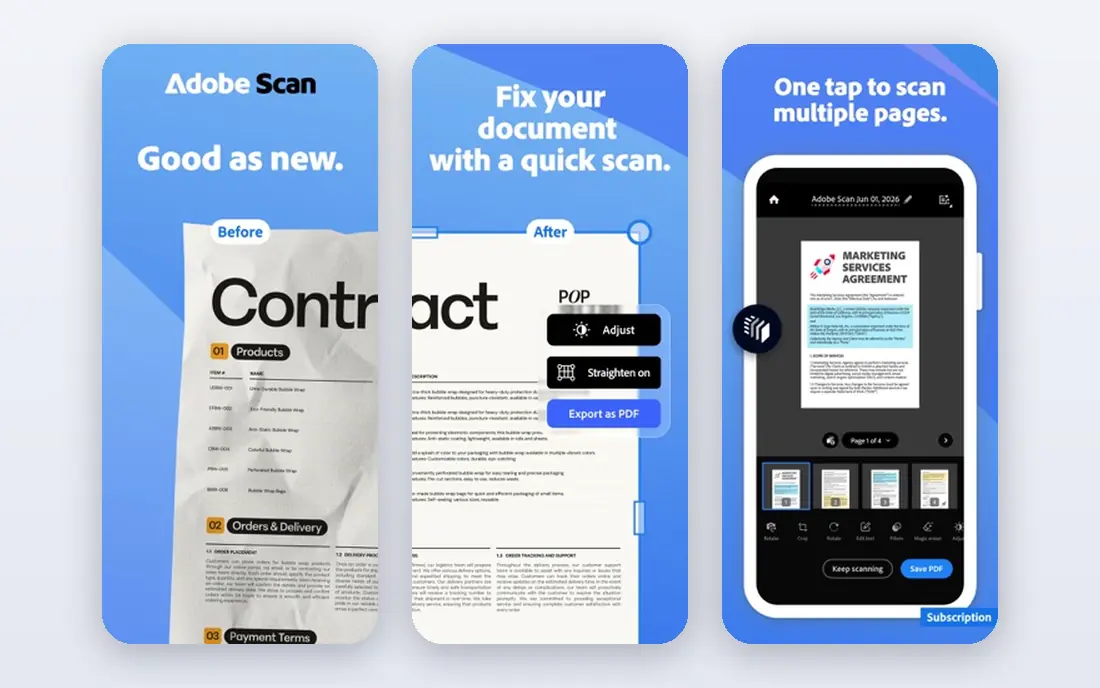
Adobe Acrobat Pro is the editor other tools are measured against. It edits text and images cleanly, builds fillable forms, collects certified signatures, redacts sensitive content and checks accessibility, all in one desktop and mobile package. For legal, publishing and enterprise work, its depth is unmatched.
The price is the highest here at $19.99 per month on the annual plan, and early cancellation of that plan can carry a fee. Casual users who only merge or sign occasionally will not need this depth. For professionals who live in PDFs, it is still the safest choice.
For readers focused on professional PDF work, Adobe Acrobat Pro is worth a trial before deciding, since the free tier or trial shows its real feel fast. Check the current plan details on the vendor site, since prices and limits change, and confirm that the version you need works on your devices.
- Complete editing, forms and signatures
- Redaction and comparison
- Accessibility tools
- Highest price here
- Annual plan has a cancellation fee
PDFelement
Ideal for: Best value desktop editor
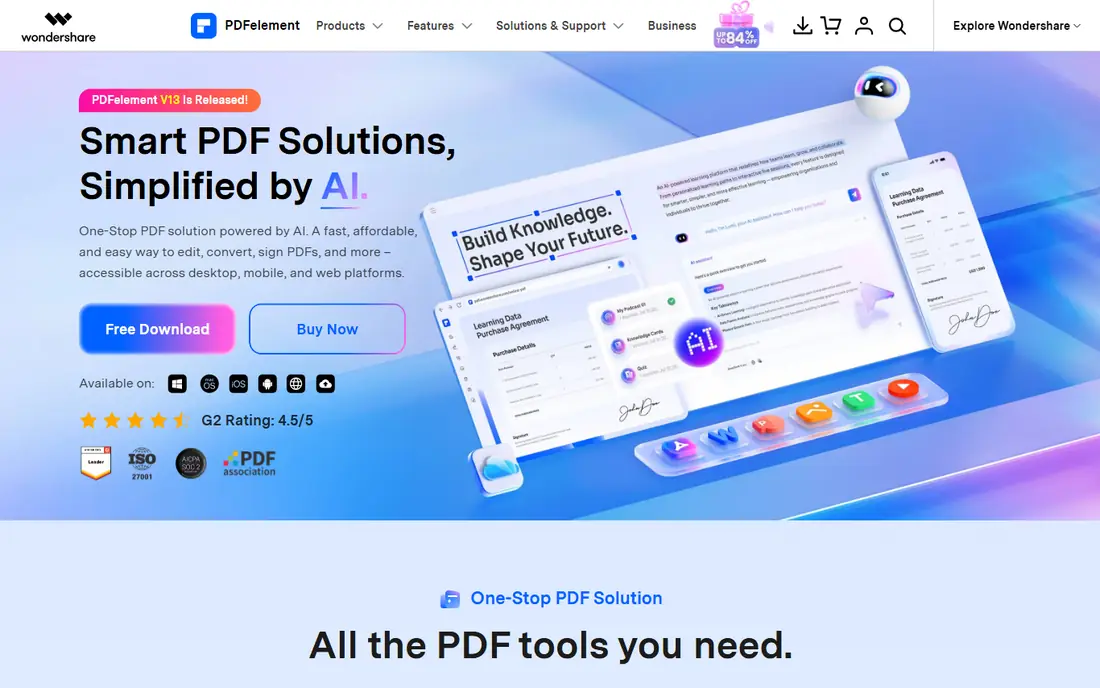
PDFelement from Wondershare covers most desktop PDF work at a much lower price: text and image editing, OCR, form creation, signatures and batch conversion, from $79.99 per year. A perpetual license is also available for users who dislike subscriptions. For small businesses, the savings over Acrobat add up fast.
The interface is less polished than Acrobat, and advanced features such as accessibility checking are lighter. Promotions also change its price often, so check the current store price. As a value desktop editor, though, it covers the work most offices actually do.
We would shortlist PDFelement for best value desktop editor, and compare it directly with the two options nearest it in price before paying. Check the current plan details on the vendor site, since prices and limits change, and confirm that the version you need works on your devices.
- Desktop editing, OCR and forms
- Much cheaper than Acrobat
- Perpetual license option
- Interface is less polished
- Some features trail Acrobat
Foxit PDF Editor
Ideal for: Office teams wanting an Acrobat alternative
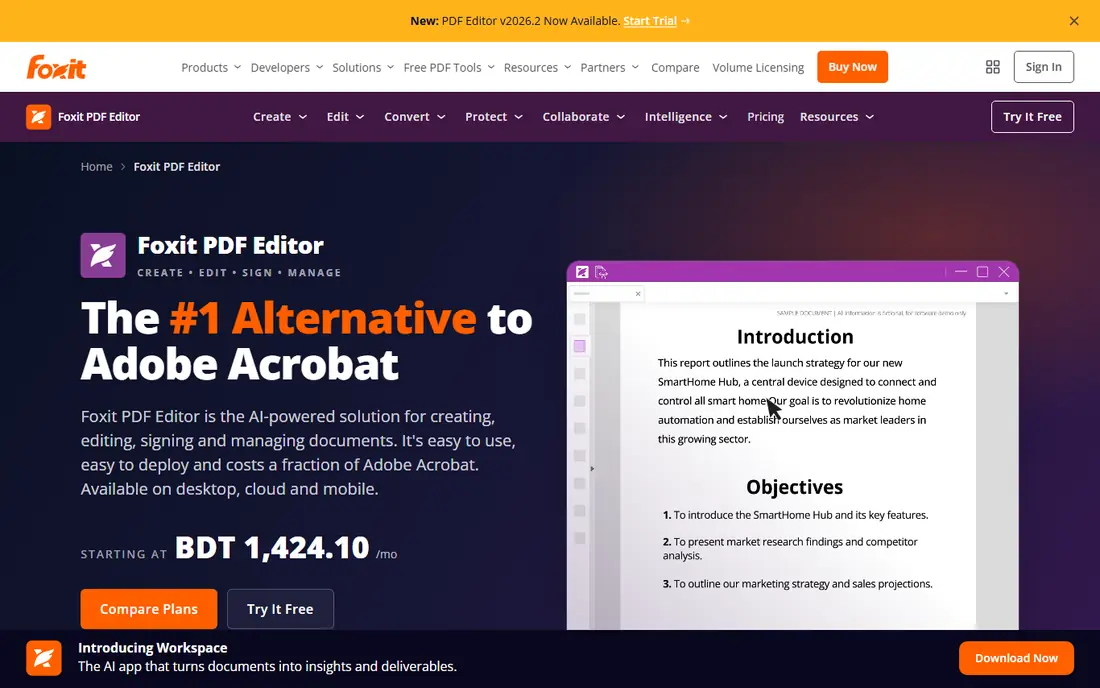
Foxit PDF Editor is a full desktop editor aimed at office teams, with text editing, forms, signatures and collaboration features. Its connected PDF tools let teams track and share documents, and its enterprise controls suit larger organizations. It sits between PDFelement and Acrobat on price and depth.
Pricing varies by tier and region, so get a quote for your team size, and the interface takes a little learning. It also lacks the brand familiarity of Acrobat for clients who expect Adobe files. For teams that want a serious desktop editor without Adobe pricing, Foxit is a solid alternative.
If office teams wanting an Acrobat alternative is your main need, Foxit PDF Editor deserves a place on a shortlist, provided you test the catch described above first. Check the current plan details on the vendor site, since prices and limits change, and confirm that the version you need works on your devices.
- Full desktop editing and collaboration
- Connected PDF features
- Strong enterprise tools
- Pricing varies by tier
- Interface takes learning
Smallpdf
Ideal for: Simple online PDF tasks
Smallpdf offers the most polished online PDF experience, with simple tools for merging, compressing, converting and signing. Its interface is clear enough for anyone to use without a tutorial, and Pro adds team features and larger limits. For occasional web-based tasks, it feels effortless.
The free tier is restrictive, at 2 tasks a day, so regular users will need Pro. Files must also be uploaded to Smallpdf servers, which rules it out for sensitive documents. Use it for quick, non-sensitive tasks where a clean interface matters.
Our view is that Smallpdf earns its place here for simple online PDF tasks, even with the limits noted above. Check the current plan details on the vendor site, since prices and limits change, and confirm that the version you need works on your devices.
- Polished web tools
- Merge, compress and sign
- Team features on Pro
- Free tier allows only 2 tasks a day
- Uploads required
Sejda
Ideal for: Occasional online edits without watermarks
Sejda is the most honest free online PDF editor, with clear limits and no watermarks on free output for most tools. You can edit text, merge, split and sign without creating an account, and paid plans from $7.50 per month remove the limits. Its transparency makes it easy to plan around.
Free use allows 3 tasks an hour, with file size and page limits, so large jobs need a paid plan or a desktop tool. Files are uploaded, so sensitive documents should stay offline. For occasional online edits, Sejda is our first pick.
For readers focused on occasional online edits without watermarks, Sejda is worth a trial before deciding, since the free tier or trial shows its real feel fast. Check the current plan details on the vendor site, since prices and limits change, and confirm that the version you need works on your devices.
- Free tasks without watermarks
- No signup for most tools
- Clear limits
- 3 tasks an hour free
- File size and page limits
iLovePDF
Ideal for: Everyday online PDF tasks
iLovePDF covers nearly every common PDF task online, from merging and splitting to converting, compressing and signing. Its free tier is generous for one-off jobs, and its mobile app helps when a document arrives on your phone. The toolset is wide enough that most users never need another online editor.
Files upload to its servers, so sensitive documents are better handled on desktop, and some tools need Premium for full use. The interface also carries ads for free users. For everyday, non-sensitive PDF tasks, it is a dependable all-rounder.
We would shortlist iLovePDF for everyday online PDF tasks, and compare it directly with the two options nearest it in price before paying. Check the current plan details on the vendor site, since prices and limits change, and confirm that the version you need works on your devices.
- Wide toolset
- Generous free tier
- Mobile app available
- Uploads required
- Some tools need Premium for full use
PDFescape
Ideal for: Free basic PDF edits in a browser
PDFescape handles basic browser editing free: adding text, filling forms, annotating and rearranging pages, without installing software. It suits users who receive a form, need to fill and sign it, and send it back the same day. The online version covers the essentials.
Its feature set is basic next to Acrobat or PDFelement, with no OCR or advanced forms, and the desktop version is paid. File limits also apply. For simple form filling and annotation, though, it is free and fast.
If free basic PDF edits in a browser is your main need, PDFescape deserves a place on a shortlist, provided you test the catch described above first. Check the current plan details on the vendor site, since prices and limits change, and confirm that the version you need works on your devices.
- Free browser editing and form filling
- No install
- Simple annotation
- Feature set is basic
- Desktop version is paid
- File limits
How we picked these
We compared official feature pages, pricing pages, app store listings, privacy policies and public reviews for each option below. We checked that each product is still available and that its stated plans match what the vendor publishes. We did not run hands-on tests, so our picks rest on documented features, pricing and the fit for the reader described in each section, not on lab results. Where a price could not be confirmed on the vendor site at the time of writing, we wrote See website rather than guessing. We also looked at how each option handles the everyday details that decide whether a tool gets used: setup time, device support, what happens when you cancel or downgrade, and whether help is available when something breaks. A product that looks strong on a feature list but is hard to set up, hard to leave, or poorly supported will cost more in time than it saves, so we weighed those practical points alongside price and features. Where reviewers or users reported a recurring problem, we noted it in the honest catch for that product, rather than leaving it out because the vendor page did not mention it.
How to choose a PDF editor for your work
Decide how often you edit PDFs and how sensitive they are. Daily editors should buy a desktop tool with offline editing, form creation and signing, while occasional users can use an online tool for a single task. Check limits on file size, pages and daily tasks, since free online tiers can stop mid-job. For contracts and legal forms, look for certified signatures and redaction, not just text editing. Finally, test the editor on a real document with your fonts and layout, because text reflow can break a careful design.
A final check before you commit
Run a short trial on a real task before you pay for a year or move a whole team. Use the free plan or trial to complete one full job, from setup to export or delivery, and note where you got stuck. Check the cancellation path too: can you leave and keep your data, or does leaving mean starting over? Read the pricing page for renewal rates, not just the first-year offer, and confirm what support you get on the plan you will actually buy. Finally, ask one current user about the worst part of the product, since that answer tells you more than any feature list. If the trial feels good on a real task and the exit path is clear, the choice is much safer.
Frequently asked questions
What is the best tool for editing PDF documents?
Adobe Acrobat Pro is the most complete editor for professional work, with forms, signatures and accessibility tools. PDFelement is the best value desktop alternative, while Sejda suits occasional online edits.
Can I edit a PDF for free?
Yes. Sejda offers free online tasks without watermarks on many tools, iLovePDF covers common tasks free, and PDFescape handles basic edits free. Desktop trials also let you test full editors before paying.
Is it safe to edit PDFs online?
Online tools upload your files to their servers, so avoid them for sensitive contracts, medical records or financial documents. Desktop editors such as Acrobat, PDFelement and Foxit keep files on your computer.
Can I edit text in a PDF?
Yes, full editors let you change text and images directly, though results depend on fonts and layout. Scanned PDFs need OCR first, which converts the image of text into editable text, and most paid editors include it.
What is the difference between Acrobat Standard and Pro?
Acrobat Standard covers editing, signing and conversion for most office work at $14.99 per month. Pro adds redaction, comparison, advanced forms and accessibility tools, and costs $19.99 per month on the annual plan.