Best Tool to Enhance Photos Online in 2026: 7 Tools Compared

- 1
 Topaz Photo AISerious photo quality repairVisit
- 2
 Adobe LightroomPhotographers enhancing batchesVisit
- 3
 ReminiQuick phone photo rescueVisit
- 4
 Lets EnhanceOnline upscaling and cleanupVisit
- 5
 VanceAISeveral AI photo tools in one placeVisit
- Topaz Photo AI gives the strongest results for noise, sharpening and upscaling in one desktop tool.
- Adobe Lightroom suits photographers who enhance whole batches and want precise control over light and color.
- Remini and Lets Enhance are the quickest online options for a single photo that needs rescue.
- Free online tools add limits or watermarks, so check export rules before enhancing client work.
Quick comparison
| Product | Ideal for | Price from | Free version | |
|---|---|---|---|---|
| Topaz Photo AI | Serious photo quality repair | See website | Free trial | Visit |
| Adobe Lightroom | Photographers enhancing batches | See website | Free trial | Visit |
| Remini | Quick phone photo rescue | Free | Yes | Visit |
| Lets Enhance | Online upscaling and cleanup | Free | Yes | Visit |
| VanceAI | Several AI photo tools in one place | Free | Yes | Visit |
 Fotor | Enhancement plus design | Free | Yes | Visit |
 Pixlr | Free browser editing and enhancement | Free | Yes | Visit |
The best tools to enhance photos online
Photo enhancement covers several jobs: sharpening a soft shot, fixing dull light, removing noise and enlarging a small image without it falling apart. The tools below handle those jobs online or on desktop, with free tiers for casual use and paid plans for regular work. We compared them on output quality, ease of use and price.
Topaz Photo AI
Ideal for: Serious photo quality repair
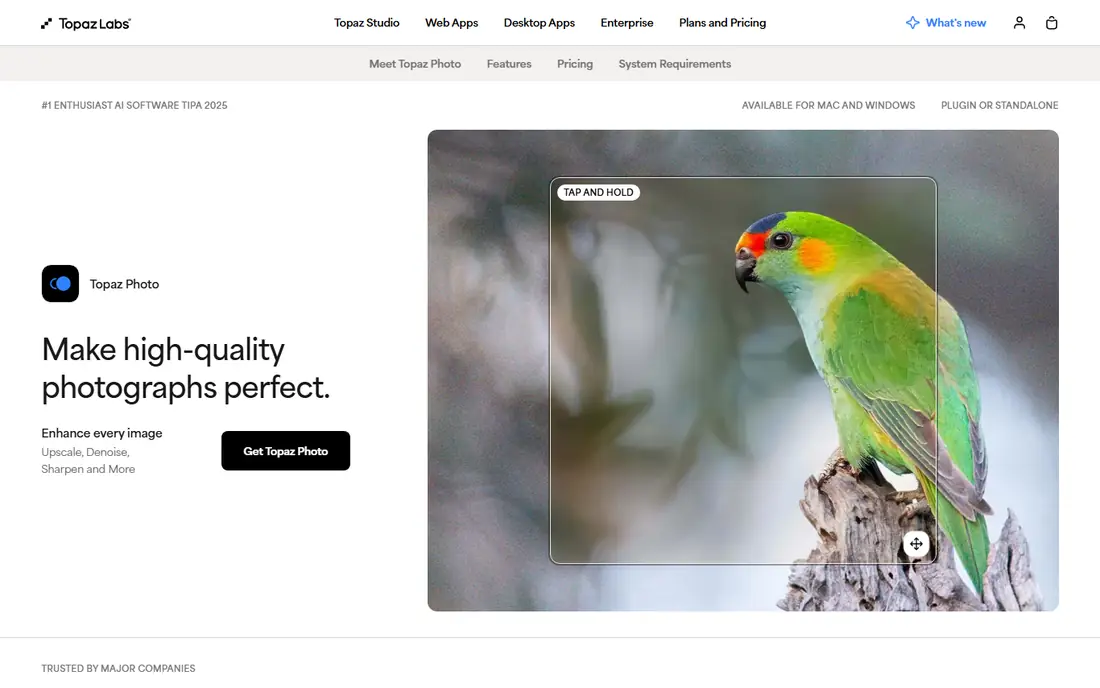
Topaz Photo AI is the strongest single tool for rescuing imperfect photos. Its noise removal, sharpening and upscaling work together, so a noisy phone shot or a small old scan can come out cleaner and larger without the plastic look that weaker tools produce. Because it runs on your computer, private photos never need uploading.
It is a desktop purchase rather than a cheap online subscription, and it benefits from a decent graphics card. Casual users who enhance one photo a month may prefer a free online tool. For photographers and anyone restoring old photos regularly, it is worth the price.
For readers focused on serious photo quality repair, Topaz Photo AI is worth a trial before deciding, since the free tier or trial shows its real feel fast. Check the current plan details on the vendor site, since prices and limits change, and confirm that the version you need works on your devices.
- Strong noise removal, sharpening and upscaling
- Works on your computer
- Batch processing
- Desktop only
- Price is higher than online tools
- Needs a decent computer
Adobe Lightroom
Ideal for: Photographers enhancing batches
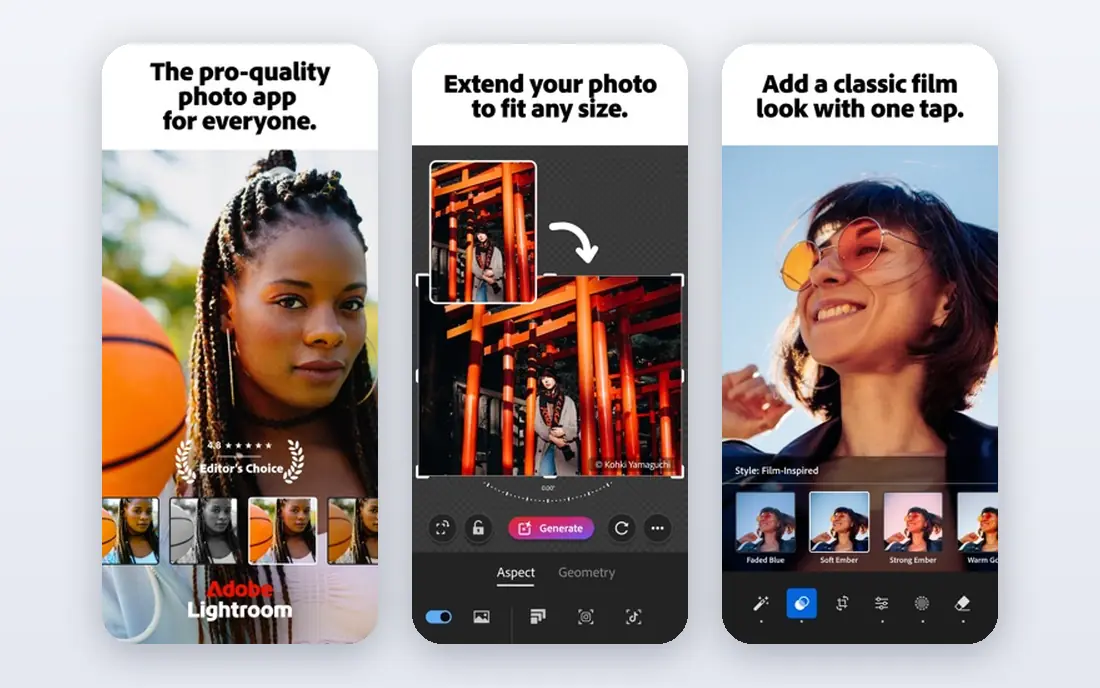
Adobe Lightroom is the standard for photographers who enhance many photos at once. Its sliders for exposure, color and detail are precise, its presets speed up repeat work, and its cloud sync keeps edits available on phone and desktop. AI masking and noise removal have made it stronger for single-photo rescue too.
The subscription is a real monthly cost, and beginners can feel lost among its panels at first. It also edits rather than simply enhancing, so quick one-photo fixes take longer than in a single-purpose tool. For anyone with a regular photo workflow, it remains the most complete choice.
We would shortlist Adobe Lightroom for photographers enhancing batches, and compare it directly with the two options nearest it in price before paying. Check the current plan details on the vendor site, since prices and limits change, and confirm that the version you need works on your devices.
- Precise light and color controls
- Batch editing and presets
- Cloud sync
- Subscription cost
- Learning curve for beginners
Remini
Ideal for: Quick phone photo rescue
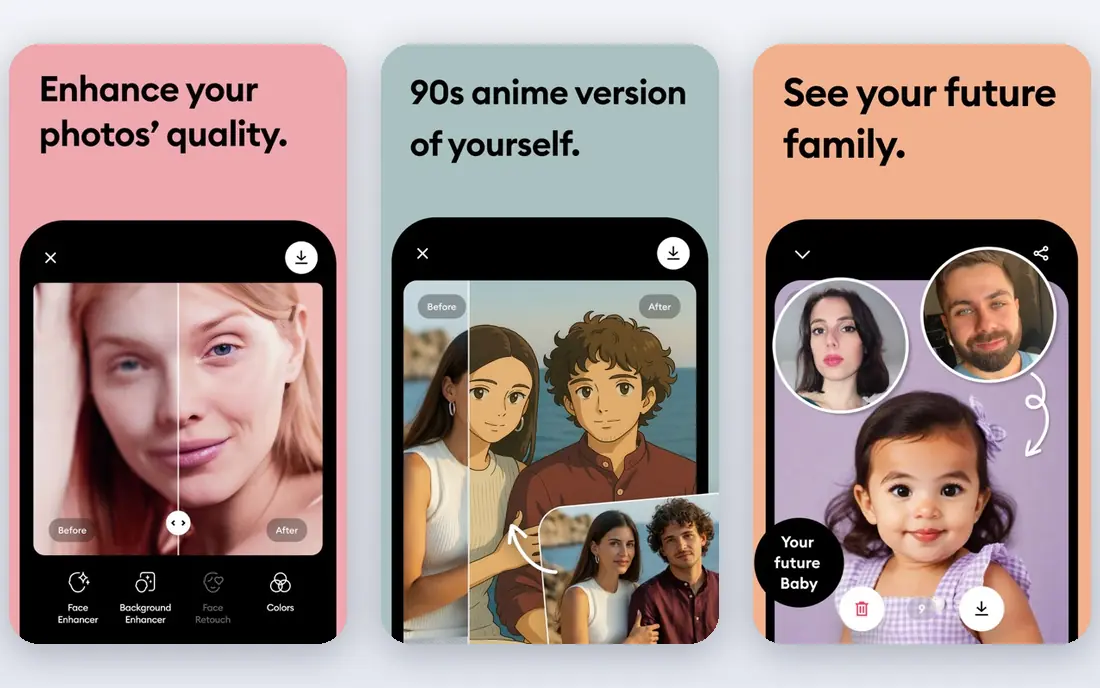
Remini became popular because it makes old or soft phone photos look sharper with one tap. Its face enhancement is particularly noticeable on portraits, and the mobile app suits people who take and share photos on a phone. Results arrive in seconds, which makes it easy to try on several photos.
The free tier limits how many enhancements you get and how they export, and quality varies on very old or damaged photos. It also processes photos online, so check its privacy terms for sensitive images. For quick phone fixes, it is the easiest tool here.
If quick phone photo rescue is your main need, Remini deserves a place on a shortlist, provided you test the catch described above first. Check the current plan details on the vendor site, since prices and limits change, and confirm that the version you need works on your devices.
- Very easy mobile enhancement
- Strong face improvement
- Fast results
- Free tier limits and watermarks
- Quality varies on older photos
Lets Enhance
Ideal for: Online upscaling and cleanup
Lets Enhance is a straightforward web tool for enlarging and cleaning photos without installing software. Upload a photo, pick an upscale size, and download a sharper result, with batch processing for several images at once. Its simplicity suits users who only need enhancement occasionally.
Free credits run out quickly, and full-resolution exports need a paid plan. Its results on faces are less refined than Topaz Photo AI. For occasional online upscaling, though, it is fast, clear and easy to use.
Our view is that Lets Enhance earns its place here for online upscaling and cleanup, even with the limits noted above. Check the current plan details on the vendor site, since prices and limits change, and confirm that the version you need works on your devices.
- Simple web upscaling
- Batch processing
- No install needed
- Free credits are limited
- Full resolution needs a paid plan
VanceAI
Ideal for: Several AI photo tools in one place
VanceAI bundles several AI photo tools on one site, including upscaling, noise removal, sharpening and background removal. That range helps when a photo needs more than one fix, and the web interface keeps everything in one place without installs. Batch processing helps with larger sets.
Its credit system can be confusing, since different tools consume different amounts, and quality varies between tools. Free users get limited credits. It suits users who want several enhancement tools under one account rather than a single best-in-class tool.
For readers focused on several AI photo tools in one place, VanceAI is worth a trial before deciding, since the free tier or trial shows its real feel fast. Check the current plan details on the vendor site, since prices and limits change, and confirm that the version you need works on your devices.
- Upscaler, denoiser and sharpening tools
- Web based
- Batch options
- Credit system can confuse
- Some tools are stronger than others
Fotor
Ideal for: Enhancement plus design
Fotor combines a one-click photo enhancer with editing and design tools, which suits social media users who enhance a photo and then turn it into a post. Its templates, text tools and collage maker keep the whole workflow in one place, and the free tier covers basic enhancement.
Its AI enhancement is lighter than Topaz Photo AI or Lightroom, so heavily damaged photos will not improve as much. Free exports also carry limits. For everyday social photos that need a quick lift plus a design touch, Fotor is a handy all-rounder.
We would shortlist Fotor for enhancement plus design, and compare it directly with the two options nearest it in price before paying. Check the current plan details on the vendor site, since prices and limits change, and confirm that the version you need works on your devices.
- One-click enhance
- Editing and design tools
- Templates for social posts
- Free exports have limits
- AI tools are lighter than specialists
Pixlr
Ideal for: Free browser editing and enhancement
Pixlr is a free browser editor with AI enhancement, background removal and a full set of editing tools. It runs anywhere without an install, which makes it useful on shared computers or Chromebooks, and its free tier is generous for casual enhancement and editing.
Free use includes ads, and the stronger AI features sit behind a paid plan. Its enhancement is good for everyday photos but not as refined as dedicated tools for difficult images. As a free, no-install starting point, it is excellent.
If free browser editing and enhancement is your main need, Pixlr deserves a place on a shortlist, provided you test the catch described above first. Check the current plan details on the vendor site, since prices and limits change, and confirm that the version you need works on your devices.
- Free browser editor
- AI enhance and remove tools
- No install
- Ads in free use
- Advanced AI features are paid
How we picked these
We compared official feature pages, pricing pages, app store listings, privacy policies and public reviews for each option below. We checked that each product is still available and that its stated plans match what the vendor publishes. We did not run hands-on tests, so our picks rest on documented features, pricing and the fit for the reader described in each section, not on lab results. Where a price could not be confirmed on the vendor site at the time of writing, we wrote See website rather than guessing. We also looked at how each option handles the everyday details that decide whether a tool gets used: setup time, device support, what happens when you cancel or downgrade, and whether help is available when something breaks. A product that looks strong on a feature list but is hard to set up, hard to leave, or poorly supported will cost more in time than it saves, so we weighed those practical points alongside price and features. Where reviewers or users reported a recurring problem, we noted it in the honest catch for that product, rather than leaving it out because the vendor page did not mention it.
How to get better results from a photo enhancer
Start with the best original you have, since enhancement cannot invent detail that was never captured. Fix exposure and color before sharpening, because sharpening a dark or noisy photo only sharpens the noise. For enlargements, pick the target size first and check the result at full size, not just in a small preview. Finally, keep an unedited copy, because AI enhancement can change faces and textures in ways that look fine small but strange when printed or cropped.
A final check before you commit
Run a short trial on a real task before you pay for a year or move a whole team. Use the free plan or trial to complete one full job, from setup to export or delivery, and note where you got stuck. Check the cancellation path too: can you leave and keep your data, or does leaving mean starting over? Read the pricing page for renewal rates, not just the first-year offer, and confirm what support you get on the plan you will actually buy. Finally, ask one current user about the worst part of the product, since that answer tells you more than any feature list. If the trial feels good on a real task and the exit path is clear, the choice is much safer.
Frequently asked questions
What is the best tool to enhance photos online?
Topaz Photo AI leads for serious enhancement, with strong noise removal, sharpening and upscaling. For quick online fixes, Remini and Lets Enhance are easier, while Adobe Lightroom suits photographers who enhance many photos at once.
Can AI really fix a blurry photo?
AI tools can improve mild blur, noise and low resolution noticeably, but they cannot fully restore a badly blurred or tiny photo. Results vary by image, so test with your own photos before paying, and keep expectations realistic for faces.
Are online photo enhancers free?
Most offer free trials or limited free enhancements, with paid plans for full resolution or batch work. Check whether free exports carry watermarks or size limits, since that matters for printing or client use.
Is it safe to upload personal photos to an enhancer?
Read the privacy policy before uploading sensitive photos, since online tools process images on their servers. For private photos, a desktop tool such as Topaz Photo AI or Lightroom keeps files on your own computer.
What is the difference between enhancing and editing?
Enhancement improves quality, such as sharpness, noise and light. Editing changes content, such as cropping, retouching or replacing backgrounds. Many tools do both, but enhancement tools focus on quality first.