Best Tool to Enhance Video Quality in 2026: 7 Tools Compared

- 1
 Topaz Video AIUpscaling and restoring old footageVisit
- 2
 Adobe Premiere ProEnhancement inside a pro editorVisit
- 3
 DaVinci ResolveColor and finishing freeVisit
- 4
 PowerDirectorEasy enhancement for creatorsVisit
- 5
 HitPaw Video EnhancerSimple AI video enhancementVisit
- Topaz Video AI is the strongest dedicated upscaler for old and low-resolution footage.
- DaVinci Resolve and Premiere Pro fix color, light and audio inside a full editor, which suits finished projects.
- PowerDirector is the easiest editor with built-in enhancement for creators who want fast results.
- AI upscaling needs a strong graphics card and time, so test with a short clip before a long project.
Quick comparison
| Product | Ideal for | Price from | Free version | |
|---|---|---|---|---|
| Topaz Video AI | Upscaling and restoring old footage | See website | Free trial | Visit |
| Adobe Premiere Pro | Enhancement inside a pro editor | $22.99 per month | Free trial | Visit |
| DaVinci Resolve | Color and finishing free | Free | Yes | Visit |
| PowerDirector | Easy enhancement for creators | $74.99 per year | Free trial | Visit |
| HitPaw Video Enhancer | Simple AI video enhancement | See website | Free trial | Visit |
 AVCLabs Video Enhancer AI | AI upscaling with face repair | See website | Free trial | Visit |
 Winxvideo AI | Enhancement plus conversion | See website | Free trial | Visit |
The best tools to enhance video quality
Video enhancement splits into two jobs: AI upscaling that rebuilds detail in old or low-resolution footage, and editing that fixes color, exposure and sound. The tools below cover both, and the right one depends on whether your footage is damaged, dull or simply small. We note hardware needs, since AI upscaling is demanding work.
Topaz Video AI
Ideal for: Upscaling and restoring old footage
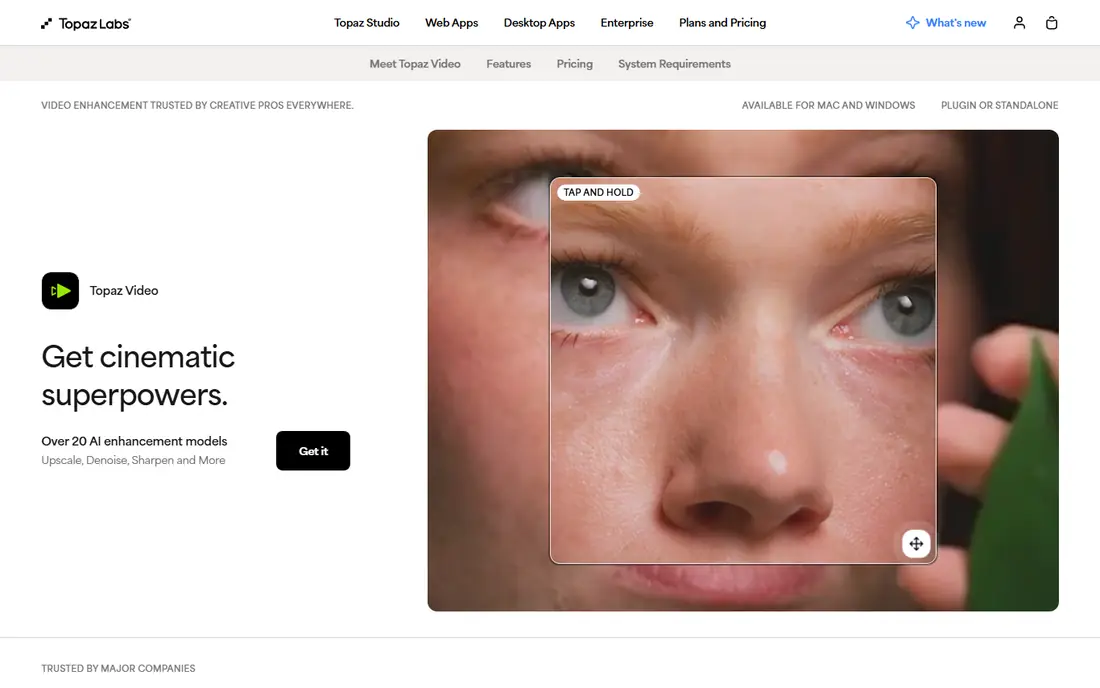
Topaz Video AI is the reference tool for video upscaling. Its AI models enlarge footage, remove noise, sharpen detail and smooth motion, with different models for old film, interlaced video and modern clips. For restoring family videos or lifting low-resolution footage to HD or 4K, it produces results general editors cannot match.
It demands a strong graphics card and patience, since long videos take hours to process, and it is a desktop purchase rather than a subscription. It also cannot fix badly damaged footage perfectly. For restoration work, though, it is the tool to beat.
For readers focused on upscaling and restoring old footage, Topaz Video AI is worth a trial before deciding, since the free tier or trial shows its real feel fast. Check the current plan details on the vendor site, since prices and limits change, and confirm that the version you need works on your devices.
- Strong AI upscaling, denoising and frame interpolation
- Model choices per footage type
- Needs a strong graphics card
- Slow on long videos
- Desktop only
Adobe Premiere Pro
Ideal for: Enhancement inside a pro editor
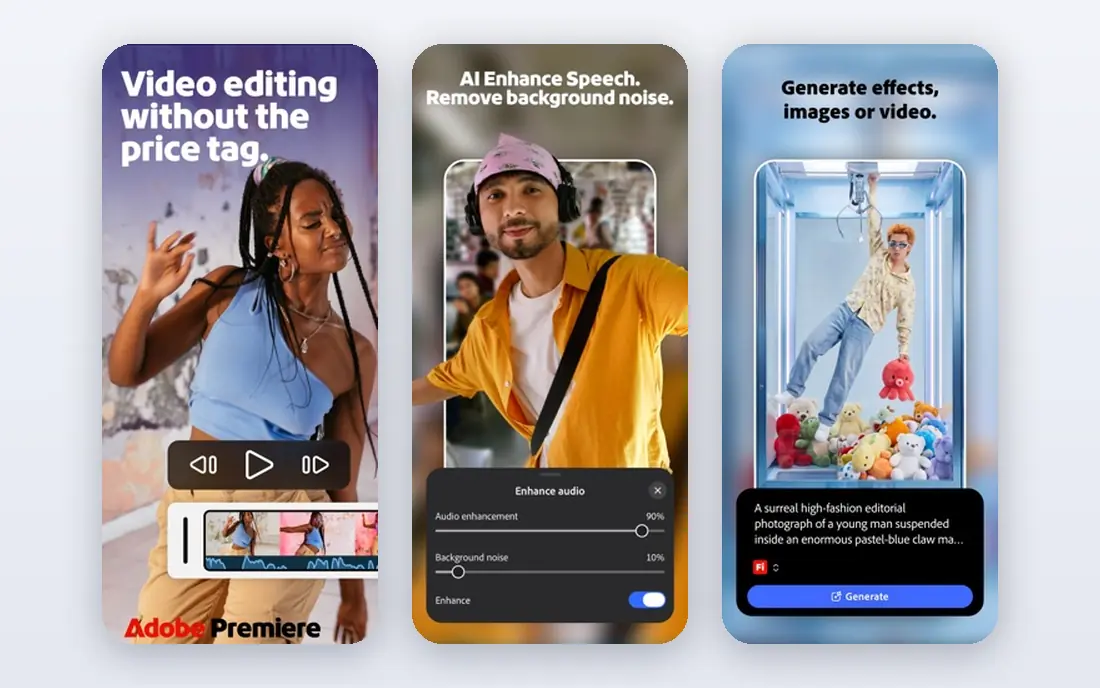
Premiere Pro enhances video as part of a full edit: color correction, exposure fixes, stabilization, audio cleanup and captions all live in one timeline. That integration suits creators finishing a project, since enhancement happens alongside cutting rather than as a separate step. Its Lumetri color tools are precise and well documented.
It is not a dedicated upscaler, so enlarging low-resolution footage will not match Topaz Video AI. The subscription also adds up. Use Premiere Pro when enhancement is one part of a finished edit, and pair it with a dedicated upscaler for restoration jobs.
We would shortlist Adobe Premiere Pro for enhancement inside a pro editor, and compare it directly with the two options nearest it in price before paying. Check the current plan details on the vendor site, since prices and limits change, and confirm that the version you need works on your devices.
- Color, exposure and audio tools
- Stabilization
- Broad format support
- Subscription cost
- AI upscaling is not its strength
DaVinci Resolve
Ideal for: Color and finishing free
DaVinci Resolve is famous for color, and its free version includes grading, noise reduction and stabilization tools that rival paid software. Creators finishing a video can lift dull footage, balance skin tones and clean noise without paying, and the Studio version adds stronger noise reduction and AI tools.
The learning curve is real, and Resolve asks a lot of your computer. Its upscaling is also basic compared with Topaz Video AI. For color-led enhancement inside a finished project, especially free, it is an excellent choice.
If color and finishing free is your main need, DaVinci Resolve deserves a place on a shortlist, provided you test the catch described above first. Check the current plan details on the vendor site, since prices and limits change, and confirm that the version you need works on your devices.
- World-class color tools
- Noise reduction
- Stabilization
- Free version is deep
- Learning curve
- Demanding hardware
- Upscaling is basic
PowerDirector
Ideal for: Easy enhancement for creators
PowerDirector from CyberLink is the easiest editor here with built-in enhancement. Its AI tools denoise, sharpen and stabilize footage, guided modes help beginners, and rendering is fast on typical creator hardware. It suits YouTubers and affiliate creators who want better-looking video without learning a pro editor.
The full feature set needs a subscription, and its color tools are lighter than Resolve or Premiere Pro. Power users will outgrow it. For fast, good-looking enhancement in an easy editor, it is a strong middle option.
Our view is that PowerDirector earns its place here for easy enhancement for creators, even with the limits noted above. Check the current plan details on the vendor site, since prices and limits change, and confirm that the version you need works on your devices.
- AI enhancement and denoise
- Guided modes
- Fast rendering
- Subscription for full features
- Pro color tools are lighter
HitPaw Video Enhancer
Ideal for: Simple AI video enhancement
HitPaw Video Enhancer offers a simple route into AI video enhancement, with models for denoising, upscaling and face improvement behind a clean interface. It suits users who want Topaz-style results without learning a complex tool, and it handles common formats without fuss.
Processing can be slow on longer clips, and quality varies by footage type, so test before buying. It also lacks the model depth and control of Topaz Video AI. For occasional enhancement with minimal setup, it is a friendly option.
For readers focused on simple AI video enhancement, HitPaw Video Enhancer is worth a trial before deciding, since the free tier or trial shows its real feel fast. Check the current plan details on the vendor site, since prices and limits change, and confirm that the version you need works on your devices.
- One-click AI models for denoise and upscale
- Simple interface
- Processing can be slow
- Quality varies by footage
AVCLabs Video Enhancer AI
Ideal for: AI upscaling with face repair
AVCLabs Video Enhancer AI upscales video, removes noise and repairs faces, with batch processing for several clips. Its face enhancement helps old family footage and low-resolution portraits, and its models cover common restoration cases. The workflow is straightforward: import, pick a model, export.
The interface is plain, pricing is a license purchase rather than a subscription, and weak hardware will make processing slow. It sits between HitPaw and Topaz on control and quality. For batch restoration with face repair, it is worth testing.
We would shortlist AVCLabs Video Enhancer AI for aI upscaling with face repair, and compare it directly with the two options nearest it in price before paying. Check the current plan details on the vendor site, since prices and limits change, and confirm that the version you need works on your devices.
- Upscaling, denoising and face enhancement
- Batch processing
- Interface is plain
- Pricing is per license
- Slow on weak hardware
Winxvideo AI
Ideal for: Enhancement plus conversion
Winxvideo AI combines AI enhancement with video conversion, compression and downloading tools, which suits users who also need to reformat footage for different devices. Its upscale and denoise tools improve older clips, and the interface stays simple throughout.
Its enhancement depth is moderate next to Topaz Video AI, and its community and tutorials are smaller. Users who only need upscaling may prefer a specialist. As a combined enhancement and conversion tool, though, it covers a lot of everyday video jobs in one purchase.
If enhancement plus conversion is your main need, Winxvideo AI deserves a place on a shortlist, provided you test the catch described above first. Check the current plan details on the vendor site, since prices and limits change, and confirm that the version you need works on your devices.
- AI upscale and denoise
- Video conversion and compression
- Simple workflow
- Smaller community than rivals
- Enhancement depth is moderate
How we picked these
We compared official feature pages, pricing pages, app store listings, privacy policies and public reviews for each option below. We checked that each product is still available and that its stated plans match what the vendor publishes. We did not run hands-on tests, so our picks rest on documented features, pricing and the fit for the reader described in each section, not on lab results. Where a price could not be confirmed on the vendor site at the time of writing, we wrote See website rather than guessing. We also looked at how each option handles the everyday details that decide whether a tool gets used: setup time, device support, what happens when you cancel or downgrade, and whether help is available when something breaks. A product that looks strong on a feature list but is hard to set up, hard to leave, or poorly supported will cost more in time than it saves, so we weighed those practical points alongside price and features. Where reviewers or users reported a recurring problem, we noted it in the honest catch for that product, rather than leaving it out because the vendor page did not mention it.
How to improve video quality without wasting hours
Work in the right order: stabilize shaky footage first, then fix exposure and color, then sharpen and upscale last, since each step amplifies the flaws of the one before it. Test enhancement on a short, hard clip before committing to a full video, because AI settings that help one scene can hurt another. Keep your original files, export a master at the highest quality you can, and only then make smaller versions for each platform. Finally, check the result on a TV or phone, not just a computer monitor, since viewers will see it there.
A final check before you commit
Run a short trial on a real task before you pay for a year or move a whole team. Use the free plan or trial to complete one full job, from setup to export or delivery, and note where you got stuck. Check the cancellation path too: can you leave and keep your data, or does leaving mean starting over? Read the pricing page for renewal rates, not just the first-year offer, and confirm what support you get on the plan you will actually buy. Finally, ask one current user about the worst part of the product, since that answer tells you more than any feature list. If the trial feels good on a real task and the exit path is clear, the choice is much safer.
Frequently asked questions
What is the best tool to enhance video quality?
Topaz Video AI leads for dedicated upscaling and restoration of old footage. For finished projects, DaVinci Resolve and Premiere Pro give better control over color, light and audio, while PowerDirector is easier for quick enhancement.
Can AI upscale a video from 720p to 4K?
AI upscalers can enlarge video and add plausible detail, and results on clean footage can look much better. They cannot recover detail that was never recorded, and faces or text can look artificial if pushed too far.
How long does AI video enhancement take?
It depends on length, target resolution and your graphics card. Short clips take minutes, while a long video at 4K can take hours or overnight. Test a short clip first to estimate time.
Do I need a powerful computer for video enhancement?
AI upscaling benefits greatly from a modern graphics card, while basic color and exposure fixes run on modest machines. Cloud-based tools such as HitPaw online options can help if your computer is weak, but uploads take time.
What is the difference between upscaling and enhancing?
Upscaling increases resolution and size. Enhancing improves the picture itself, including sharpness, noise, color and light. Most good tools do both, but dedicated upscalers focus on resolution while editors focus on the picture.