Best Tools to Merge PDFs in 2026: 8 Tools Compared

- 1
 iLovePDFBeginner-friendly browser merging plus appsVisit
- 2
 SmallpdfPolished browser merging with a full toolsetVisit
- 3
 SejdaOccasional browser merges with clean privacyVisit
- 4
 PDF24 ToolsUnlimited free merging online or on WindowsVisit
- 5
 PDFsam BasicOffline batch merging on any desktop OSVisit
- PDF24 Tools and PDFsam Basic merge PDFs free without limits, which suits occasional and offline use.
- iLovePDF and Smallpdf suit quick browser merges, but free tiers cap daily tasks or file sizes.
- Sejda suits privacy-conscious browser users, with no account needed for most tools and no watermarks on free output.
- For sensitive documents, prefer a desktop tool that processes files locally rather than uploading them to a server.
Quick comparison
| Product | Ideal for | Price from | Free version | |
|---|---|---|---|---|
| iLovePDF | Beginner-friendly browser merging plus apps | $4 per month | Yes | Visit |
| Smallpdf | Polished browser merging with a full toolset | $10 per month | Yes | Visit |
| Sejda | Occasional browser merges with clean privacy | $7.50 per month | Yes | Visit |
| PDF24 Tools | Unlimited free merging online or on Windows | Free | Yes | Visit |
| PDFsam Basic | Offline batch merging on any desktop OS | Free | Yes | Visit |
 Adobe Acrobat | Merging inside a full professional PDF suite | $19.99 per month | Free trial | Visit |
 Foxit PDF Editor | Cheaper full PDF editor than Acrobat | $10.99 per user per month | Free trial | Visit |
 PDFelement | One-time purchase editing plus merging | $79.99 per year | Free trial | Visit |
The best tools to merge pdfs
We compared official feature pages, pricing pages, app store listings, privacy policies and public reviews to build this list of 8 options for best tool to merge pdfs. Prices were checked in October 2026 and can change, so confirm the current price on the vendor site before you buy. Our pick for most people is the first option that fits your budget and workflow, not necessarily the most expensive tool on the list. Read the quick comparison first to narrow the field, then read the full write-ups for the two or three options that fit your needs best.
iLovePDF
Ideal for: Beginner-friendly browser merging plus apps
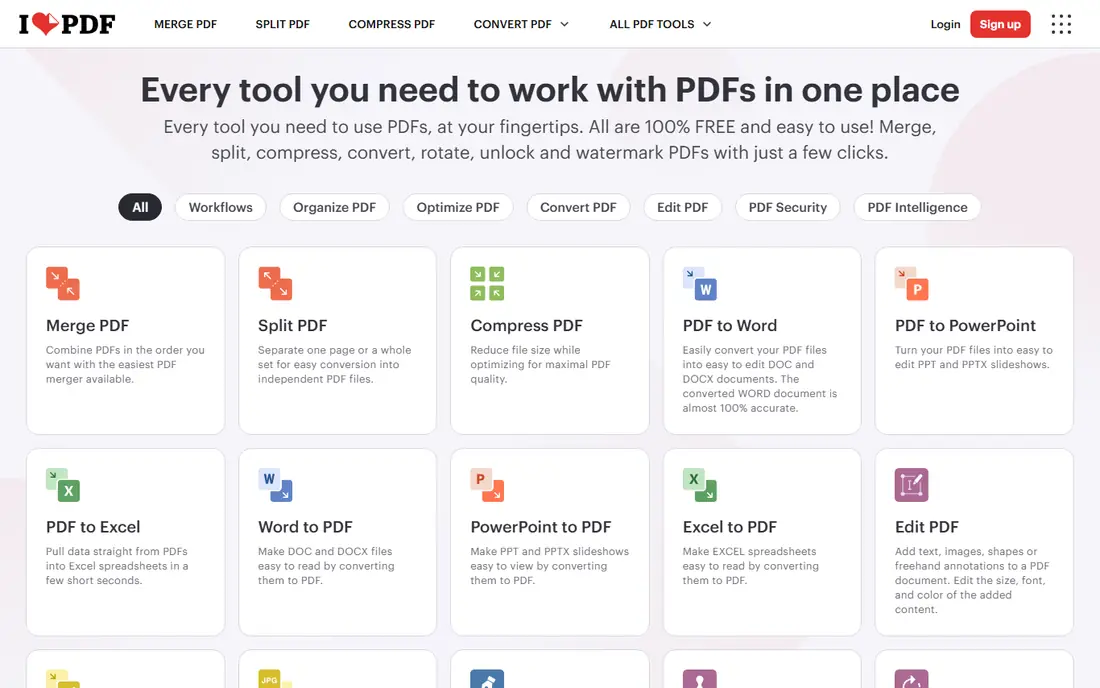
iLovePDF is the easiest browser tool for merging PDFs, with drag-and-drop reordering, page rotation and a broad set of PDF tools beside merging. Desktop and mobile apps extend it beyond the browser. For quick, non-sensitive merges, it is fast and forgiving.
The free tier has file and task limits, and files upload to servers, so sensitive documents need a desktop alternative. Some editing tools also need Premium. For everyday browser merging, iLovePDF is a top pick.
- Easy interface
- Desktop and mobile apps
- Broad PDF toolset
- Free tier has file caps
- Files upload to servers
- Some tools need Premium
Smallpdf
Ideal for: Polished browser merging with a full toolset

Smallpdf has the most polished interface among browser PDF tools, and merging, compressing, converting and signing sit in one place. Desktop and mobile apps help users who work across devices. For users who value design and ease, Smallpdf feels best.
The free tier is restrictive, at two tasks a day, and files upload to servers with short retention. Full features need Pro. For frequent browser PDF work, Smallpdf is worth paying for; for occasional merges, a free tool is cheaper.
- Most polished interface
- Strong toolset
- Desktop and mobile apps
- Free tier caps at two tasks a day
- Files upload to servers
- Pro needed for full features
Sejda
Ideal for: Occasional browser merges with clean privacy

Sejda is the most transparent browser option: no account is needed for most tools, free output has no watermarks, and limits are stated plainly. That honesty suits occasional users who want a quick merge without signing up. Privacy handling is also clearer than many rivals.
Free limits are tight, at three tasks a day with file size and page caps, and there is no desktop app. Frequent users will hit caps fast. For occasional, privacy-conscious browser merges, Sejda is excellent.
- No account needed for most tools
- No watermarks on free output
- Clear free limits
- Free tier caps at three tasks a day
- File size and page limits
- No desktop app
PDF24 Tools
Ideal for: Unlimited free merging online or on Windows
PDF24 Tools offers unlimited free merging, online or through a Windows desktop app, with a broad PDF toolset beside it. That combination suits users who merge often but do not want a subscription. The desktop app also keeps files local on Windows.
The online version uploads files, so sensitive work belongs in the desktop app. That desktop app is Windows only, and the interface is functional rather than polished. For free, unlimited merging, PDF24 is hard to beat.
- Fully free with no limits
- Online and Windows desktop options
- Broad toolset
- Online files upload to servers
- Desktop version is Windows only
- Interface is functional
PDFsam Basic
Ideal for: Offline batch merging on any desktop OS
PDFsam Basic is a free, open-source desktop tool for offline batch merging on Windows, Mac and Linux. It handles large batches without watermarks or limits, and files never leave the computer. For sensitive or bulk merging, that local control is the point.
The interface is utilitarian, and there is no browser version for quick phone merges. Advanced features such as visual page editing need the paid Enhanced version. For free offline merging, PDFsam Basic is a top pick.
- Free and open source
- Offline batch merging
- No watermarks or limits
- Interface is utilitarian
- No browser version
- Advanced features need paid Enhanced version
Adobe Acrobat
Ideal for: Merging inside a full professional PDF suite
Adobe Acrobat merges PDFs as part of the professional suite most offices already use, with editing, signing, accessibility and compliance tools beside it. For legal, publishing and enterprise work, that depth matters, and merged files integrate with existing workflows.
At $19.99 a month, Acrobat is overkill for merging alone, and the subscription never ends. Users who only merge should pick a free tool. For teams already on Acrobat, merging there is the natural choice.
- Merging plus editing, signing and compliance tools
- Strong for legal and publishing work
- Most expensive here
- Subscription only
- Overkill for merging alone
Foxit PDF Editor
Ideal for: Cheaper full PDF editor than Acrobat
Foxit PDF Editor offers full PDF editing and merging at a lower price than Acrobat, with a perpetual license option for users who dislike subscriptions. It is lighter to run and covers editing, OCR and signing for daily office work. For budget-conscious offices, it is a strong Acrobat alternative.
The interface takes learning, and some AI features are separate add-ons. The ecosystem is also smaller than Adobe. For a cheaper full editor with merging included, Foxit is good value.
- Full editing plus merging
- Lighter than Acrobat
- Perpetual license option
- Interface takes learning
- Some AI features are add-ons
- Smaller ecosystem than Adobe
PDFelement
Ideal for: One-time purchase editing plus merging
PDFelement combines PDF editing, merging and conversion with a perpetual license option, which suits users who want to avoid subscriptions. AI features on higher tiers add summarization and translation. For individuals who edit PDFs often, the one-time option is attractive.
Trial outputs are watermarked, and the interface is busier than Acrobat or Foxit. Accuracy on complex layouts also lags the leaders. For editing plus merging on a one-time budget, PDFelement is worth considering.
- Editing plus merging
- Perpetual license available
- AI features on higher tiers
- Trial outputs are watermarked
- Interface is busy
- Accuracy lags Acrobat on complex files
How we picked these
We started from the topic and shortlisted products that exist and work today, then checked each vendor homepage, pricing page and free tier. We compared feature pages, app store listings, privacy policies and public reviews, and we dropped any product whose homepage could not be verified or whose price could not be checked. Where a price was unclear or varied by region, we wrote See website rather than guessing a number. That rule kept the list honest, even where a neat price would have made the comparison table look tidier.
We also weighed fit over fame. A well-known product stayed on the list only if it truly fits the topic, and smaller tools earned a place when they served a clear use case better. No product here was tested hands-on for this article, and no vendor paid for placement.
Price and free-tier details matter most when plans change often, so we favoured products with clear published pricing and a trial or free tier where one exists. If a vendor changed a plan after our check, the vendor site is the correct source, and the ranking here still reflects fit, not just price. That check takes extra time, but it prevents a shortlist built on outdated pricing or a product that no longer exists.
Choosing a PDF merge tool by privacy and frequency
Decide first whether files can leave your computer. Contracts, HR documents and client files belong in a desktop tool such as PDFsam, PDF24 or Acrobat. For non-sensitive files, a browser tool is faster. Then check limits: daily task caps matter more than file size caps for frequent users.
Before you pay, run a trial on a real task from your own work, not a demo file. Check export formats, mobile access and support hours, because those details decide whether a tool survives daily use. Also check renewal terms and cancellation steps, since a cheap first year can become an expensive second year if renewal jumps. Finally, ask who will own setup and training, because a tool nobody is responsible for tends to fall out of use within a few months. Keep a short note on why you picked the winner, so a future review can judge it against the same criteria instead of starting from scratch.
A useful final test is to imagine the tool in six months, when the first excitement has faded and the work is routine. If the daily steps are still quick, the cost is still clear, and the support route is still obvious, the choice is likely sound. If any of those three answers is unclear, use the trial period to get a clear answer before committing to an annual plan.
Frequently asked questions
What is the best free tool to merge PDFs?
PDF24 Tools and PDFsam Basic are fully free for merging, with PDF24 offering online and offline options and PDFsam offering offline batch merging. Sejda offers a free tier with three tasks a day.
Is it safe to merge PDFs online?
Online tools upload files to a server, so avoid them for sensitive documents. Desktop tools process files locally, which is safer for contracts and personal data.
Can I merge PDFs on my phone?
Yes. iLovePDF and Smallpdf offer mobile apps, and Adobe Acrobat mobile covers merging on paid plans. For a one-off phone merge, a browser tool is fastest.
Does merging PDFs change quality?
Merging alone should preserve page quality, because it combines pages rather than recompressing them. Quality loss usually comes from separate compression steps, not the merge itself.