Best Tools to Unblur Photos in 2026: 9 Options Compared

- Remini is the easiest free route for unblurring faces and old photos.
- Topaz Photo AI gives the best results on difficult blur, but it is paid desktop software.
- Fotor, PicWish and VanceAI offer free web unblurring with credit or resolution limits.
- No tool recovers a photo that is badly out of focus, so judge results at full size before paying.
Quick comparison
| Product | Ideal for | Price from | Free version | |
|---|---|---|---|---|
 Remini | Unblurring faces on mobile | Free | Yes | Visit |
 Topaz Photo AI | Best quality on difficult blur | See website | Free trial | Visit |
 PicWish | Free web unblurring | Free | Yes | Visit |
 Fotor | Unblur plus full editing | Free | Yes | Visit |
 VanceAI | Specialised sharpening tools | See website | Free trial | Visit |
 Lets Enhance | Upscaling blurry images | See website | Free trial | Visit |
 Cutout.pro | Quick free web fixes | Free | Yes | Visit |
 HitPaw Photo Enhancer | Desktop enhancement for beginners | See website | Free trial | Visit |
 Adobe Photoshop | Professional sharpening control | See website | Free trial | Visit |
The best tools to unblur photos
We compared unblur tools on how well they handle motion blur, out-of-focus shots and low resolution, and on free limits. Our pick for most people is Remini for faces and Topaz Photo AI for serious work, since no free tool fixes every kind of blur.
Remini
Ideal for: Unblurring faces on mobile
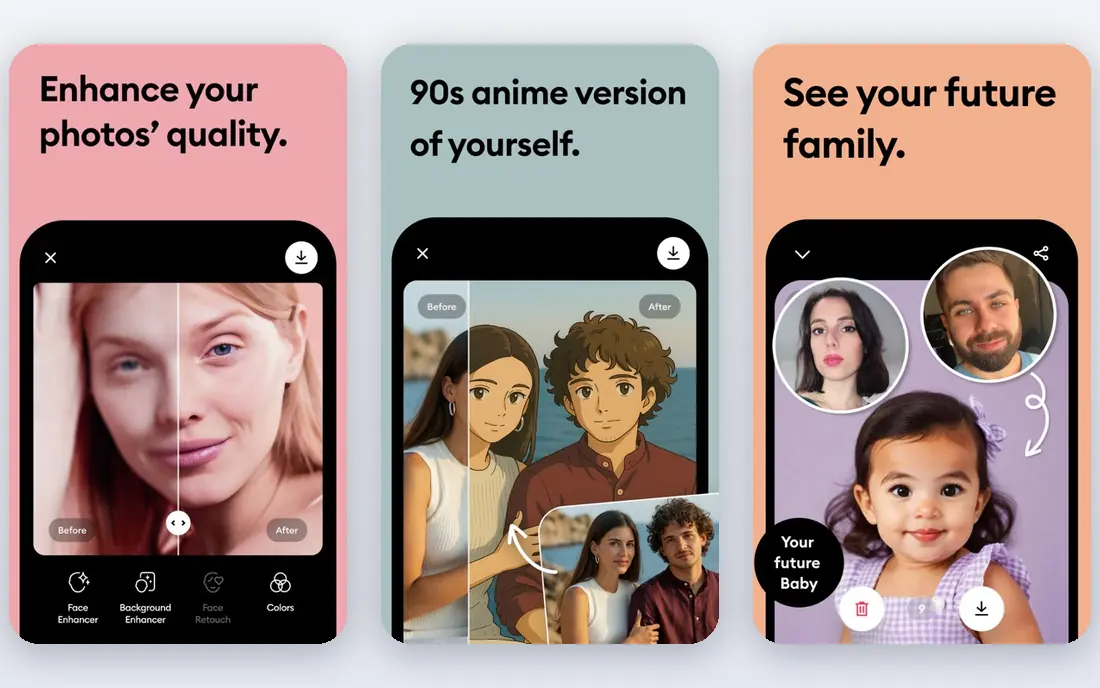
Our first look at Remini starts with who it serves best. It is the easiest unblur tool for faces. Remini sharpens faces in blurry and old photos with one tap, which suits phone users.
The catch is free limits and waiting times on busy days. It fits people fixing portraits and family photos on a phone. Check the current pricing page before you commit, since plans in this category change often, and use the free plan or trial to confirm the fit with your own work.
Before you pay for Remini, run one real task through it, such as a full document, a full trip plan or a full project, and judge it on that result rather than on the marketing page.
- Strong face sharpening
- Simple mobile workflow
- Free processing with limits
- Free tier limits and queues
- Less control than desktop tools
Topaz Photo AI
Ideal for: Best quality on difficult blur
For many readers, Topaz Photo AI will be the most practical choice on this list. It is the quality leader for difficult blur. Topaz Photo AI uses separate models for blur, noise and resolution, which preserves detail better than web tools.
The catch is price and platform: it is paid desktop software. It fits photographers who sell or publish their work. Check the current pricing page before you commit, since plans in this category change often, and use the free plan or trial to confirm the fit with your own work.
A useful test for Topaz Photo AI is to try the exact workflow you will repeat weekly, then check how long it takes and whether the output needs heavy fixing before it is usable.
- Best sharpening and detail recovery
- Separate blur and noise models
- Plugin support
- Paid desktop software
- Needs a capable computer
PicWish
Ideal for: Free web unblurring
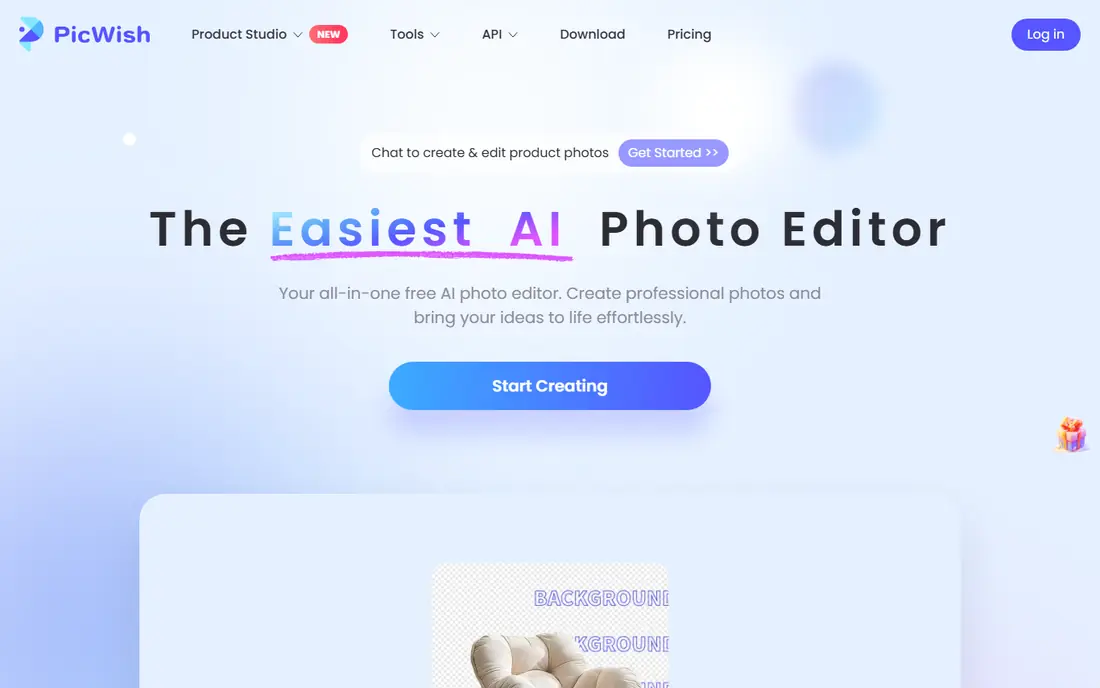
Next up is PicWish, which takes a different approach to the same job. It is a quick free web option for a single photo. PicWish sharpens and enhances uploads in a browser without installing anything.
The catch is credits: regular use needs a paid plan. It fits occasional users who need one photo fixed fast. Check the current pricing page before you commit, since plans in this category change often, and use the free plan or trial to confirm the fit with your own work.
When you trial PicWish, note what is missing as well as what works, since the missing piece often decides whether a tool survives past the first month.
- Free web enhancement
- Background and editing tools
- Simple uploads
- Free credits are limited
- Quality varies on heavy blur
Fotor
Ideal for: Unblur plus full editing
Fotor earns its place here for a specific kind of user. It is the free enhancer that also lets you finish the photo. Fotor sharpens a photo and lets you crop, adjust and export without switching apps.
The catch is that higher-quality exports need paid plans. It fits creators who unblur and edit in one workflow. Check the current pricing page before you commit, since plans in this category change often, and use the free plan or trial to confirm the fit with your own work.
We would also check support and documentation for Fotor during the trial, since a tool you cannot get help with becomes expensive in staff time even when the subscription looks cheap.
- Enhancer plus editor in one place
- Free tier is usable
- Batch options
- Best features are paid
- Free exports may be limited
VanceAI
Ideal for: Specialised sharpening tools
If the options so far have not fit, VanceAI is worth a closer look. It is the suite for different blur problems. VanceAI offers separate sharpening, denoising and portrait tools, so you can match the tool to the blur.
The catch is credits, which make costs hard to predict for beginners. It fits users with varied photo problems. Check the current pricing page before you commit, since plans in this category change often, and use the free plan or trial to confirm the fit with your own work.
Before you pay for VanceAI, run one real task through it, such as a full document, a full trip plan or a full project, and judge it on that result rather than on the marketing page.
- Separate tools for blur, noise and portraits
- Batch processing
- API options
- Credit pricing
- Free credits run out quickly
Lets Enhance
Ideal for: Upscaling blurry images
Lets Enhance is the option we point to when a reader has a clear priority in mind. It is the upscaler that also cleans up soft images. Lets Enhance sharpens and enlarges in one pass, which suits photos destined for print or large screens.
The catch is credit limits on the free tier. It fits users preparing images for larger display. Check the current pricing page before you commit, since plans in this category change often, and use the free plan or trial to confirm the fit with your own work.
A useful test for Lets Enhance is to try the exact workflow you will repeat weekly, then check how long it takes and whether the output needs heavy fixing before it is usable.
- Clean upscaling with detail recovery
- Batch processing
- Good for print preparation
- Credit-based
- Free credits are limited
Cutout.pro
Ideal for: Quick free web fixes
Another strong contender is Cutout.pro, and it stands out for one clear reason. It is the no-install web fix for a quick photo. Cutout.pro enhances and upscales in a browser with minimal setup.
The catch is free limits and less fine control. It fits users who need an occasional online fix. Check the current pricing page before you commit, since plans in this category change often, and use the free plan or trial to confirm the fit with your own work.
When you trial Cutout.pro, note what is missing as well as what works, since the missing piece often decides whether a tool survives past the first month.
- Free web enhancement and background tools
- No install needed
- Simple interface
- Free limits on resolution and volume
- Less control than desktop tools
HitPaw Photo Enhancer
Ideal for: Desktop enhancement for beginners
We round out the list with HitPaw Photo Enhancer, which fills a gap the others leave open. It is the beginner-friendly desktop alternative to Topaz. HitPaw Photo Enhancer offers face, denoise and general models in a simple desktop app.
The catch is that full exports are paid and hard cases lag Topaz. It fits beginners who want a desktop tool without Topaz pricing. Check the current pricing page before you commit, since plans in this category change often, and use the free plan or trial to confirm the fit with your own work.
We would also check support and documentation for HitPaw Photo Enhancer during the trial, since a tool you cannot get help with becomes expensive in staff time even when the subscription looks cheap.
- Simple desktop enhancer with face and denoise models
- Batch support
- Offline use
- Paid for full exports
- Quality below Topaz on hard cases
Adobe Photoshop
Ideal for: Professional sharpening control
Adobe Photoshop rounds out our shortlist with a focused set of strengths. It is the manual control option for experts. Photoshop gives precise sharpening, masking and AI neural filters for difficult photos.
The catch is cost and learning curve for casual users. It fits professionals who already subscribe to Adobe apps. Check the current pricing page before you commit, since plans in this category change often, and use the free plan or trial to confirm the fit with your own work.
Before you pay for Adobe Photoshop, run one real task through it, such as a full document, a full trip plan or a full project, and judge it on that result rather than on the marketing page.
- Full manual sharpening and AI filters
- Industry standard
- Huge tutorial base
- Subscription cost
- Learning curve for casual users
How we picked these
We compared official feature pages, pricing pages, app store listings, privacy policies and public reviews for each product, and kept only products that exist, work today and truly fit the topic. We favoured clear pricing, a usable free plan or trial, and honest limits over long feature lists. Where a price could not be verified on the vendor site, we wrote See website rather than guessing.
We did not claim hands-on testing we did not do. Instead, we weighed what each vendor documents, what reviewers report in practice, and where each product falls short, so the trade-offs below are stated plainly.
How to unblur a photo with realistic expectations
Identify the blur type first: motion blur, missed focus and low resolution respond differently. Try a free tool on one photo at full size, keep the original, and only pay when the result clearly beats the free version on your own images.
Frequently asked questions
What is the best tool to unblur photos?
Remini suits faces and quick mobile fixes, while Topaz Photo AI suits photographers with difficult blur. Fotor and PicWish suit free web use.
Can you really unblur a photo?
AI tools can sharpen moderately blurry photos and recover apparent detail, but they cannot recreate detail that was never captured. Badly out-of-focus shots improve only slightly.
Is there a free app to unblur photos?
Yes, Remini, Fotor and PicWish offer free unblurring with limits on processing, resolution or exports. Heavy use usually needs a paid plan.
What is the best free online tool to unblur photos?
Fotor and PicWish offer free web enhancement without installing software, while Upscale.media suits users who mainly need sharper, larger images.
Does unblurring work on screenshots?
It can sharpen text and edges in screenshots, but small text that is already unreadable rarely becomes clear. Start from the highest-resolution version available.