Best Tools for Creative Design in 2026: 7 Tools Compared

- 1
 Adobe PhotoshopProfessional image designVisit
- 2
 CanvaFast marketing designVisit
- 3
 FigmaInterface and product designVisit
- 4
 AffinityFree professional designVisit
- 5
 Adobe IllustratorVector designVisit
- Adobe Photoshop is our pick for professional image work, combining painting, photo editing and design in one standard tool.
- Canva suits non-designers and small teams who need fast social, marketing and presentation design.
- Figma suits product and interface design teams who collaborate in the browser in real time.
- Affinity is now free, which makes it the best no-cost professional option for vector and layout work.
- Pick by output first: photos and raster art point to Photoshop, vector logos point to Illustrator or Affinity, and interfaces point to Figma.
Quick comparison
| Product | Ideal for | Price from | Free version | |
|---|---|---|---|---|
| Adobe Photoshop | Professional image design | $22.99 per month | Free trial | Visit |
| Canva | Fast marketing design | Free | Yes | Visit |
| Figma | Interface and product design | Free | Yes | Visit |
| Affinity | Free professional design | Free | Yes | Visit |
| Adobe Illustrator | Vector design | $22.99 per month | Free trial | Visit |
 Procreate | iPad illustration | $12.99 one-time | No | Visit |
 CorelDRAW | Print and production design | $269 per year | Free trial | Visit |
The best tools for creative design
Creative design covers different outputs, from social graphics to logos, illustrations, interfaces and print layouts, and no single tool does all of them best. The list below separates tools by job, so start from what you make most, then narrow by budget and device.
Adobe Photoshop
Ideal for: Professional image design
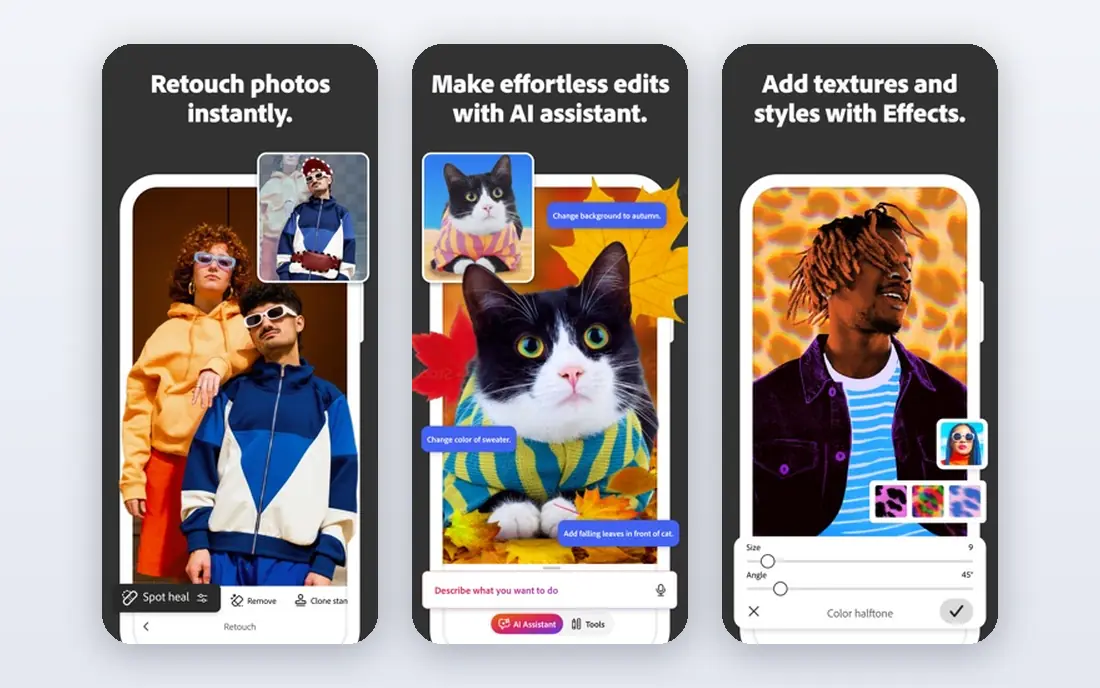
Photoshop is our pick for professional image work because it remains the standard studios expect. Raster editing, compositing, retouching, digital painting and web graphics all sit in one tool, with file compatibility that matters when work passes between freelancers, agencies and printers. The surrounding Adobe ecosystem covers video, layout and vector work when projects expand.
The subscription is the catch, and simple social graphics do not need this depth. Canva will be faster for a quick post, and Affinity now covers much professional raster work for free. For client image work where compatibility and depth matter, Photoshop still earns its price.
- Industry-standard raster editing
- Deep brush, layer and retouching control
- Huge plugin and tutorial ecosystem
- Subscription only, so costs compound
- Heavier than needed for simple social graphics
Canva
Ideal for: Fast marketing design

Canva is the fastest route from an idea to a finished graphic for most small teams. Templates cover social posts, presentations, flyers, videos and documents, and the editor is simple enough that non-designers produce decent work quickly. The free tier covers a large share of everyday needs, with paid plans adding brand kits, background removal and more assets.
Precision is the limit. Fine typography, complex vector work and print production belong in professional tools, and heavy template use can make designs look generic. For daily marketing design by non-specialists, Canva is the most practical tool here.
- Very easy for non-designers
- Huge template library for social, marketing and presentations
- Free tier covers a lot
- Less precise control than professional tools
- Designs can look templated without customization
Figma
Ideal for: Interface and product design

Figma changed interface design by moving it into the browser with real-time collaboration. Designers, product managers and developers work on the same file, leave comments, build components and prototype flows without passing files back and forth. For websites, apps and product interfaces, that workflow is now the norm.
Print design and photo editing sit elsewhere, and larger team features need paid plans. For product and interface teams, though, Figma is the default tool, and its free tier lets individuals and small teams start without cost.
- Real-time browser collaboration for design teams
- Strong component and prototyping tools
- Free tier for individuals
- Less suited to print or photo editing
- Advanced team features need paid plans
Affinity
Ideal for: Free professional design
Affinity became free in late 2025, which changed the value calculation for professional design overnight. The suite covers vector design, photo editing and page layout at a professional standard, without a subscription, on desktop and iPad. For freelancers and small studios, that is a serious alternative to Adobe pricing.
The ecosystem is smaller, with fewer plugins and templates, and some client workflows still demand Adobe file formats. For most independent design work, though, Affinity now offers professional tools for free, and that makes it the best value pick on this list.
- Now free across desktop and iPad
- Professional vector, raster and layout tools
- No subscription
- Smaller ecosystem than Adobe
- Some industry file workflows still favor Adobe formats
Adobe Illustrator
Ideal for: Vector design
Illustrator is the standard for vector design: logos, icons, illustrations and brand assets that must scale cleanly from a business card to a billboard. Pen tools, type controls and path editing remain the benchmark other vector apps are judged against, and AI file compatibility matters for agency and print work.
The subscription adds up, and painters will prefer Photoshop or Procreate for raster work. For professional vector output where files must open correctly anywhere, Illustrator is the safe choice, with Affinity as the free alternative for independent work.
- Industry-standard vector tools
- Precise pen, type and path control
- File compatibility across studios and printers
- Subscription only
- Raster painting and photo editing are weaker than Photoshop
Procreate
Ideal for: iPad illustration
Procreate is the illustration pick for iPad artists. The brush engine feels responsive, gesture controls keep the canvas accessible, and the one-time price means no ongoing cost. For editorial illustration, concept art and personal drawing, it is the app most iPad artists reach for first.
It is not a vector tool or a layout tool, and there is no desktop version. For raster illustration on iPad, though, Procreate is unmatched at its price, and it pairs well with Affinity or Illustrator for finishing vector work elsewhere.
- One-time price
- Excellent brush engine for illustration
- Animation assist for simple motion
- IPad only
- No vector tools or desktop version
CorelDRAW
Ideal for: Print and production design
CorelDRAW suits print and production design, especially signage, packaging, apparel and large-format work. Vector drawing, layout and color tools are built for production workflows, and many print shops have long CorelDRAW experience. For businesses whose output is physical, that production focus matters.
The community and tutorial ecosystem are smaller than Adobe, and new designers may find the interface less familiar. For print-led studios and signage businesses, CorelDRAW remains a capable and practical choice.
- Strong vector and layout tools for print
- Good for signage, packaging and production work
- One-time purchase options exist in some regions
- Smaller community than Adobe
- Interface and ecosystem feel less modern to new users
How we picked these
We compared official feature pages, pricing pages and public reviews for design tools available in October 2026. We kept tools covering distinct design jobs, from raster and vector to interface, illustration and print, and we checked prices and free tiers as vendors state them, including Affinity becoming free. We did not claim hands-on testing, and we did not rank tools on review scores.
How to choose the right design tool
Start with your main output. Social and marketing graphics point to Canva, logos and vector assets point to Illustrator or Affinity, photos and raster art point to Photoshop or Affinity Photo, interfaces point to Figma, and iPad illustration points to Procreate. Choosing by output avoids paying for a professional tool to do a simple job, or struggling with a simple tool on a professional job.
Then weigh price model against how often you design. Daily professional designers justify an Adobe subscription, occasional designers save with Affinity free or Canva free, and iPad illustrators get great value from a one-time Procreate purchase. Try the free tier or trial with a real project, not a sample file, and judge by whether you finished work you are happy to share.
A useful way to compare design tools is to complete the same real task in each one, such as a social post, a logo variation or a short presentation, and note where you got stuck. That test shows whether the tool fits your workflow, your file formats and your collaborators, which matters more than a feature list. Also check export quality for print and web, since a tool that looks good on screen but exports poorly will cost time on every deliverable.
A final tip is to keep a shared asset library for logos, colors and fonts, since consistent assets save time on every new project and keep client work looking coherent.
Frequently asked questions
What is the best free tool for creative design?
Affinity is now free and offers professional vector, raster and layout tools, which makes it the best free professional option. Canva free suits marketing and social design, and Figma free suits interface design. The best free tool depends on what you make.
Is Canva good enough for professional design?
For marketing, social and presentation design, yes, especially for small teams and non-designers. For brand identity, complex vector work and print production, professional tools like Illustrator, Affinity or Photoshop offer more control and better file compatibility.
What is the difference between Photoshop and Illustrator?
Photoshop edits raster images made of pixels, which suits photos, painting and web graphics. Illustrator creates vector graphics made of paths, which suits logos and illustrations that must scale without losing quality. Many designers use both for different parts of a project.
Do I need a subscription for professional design tools?
Not necessarily anymore. Affinity is free, Canva and Figma have free tiers, and Procreate is a one-time purchase. Adobe tools remain subscription only, so they suit professionals who use the full ecosystem daily and need industry file compatibility.
Which design tool is best for beginners?
Canva is the easiest start for general design, with templates and a simple editor. Figma suits beginners interested in interface design, and Procreate suits beginners who draw on iPad. Start with the tool that matches your first project, and learn deeper tools as your work grows.