Best Tools for Print Design in 2026: 8 Tools Compared

- 1
 Adobe InDesignProfessional page layoutVisit
- 2
 Affinity PublisherOne-time-purchase layoutVisit
- 3
 CanvaQuick template-based printVisit
- 4
 QuarkXPressLong-form professional publishingVisit
- 5
 ScribusFree open-source layoutVisit
- Adobe InDesign remains the professional standard for books, magazines and multi-page print work.
- Affinity Publisher is the best one-time-purchase alternative, with strong layout tools and no subscription.
- Canva suits small businesses and quick print projects, with templates and easy ordering.
- QuarkXPress and Scribus serve long-time professionals and budget users respectively, while Illustrator and CorelDRAW handle illustration-led print.
Quick comparison
| Product | Ideal for | Price from | Free version | |
|---|---|---|---|---|
| Adobe InDesign | Professional page layout | See website | Free trial | Visit |
| Affinity Publisher | One-time-purchase layout | See website | Free trial | Visit |
| Canva | Quick template-based print | Free | Yes | Visit |
| QuarkXPress | Long-form professional publishing | See website | Free trial | Visit |
| Scribus | Free open-source layout | Free | Yes | Visit |
 Adobe Illustrator | Illustration-led print | See website | Free trial | Visit |
 CorelDRAW | Vector and print on Windows | See website | Free trial | Visit |
 Marq (Lucidpress) | Brand-controlled team templates | See website | Yes | Visit |
The best tools for print design
Print design tools handle layout, typography, color and file preparation for books, magazines, brochures, posters and packaging. The eight tools below range from professional page layout to easy template design, and they differ in price, learning curve and output control. We compared official feature pages, pricing pages and documentation.
Adobe InDesign
Ideal for: Professional page layout

Adobe InDesign is the tool most print professionals use for books, magazines, catalogs and brochures: master pages, styles, tables, long-document features and preflight checks that catch print problems before a file reaches the printer. Its integration with Photoshop and Illustrator completes the professional workflow.
It is subscription based and takes time to learn, which is overkill for a single flyer. For serious print work, though, InDesign's precision and printer-ready output remain the benchmark.
- Industry standard for multi-page print
- Precise typography and color controls
- Strong preflight and export options
- Subscription cost
- Learning curve for beginners
Affinity Publisher
Ideal for: One-time-purchase layout
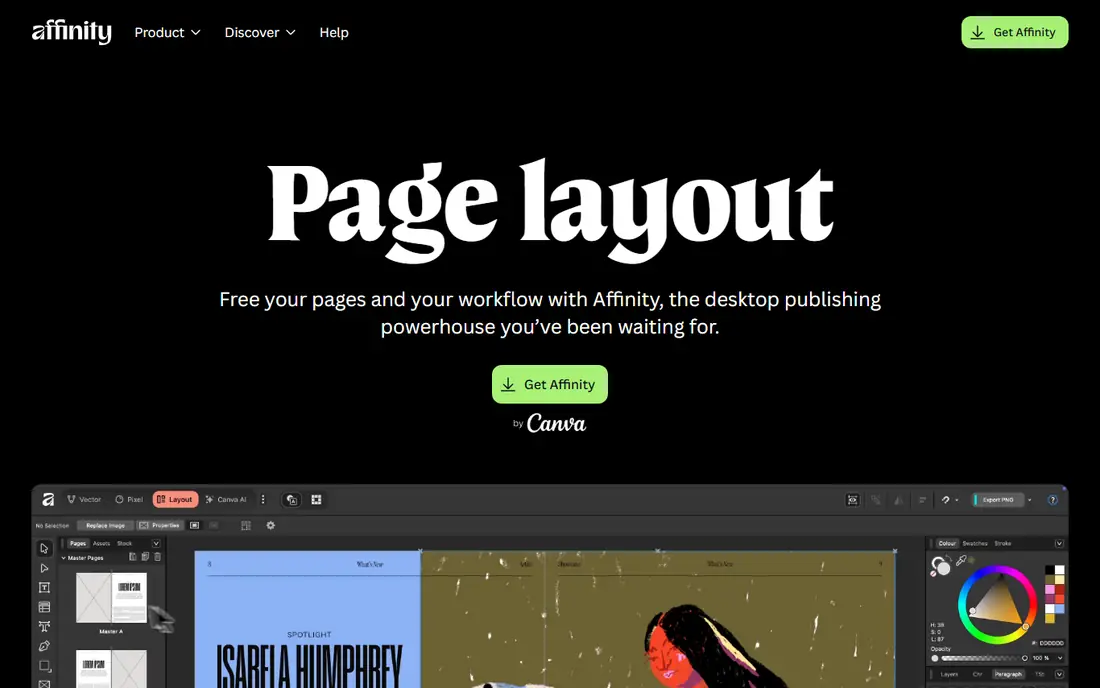
Affinity Publisher, from Serif, offers professional page layout for a one-time purchase, with master pages, text styles, tables and PDF export that covers most print jobs. StudioLink lets you switch to photo and vector editing inside the same app, which streamlines illustrated layouts.
The ecosystem is smaller than Adobe's, and some advanced preflight features trail InDesign, but for most books, magazines and marketing print, Publisher delivers professional results without a subscription. It is the best value professional option here.
- One-time purchase, no subscription
- Strong layout and typography tools
- StudioLink switches to photo and vector editing
- Smaller ecosystem than Adobe
- Some advanced print features trail InDesign
Canva
Ideal for: Quick template-based print

Canva is the easiest print tool for non-designers: pick a flyer, poster, business card or brochure template, edit text and images, and order prints or download a print-ready PDF. Its free plan covers many projects, and the Pro plan adds brand kits and background tools.
Precision control over typography, color profiles and bleeds is lighter than InDesign, and heavy template use can look generic. For a small business that needs good print quickly, Canva is the fastest path.
- Thousands of print templates
- Very easy for non-designers
- Print ordering built in
- Less precise typography and color control
- Templates can look generic
QuarkXPress
Ideal for: Long-form professional publishing
QuarkXPress is the veteran rival to InDesign, with a long history in magazines, newspapers and books, plus strong typography, color and digital publishing features. Long-time users value its stability and one-time purchase options.
The community and template ecosystem are smaller than Adobe's, and new users may find the interface dated. For a publishing house with Quark history or a preference for perpetual licenses, it remains a credible professional tool.
- Long history in professional publishing
- Strong typography and layout
- One-time purchase options
- Smaller community than InDesign
- Interface feels dated to some users
Scribus
Ideal for: Free open-source layout
Scribus is a free, open-source page layout app with CMYK color, PDF export and the core tools needed for brochures, newsletters and books. It runs on Windows, Mac and Linux, which suits schools, nonprofits and Linux users.
The interface is rougher than commercial rivals and the learning curve is real, with fewer templates and integrations. For a zero-budget print project with patience to learn, Scribus is a capable and honest option.
- Free and open source
- Good CMYK and PDF support for print
- Works on Windows, Mac and Linux
- Learning curve and rougher interface
- Fewer templates and integrations
Adobe Illustrator
Ideal for: Illustration-led print
Adobe Illustrator is the standard for vector print work: logos, posters, packaging and illustrations that must scale cleanly and print with precise color. Its typography and path tools are unmatched for single-page and illustration-led design.
It is not a multi-page layout tool, so books and magazines still need InDesign. For posters, packaging and brand print, Illustrator is the professional choice, especially inside an Adobe workflow.
- Best vector illustration for print
- Precise color and typography
- Integrates with InDesign
- Not a multi-page layout tool
- Subscription cost
CorelDRAW
Ideal for: Vector and print on Windows
CorelDRAW combines vector illustration with page layout, which suits signage, packaging, apparel and marketing print, especially on Windows. Its perpetual license option appeals to users who dislike subscriptions, and its print tools cover color management and preflight basics.
The Mac version is lighter than Windows, and the professional print community is smaller than Adobe's. For a Windows-based print shop or sign business, CorelDRAW is a strong all-in-one choice.
- Strong vector and layout tools in one app
- Good for signage and packaging
- Perpetual license option
- Mac version is lighter
- Smaller print community than Adobe
Marq (Lucidpress)
Ideal for: Brand-controlled team templates
Marq, formerly Lucidpress, is a browser-based design tool for teams that need brand control: create locked templates for flyers, brochures and reports, let staff customize approved fields, and keep every location on brand. That control suits franchises, schools and multi-branch businesses.
Design depth trails InDesign and Affinity, so it is not the tool for complex editorial layouts. For a team that needs consistent, repeatable print across many people, Marq is a practical choice.
A further step before any print run is a physical proof. Screen previews hide color shifts, paper texture and binding issues that only a printed sample reveals, especially for covers, packaging and large posters. Order a single proof, check it in daylight, and approve it before committing to the full run, since reprinting costs far more than proofing.
- Brand templates teams can lock and reuse
- Easy browser-based design
- Good for multi-location businesses
- Less depth than InDesign
- Print ordering varies by plan
How we picked these
We compared official feature pages, pricing pages and documentation, focusing on layout depth, typography, color management, PDF export and print readiness. We favored tools that are actively maintained today and produce files printers can actually use.
We also separated layout tools from illustration tools, since a great vector app is not automatically a great book layout app. Every tool here earns its place for a specific print job, and the guide below explains how to match job to tool.
How to choose a print design tool for your project
Start with the job's complexity. A single flyer or social print needs Canva or Marq. A brochure or newsletter needs Publisher, Scribus or InDesign. A book or magazine needs InDesign, Publisher or QuarkXPress, with their master pages and long-document tools. Buying a professional tool for a flyer wastes time, and using a template tool for a book wastes more.
Confirm color and bleed before you design
Print needs CMYK color, bleed beyond the trim edge, and high-resolution images, usually 300 dots per inch. Confirm those settings with your printer before starting, and use a tool that supports them natively. A design that looks right on screen can still fail in print if color and bleed are wrong.
Export and preflight every file
Export a print-ready PDF, run preflight checks for missing fonts, low-resolution images and color errors, and ask the printer to proof a sample before a full run. That proof step catches most costly mistakes, and professional tools make it routine.
Keep templates for repeat work
If you print the same brochure, menu or report regularly, build a master template with styles, colors and bleeds set once. Templates save hours, keep branding consistent, and reduce errors when a new person takes over the job.
Frequently asked questions
What is the best tool for print design?
Adobe InDesign is the professional standard for multi-page print, Affinity Publisher is the best one-time-purchase alternative, and Canva is best for quick template projects. The right tool depends on project complexity and budget.
Can I use Canva for professional printing?
Yes for many projects, since Canva exports print-ready PDFs with bleed and CMYK options on paid plans. For complex books, magazines or precise color work, InDesign or Publisher gives more control.
Is Affinity Publisher a good InDesign alternative?
Yes for most print work. It covers layout, typography and PDF export at a one-time price, though some advanced preflight and ecosystem features trail InDesign. Many small publishers use it as their main tool.
What is the best free print design tool?
Scribus is the best free professional layout tool, and Canva's free plan covers template-based print. Scribus needs more learning, while Canva is easier but less precise.
What file format do printers need?
Most printers want a print-ready PDF with embedded fonts, CMYK color, bleed and high-resolution images. Ask your printer for their exact specs before export, since requirements vary by printer and job.
What is bleed in print design?
Bleed is extra artwork extending beyond the trim edge, usually a few millimeters, so cutting does not leave white edges. Ask your printer for its bleed requirement and set it before designing, since adding bleed afterwards can shift layouts.