Best Video Editing Software for Small Business in 2026: 8 Tools Compared

- 1
 Adobe Premiere ProProfessional marketing videosVisit
- 2
 DaVinci ResolvePro editing with a free versionVisit
- 3
 CapCutFast social videosVisit
- 4
 FilmoraEasy editing for beginnersVisit
- 5
 DescriptEditing by transcriptVisit
- Adobe Premiere Pro and DaVinci Resolve suit teams that want professional depth and control.
- CapCut and Filmora fit small teams that need fast social and marketing videos.
- Descript and Camtasia help teams that edit by transcript or record tutorials.
- Final Cut Pro and Clipchamp suit Mac and Windows teams that want a polished, simpler workflow.
- Check export limits, caption tools, and stock media before choosing.
Quick comparison
| Product | Ideal for | Price from | Free version | |
|---|---|---|---|---|
| Adobe Premiere Pro | Professional marketing videos | See website | Free trial | Visit |
| DaVinci Resolve | Pro editing with a free version | See website | Yes | Visit |
| CapCut | Fast social videos | See website | Yes | Visit |
| Filmora | Easy editing for beginners | See website | Free trial | Visit |
| Descript | Editing by transcript | See website | Free trial | Visit |
 Camtasia | Tutorials and screen videos | See website | Free trial | Visit |
 Final Cut Pro | Mac teams and polished edits | See website | Free trial | Visit |
 Clipchamp | Quick Windows and browser edits | See website | Yes | Visit |
The best video editing software for small business
We compared official feature pages, pricing pages, and public reviews for eight video editors that small businesses actually use. The best pick depends on whether you make social clips, tutorials, ads, or longer brand videos, and on how much editing skill your team already has.
Adobe Premiere Pro
Ideal for: Professional marketing videos
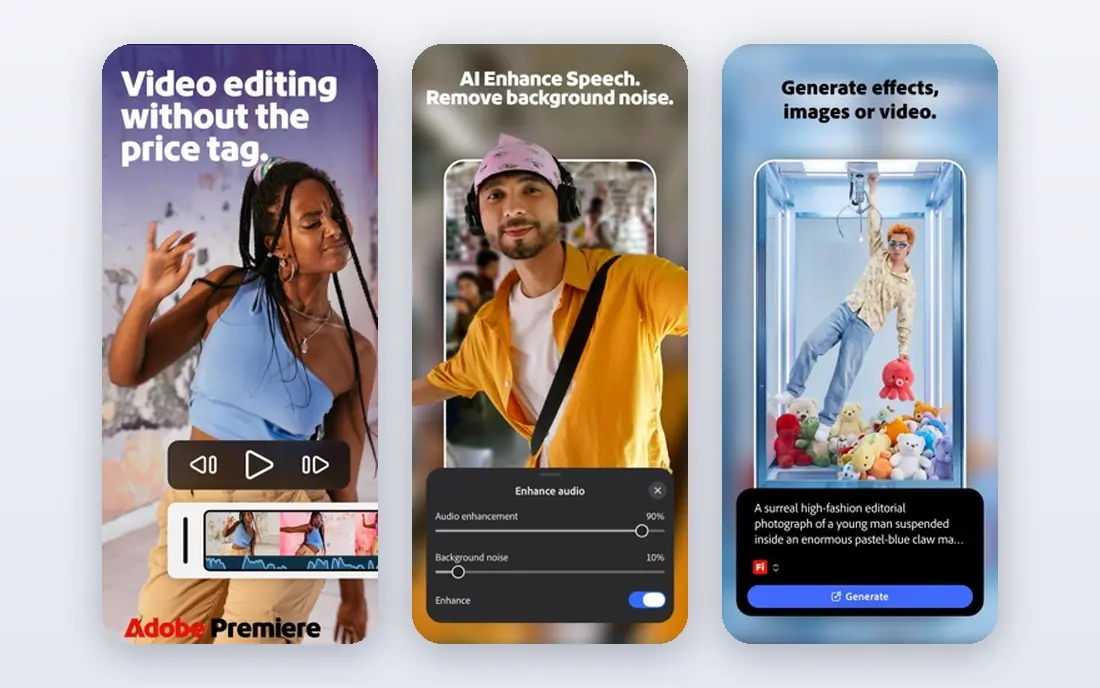
Premiere Pro remains the professional standard for marketing videos, ads, and brand films. It handles many formats, offers precise color and audio tools, and links with After Effects, Photoshop, and Audition. Small teams that hire freelance editors will find Premiere skills easy to hire for, which matters when deadlines are tight.
The cost is a subscription, and beginners may feel lost among panels and settings. For a team that edits video weekly and wants full control, Premiere Pro is worth the learning time. For occasional clips, a simpler editor will be faster.
- Industry-standard tools
- Broad format support
- Links to Adobe apps
- Subscription cost adds up
- Learning curve for beginners
DaVinci Resolve
Ideal for: Pro editing with a free version
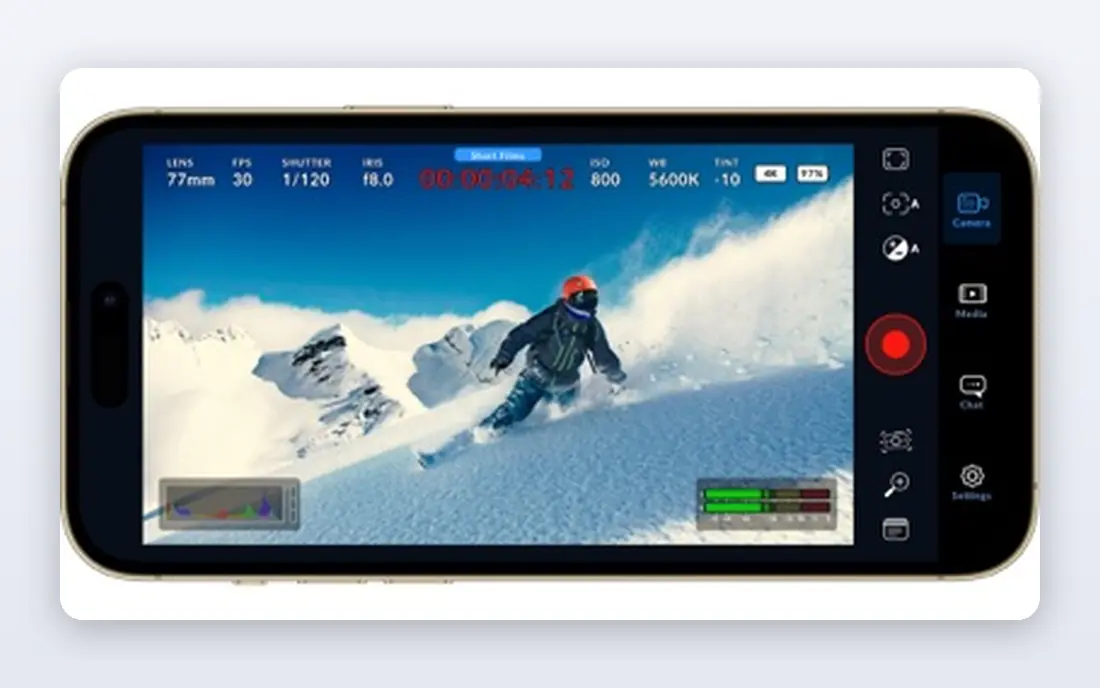
DaVinci Resolve offers a generous free version with professional editing, color, and audio tools. Small businesses can start free and upgrade to Studio for a one-time fee when they need advanced features. Color grading tools are among the best available, which helps brand videos look polished.
The trade-off is hardware. Resolve runs best on a capable computer, and the many tool pages can confuse new editors. For a team willing to learn and invest in a decent machine, Resolve gives professional quality without a monthly subscription.
- Strong free version
- Excellent color tools
- One-time Studio option
- Needs a capable computer
- Interface can overwhelm beginners
CapCut
Ideal for: Fast social videos
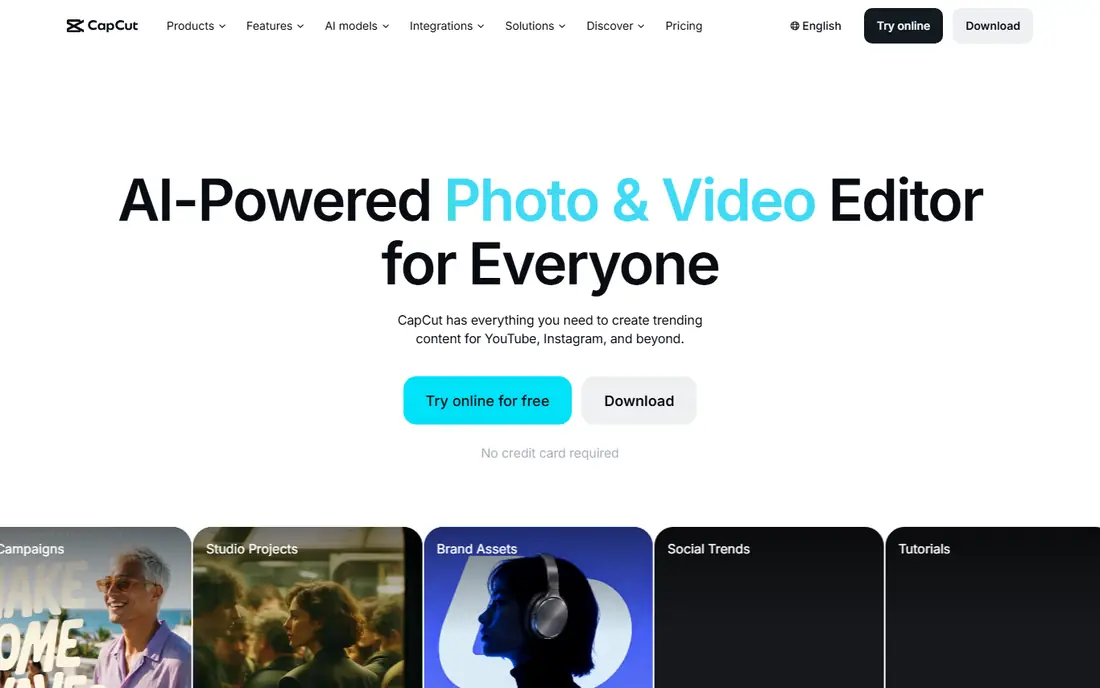
CapCut suits small teams that post often on social platforms and need quick, eye-catching clips. Templates, auto captions, and effects speed up short videos, and the mobile app lets staff edit on the go. For product teasers, behind-the-scenes clips, and short ads, CapCut is hard to beat for speed.
Longer or more polished brand films will hit limits, since fine control over color and audio is lighter than in pro editors. Check which templates and export options need a paid plan. For a social-first content plan, CapCut keeps output high with a small team.
- Fast templates and effects
- Caption tools
- Mobile and desktop apps
- Advanced control is limited
- Some features need a paid plan
Filmora
Ideal for: Easy editing for beginners
Filmora gives beginners a friendly path into video editing, with drag-and-drop timelines, built-in effects, and title templates. Small teams can make product videos, testimonials, and social clips without training. Plans are affordable next to professional subscriptions, which helps tight marketing budgets.
The free version adds a watermark to exports, so most businesses will pay. Advanced color and audio work is lighter than in Premiere or Resolve. For a team learning video together, Filmora offers a gentle start with room to grow.
- Beginner-friendly interface
- Effects and titles included
- Affordable plans
- Free exports carry a watermark
- Pro color tools are lighter
Descript
Ideal for: Editing by transcript
Descript changes editing by letting teams cut video through a transcript. Delete a sentence in text, and the video follows, which makes trimming interviews and podcasts fast. Captions, filler-word removal, and screen recording suit teams that publish talks, demos, and explainers.
Visual effects and multi-layer edits are lighter than in traditional editors, so brand films with heavy graphics may need another tool. For content teams that publish spoken video often, Descript saves hours on every edit. Try the free tier with a real recording before committing.
- Edit video by editing text
- Strong captions
- Screen recording
- Less suited to complex visual edits
- Pricing is per user
Camtasia
Ideal for: Tutorials and screen videos
Camtasia is built for tutorials, training videos, and product demos, with screen recording and editing in one tool. Annotations, callouts, and quizzes help training teams make clear instructional content. The timeline is simple enough for staff who do not edit video full time.
The upfront price is higher than a monthly subscription, though there is no ongoing fee for the purchased version. Cinematic editing and advanced color work are not its focus. For a business that trains customers or staff on screen, Camtasia is a practical, focused choice.
- Strong screen recording
- Annotations and quizzes
- Simple timeline
- One-time price is higher upfront
- Less suited to cinematic edits
Final Cut Pro
Ideal for: Mac teams and polished edits
Final Cut Pro suits Mac-based small teams that want professional results without a subscription. It runs fast on Apple hardware, offers a magnetic timeline that speeds assembly, and includes polished titles and effects. The one-time purchase model appeals to firms tired of monthly fees.
Windows teams cannot use it, and some advanced workflows need paid plugins. For an all-Mac team that edits marketing videos regularly, Final Cut Pro is a strong long-term investment. Check hardware needs, since older Macs may struggle with 4K footage.
- Fast on Apple hardware
- One-time purchase
- Polished effects and titles
- Mac only
- Plugin and template costs add up
Clipchamp
Ideal for: Quick Windows and browser edits
Clipchamp, from Microsoft, lets teams edit in a browser with templates, stock media, and simple timelines. It suits Windows teams and Microsoft 365 users who need quick marketing clips without installing heavy software. Brand kits and text-to-speech options help small teams produce consistent videos.
Advanced editing, higher export quality, and premium stock assets need a paid plan. Browser performance varies with machine and project size. For quick, everyday business videos, Clipchamp keeps the workflow light and accessible.
- Browser-based editing
- Templates and stock media
- Microsoft 365 links
- Advanced features need a paid plan
- Performance depends on browser and machine
How we picked these
We compared official feature pages, pricing pages, and public reviews for video editors in October 2026. We favored editors with clear export options, caption tools, templates, and pricing that small teams can sustain, and we mixed pro tools with beginner-friendly options. We did not claim hands-on testing, and we list prices as shown on vendor sites, using See website where pricing varies by plan.
What to check before you buy
Start with your video types. Social clips need templates and captions, tutorials need screen recording, and brand films need color and audio control. Then test export settings, since resolution, watermark, and format limits can surprise buyers. Check caption accuracy and editing, which matter for accessibility and social viewing without sound.
Next, confirm hardware needs and team skill. A pro editor on a weak computer wastes time, while a simple editor may frustrate a skilled editor. Try a real project on each shortlisted tool, including captions and export, before buying. Finally, check stock media, music licensing, and brand kit features, since those save time on every video.
A final check before you commit
Security and privacy checks should match the sensitivity of the data you will store, so review access controls, authentication options, and audit logs for each finalist. Ask who at the vendor can access your data, how incidents are reported, and where data is hosted, especially for regulated or client-confidential work. Smaller teams can keep this review short, but it should still be written down, since verbal assurances are hard to rely on later. If a vendor cannot answer plainly, treat that as a signal about transparency.
Implementation planning should start before purchase, with a named owner, a migration checklist, and a date for reviewing whether the tool still fits. Plan data import, user permissions, and training in that order, and keep the old system running in parallel for a short period where possible, so mistakes can be corrected without lost work. Set a review point after thirty and ninety days to check usage, costs, and complaints, and be willing to adjust seats or plans at that point. Tools that are reviewed regularly tend to stay useful, while tools bought and forgotten tend to drift from team needs.
Frequently asked questions
Which video editor is best for beginners in a small business?
Filmora, CapCut, and Clipchamp are the easiest starts, with templates and simple timelines. Descript suits teams that edit spoken content by transcript.
Is DaVinci Resolve really free?
Yes, DaVinci Resolve offers a strong free version for editing, color, and audio. A paid Studio version adds advanced features for a one-time fee.
Can small teams edit professional ads without Premiere Pro?
Yes, for many ads. DaVinci Resolve and Final Cut Pro offer professional depth, while CapCut and Filmora handle shorter social ads well. Premiere Pro helps most when hiring freelance editors or working with agencies.
Do these editors add captions?
Most do, with auto caption tools in CapCut, Descript, Clipchamp, and Filmora. Check accuracy and editing options, since captions need review for names and terms.
What computer do I need for video editing?
Pro editors such as Premiere Pro and DaVinci Resolve need a capable computer, especially for 4K video. Browser and mobile editors such as Clipchamp and CapCut run on lighter machines but still benefit from good RAM and storage.