Best video editing software for vloggers in 2026: 7 Options Compared

- 1
 Adobe Premiere Provloggers who edit daily and want full controlVisit
- 2
 Final Cut ProMac vloggers who want fast professional editingVisit
- 3
 DaVinci Resolvevloggers who want professional tools freeVisit
- 4
 CapCutvloggers who want fast social editsVisit
- 5
 Filmorabeginners who want guided editingVisit
- CapCut and Filmora suit vloggers who want fast edits with templates and effects.
- DaVinci Resolve suits vloggers who want professional colour and editing free of charge.
- Premiere Pro and Final Cut Pro suit vloggers who edit daily and want full control.
- iMovie suits beginners on Apple devices who want a free, simple start.
Quick comparison
| Product | Ideal for | Price from | Free version | |
|---|---|---|---|---|
| Adobe Premiere Pro | vloggers who edit daily and want full control | See website | Free trial | Visit |
| Final Cut Pro | Mac vloggers who want fast professional editing | See website | Free trial | Visit |
| DaVinci Resolve | vloggers who want professional tools free | See website | Yes | Visit |
| CapCut | vloggers who want fast social edits | See website | Yes | Visit |
| Filmora | beginners who want guided editing | See website | Free trial | Visit |
 iMovie | beginners on Apple devices | See website | Yes | Visit |
 Movavi Video Editor | vloggers who want a simple paid editor | See website | Free trial | Visit |
The best video editing software for vloggers
Vloggers need an editor that handles daily uploads, vertical video, captions and music without slowing the workflow. We compared official product pages, pricing pages, app store listings and public reviews, focusing on ease of use, effects, export options and device support. Prices vary by subscription or one time purchase, so we note the model rather than quoting a figure we could not confirm.
Adobe Premiere Pro
Ideal for: vloggers who edit daily and want full control
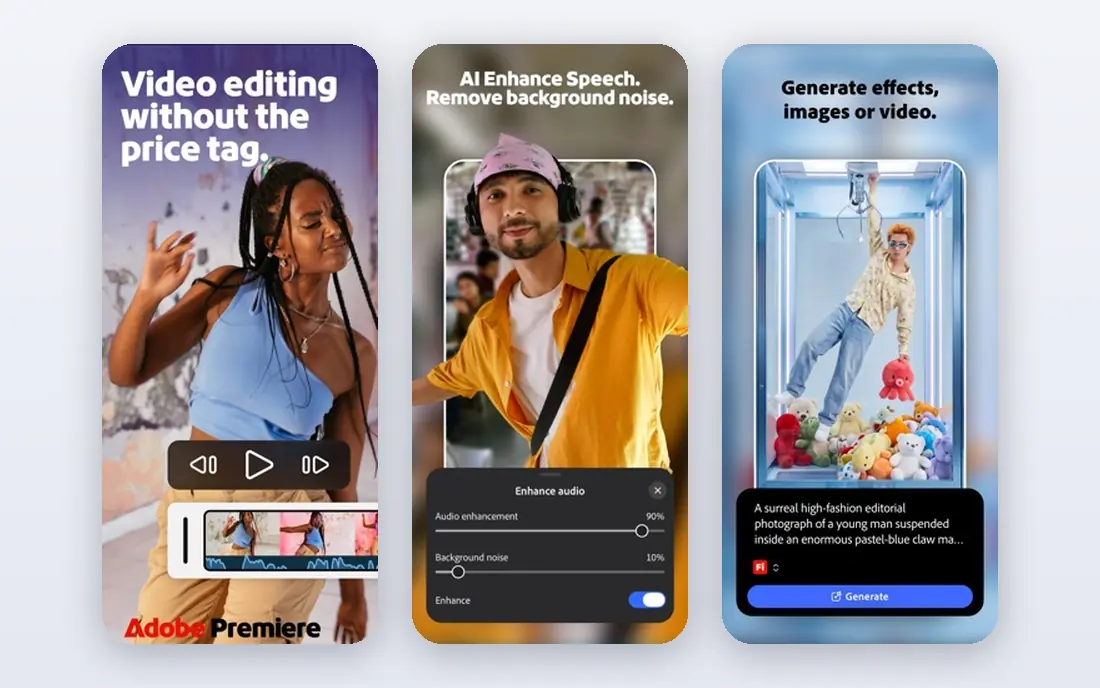
Premiere Pro is the standard choice for many professional vloggers, with timeline editing, colour tools, captions, audio mixing and a huge range of effects and transitions. It integrates with other Adobe apps for graphics and audio, which helps a channel that also makes thumbnails and social clips. Regular updates keep formats and social export presets current.
Before you pay, check the limits that apply to your own use, including seats, storage, monthly usage and support hours. A plan that looks generous on the headline page can still cap the one feature you rely on most, so read the plan comparison page rather than the marketing summary. A trial or free tier is the safest way to test this, and it also shows whether support answers promptly when you need help.
It is a subscription product and it needs a capable computer, especially for 4K footage. Beginners may find the interface busy at first, so start with a simple project template and learn captions and exports before tackling advanced colour work.
- Full editing control
- Huge effect range
- Adobe integration
- Subscription cost
- Needs a capable computer
Final Cut Pro
Ideal for: Mac vloggers who want fast professional editing
Final Cut Pro is built for Mac and runs very fast on Apple silicon, with a magnetic timeline that keeps clips in place as you trim and rearrange. It suits vloggers who publish often and want smooth 4K editing without proxy files for most projects. The one time purchase model also appeals to creators who dislike subscriptions.
The price on the headline page is only part of the cost, so check renewal pricing, per-seat charges and any paid add-ons before you commit. Free tiers help for light use, but they often cap the features that matter once work grows, and trials end on a fixed date whether you have finished testing or not. Set a reminder before a trial ends, and confirm cancellation steps in advance so you are not locked into a plan you no longer need.
It only runs on Mac, so Windows creators need another editor, and its plugin and template range is smaller than Premiere Pro. Check that your camera formats and caption workflow are supported before you switch from another editor.
- Fast on Apple silicon
- Magnetic timeline
- One time purchase
- Mac only
- Smaller plugin range than Premiere
DaVinci Resolve
Ideal for: vloggers who want professional tools free
DaVinci Resolve offers a free version that covers editing, colour grading, visual effects and audio in one app, which is rare at this level. Its colour tools are widely regarded as the strongest available, and its free tier handles most vlog formats without a watermark. That makes it a strong pick for creators who want professional tools without a monthly fee.
Pricing is where many readers get caught out, so look past the headline figure and check what the plan actually includes for your level of use. Seats, usage limits, add-ons and renewal terms can change the real monthly cost, and a cheaper plan that lacks one feature you need is not a saving. If a free tier or trial is offered, use it for real work before paying, and confirm how cancellation works while you still have time to change your mind.
The interface has many panels and the learning curve is real, especially for colour and effects work. The paid Studio version adds features such as advanced noise reduction, so check whether the free version covers your format and export needs.
- Strong free version
- Best in class colour
- Editing plus audio
- Learning curve
- Studio version is paid
CapCut
Ideal for: vloggers who want fast social edits
CapCut suits vloggers who publish short vertical video daily, with templates, trending effects, auto captions and music built in. The mobile app lets you edit on the phone where you shot the footage, while the desktop app handles longer projects. That speed matters when a trend or news moment needs a same day post.
Before you pay, check the limits that apply to your own use, including seats, storage, monthly usage and support hours. A plan that looks generous on the headline page can still cap the one feature you rely on most, so read the plan comparison page rather than the marketing summary. A trial or free tier is the safest way to test this, and it also shows whether support answers promptly when you need help.
The most useful effects and templates sit in the paid tier, and some features need an internet connection. Check the export quality on the free tier, and confirm music licensing for commercial use before you rely on built in tracks.
- Templates and effects
- Auto captions
- Mobile plus desktop
- Pro features are paid
- Online features need a connection
Filmora
Ideal for: beginners who want guided editing
Filmora is made for creators who want a friendly editor with effects, titles, transitions and AI tools such as auto captions and background removal. Its guided modes and template library help a new vlogger produce a polished video quickly. It runs on Windows and Mac, which covers most desktop creators.
The price on the headline page is only part of the cost, so check renewal pricing, per-seat charges and any paid add-ons before you commit. Free tiers help for light use, but they often cap the features that matter once work grows, and trials end on a fixed date whether you have finished testing or not. Set a reminder before a trial ends, and confirm cancellation steps in advance so you are not locked into a plan you no longer need.
Free exports carry a watermark, so a paid plan is needed for published work, and the subscription adds up over time. Compare the yearly plan against a one time editor if you plan to edit for years.
- Easy interface
- Effects packs
- AI tools
- Watermark on free exports
- Subscription model
iMovie
Ideal for: beginners on Apple devices
iMovie comes free with Apple devices and covers the basics well: trimming, titles, transitions, music and simple trailers. It suits a new vlogger who wants to learn editing without paying, and projects can move to Final Cut Pro later if the channel grows. Its simplicity is a strength for short daily vlogs.
Pricing is where many readers get caught out, so look past the headline figure and check what the plan actually includes for your level of use. Seats, usage limits, add-ons and renewal terms can change the real monthly cost, and a cheaper plan that lacks one feature you need is not a saving. If a free tier or trial is offered, use it for real work before paying, and confirm how cancellation works while you still have time to change your mind.
Features are basic compared with professional editors, with limited colour, audio and effects control. It also only runs on Apple devices, so Windows and Android creators need another free option such as DaVinci Resolve or CapCut.
- Free on Apple devices
- Very simple
- Good trailers
- Basic features only
- Apple devices only
Movavi Video Editor
Ideal for: vloggers who want a simple paid editor
Movavi Video Editor offers a simple timeline, effects, titles and transitions at a lower learning curve than professional editors. It suits vloggers who want a paid editor without a subscription habit and who edit straightforward talking head or travel vlogs. Its interface keeps the most used tools visible, which speeds up routine edits.
Before you pay, check the limits that apply to your own use, including seats, storage, monthly usage and support hours. A plan that looks generous on the headline page can still cap the one feature you rely on most, so read the plan comparison page rather than the marketing summary. A trial or free tier is the safest way to test this, and it also shows whether support answers promptly when you need help.
It is less powerful for advanced colour, audio and effects work, and its tutorial community is smaller than the big editors. Test a real project on the trial, including your camera format and export settings, before you buy.
- Simple interface
- Effects and titles
- One time options
- Less powerful than pro editors
- Smaller community
How we picked these
We compared official feature pages, pricing pages, app store listings, privacy policies and public reviews for each option in this guide. We kept only products that exist and work in October 2026 and that fit the topic directly, and we checked that each official homepage loads and belongs to the product named. Prices and free tiers are taken from the vendor site where we could verify them, and we wrote See website where a price could not be confirmed, rather than guessing. Our pick in each guide reflects fit for ordinary readers, not a claim of hands-on testing, and we note the honest limits of each option alongside its strengths.
How to choose a video editor for vlogging
Start with your device and your publishing rhythm, since an editor that lags on your computer will slow every upload. If you edit on a phone, CapCut is the natural pick, while Mac owners can start free with iMovie and move to Final Cut Pro. Desktop creators with a capable machine have the widest choice, from DaVinci Resolve free to Premiere Pro.
Test captions, vertical exports and music licensing on a real vlog before you commit, since those three tasks repeat in every video. Check the export quality on the free tier, the cost of the plan you actually need, and whether templates and effects fit your channel style. A simple editor you use daily beats a powerful editor you avoid because it feels slow.
Frequently asked questions
What is the best video editing software for vloggers?
CapCut and Filmora suit fast social edits, DaVinci Resolve suits creators who want professional tools free, and Premiere Pro and Final Cut Pro suit daily professional editing. iMovie suits Apple beginners. Choose by device, budget and how often you publish.
Is DaVinci Resolve really free?
Yes, the standard version of DaVinci Resolve is free and covers editing, colour, effects and audio without a watermark. A paid Studio version adds advanced features. Most vloggers can start on the free version and upgrade only if a specific Studio feature is needed.
What editor do most YouTubers use?
Many professional YouTubers use Premiere Pro or Final Cut Pro, while newer creators often start with CapCut, Filmora or DaVinci Resolve. The choice depends on device, budget and editing style rather than a single industry standard.
Can I edit vlogs on my phone?
Yes, CapCut and similar mobile editors handle trimming, captions, effects and vertical exports well for short vlogs. For longer videos with complex audio or colour work, a desktop editor is faster and more precise. Many creators shoot on a phone and edit on a desktop.
Do I need a powerful computer for video editing?
For short 1080p vlogs, a modern mid range computer is usually enough, while 4K editing benefits from more memory, a faster processor and solid state storage. Proxy editing in most editors lets weaker machines handle 4K by editing lower resolution copies.