Best Video Editing Software Free and Paid in 2026: 7 Tools Compared

- 1
 DaVinci ResolveFree pro editing and colorVisit
- 2
 CapCutFast social video editsVisit
- 3
 iMovieFree Apple beginner editsVisit
- 4
 Adobe Premiere ProPro subscription editingVisit
- 5
 Final Cut ProMac pro editingVisit
- Free editors such as DaVinci Resolve, CapCut, iMovie, and Clipchamp cover most beginner and creator needs without a subscription.
- Paid editors such as Adobe Premiere Pro, Final Cut Pro, and Filmora add deeper color, effects, collaboration, and asset libraries.
- DaVinci Resolve is the best free pro-level editor, while CapCut and Clipchamp suit fast social and short-form edits.
- Our pick for most creators is a tool that matches their device, export needs, and learning curve, tested with real footage first.
Quick comparison
| Product | Ideal for | Price from | Free version | |
|---|---|---|---|---|
| DaVinci Resolve | Free pro editing and color | Free | Yes | Visit |
| CapCut | Fast social video edits | Free | Yes | Visit |
| iMovie | Free Apple beginner edits | Free | Yes | Visit |
| Adobe Premiere Pro | Pro subscription editing | See website | Free trial | Visit |
| Final Cut Pro | Mac pro editing | $299.99 one-time | Free trial | Visit |
 Filmora | Easy creator editing | See website | Free trial | Visit |
 Clipchamp | Browser-based editing | Free | Yes | Visit |
The best video editing software free and paid
Video editing ranges from trimming a phone clip to finishing a feature film, and the right tool depends on footage, device, and patience for learning. Free editors have grown strong enough for many creators, while paid editors still lead on collaboration, color depth, and plugin ecosystems. The best choice is the editor you will actually finish projects in, not the one with the longest feature list.
We compared official product pages for video editors used in the US, looking at timeline editing, color, audio, effects, captions, export options, and pricing. The list below covers free and paid tools across Mac, Windows, mobile, and browser, so readers can compare by budget and skill level.
DaVinci Resolve
Ideal for: Free pro editing and color
DaVinci Resolve combines editing, color correction, visual effects, motion graphics, audio post, and now photo editing in one app, with dedicated pages for cut, edit, Fusion, color, Fairlight, media, and deliver work. Its homepage stresses Hollywood-grade color science, 32-bit float processing, HDR workflows, and Fairlight audio with up to 2,000 tracks, plus AI tools for search, reframing, and facial refinement in version 21. Multi-user collaboration through Blackmagic Cloud lets editors, colorists, and sound engineers work on the same project at once.
The catch is learning curve and hardware. New users can start on the cut page, but color and Fusion take study, and 4K work needs a capable machine. The paid Studio version adds extra effects and features. For creators who want pro power free, DaVinci Resolve is the best choice.
- Free version covers editing, color, effects, and audio
- Pro color and Fairlight audio tools
- Multi-user collaboration
- Learning curve for color and Fusion pages
- Needs a capable computer
- Studio version is paid for extra features
CapCut
Ideal for: Fast social video edits
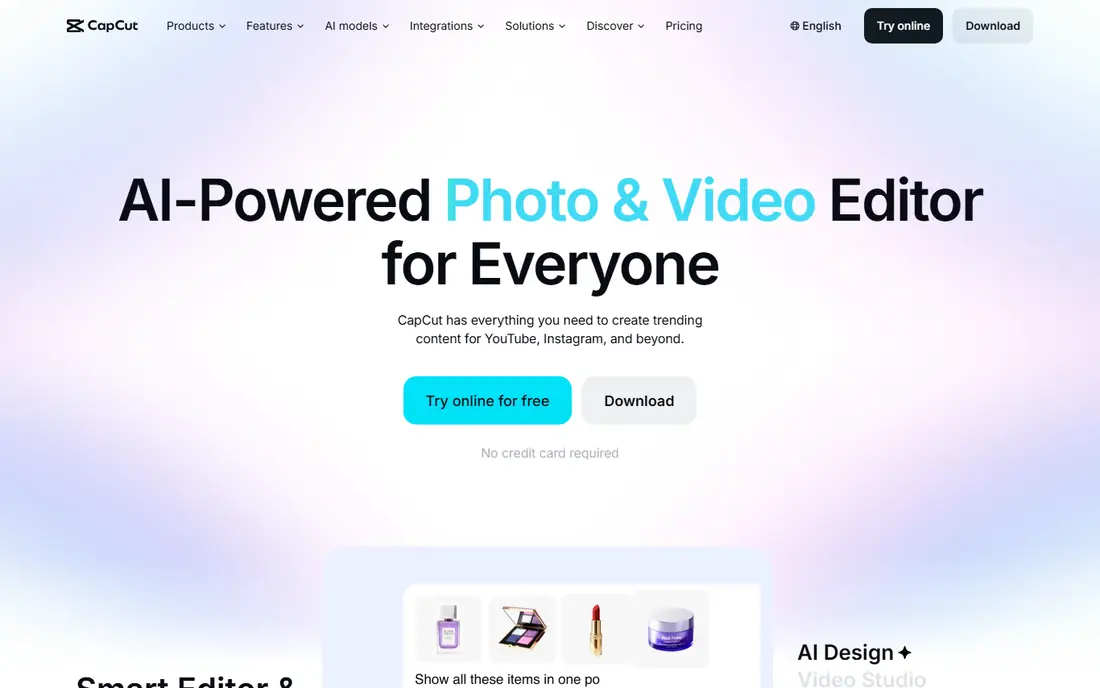
CapCut is an AI-powered editor for social and short-form video, with an online editor, desktop and mobile apps, templates, auto captions, background removal, text to speech, and AI video generation. Its homepage stresses creating trending content for YouTube, Instagram, and beyond, with free online use and no credit card required to start. Templates for Reels and TikTok help creators publish fast without building every edit from scratch.
The trade-off is depth and plan limits. CapCut excels at short, social edits, but long-form, multi-cam, and color-critical projects suit Resolve or Premiere better, and some effects and exports sit behind paid plans. Check export quality and watermark rules on the free plan. For fast social edits, CapCut is hard to beat.
- Free online and app editing
- AI captions, background removal, and templates
- Fast for short-form social video
- Pro features and assets need a paid plan
- Desktop depth below Premiere or Resolve
- Export and watermark rules vary
iMovie
Ideal for: Free Apple beginner edits
iMovie is Apple's free editor for iPhone, iPad, and Mac, covering movie creation, fine-tuning, video and sound effects, and sharing, with user guides for each device. Its strength is simplicity: beginners can trim, add titles and music, and share without learning a pro timeline, and projects can later move into Final Cut Pro when skills grow. For Apple users making family videos, school projects, or simple YouTube edits, iMovie costs nothing extra.
The limit is depth. iMovie lacks the advanced color, audio mixing, effects, and multi-cam control of Final Cut Pro or Resolve, and it only runs on Apple devices. Windows and Android users should look at Clipchamp, CapCut, or Filmora. For free Apple editing, iMovie is the natural start.
- Free on iPhone, iPad, and Mac
- Simple timeline, effects, and sharing
- Projects import into Final Cut Pro
- Apple devices only
- Limited advanced color, audio, and effects
- Not suited for complex pro projects
Adobe Premiere Pro
Ideal for: Pro subscription editing
Adobe Premiere Pro is the professional editor at the center of Adobe's Creative Cloud video workflow, with plans for individuals, businesses, and students. Its product page positions Premiere Pro as professional video editing software with color, effects, and mobile companion workflows, and it pairs with After Effects for motion graphics and Audition for audio. That ecosystem suits editors, agencies, and teams that already use Adobe tools and need broad format support.
The trade-off is subscription cost and complexity. Premiere Pro is a paid subscription with trial options, and beginners may find Filmora or CapCut faster to learn. Hardware demands also matter for 4K and effects-heavy work. For pro editors in Adobe workflows, Premiere Pro remains a standard pick.
- Industry-standard pro editing
- Deep Adobe ecosystem with After Effects and Audition
- Broad format and plugin support
- Subscription cost
- Needs a capable computer
- Learning curve for beginners
Final Cut Pro
Ideal for: Mac pro editing
Final Cut Pro is Apple's pro editor for Mac and iPad, with intelligence features such as Visual Search for objects and actions, Transcript Search for spoken phrases, Montage Maker for music-cut highlights, and multi-cam capture with Final Cut Camera. Its homepage notes a one-time purchase price of $299.99, plus availability through an Apple Creator Studio subscription with a 30-day free trial at $12.99 per month or $129 per year. Projects from iMovie import directly, giving beginners a clear upgrade path.
The catch is platform. Final Cut Pro runs on Mac and iPad only, so Windows teams need another editor. The one-time price also suits committed editors more than casual users. For Mac creators who want pro speed without a subscription, Final Cut Pro is an excellent pick.
- Fast Mac and iPad editing
- AI search and transcript tools
- One-time purchase option
- Mac and iPad only
- One-time price is high for casual users
- Plugin ecosystem differs from Premiere
Filmora
Ideal for: Easy creator editing
Filmora, from Wondershare, is an AI-powered editor that covers organizing, cutting, color, audio, captions, motion, and delivery in one connected workflow. Its homepage highlights AI media analysis, rough-cut tools, camera tracking, color grading, voice and caption tools, and more than 2.9 million creative assets, with desktop apps for Windows and macOS plus mobile apps. Filmora suits creators who want guided, fast editing with room to grow into deeper controls.
The trade-off is watermark and plan limits. Users can try Filmora free, but exported videos from the free version include a watermark, and paid plans remove it. Pro editors needing deep color or collaboration should compare Resolve or Premiere. For creators who want easy, polished edits, Filmora is a strong pick.
- Easy timeline with AI tools
- Captions, color, audio, and effects in one workflow
- Large asset library
- Free exports carry a watermark
- Paid plans needed for clean exports
- Pro depth below Resolve or Premiere
Clipchamp
Ideal for: Browser-based editing
Clipchamp, from Microsoft, is a browser-based editor for recording, editing, and sharing HD videos with AI tools and no expertise required. Its homepage highlights AI voiceover generation, subtitle generation in more than 80 languages, camera, screen, and voice recording, audio cleanup, royalty-free stock assets, and HD exports without watermarks on the free tier, with premium features available through Microsoft 365. It runs in the browser and on Windows 11, with a Windows 10 app via the Microsoft Store.
The catch is premium gating and browser limits. Advanced features need a Microsoft 365 subscription, and heavy projects still run better in desktop editors. For quick work, school, and business videos without installing software, Clipchamp is a practical free pick.
- Free browser editing with no install
- AI voiceovers, captions, and audio cleanup
- Stock assets and HD exports
- Premium features need Microsoft 365
- Browser performance depends on device and connection
- Depth below desktop pro tools
How we picked these
We compared official product pages for video editors used in the US, looking at timeline editing, color, audio, effects, captions, export options, and pricing. We favored editors with clear free or trial paths and current development in 2026, and we kept a range from beginner to pro tools. We also favored tools that run on common devices without obscure hardware.
We did not test these editors on identical footage, and we did not review private pricing. Plan prices, trial terms, and watermark rules can change, so check the vendor site and export a test project before committing.
What to check before you choose
Start with your footage and device. Edit a real project, not a demo clip, and check timeline smoothness, export time, and audio sync on your own computer or phone. A tool that lags on your hardware will slow every project, no matter how good its feature list looks.
Next, check exports and sharing. Confirm resolution, format, watermark rules, and direct sharing to YouTube, TikTok, or client folders, since free plans often limit exports. Also check caption and subtitle tools if you publish accessible video regularly.
Finally, weigh learning time against project needs. Beginners should start with iMovie, CapCut, or Clipchamp, creators with Filmora, and pro editors with Resolve, Premiere Pro, or Final Cut Pro. Choose the lightest editor that handles your hardest regular project, because switching mid-project costs time.
Frequently asked questions
What is the best free video editing software?
DaVinci Resolve is the best free pro-level editor, while CapCut, iMovie, and Clipchamp suit beginners and social creators. The best free pick depends on device and whether you need pro color and audio tools.
Is DaVinci Resolve really free?
Yes, DaVinci Resolve offers a free version with editing, color, effects, and audio, while DaVinci Resolve Studio is a paid upgrade with extra features. Check the Blackmagic site for current Studio pricing and feature differences.
Which video editor is best for beginners?
iMovie suits Apple beginners, Clipchamp suits browser users, and CapCut suits social creators, while Filmora adds guided AI tools for creators who want more control. Try a short project in two editors before choosing.
Do I need a paid editor for YouTube?
Most YouTube creators can start free with DaVinci Resolve, CapCut, or iMovie, and upgrade only when they need deeper color, collaboration, plugins, or asset libraries. Paid editors help most with high-volume or client work.
Is Final Cut Pro a subscription?
Final Cut Pro is available as a one-time purchase for $299.99 and through an Apple Creator Studio subscription at $12.99 per month or $129 per year, with a 30-day free trial for the subscription. Check Apple's site for current terms.