Best Video Recording Software in 2026: 8 Tools Compared

- OBS Studio is the best free video recording tool, with unlimited, watermark-free capture for screen, webcam and live streaming.
- Camtasia remains the complete record-plus-edit package for polished tutorials, with a full timeline and caption tools.
- Loom is fastest for team videos shared by link, while Descript suits creators who prefer editing video by editing a transcript.
- Filmora offers a friendly middle ground for creators who want motion tracking, effects and easy editing without a steep learning curve.
- Decide whether you need camera recording, screen recording or both, since the best tool differs for each job.
Quick comparison
| Product | Ideal for | Price from | Free version | |
|---|---|---|---|---|
 OBS Studio | Free screen and camera capture | Free | Yes | Visit |
 Camtasia | Polished tutorials with editing | $179.88 per year | Free trial | Visit |
 Loom | Quick team videos by link | See website | Yes | Visit |
 Filmora | Friendly creator editing | See website | Free trial | Visit |
 Descript | Transcript-based editing | $16 per person per month | Yes | Visit |
 ScreenFlow | Mac recording and editing | $129 one-time | Free trial | Visit |
 Bandicam | High-frame-rate capture | $39.95 one-time | Yes | Visit |
 Movavi Screen Recorder | Simple everyday recording | $34.95 per year | Free trial | Visit |
The best video recording software
These eight tools cover screen capture, camera recording and editing. We compared official pricing pages, feature pages and public reviews, focusing on recording quality, editing depth and the true cost of each plan.
OBS Studio
Ideal for: Free screen and camera capture
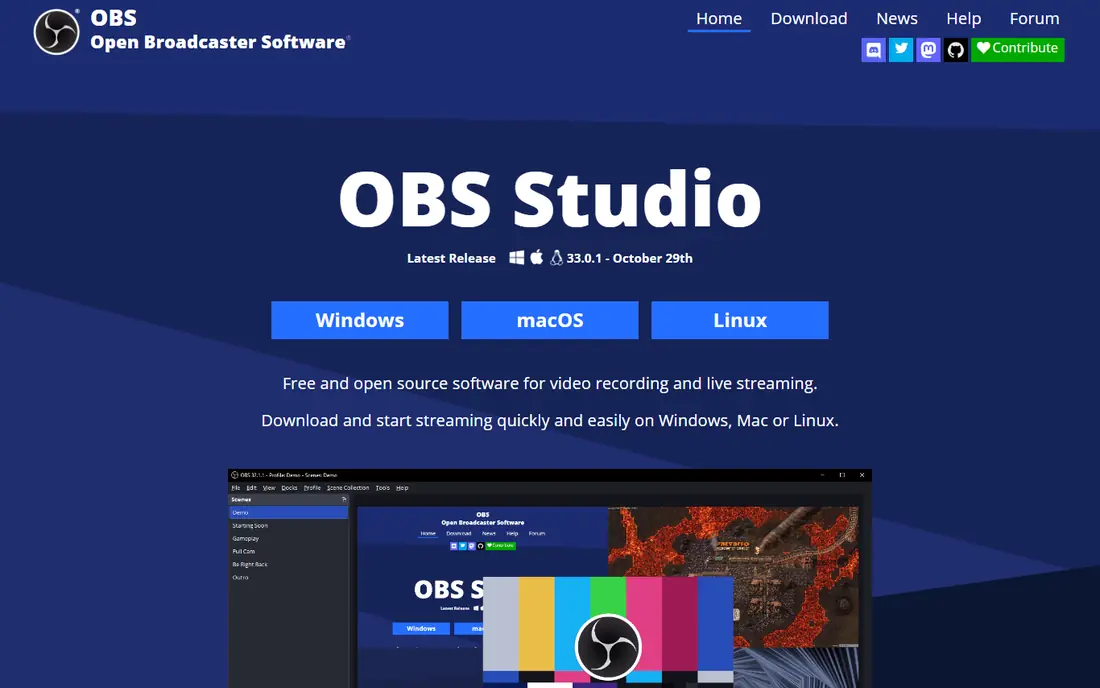
OBS Studio dominates free video recording for good reason. Its scene-based system lets you arrange screen captures, webcams, images and text into layouts, switch between them live, and record or stream in high quality, all without cost, watermark or time limit. It runs on Windows, Mac and Linux.
The trade-off is editing: OBS records, it does not edit, so polished videos need a second app such as Filmora, Camtasia or Descript. For a creator comfortable with a learning curve, OBS plus a free or low-cost editor is the most capable free workflow available.
- Free and open source
- Multi-source scenes
- Live streaming
- No watermark or time limit
- No built-in editor
- Setup takes effort for beginners
Camtasia
Ideal for: Polished tutorials with editing
Camtasia is the complete tutorial-making suite, combining a capable recorder with a full editing timeline. Record screen, webcam and audio on separate tracks, cut mistakes, add callouts, zooms, captions and interactive quizzes, and export for learning platforms, all without moving files between apps. That end-to-end workflow is why training teams rely on it.
Essentials pricing is $179.88 per year, with a free trial that exports with a watermark, and the app needs decent hardware for smooth editing. For teams producing training videos regularly, the bundled editing pays for itself. For a one-off clip, OBS or Loom is enough.
- Recorder plus full editor in one app
- Callouts, captions and quizzes
- Multi-track timeline
- Essentials at $179.88 per year
- Heavier system requirements than light recorders
Loom
Ideal for: Quick team videos by link
Loom is the fastest path from recording to sharing. Record your screen and webcam, get a link instantly, and viewers watch without downloading anything, with comments, reactions and AI summaries on newer plans. The free Starter tier covers 25 videos at up to 5 minutes each in 720p.
Paid plans from $15 per user per month on annual billing add unlimited videos, 4K and advanced features. For workplace updates, feedback and quick demos, Loom's speed beats a full editor. For polished, edited content, pair it with or replace it by Camtasia or Filmora.
- Record and share by link in seconds
- Screen plus webcam
- Comments and reactions
- Free tier limits videos and length
- Paid plans from $15 per user per month
Filmora
Ideal for: Friendly creator editing
Filmora, from Wondershare, is the friendly creator editor in this list. It records screen and webcam, then edits on an intuitive timeline with motion tracking, keyframing, split-screen, titles and effects that would take longer in a professional editor. That balance makes it popular with YouTubers, educators and small businesses.
Pricing varies by plan and region, with subscription and one-time options in recent listings, so check the vendor site for your current price. A free trial lets you test the workflow before paying. For a creator who wants polished videos without a steep learning curve, Filmora is a strong middle ground.
- Intuitive editing
- Motion tracking, keyframing and effects
- Screen recording built in
- Pricing varies by plan and region
- Subscription model suits regular creators best
Descript
Ideal for: Transcript-based editing
Descript changes video editing by letting you edit the transcript: delete a word in the text and the video cuts itself. Automatic transcription, filler-word removal, audio cleanup and studio sound make it ideal for podcasts, talking-head videos and tutorials where the words carry the content. Plans start at $16 per person per month on annual billing, with a free plan offering monthly media limits.
Heavy visual effects and complex timelines suit Camtasia or Filmora better. For a creator whose videos are mostly speech, Descript's text editing saves hours and feels almost like editing a document.
- Edit video by editing text
- Automatic transcription
- Audio cleanup and studio sound
- Hobby plan at $16 per person per month
- Less suited to heavy visual effects work
ScreenFlow
Ideal for: Mac recording and editing
ScreenFlow is the Mac creator's recorder and editor, capturing screen, webcam and audio with low overhead, then editing on a timeline with titles, transitions, animations and stock media. A one-time purchase at $129 covers the app, with a free trial to test it, which appeals to buyers who dislike subscriptions.
There is no Windows version, so mixed-device teams need another tool. For a Mac user who records and edits demos, lessons or product videos regularly, ScreenFlow's speed and polish make it the best Mac-native choice.
- Fast Mac-native recording and editing
- Titles and animations
- One-time purchase
- Mac only
- $129 one-time cost
Bandicam
Ideal for: High-frame-rate capture
Bandicam specializes in high-performance capture for games and fast-moving apps, recording at high frame rates with low system load. A one-time purchase at $39.95 covers the full version, while the free version limits recordings and adds a watermark. That makes it a favorite for gameplay recording and software demos with fast motion.
It runs only on Windows, and editing features are light compared with Camtasia or Filmora. For a Windows user who needs smooth, high-frame-rate capture, Bandicam is a focused, affordable pick.
- High-frame-rate game and app capture
- Low system load
- One-time purchase
- Windows only
- Free version caps recordings at 10 minutes with a watermark
Movavi Screen Recorder
Ideal for: Simple everyday recording
Movavi Screen Recorder is the simple, everyday option for users who want reliable capture without a learning curve. It records screen, webcam and audio, supports scheduled recording, and includes basic editing and screenshot tools. Paid plans start at $34.95 per year, with a 7-day trial that exports with a watermark.
Editing depth is lighter than Camtasia or Filmora, so polished courses need a second app. For a casual user who records meetings, demos and how-tos a few times a month, Movavi's simplicity and price are appealing.
- Simple and reliable
- Scheduled recording
- Basic editing and screenshot tools
- Free trial exports with a watermark
- Editing is lighter than Camtasia
How we picked these
We compared official pricing pages, feature pages and public reviews for video recording tools available in October 2026. We favored tools with a working free tier or trial, a current version and a real user base, and we weighed recording quality, editing depth, sharing workflow and price, since camera, screen and tutorial jobs need different combinations.
What to check before you pick video recording software
Start with the recording job. A talking-head video needs a good webcam and microphone plus simple editing, while a tutorial needs screen capture, callouts and captions, and a gameplay video needs high-frame-rate capture. Match the tool to that job before comparing prices.
Then test audio and export quality with a real recording. Check microphone clarity, background noise handling, resolution, frame rate and file size, and confirm the export format works where you publish, whether that is YouTube, a learning platform or a team workspace. A tool that records well but exports poorly will waste your editing time.
Finally, check the total cost of your workflow. A free recorder plus a paid editor can cost less than an all-in-one suite, while an all-in-one tool saves time moving files. Price the combination you will actually use, including any watermark limits on free tiers, before committing.
Frequently asked questions
What is the best free video recording software?
OBS Studio is the best free video recording software, with unlimited, watermark-free capture for screen, webcam and live streaming. It does not include an editor, so pair it with a free or low-cost editor for polished videos.
What is the best video recording software for tutorials?
Camtasia is the best tutorial tool, since it combines recording with a full editing timeline, callouts and captions. ScreenFlow is the best Mac alternative, and Descript suits tutorials where speech carries the content.
Can I record video on my phone?
Yes, most phones include a built-in screen recorder, and apps such as Loom offer mobile recording. For polished mobile videos, transfer the recording to a desktop editor such as Filmora or Descript.
Is Filmora good for beginners?
Yes, Filmora is designed for creators who want an intuitive timeline with effects, motion tracking and titles without a steep learning curve. A free trial lets you test it before paying.
What is the difference between OBS and Camtasia?
OBS Studio is a free recorder and live streaming tool with no built-in editor, while Camtasia is a paid recorder plus full video editor in one app. Use OBS for free capture, and Camtasia when you want recording and editing together.