Best Video Upscaling Software in 2026: 8 Tools Compared

- 1
 Topaz Video AIDedicated AI upscalingVisit
- 2
 HitPaw VikPeaSimple AI enhancementVisit
- 3
 AVCLabs Video Enhancer AIOld and low resolution videoVisit
- 4
 DVDFab Video Enhancer AIDisc and library footageVisit
- 5
 UniFab All-In-OneUpscaling plus conversionVisit
- Topaz Video AI is our pick for most people who want dedicated AI upscaling models and local processing, though it needs a capable computer.
- HitPaw VikPea and AVCLabs suit beginners who want a simpler path from blurry footage to a cleaner export.
- VideoProc Converter AI and Movavi work best when upscaling is one job among many, such as converting, cutting, and compressing video.
- Upscaling cannot invent detail that was never recorded, so check results on your own worst clip before buying.
- A free trial or preview matters more than a feature list, because results vary a lot by source footage.
Quick comparison
| Product | Ideal for | Price from | Free version | |
|---|---|---|---|---|
| Topaz Video AI | Dedicated AI upscaling | $59 per month | Free trial | Visit |
| HitPaw VikPea | Simple AI enhancement | See website | Free trial | Visit |
| AVCLabs Video Enhancer AI | Old and low resolution video | See website | Free trial | Visit |
| DVDFab Video Enhancer AI | Disc and library footage | See website | Free trial | Visit |
| UniFab All-In-One | Upscaling plus conversion | See website | Free trial | Visit |
 VideoProc Converter AI | All-in-one video toolkit | See website | Free trial | Visit |
 Movavi Video Converter | Easy upscaling and conversion | See website | Free trial | Visit |
 DaVinci Resolve | Upscaling inside a full editor | Free | Yes | Visit |
The best video upscaling software
Upscaling software tries to make low resolution video look better on larger screens. The tools below differ in how much control they give you, how much they cost, and how demanding they are on your computer. We compared official feature pages, pricing pages, and public reviews to sort them by the job they do best.
Topaz Video AI
Ideal for: Dedicated AI upscaling
Topaz Video AI is the tool we point to first when upscaling is the main job rather than a side feature. Its site lists models for tasks such as precise upscaling, denoising, sharpening, and converting standard dynamic range footage to HDR, which gives you room to match the model to the clip instead of applying one setting to everything. Local rendering also means you are not uploading personal or client footage to a cloud service to get a result.
The trade-off is patience and hardware. AI upscaling is heavy work, and long clips can take a long time on a modest laptop. If you only have a handful of clips to fix, start with the trial and test your hardest footage first, such as a dark indoor shot or an old phone video, before you commit to a subscription.
- Wide choice of AI models for different footage
- Local processing keeps files on your machine
- Frame interpolation and stabilization in the same app
- Demanding on hardware, so older machines will be slow
- Monthly pricing adds up for occasional users
HitPaw VikPea
Ideal for: Simple AI enhancement
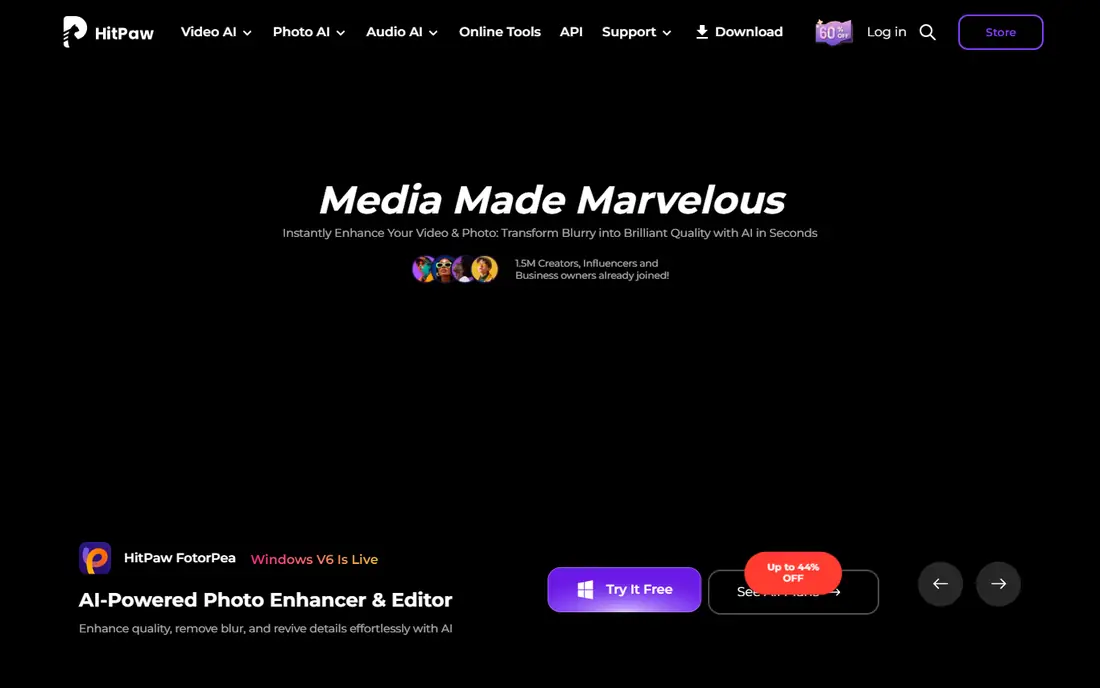
HitPaw VikPea is built for people who want to improve a video without learning a full editor. You bring in a clip, pick an enhancement model, and preview the result, which keeps the process short for family videos, social clips, and short client projects. Its homepage also highlights repair and color work, so it can help with footage that is dull as well as soft.
Our main caution is the same one that applies to every tool here. A heavily compressed clip from a messaging app will not turn into a crisp 4K master, no matter which model you pick. VikPea is a good fit when your goal is a visibly cleaner video for sharing, not a forensic restoration.
- Straightforward interface for beginners
- Denoise, face enhancement, and color tools in one place
- Works on Windows and Mac
- Less fine control than a specialist tool
- Output quality depends heavily on the source clip
AVCLabs Video Enhancer AI
Ideal for: Old and low resolution video
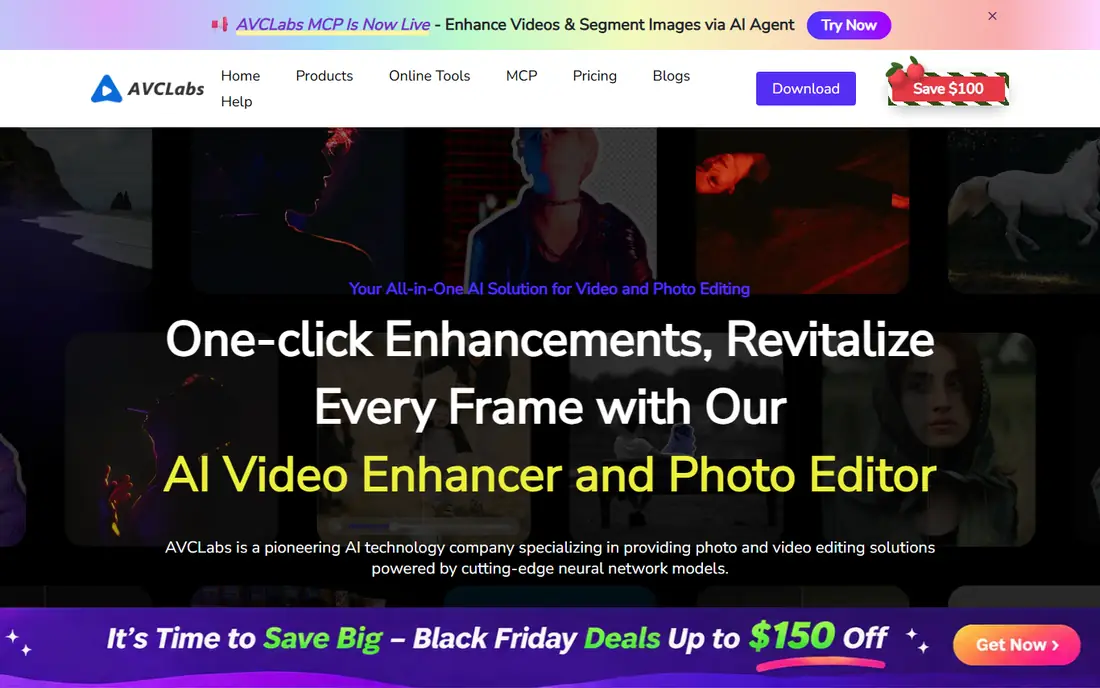
AVCLabs puts restoration front and center, and that focus shows in how it talks about old photos and home movies. If your project is a box of digitized tapes or early digital camera clips, this is a sensible place to start. The tool offers upscaling alongside blur removal and noise reduction, which matters because old footage usually suffers from several problems at once.
We would still test it on a short sample before buying. Restoration tools can smooth skin and fine texture too much if the settings are pushed, and the right balance is a matter of taste. A short trial export will tell you more than any demo reel.
- Clear focus on restoring old home movies
- Face and detail enhancement options
- Single and multi-frame processing choices
- Pricing is not obvious from the homepage, so check the store page
- Heavy jobs need a strong graphics card
DVDFab Video Enhancer AI
Ideal for: Disc and library footage
DVDFab is best known for disc tools, and its Video Enhancer AI sits naturally in that world. If you are already ripping or converting a DVD or Blu-ray collection, adding an upscaling step in the same family of tools can keep the workflow simple. It is a practical choice for people with a shelf of discs rather than a single clip.
The catch is product naming. DVDFab sells many related tools, so read the product page carefully and confirm the feature list matches the upscaling job you want. As with the other tools here, a trial run on a representative disc chapter is the safest way to judge it.
- Fits well into a disc backup and conversion workflow
- Upscaling to 4K is a stated feature
- Batch handling suits larger libraries
- The wider DVDFab range can be confusing, since several products share similar names
- Check you are buying the enhancer itself
UniFab All-In-One
Ideal for: Upscaling plus conversion
UniFab takes the toolkit approach. Its site presents an all-in-one package covering conversion across many formats, upscaling, HDR conversion, frame rate increases, and audio upmixing. For a creator who regularly converts files for different platforms, that breadth can save switching between apps.
The downside of breadth is cost and clutter. If you only need upscaling, a dedicated tool may be simpler and cheaper. UniFab makes most sense when you can point to at least two or three of its other jobs that you already do every week.
- Upscaling up to very high resolutions is advertised
- Conversion, editing, and audio tools in the same package
- HDR and frame rate options
- The bundle includes many tools you may never use
- Pricing varies by module, so confirm the total before checkout
VideoProc Converter AI
Ideal for: All-in-one video toolkit
VideoProc Converter AI is a good pick for people who want one app for most video chores. Its homepage stresses fast conversion across many formats, plus cutting, cropping, merging, compression, and screen recording. The AI super resolution feature sits inside that wider toolkit, so you can upscale a clip and then convert it for a phone, a TV, or a social platform without exporting between apps.
If upscaling quality is your only measure, a dedicated tool may edge it out on difficult footage. But for everyday creators, the time saved by staying in one app often matters more than a small quality gap. Check the free download first to confirm the trial limits fit your test.
- Conversion, editing, compression, and recording in one app
- GPU acceleration for faster processing
- AI super resolution for photos and video
- Upscaling is one feature among many, not the sole focus
- The interface packs in a lot, which takes a little learning
Movavi Video Converter
Ideal for: Easy upscaling and conversion
Movavi Video Converter suits people who find specialist AI tools intimidating. The interface is plain, the steps are few, and conversion is fast. Its site states AI video upscaling up to 8X, which covers the common jump from standard definition or 720p to a larger display size.
We would not pick it for a demanding restoration project, where model choice and fine tuning matter. For a quick pass over holiday videos, product clips, or social content, though, it is one of the least fiddly options in this list, and the trial lets you judge the output before paying.
- Friendly interface for beginners
- AI upscaling up to 8X is stated on the site
- Fast conversion and compression
- Upscaling sits inside a converter, so model choice is limited
- Advanced users may want more manual controls
DaVinci Resolve
Ideal for: Upscaling inside a full editor
DaVinci Resolve is the odd one out here, because it is a full editor first and an upscaler second. Its Super Scale feature lets you upscale clips on the timeline, which is handy when you are already editing a project that mixes old and new footage. The free version covers a great deal, so the cost barrier is low.
The catch is the learning curve. If you only need to upscale one clip, installing a professional editor is overkill. But if you edit video regularly, doing the upscale inside your editor keeps your project tidy and avoids an extra round of compression.
- Full professional editor with a free version
- Super Scale upscaling for timeline clips
- Color and audio tools included
- Steep learning curve for beginners
- The free version has some limits compared with the paid Studio version
How we picked these
We compared official feature pages, pricing pages, and app listings for tools that state video upscaling as a current feature, and we kept only tools that are still sold and supported for Windows or Mac. We favored tools with a trial or free version, since upscaling results depend so much on source footage. We left out tools that only upscale still images, tools with no clear vendor homepage, and tools whose main job is unrelated to video quality.
What to check before you pay
Start with your worst clip, not your best one. A clean, well lit clip will look fine in almost any tool, while a noisy indoor shot will expose the differences fast. Export a short sample from two or three tools and watch it on the screen where the final video will be seen, such as a TV rather than a phone, because problems that are invisible on a small screen can stand out on a large one.
Next, check your hardware and your time budget. AI upscaling rewards a strong graphics card and plenty of patience, and some tools let you queue jobs overnight. Also confirm the export settings you need, such as resolution, frame rate, and codec, before you buy, since a tool that cannot export in your delivery format will add an extra conversion step.
Finally, keep your original files. Upscaling creates a new file, and you may want to redo the job later when models improve. Store the original alongside the upscaled copy, with a clear file name, so a future version of the tool can start from the best available source.
Frequently asked questions
What is the best video upscaling software for beginners?
HitPaw VikPea and Movavi Video Converter are the easiest starting points in this list, because both keep the steps short and offer a trial. Topaz Video AI gives more control, but it asks more of you in settings and hardware. Pick the simple tool first if you have a small number of clips, and move up only if the results fall short.
Can video upscaling software turn 480p into true 4K?
No, not in the strict sense. Upscaling software enlarges the picture and uses AI models to guess at detail, which can make the result look cleaner and sharper on a 4K screen. It cannot recover detail that was never recorded in the original file, so a very soft or heavily compressed source will still show its limits.
Is Topaz Video AI worth the price?
It is worth it for people who upscale often and want a wide choice of models plus local processing. For a one-off job, the monthly cost is harder to justify, and a trial or a cheaper converter may cover the need. Judge it on your own footage during the trial rather than on demo clips.
Does upscaling work on phone videos?
Yes, and phone footage is one of the most common use cases, since older phones recorded at lower resolutions. Results are usually better on clips shot in good light with little compression. Clips that have already been through a messaging app may be too compressed to improve much.
Do I need a powerful computer for AI upscaling?
A strong graphics card helps a lot, and it can be the difference between a job that takes minutes and one that takes hours. Most tools in this list run on ordinary machines, but they will be slower. If your computer struggles, consider upscaling short clips first or using a tool with a cloud option.