Best Free Canva Alternatives in 2026: 8 Options Compared

- Photopea suits photo editing, while Pixlr suits quick browser edits.
- Adobe Express and VistaCreate are the closest free template rivals to Canva.
- Figma suits collaborative design teams rather than simple social posts.
- Snappa suits fast social graphics, with monthly download limits to watch.
Quick comparison
| Product | Ideal for | Price from | Free version | |
|---|---|---|---|---|
 Photopea | free Photoshop style editing in the browser | Free | Free | Visit |
 Pixlr | quick photo editing and design online | Free | Free | Visit |
 Figma | collaborative design for teams | Free | Free | Visit |
 Adobe Express | Adobe templates for social designs | Free | Free | Visit |
 Snappa | fast social graphics from templates | Free | Free | Visit |
 VistaCreate | animated and static social templates | Free | Free | Visit |
 Desygner | business templates for documents and social | Free | Free | Visit |
 Kittl | vintage and text based design | Free | Free | Visit |
The best free canva alternatives
We compared official feature pages, pricing, app store listings, privacy policies and public reviews for this list. The options below cover different budgets and needs, so read the best for line first and then the full write up for the products that match your situation.
Photopea
Ideal for: free Photoshop style editing in the browser
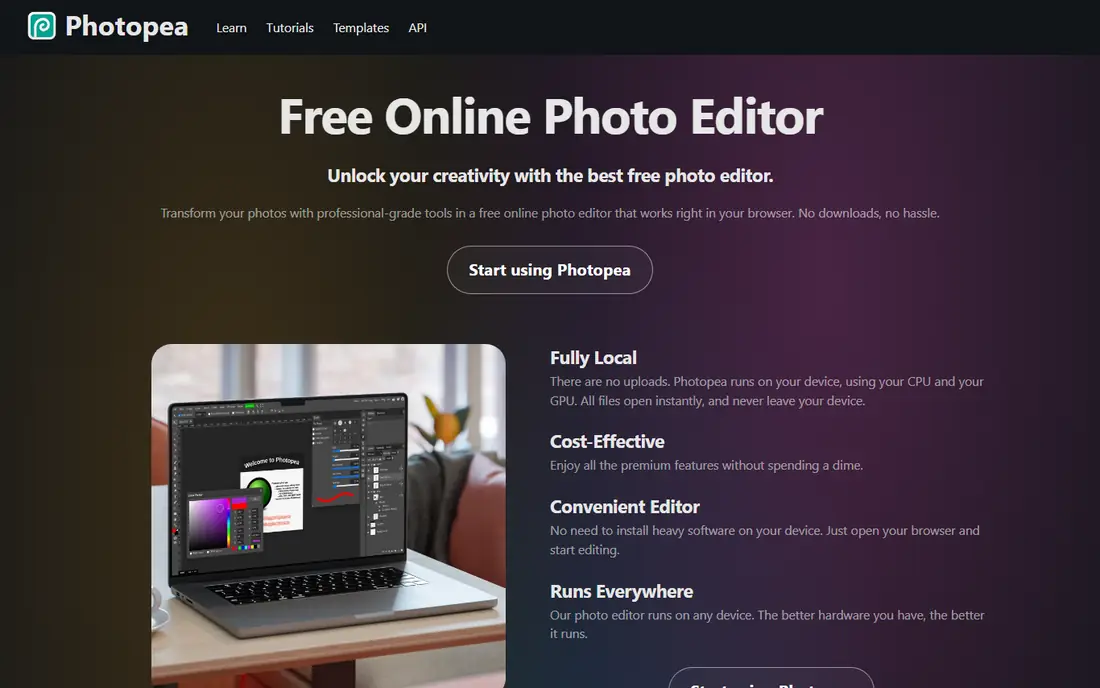
Photopea fits free Photoshop style editing in the browser. Its browser editor handles layered photo work without a paid app. The strengths we noted were layer based photo editing in the browser; psd support; no install needed. For many readers, that mix makes it worth a close look before deciding.
The honest catch is that design beginners may find the learning curve steeper than Canva. Pricing is listed as Free, with a free plan status of Free. Before you commit, try the free tier or trial with your real work, and check the limits that matter for your use. That short test will tell you more than any feature list.
- Layer based photo editing in the browser
- PSD support
- No install needed
- Interface is dense for beginners
- No template library like Canva
Pixlr
Ideal for: quick photo editing and design online
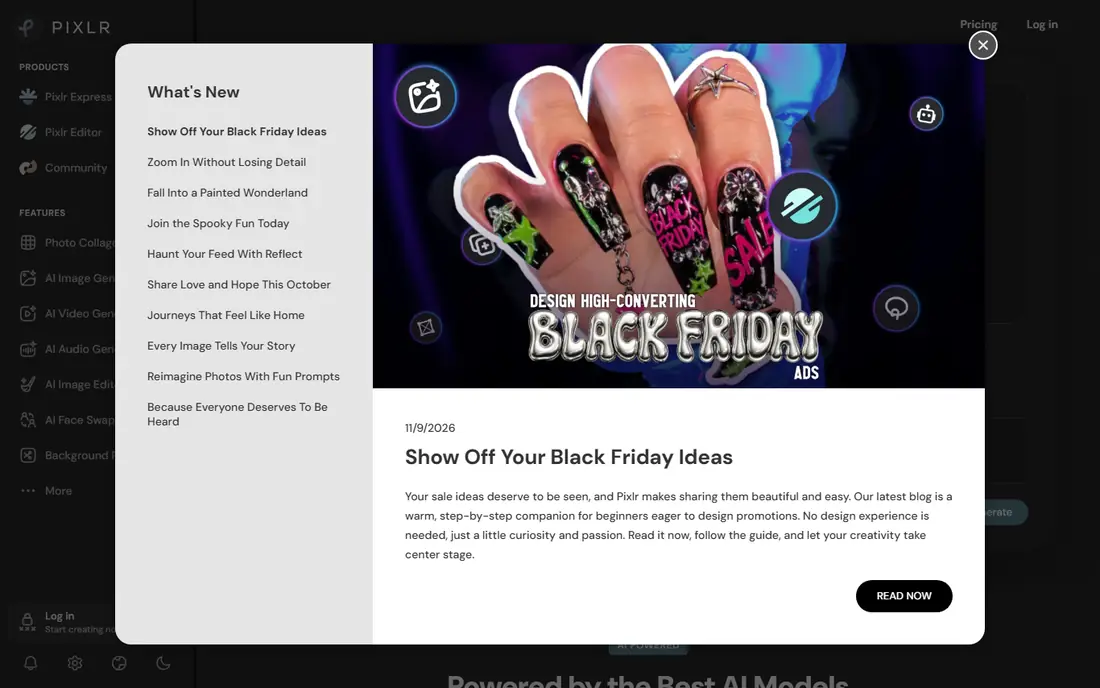
For quick photo editing and design online, Pixlr is a natural first candidate. Its quick browser tools suit photo edits and simple social designs. In practice, that means browser photo editing and design tools; templates; mobile apps. It is not perfect for everyone, but the fit is clear for this use.
On the downside, heavy template users should check what the free tier includes. The starting price is Free, and the free plan status is Free. We suggest testing it with a real task, checking support and export options, and confirming that the plan you need covers your team or household size.
- Browser photo editing and design tools
- Templates
- Mobile apps
- Free tier includes ads and limits
- Advanced features need a paid plan
Figma
Ideal for: collaborative design for teams
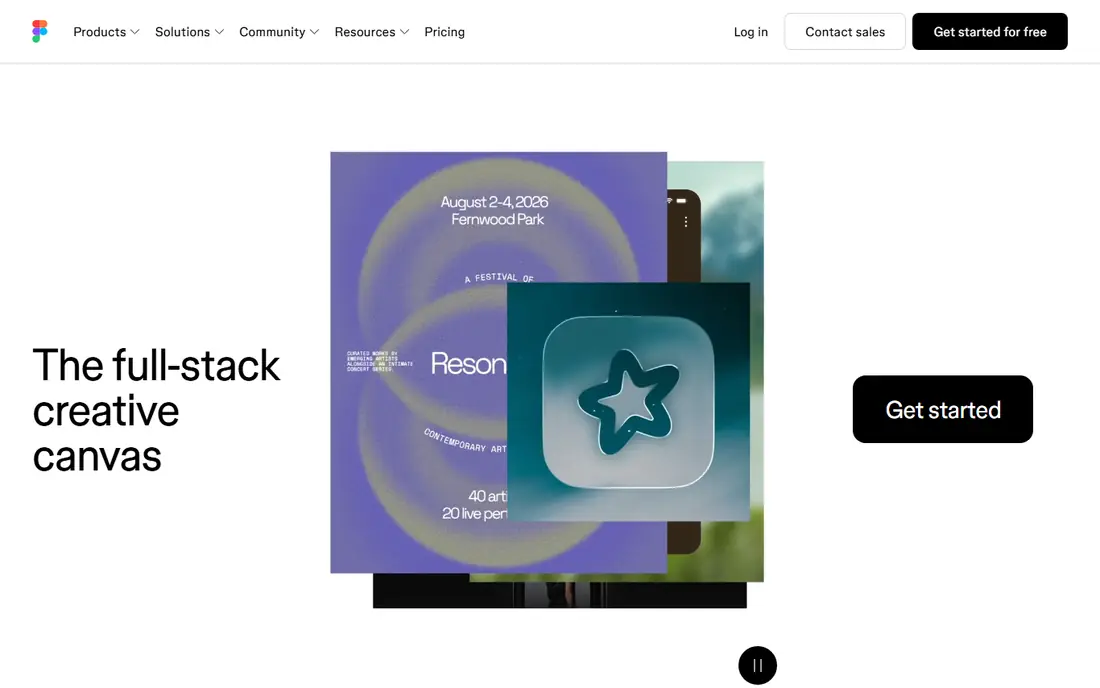
Figma is aimed at collaborative design for teams, and the fit shows in daily use. Its collaborative design tools suit teams building interfaces and brand systems. Readers who value collaborative design with components; strong free starter tier; plugins will see the appeal quickly.
The trade off is that users wanting simple social templates may find it more technical than Canva. Starting price is Free, with free plan status Free. A trial with your own data is the best next step, since it reveals setup time, limits and everyday friction that a sales page hides.
- Collaborative design with components
- Strong free starter tier
- Plugins
- It is design focused, so print and photo editing are limited
- Learning curve for beginners
Adobe Express
Ideal for: Adobe templates for social designs
If you need a tool for Adobe templates for social designs, start with Adobe Express. Its templates and Adobe links suit social designers who want Adobe quality. The result is a product that covers templates for social posts and video; adobe stock links; brand tools without forcing a complex setup.
Keep in mind that free users should check which assets and exports are included. It lists a starting price of Free and a free plan status of Free. Compare the total cost for your real use, including any add ons, before you settle on it.
- Templates for social posts and video
- Adobe stock links
- Brand tools
- Free tier limits premium assets and features
- Full value needs a paid plan
Snappa
Ideal for: fast social graphics from templates
Snappa fits fast social graphics from templates. Its fast template workflow suits small businesses making social graphics weekly. The strengths we noted were social templates with stock photos; simple editor; fast exports. For many readers, that mix makes it worth a close look before deciding.
The honest catch is that high volume designers will hit free download limits. Pricing is listed as Free, with a free plan status of Free. Before you commit, try the free tier or trial with your real work, and check the limits that matter for your use. That short test will tell you more than any feature list.
- Social templates with stock photos
- Simple editor
- Fast exports
- Free plan limits downloads per month
- Template range is smaller than Canva
VistaCreate
Ideal for: animated and static social templates
For animated and static social templates, VistaCreate is a natural first candidate. Its template library covers static and animated social designs well. In practice, that means large template library; animated designs; brand kit on paid plans. It is not perfect for everyone, but the fit is clear for this use.
On the downside, brand heavy teams should check brand kit availability on the free tier. The starting price is Free, and the free plan status is Free. We suggest testing it with a real task, checking support and export options, and confirming that the plan you need covers your team or household size.
- Large template library
- Animated designs
- Brand kit on paid plans
- Free tier limits premium assets
- Brand tools need a paid plan
Desygner
Ideal for: business templates for documents and social
Desygner is aimed at business templates for documents and social, and the fit shows in daily use. Its business templates cover more than social posts, including documents. Readers who value templates for social, documents and print; brand tools; mobile apps will see the appeal quickly.
The trade off is that users who only need social posts may find the range broader than needed. Starting price is Free, with free plan status Free. A trial with your own data is the best next step, since it reveals setup time, limits and everyday friction that a sales page hides.
- Templates for social, documents and print
- Brand tools
- Mobile apps
- Free tier limits assets
- Interface takes time to learn
Kittl
Ideal for: vintage and text based design
If you need a tool for vintage and text based design, start with Kittl. Its text and vintage tools suit merch and poster designers. The result is a product that covers text effects and vintage design tools; templates; browser editing without forcing a complex setup.
Keep in mind that general business template users may prefer VistaCreate or Adobe Express. It lists a starting price of Free and a free plan status of Free. Compare the total cost for your real use, including any add ons, before you settle on it.
- Text effects and vintage design tools
- Templates
- Browser editing
- Free tier limits projects and assets
- Style suits vintage and merch design
How we picked these
We compared official feature pages, pricing pages, app store listings, privacy policies and public reviews. We checked that each product exists and works today, that it truly fits the topic, and that its official homepage loads. We favoured products with clear pricing or a clear free tier, honest limits, and a distinct use case, rather than listing near duplicates.
We did not claim hands on testing that did not happen. Where pricing was quoted rather than listed, we wrote See website rather than guessing a number. Where a product had a known limit, such as a watermark on a free plan or a state limit on cover, we stated it plainly so readers can judge the trade off. Readers should also check the current plan details on the vendor site before buying, since prices and free tiers change over time.
How to choose a free Canva alternative
Start with the design job. Social posts, presentations, print and photo editing need different tools. A template tool suits social posts, while a layer editor suits photo work. Picking one tool for every job often leads to compromise.
Next, check free limits that matter. Download counts, premium assets, brand kits and export sizes decide whether a free plan works for real use. Make a full export early, including the sizes you actually publish.
Finally, test collaboration and brand control. If a team shares designs, check sharing, comments and brand colours. A tool that looks good alone may frustrate a team that needs shared assets.
Frequently asked questions
What is the best free Canva alternative?
Adobe Express and VistaCreate are closest for templates, while Photopea suits photo editing. The best pick depends on whether you need templates, editing or collaboration.
Is Photopea really free?
Yes, Photopea offers free browser editing with ads. It handles layered files and PSD support without a subscription, though the interface is dense for beginners.
Can I use these tools for business designs?
Yes, but check free plan terms for commercial use, downloads and brand assets. Paid plans usually add brand kits and wider commercial rights.
Which alternative is best for social media?
Adobe Express, VistaCreate and Snappa suit social templates and sizes. Check download limits and animated export options for your posting volume.
Do free alternatives include stock photos?
Many do, including Snappa, VistaCreate and Adobe Express, but free asset ranges vary. Confirm that the images you use are cleared for your intended use.