Best Clockwise Alternatives in 2026: 8 Smart Calendar Tools Compared

- Reclaim AI and Motion suit users who want AI scheduling that protects focus time automatically.
- Calendly and Doodle suit teams that want simple, reliable meeting scheduling links.
- Vimcal and Fantastical suit users who want fast, beautiful calendar apps with smart features.
- Google Calendar and Microsoft Outlook suit teams that want scheduling built into their existing suites.
Quick comparison
| Product | Ideal for | Price from | Free version | |
|---|---|---|---|---|
 Reclaim AI | AI focus time protection | See website | See website | Visit |
 Motion | AI auto-scheduling | See website | See website | Visit |
 Calendly | Simple scheduling links | See website | See website | Visit |
 Doodle | Group meeting polls | See website | See website | Visit |
 Vimcal | Fast keyboard calendar | See website | See website | Visit |
 Fantastical | Beautiful Apple calendar | See website | See website | Visit |
 Google Calendar | Built-in Google scheduling | See website | Yes | Visit |
 Microsoft Outlook | Built-in Microsoft scheduling | See website | See website | Visit |
The best Clockwise alternatives
Clockwise is a smart calendar tool that optimizes meeting times and protects focus time for teams. The tools below cover similar ground, and they differ in approach: some use AI to schedule your day automatically, some offer simple scheduling links, and some are calendar apps with smart features. The right pick depends on whether you want automation, simplicity, or a better calendar app.
Reclaim AI
Ideal for: AI focus time protection
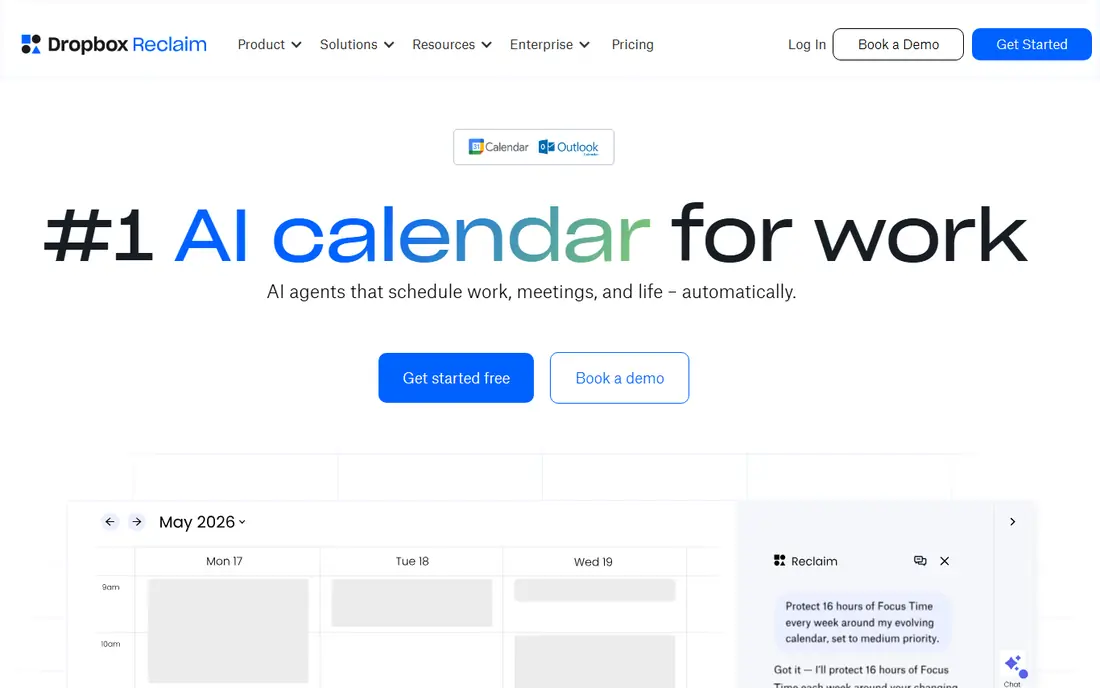
Reclaim AI automatically schedules focus time, tasks, habits, and breaks around your meetings, defending your calendar against fragmentation. It integrates with Google Calendar and learns your working hours, priorities, and meeting patterns to place work blocks where they fit best. Team features help managers see capacity and protect team focus time.
Team features need higher plans, and the AI suggestions need review before they change shared calendars. For users who want their calendar to protect focus time on its own, Reclaim AI is our pick.
- Strong focus time protection
- Smart task scheduling
- Good Google Calendar and Outlook integration
- Team features need higher plans
- AI changes need review
Motion
Ideal for: AI auto-scheduling
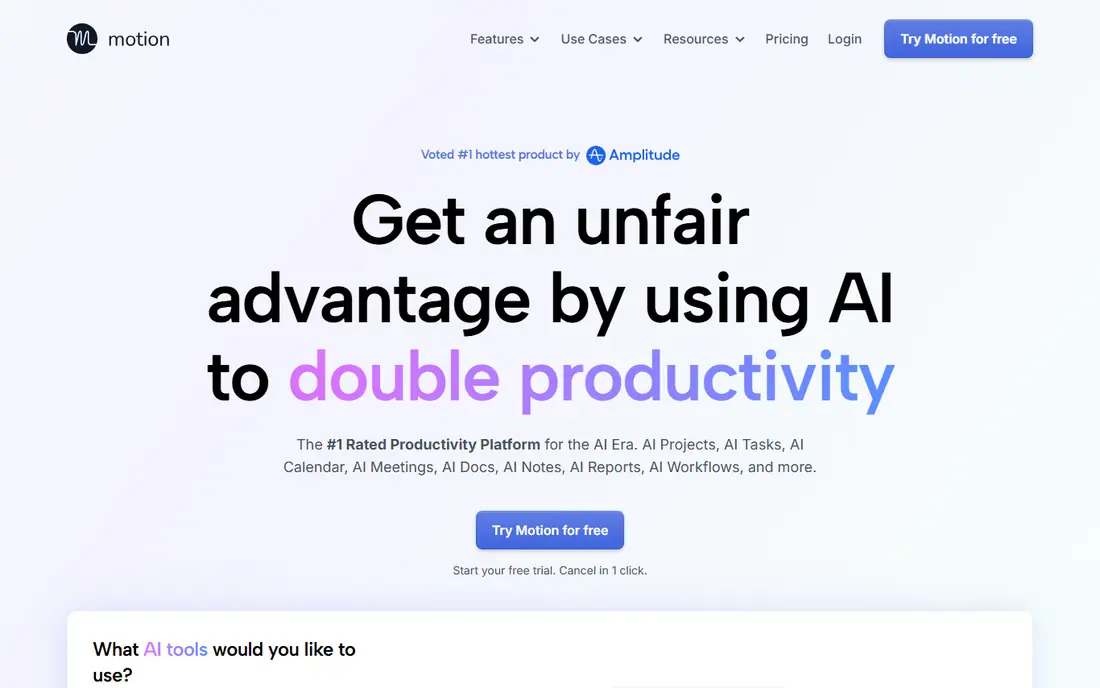
Motion uses AI to auto-schedule tasks, meetings, and projects into your calendar, re-planning your day when priorities change or meetings shift. Project management features sit alongside scheduling, so tasks and deadlines flow into the calendar automatically. The approach suits busy professionals who juggle many tasks and meetings.
Pricing is steep for individuals, and the learning curve is real. For users who want full auto-scheduling plus project management, Motion is a strong choice.
- AI schedules tasks and meetings
- Project management included
- Good automation
- Pricey for individuals
- Learning curve
Calendly
Ideal for: Simple scheduling links
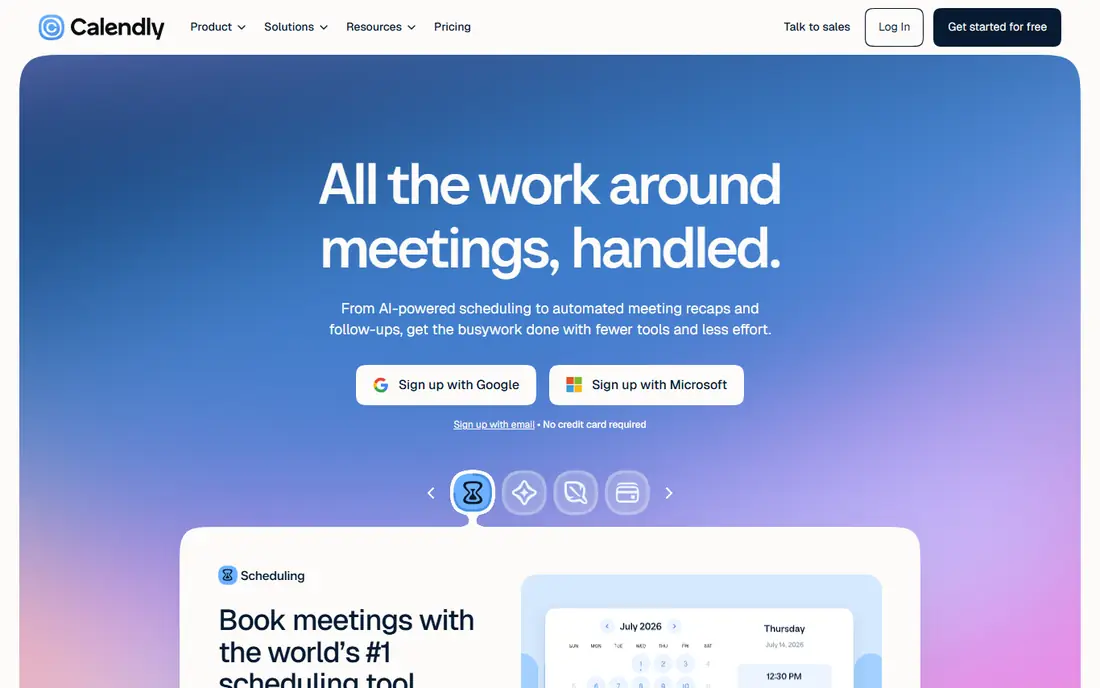
Calendly is the standard scheduling link tool, letting others book meetings with you based on your availability, with calendar sync, reminders, and integrations across tools. It suits sales, recruiting, and customer-facing teams that schedule many external meetings. Setup takes minutes, and the free tier covers basic scheduling.
It offers no AI focus time protection like Clockwise, and team features need higher plans. For simple, reliable meeting scheduling, Calendly is a practical pick.
- Easy scheduling links
- Wide integrations
- Reliable and widely used
- No AI focus time features
- Team features need higher plans
Doodle
Ideal for: Group meeting polls
Doodle makes group scheduling easy with polls that let participants vote on times, plus booking pages for one-to-one meetings. It suits teams and groups that schedule across organizations without shared calendars. The interface is simple, and polls resolve the back-and-forth of finding a time that works for everyone.
Automation features are fewer than Reclaim or Motion, and the interface is basic. For group polls and simple scheduling, Doodle is good value.
- Easy group polls
- Simple booking pages
- Good for external groups
- Fewer automation features
- Interface is basic
Vimcal
Ideal for: Fast keyboard calendar
Vimcal is a fast calendar app built around keyboard shortcuts, letting users navigate, create, and reschedule events without touching the mouse. Time zone support is strong for distributed teams, and the design is clean. The app suits power users who live in their calendar and want speed above all.
It now works on top of Google Calendar and Outlook, though the feature set is smaller than full suites. For keyboard-driven calendar users, Vimcal is a fun and fast pick.
- Very fast with keyboard shortcuts
- Good time zone support
- Clean design
- Smaller feature set than suites
- Premium pricing
Fantastical
Ideal for: Beautiful Apple calendar
Fantastical is a beautifully designed calendar app for Apple devices, with natural language event entry, interesting calendar views, and deep integration with Apple Calendar and Reminders. Scheduling features include proposals and booking links, and the interface is polished. The app suits Apple users who want a calendar that feels great to use.
Android phone support is coming in 2027, so Android users must wait, and pricing is subscription-based. For Apple users who want the best calendar app experience, Fantastical is a strong choice.
- Beautiful design
- Natural language event entry
- Strong Apple integration
- Android phones coming in 2027
- Subscription pricing
Google Calendar
Ideal for: Built-in Google scheduling
Google Calendar is free with every Google account and offers strong sharing, scheduling, and integration with Gmail, Meet, and the wider Google Workspace suite. Focus time and out-of-office features cover basic protection, and the app works everywhere. For teams already on Google Workspace, it is the default calendar.
It offers no AI focus time optimization like Clockwise or Reclaim, and task features are basic. For teams that want a solid free calendar built into their suite, Google Calendar is the obvious pick.
- Free with Google accounts
- Strong sharing and scheduling
- Wide integrations
- No AI focus time optimization
- Basic task features
Microsoft Outlook
Ideal for: Built-in Microsoft scheduling
Microsoft Outlook combines email and calendar with a scheduling assistant that finds meeting times across attendees, plus focus time features through Viva Insights for Microsoft 365 users. Integration with Teams, OneDrive, and Office apps suits enterprise teams. The calendar handles complex scheduling, rooms, and resources well.
The interface feels heavy to some users, and the tool shines most inside Microsoft 365. For Microsoft-centered teams, Outlook is the natural choice.
- Deep Microsoft 365 integration
- Strong scheduling assistant
- Enterprise features
- Interface feels heavy
- Best inside Microsoft 365
How we picked these
We compared official feature pages, pricing, scheduling features, and public reviews for each tool, and we checked that each product is actively offered in October 2026. We favored tools with real scheduling intelligence or strong calendar features, not simple to-do apps, and we kept a mix of AI schedulers, link tools, calendar apps, and suite calendars. We left out tools with no working signup or trial and tools that have shut down.
How to choose a smart calendar tool
Calendar tools fail when they add friction instead of removing it, so test with your real schedule.
Decide how much automation you want
AI schedulers like Reclaim and Motion take control of your day, which suits people with fragmented calendars but frustrates those who prefer manual control. Link tools like Calendly suit external scheduling without changing your calendar habits. Choose the automation level you will actually trust, since a tool you override constantly is worse than none.
Check calendar compatibility first
Some tools work only with Google Calendar, others only inside Microsoft 365, and a few support both. Confirm compatibility with your primary calendar before trialing, since a tool that cannot write to your calendar is useless. Test two-way sync, time zone handling, and recurring event behavior during the trial.
Protect focus time deliberately
Focus time features only work if you define what focus means for your role, from deep work blocks to no-meeting days. Set working hours, meeting limits, and focus goals explicitly, and review them monthly. A calendar tool that protects focus time is only as good as the boundaries you set in it.
Meeting load limits are worth setting explicitly, since even the best scheduler cannot fix a calendar packed with back-to-back meetings. Decide how many hours of meetings per day your team can sustain, and use your tool to enforce caps, buffer times between meetings, and no-meeting blocks. Review meeting load monthly with your team, and cancel recurring meetings that no longer earn their slot. A scheduling tool amplifies good habits, but it cannot create them on its own.
Time zone handling deserves a trial check for distributed teams, since poorly handled zones cause missed meetings and confusion. Test how each tool displays overlapping working hours, handles daylight saving changes, and shows times to external guests in their own zones. A tool that gets zones right saves hours of coordination and prevents the awkward 3 a.m. meeting invite that damages trust with remote colleagues.
Calendar hygiene rounds out the picture, since a scheduling tool cannot help if your calendar is full of stale events and unclear titles. Audit recurring meetings quarterly, use clear titles and descriptions, and keep personal and work calendars in sync where your tool supports it. A clean calendar makes every scheduling feature work better, from focus time protection to accurate availability links.
Frequently asked questions
What is Clockwise?
Clockwise is a smart calendar tool that optimizes meeting times and protects focus time for teams. The tools here offer similar scheduling intelligence, simple scheduling links, or strong calendar apps, depending on what you need most.
Which Clockwise alternative is best for focus time?
Reclaim AI suits focus time best, since it automatically schedules and defends focus blocks around meetings. Motion also protects focus time through auto-scheduling, while Google Calendar and Outlook offer basic focus features.
Which alternative is best for scheduling external meetings?
Calendly and Doodle suit external meetings best, since scheduling links and polls let others book without back-and-forth emails. Both work across organizations without shared calendars.
Which alternative works with Microsoft 365?
Microsoft Outlook works natively with Microsoft 365, while Motion, Calendly, Reclaim AI, and Vimcal also integrate with Outlook calendars. Check compatibility with your specific calendar setup before committing.
Can these tools replace my calendar app?
Some can, such as Fantastical and Vimcal, which are full calendar apps, while others like Reclaim, Motion, and Calendly layer on top of Google Calendar or Outlook. Choose based on whether you want a new app or a smarter layer over your existing calendar.