Free Alternatives to Adobe Photoshop in 2026: 8 Apps Compared

- Photopea is the closest free, browser-based match for Photoshop workflows, including PSD files, layers, and masks.
- GIMP suits desktop users who want a full, free, open source editor with plugins and deep control.
- Affinity Photo is the best paid-value alternative, with a one-time style purchase model rather than a subscription, though its homepage renders lightly in our text fetch.
- Pixlr, Canva, and Polarr cover quick edits and social content, while Krita leads for digital painting.
Quick comparison
| Product | Ideal for | Price from | Free version | |
|---|---|---|---|---|
 GIMP | Full free desktop editing | Free | Yes | Visit |
 Photopea | Browser-based Photoshop-style editing | Free | Yes | Visit |
 Affinity Photo | Professional editing without subscription | See website | Free trial | Visit |
 Pixlr | Quick browser edits with AI tools | Free | Yes | Visit |
 Krita | Digital painting and illustration | Free | Yes | Visit |
 Canva | Templates and social design | Free | Yes | Visit |
 Polarr | Filters and mobile photo editing | Free | Yes | Visit |
 Paint.NET | Lightweight Windows editing | Free | Yes | Visit |
The best free alternatives to adobe photoshop
We compared official feature pages, pricing pages, and app listings to find free options that genuinely replace Photoshop for common jobs, not just add a filter to a photo.
GIMP
Ideal for: Full free desktop editing
GIMP is the long-standing free answer to Photoshop, and it remains the most capable no-cost desktop editor. It handles retouching, compositing, and graphic design with layers, masks, and color management, and a large plugin community extends it further. Because it is open source, it stays free with no subscription or lock-in.
The interface will feel unfamiliar if you come from Photoshop, and some workflows take extra clicks. For users who want a full editor on desktop without paying, GIMP is our pick for the deepest free toolkit.
- Free and open source
- Layers, masks, and plugins
- Runs on Windows, Mac, and Linux
- Interface feels dated
- Learning curve for Photoshop converts
Photopea
Ideal for: Browser-based Photoshop-style editing
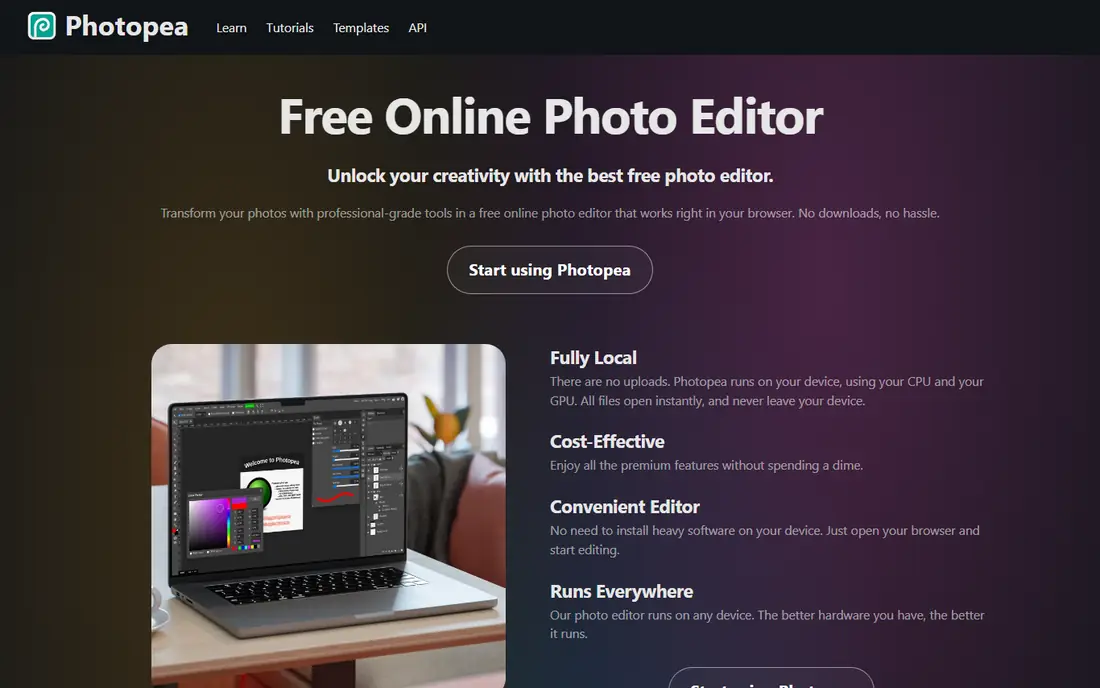
Photopea is the closest free match to Photoshop in the browser. It opens PSD, XCF, Sketch, and many other formats, supports layers, masks, adjustment layers, and smart objects, and your files stay on your device rather than uploading to a server. For Chromebook users or anyone who cannot install software, that combination is hard to beat.
The free version shows ads, and very large files will test a weaker machine. If you want Photoshop-style editing with nothing to install, Photopea is our pick.
- Opens and saves PSD files
- Runs fully in the browser
- Layers, masks, and smart objects
- Ad-supported free tier
- Heavy files need a capable device
Affinity Photo
Ideal for: Professional editing without subscription
Affinity Photo is the professional alternative for users willing to pay once rather than subscribe. It covers RAW development, retouching, compositing, and panorama and HDR work in a polished app that feels familiar to Photoshop users. Canva now owns Affinity, and the apps have moved toward a free-with-optional-subscription model, so check current terms on the site before buying.
It is not a free app, so it sits here as the value pick for users who outgrow free tools. Note that our text fetch of its homepage returned a browser-support notice, so we list it with that caveat rather than claiming a full page read.
- Professional tools for retouching and compositing
- Polished interface
- No subscription model
- Not free beyond trial
- Homepage text fetch showed a browser notice rather than full content
Pixlr
Ideal for: Quick browser edits with AI tools
Pixlr packs a lot into a free browser editor, from classic adjustments to AI tools such as background removal, generative fill, and image generation. It suits quick edits, social posts, and collages where speed matters more than pixel-level control. Paid plans from 1.99 dollars per month remove ads and add AI credits.
Power users will miss the depth of GIMP or Photopea, and the AI-heavy direction may not suit purists. For fast, free, browser-based edits with modern AI help, Pixlr is a strong choice.
- Free browser editing
- AI background removal and generative tools
- Mobile apps
- Free tier has ads and limits
- AI features use credits on paid plans
Krita
Ideal for: Digital painting and illustration
Krita is a free, open source painting program made by artists, and it is the best Photoshop alternative for illustration and digital painting. Brushes, stabilizers, layers, and animation tools give painters a focused workspace, and it stays free forever under its open license. Recent releases continue active development, with updates through 2026.
Photo retouching works, but Krita is not built as a photo editor first. If your work leans toward drawing, comics, or concept art, Krita beats a general editor. For pure photo work, pair it with GIMP or Photopea.
- Free and open source
- Excellent brushes and painting tools
- Animation support
- Photo editing is secondary
- Interface is built for artists first
Canva
Ideal for: Templates and social design
Canva is less a Photoshop replacement and more a design shortcut. Its free plan covers templates for social posts, presentations, and marketing graphics, with simple photo adjustments built in. Teams that need fast, on-brand content will finish work far quicker here than in a full editor.
Serious retouching and compositing are out of scope, so Canva fits alongside an editor rather than replacing one. Our text fetch of its homepage returned a browser-support notice, so we note that limit here while keeping Canva for its well-known template strengths.
- Huge template library
- Easy social and marketing design
- Free plan
- Photo editing depth is limited
- Homepage text fetch showed a browser notice
Polarr
Ideal for: Filters and mobile photo editing
Polarr focuses on making photos look good fast, with filters created by a large creator community plus AI editing tools. Its apps cover mobile, desktop, and web, and Polarr Next adds batch RAW workflows in the browser. That mix suits photographers and social creators who edit many shots at once.
Layer-based compositing is thinner than in GIMP or Photopea, so heavy manipulation work belongs elsewhere. For fast, stylish photo edits with a strong filter library, Polarr is a good free start.
- Strong filters and AI tools
- Mobile and web apps
- Batch RAW editing in Polarr Next
- Less depth for compositing
- Some features sit behind Pro
Paint.NET
Ideal for: Lightweight Windows editing
Paint.NET is a free Windows editor that stays fast and simple while offering layers, unlimited undo, effects, and plugins. It began as a student project and has grown into a capable tool for everyday photo editing and simple graphics. A paid Microsoft Store version supports development, while the classic download remains free.
Windows-only support is the main limit, and advanced users will want GIMP for deeper work. For Windows users who want a quick, free editor that opens fast and stays out of the way, Paint.NET is an easy pick.
- Free
- Fast and light on Windows
- Layers, effects, and plugins
- Windows only
- Less powerful than GIMP for advanced work
How we picked these
We compared official feature pages, pricing pages, and app listings, and we checked that every homepage loads and belongs to the product named. Two homepages, Affinity and Canva, returned browser-support notices in our text fetch rather than full page content, and we note that openly instead of claiming a full read. We did not claim hands-on testing, and we left prices as "See website" where the vendor does not publish a clear starting price.
What to check before you choose
Start with the job, not the brand. Photo retouching, digital painting, social templates, and compositing are different tasks, and the best free tool for one may frustrate on another. GIMP and Photopea cover the widest photo ground, while Krita leads for painting and Canva leads for templates.
Next, check file compatibility. If clients send PSD files, Photopea and Affinity handle them most smoothly, while GIMP opens PSDs with some limits. Test one real client file before committing to a new workflow.
Finally, weigh installation against browser use. Browser tools suit shared or locked-down machines, while desktop apps handle large files better. Most tools here are free, so trying two side by side costs nothing but a little time.
Before you commit to one option, spend a short trial period with your top two choices from this list. Use each one for a real task from your own work or daily routine, not just a demo, and note where you get stuck, what feels slow, and which features you actually open twice. Check the official pricing page again at that point, since free plans and paid tiers change, and confirm that the plan you need covers the users, projects, or devices you will use. Read the privacy and support pages too, especially for tools that hold personal or work data, and confirm how to export your work if you later switch. A tool that fits your routine in a two-week trial is a far better choice than a more powerful option you avoid opening, so let daily use, not a feature list alone, decide your final pick for free alternatives to adobe photoshop.
Frequently asked questions
What is the best free alternative to Adobe Photoshop?
Photopea is the closest free, browser-based match for Photoshop workflows, while GIMP offers the deepest free desktop toolkit. Try Photopea first if you work in a browser, and GIMP if you want a full installed editor.
Is GIMP really free?
Yes, GIMP is free and open source, with no subscription or paid tier for the core editor. Donations support development, but the software itself costs nothing.
Can free tools open Photoshop PSD files?
Photopea opens and saves PSD files with strong compatibility, and GIMP and Affinity Photo open PSDs with varying fidelity. Complex smart objects and effects may not transfer perfectly, so test important files.
Do I need Photoshop for professional work?
Not always. Many photographers, illustrators, and designers work entirely in GIMP, Affinity Photo, Krita, or Photopea. Photoshop still leads for some plugin ecosystems and team workflows, so check your clients' requirements.
Which free Photoshop alternative is best on mobile?
Polarr and Pixlr offer strong mobile editing, while Canva covers mobile design templates. For full layer editing on a phone or tablet, expect compromises compared with desktop tools.
How do I pick between the free and paid plans in this list?
Start with the free plan or trial for any free alternatives to adobe photoshop option that offers one, and use it for at least two weeks on real tasks. Upgrade only when you hit a clear limit, such as a missing feature, a user cap, or a storage limit, rather than paying on day one for features you may never use. Compare the paid tier against the next option in this list as well, since a different tool's free plan may already cover what the first tool charges for.