Free Alternatives To Zoom in 2026: 7 Options Compared

- 1
 Google MeetAnyone with a Google account who wants free video callsVisit
- 2
 Microsoft TeamsTeams already using Microsoft 365Visit
- 3
 Jitsi MeetAnyone who wants free calls with no accountVisit
- 4
 WebexBusinesses that want a polished free meeting tierVisit
- 5
 GoTo MeetingBusinesses that want simple reliable meetingsVisit
- Our pick for most people is Google Meet, thanks to its balance of features, price and ease of use.
- If you want to start free, look at Microsoft Teams, which all offer a free plan or tier.
- Prices vary widely, so check the official pricing page for Microsoft Teams and Jitsi Meet before you commit, since plans change.
- The honest catch matters: every option here has a weakness, and the right choice depends on which weakness you can live with.
Quick comparison
| Product | Ideal for | Price from | Free version | |
|---|---|---|---|---|
| Google Meet | Anyone with a Google account who wants free video calls | Free | Yes | Visit |
| Microsoft Teams | Teams already using Microsoft 365 | Free | Yes | Visit |
| Jitsi Meet | Anyone who wants free calls with no account | Free | Yes | Visit |
| Webex | Businesses that want a polished free meeting tier | See website | Yes | Visit |
| GoTo Meeting | Businesses that want simple reliable meetings | See website | Free trial | Visit |
 Whereby | Small teams that want browser meetings with rooms | See website | Yes | Visit |
 Zoho Meeting | Zoho users who want meetings plus webinars | See website | Yes | Visit |
The best free Zoom alternatives
Choosing among free alternatives to zoom is easier when you compare them side by side. We reviewed official feature pages, pricing, app store listings, privacy policies and public reviews to build this list, and we kept only options that exist and work in October 2026.
Google Meet
Ideal for: Anyone with a Google account who wants free video calls
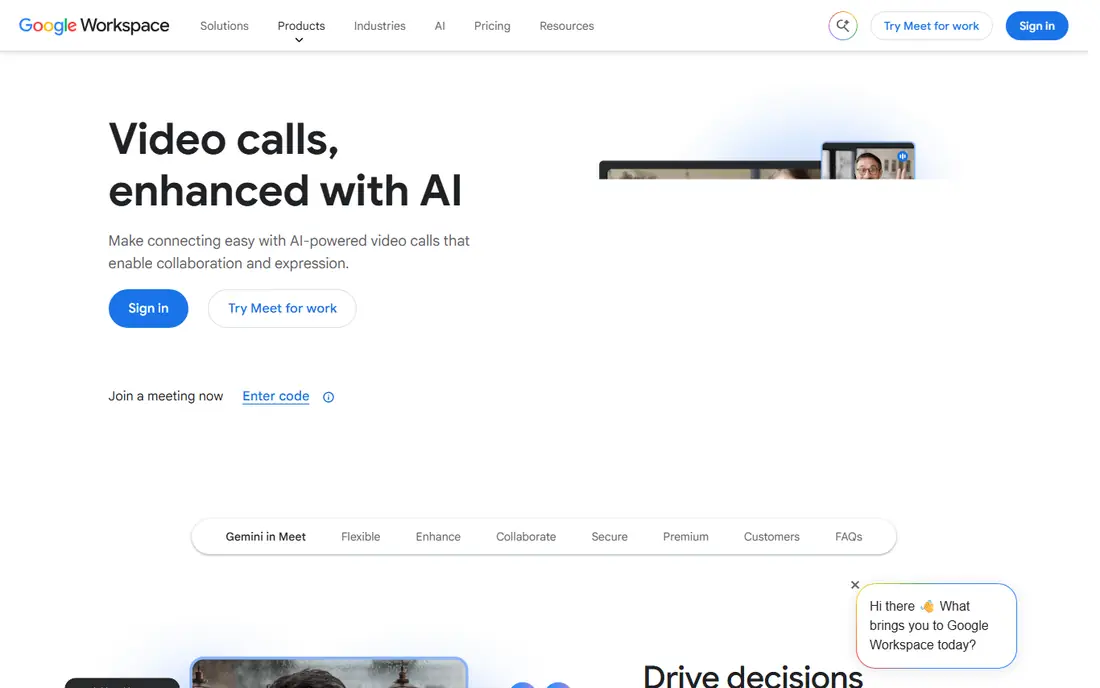
Google Meet is the easiest free Zoom alternative for anyone with a Google account. Calls run in a browser with no install needed, and captions and screen sharing cover the basics well. Free group meetings have time limits, so check the current limit if your calls run long. On pricing, the starting point is listed as free, and the free plan status is yes. Check the official site for the current plan details, since prices and limits change over time. Before you commit, use the free plan or trial to test it with your real work for a week. Pay attention to how it feels on day three, not just day one, since small frictions grow over time. If it still feels awkward after that week, try another option on this list rather than forcing a fit.
- Free video calls with a Google account
- Browser based
- Captions and screen sharing
- Free meetings have time limits for group calls
- Features vary by plan
Microsoft Teams
Ideal for: Teams already using Microsoft 365
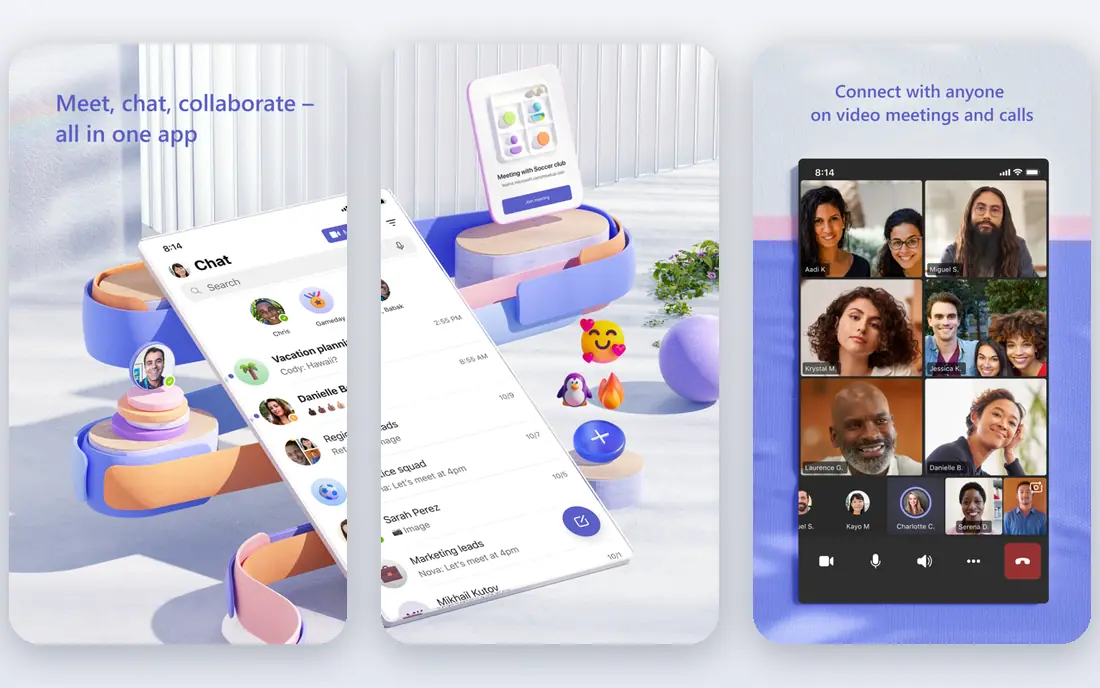
Microsoft Teams suits workplaces already running on Microsoft 365. Meetings, chat and files sit together, which helps teams that already live in Outlook and OneDrive. Full features need a paid plan, and the app can feel heavy on older machines. On pricing, the starting point is listed as free, and the free plan status is yes. Check the official site for the current plan details, since prices and limits change over time. A short trial tells you more than any feature list. Set up the tasks you actually do each week, invite the people who will use it with you, and see where it helps and where it gets in the way. The best choice is usually the one your team or household keeps using without reminders.
- Free tier for meetings and chat
- Strong Microsoft integration
- Screen sharing and recording options
- Full features need a paid plan
- Interface can feel heavy
Jitsi Meet
Ideal for: Anyone who wants free calls with no account
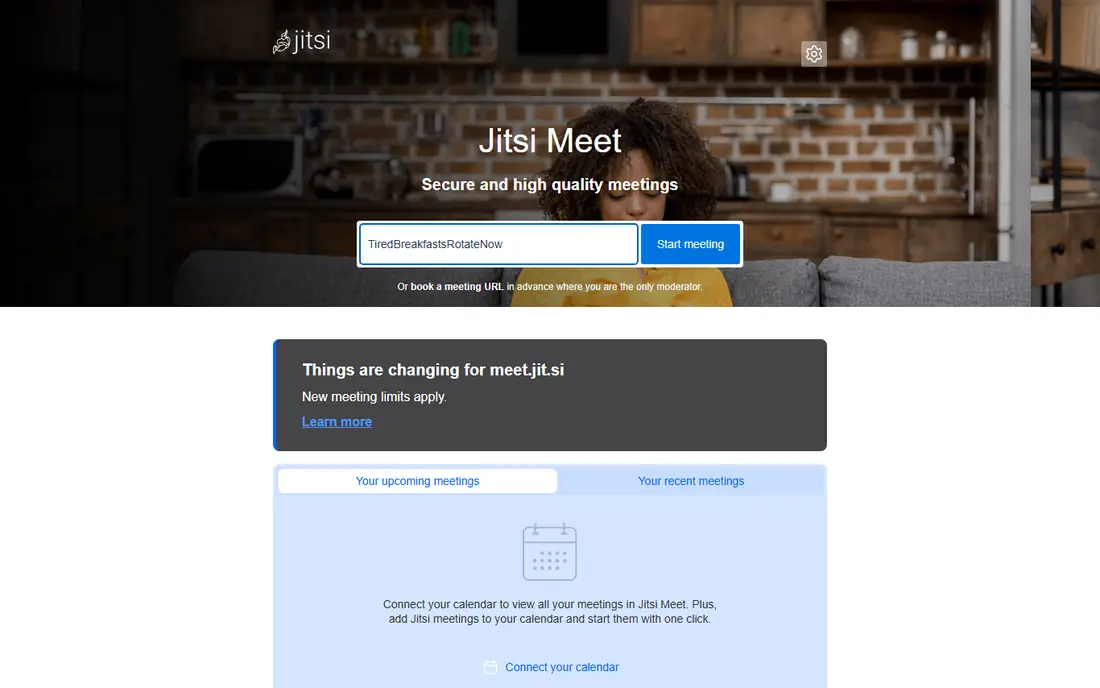
Jitsi Meet is the pick for a quick free call with no account and no install. Share a link and anyone can join from a browser, which makes it ideal for one off meetings. It lacks built in scheduling and large meeting management, so it suits smaller calls best. On pricing, the starting point is listed as free, and the free plan status is yes. Check the official site for the current plan details, since prices and limits change over time. Price alone should not decide this. A cheaper option that nobody uses costs more in wasted time than a pricier one that fits your routine. Compare the plan you would actually buy, check what is excluded, and read the cancellation terms before you pay.
- No account needed for basic calls
- Open source
- Browser based
- No built in scheduling or large meeting management
- Performance varies
Webex
Ideal for: Businesses that want a polished free meeting tier
Webex suits businesses that want a polished meeting tool with a usable free tier. Video quality is good, and the free tier covers standard meetings. Meeting length and features are limited on the free tier, so heavy users will need a paid plan. On pricing, the starting point is listed as see website, and the free plan status is yes. Check the official site for the current plan details, since prices and limits change over time. Before you commit, use the free plan or trial to test it with your real work for a week. Pay attention to how it feels on day three, not just day one, since small frictions grow over time. If it still feels awkward after that week, try another option on this list rather than forcing a fit.
- Free tier for meetings
- Good video quality
- Business features
- Free tier limits meeting length and features
- Full platform is paid
GoTo Meeting
Ideal for: Businesses that want simple reliable meetings
GoTo Meeting fits businesses that want simple, reliable meetings without extra clutter. Setup is quick, and screen sharing and mobile apps cover the core needs. There is no permanent free tier, so it is a trial first option rather than a free replacement. On pricing, the starting point is listed as see website, and the free plan status is free trial. Check the official site for the current plan details, since prices and limits change over time. A short trial tells you more than any feature list. Set up the tasks you actually do each week, invite the people who will use it with you, and see where it helps and where it gets in the way. The best choice is usually the one your team or household keeps using without reminders.
- Simple meeting setup
- Screen sharing
- Mobile apps
- No permanent free tier
- Pricing per organiser
Whereby
Ideal for: Small teams that want browser meetings with rooms
Whereby suits small teams that want a meeting room link they can reuse. Rooms run in a browser, and the free tier covers small meetings well. Participant and room limits apply on the free tier, so larger teams will need a paid plan. On pricing, the starting point is listed as see website, and the free plan status is yes. Check the official site for the current plan details, since prices and limits change over time. Price alone should not decide this. A cheaper option that nobody uses costs more in wasted time than a pricier one that fits your routine. Compare the plan you would actually buy, check what is excluded, and read the cancellation terms before you pay.
- Browser based rooms
- Free tier for small meetings
- Easy links
- Free tier limits participants and rooms
- Fewer enterprise features
Zoho Meeting
Ideal for: Zoho users who want meetings plus webinars
Zoho Meeting fits businesses already using Zoho apps. Meetings and webinars sit alongside CRM and other Zoho tools. The free tier limits participants, and it works best inside the Zoho ecosystem. On pricing, the starting point is listed as see website, and the free plan status is yes. Check the official site for the current plan details, since prices and limits change over time. Before you commit, use the free plan or trial to test it with your real work for a week. Pay attention to how it feels on day three, not just day one, since small frictions grow over time. If it still feels awkward after that week, try another option on this list rather than forcing a fit.
- Free tier for meetings
- Webinar options
- Zoho integration
- Free tier limits participants
- Best inside Zoho
How we picked these
We compared official feature pages, pricing pages, app store listings, privacy policies and public reviews for each option, and we kept only products that exist and work in October 2026 and truly fit the topic. We favoured options with clear pricing, honest limits and a track record, and we mixed well known leaders with smaller options that do a specific job well. We did not claim hands on testing we did not do, and where a price could not be verified we wrote See website rather than guessing.
What to check before you choose
Start with the job you need done, not the feature list. Write down the three things you will do with free alternatives to zoom every week, then check each shortlisted option against those three things. An option that covers your three tasks well beats a longer feature list that misses one of them. Next, check the total cost, not just the headline price. Look at per user fees, limits on the free plan, and what happens when you outgrow a tier. Also check how easy it is to leave: data export, contract length and cancellation terms matter when a tool stops fitting your needs. - Test with real work during any free plan or trial, not just a demo. - Read the privacy policy, especially for tools that hold personal or financial data. - Ask who will actually use it daily, and whether they find it easy. - Compare two finalists side by side before you pay for a year upfront.
Frequently asked questions
What is the best free alternatives to zoom for beginners?
For beginners, Google Meet is a good starting point because it is easy to learn and covers the core job well. Microsoft Teams is another friendly option if you want something simpler. Start with a free plan or trial, and only pay once you know you will use it regularly.
Is there a free free alternatives to zoom?
Yes, in many cases. Google Meet offer a free plan or tier, though limits apply. Check the current limits on the official site, since free plans change, and compare them with how much you plan to use the tool.
How much does free alternatives to zoom cost?
Costs vary a lot across this list, from free plans to custom enterprise pricing. We list the starting price for each option above, and where we could not verify a price we wrote See website. Always check the official pricing page for the plan you would actually buy.
How is zoom alternatives free different from free alternatives to zoom?
They overlap, but each option on this list leans toward a different kind of user. Compare the best_for line for each product above, test your top two with real work, and pick the one that fits your daily routine rather than the one with the longest feature list.
Can I switch later if I pick the wrong free alternatives to zoom?
In most cases, yes, but switching takes effort, especially if your data lives in the first tool. Before you commit, check export options and contract terms. Starting with a free plan or a monthly plan, rather than a yearly one, keeps switching easier.