Best Microsoft To Do Alternatives in 2026: 7 Task Apps Compared

- Todoist and TickTick suit most users with cross-platform lists, reminders, and natural language input.
- Any.do suits users who want a simple, calendar-friendly task app.
- Things 3 suits Apple users who want a polished, one-time purchase app.
- Google Tasks suits Google Workspace users who want a free, simple list.
- Asana and Notion suit teams that need tasks inside larger project workflows.
Quick comparison
| Product | Ideal for | Price from | Free version | |
|---|---|---|---|---|
 Todoist | Cross-platform task lists | See website | Yes | Visit |
 TickTick | Tasks with habit tracking | See website | Yes | Visit |
 Any.do | Simple calendar tasks | See website | Yes | Visit |
 Things 3 | Apple task management | See website | No | Visit |
 Google Tasks | Free Google lists | Free | Yes | Visit |
 Asana | Team task projects | See website | Yes | Visit |
 Notion | Tasks inside docs and wikis | See website | Yes | Visit |
The best Microsoft To Do alternatives
Microsoft To Do offers simple lists, reminders, and My Day planning inside Microsoft 365. The apps below cover similar ground, from personal task managers to team project tools. We compared official feature pages, pricing pages, and app store listings.
Todoist
Ideal for: Cross-platform task lists
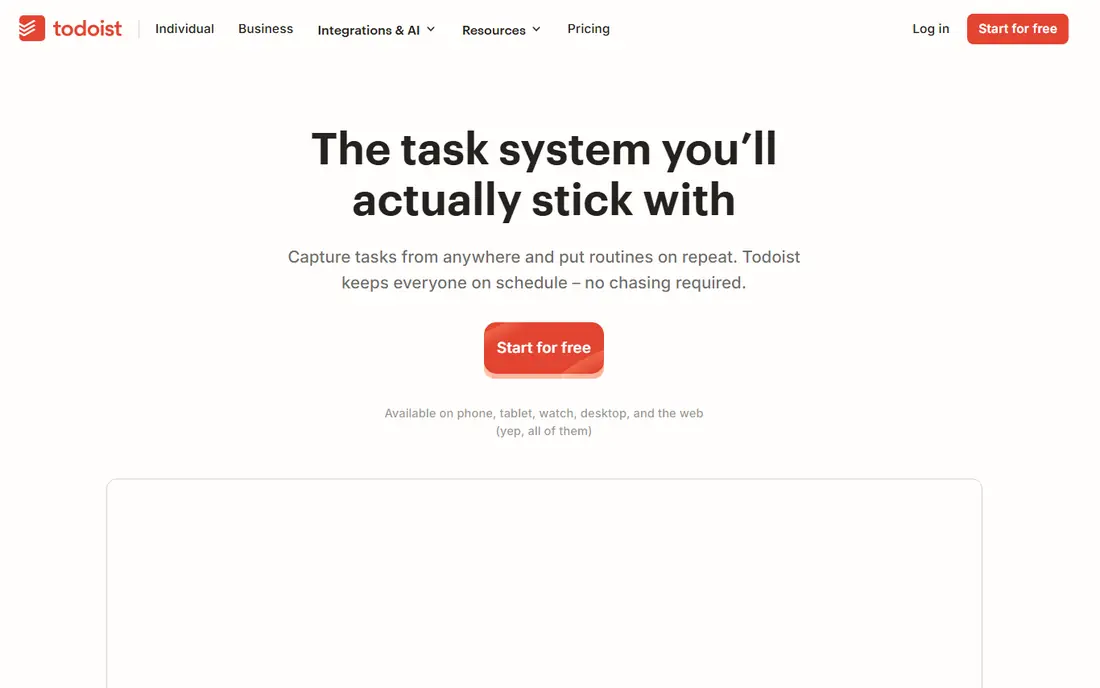
Todoist is the most popular task app on this list for good reason: it is fast, cross-platform, and flexible. Natural language input turns "buy milk tomorrow at 9am" into a scheduled task, and projects, labels, and filters organize work without complexity. Karma streaks gamify consistency for users who like motivation.
Paid features such as reminders and advanced filters sit behind a subscription, but the free tier covers basic lists well. For most users moving from Microsoft To Do, Todoist is our pick for speed and breadth. Its apps cover phone, desktop, web, and watch.
- Fast task capture with natural language dates
- Projects, labels, and filters
- Works on nearly every platform
- Advanced reminders and filters need a paid plan
- No built-in calendar view on free tier
TickTick
Ideal for: Tasks with habit tracking
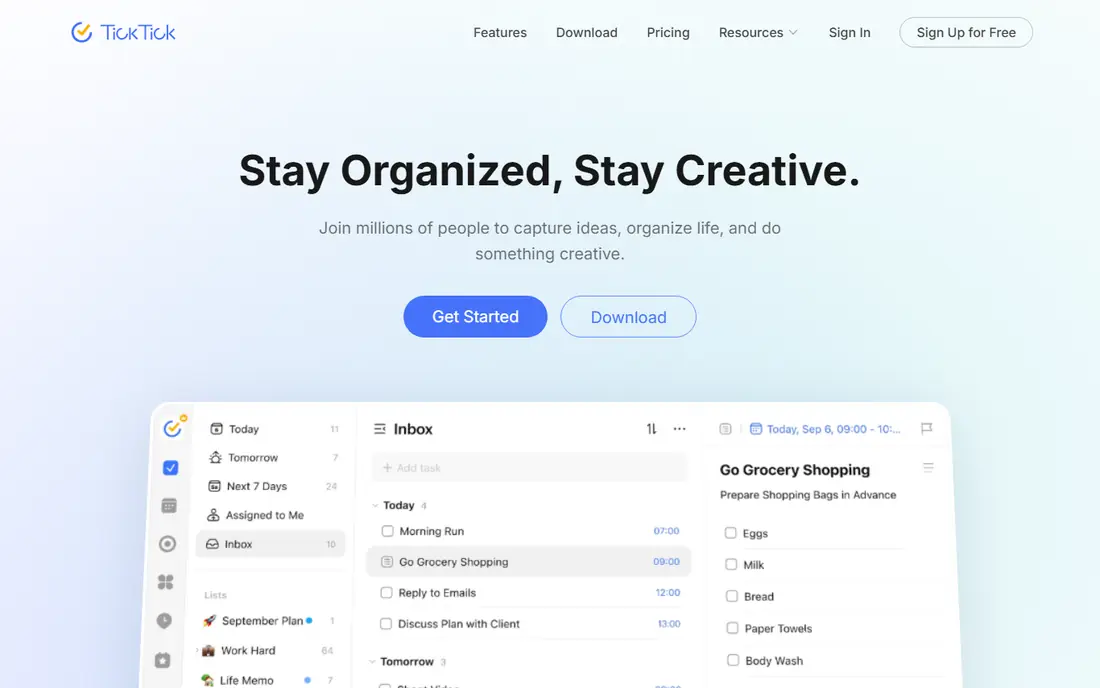
TickTick combines task lists with a calendar, habit tracker, and Pomodoro focus timer, which suits users who want one productivity hub. Natural language input, smart lists, and collaboration features cover personal and shared tasks. Its free tier is generous for basic use.
The breadth can feel busy, and habit and task features overlap for some users. For a user who wants tasks plus habits and focus tools in one app, TickTick is a strong pick. It is especially good for students and self-directed workers.
- Tasks, calendar, habits, and Pomodoro timer in one app
- Natural language input
- Good free tier
- Interface can feel busy
- Some features duplicate each other
Any.do
Ideal for: Simple calendar tasks
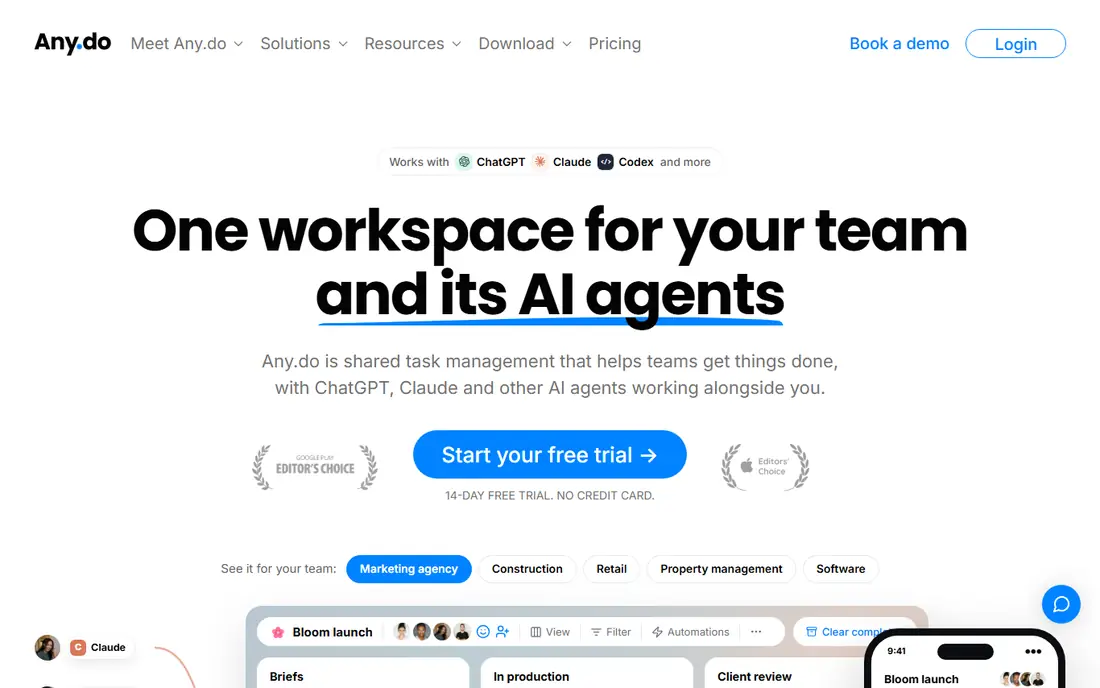
Any.do keeps task management simple, with lists, reminders, and a calendar view plus a Moment feature for planning each day. Its clean interface suits users who found Microsoft To Do pleasant but want stronger reminders and calendar integration. Grocery and shared lists work well for households too.
Power users may miss Todoist filters and labels depth. For a simple, pleasant task app with daily planning, Any.do is a good pick. Its free tier covers personal lists well.
- Simple tasks with calendar and reminders
- Moment daily planning feature
- Clean interface
- Fewer power features than Todoist
- Paid plan needed for advanced collaboration
Things 3
Ideal for: Apple task management
Things 3 is widely praised as the best-designed task app on Apple platforms, with a clean interface, fast capture, and thoughtful Today, Upcoming, and Anytime views. It is a one-time purchase per device, not a subscription, which appeals to buyers tired of monthly fees. Its design makes daily planning feel pleasant rather than chore-like.
Apple-only coverage is a hard limit for Windows or Android users, and per-device pricing adds up across iPhone, iPad, and Mac. For an Apple-only user who values design, Things 3 is our pick for polish. Check current App Store pricing per device.
- Beautiful, fast Apple-native design
- One-time purchase per device
- Strong Today and Upcoming views
- Apple only, with no Windows or Android apps
- Paid per device, not one subscription
Google Tasks
Ideal for: Free Google lists
Google Tasks is the simplest option here: free lists integrated with Gmail and Google Calendar, with subtasks and reminders. It suits Google Workspace users who want a basic list without another subscription or app to learn. Sharing lists with family or colleagues is easy.
Features are basic, with no tags, filters, or project views, so power users will outgrow it. For a free, no-fuss list inside Google tools, Google Tasks is a fine pick. It is best for personal and household lists, not team projects.
- Free and simple with Gmail and Calendar integration
- Easy list sharing
- No learning curve
- Very basic features
- No advanced filters, tags, or team projects
Asana
Ideal for: Team task projects
Asana moves beyond personal lists into team project management, with tasks, projects, timelines, boards, and automation. Teams can assign work, track deadlines, and comment in context, which suits workplaces that outgrew simple lists. Its free tier covers small teams well.
For a personal list, Asana is more than needed, and setup takes time. For a team that needs shared tasks with deadlines and visibility, Asana is a strong pick. Microsoft To Do users moving to team work will find it a natural step up.
- Team tasks with projects, timelines, and automation
- Strong collaboration features
- Free tier for small teams
- Overkill for simple personal lists
- Learning curve for new teams
Notion
Ideal for: Tasks inside docs and wikis
Notion lets users build task databases inside docs and wikis, with board, calendar, and timeline views. Teams that already document work in Notion can manage tasks beside notes, specs, and wikis without another tool. Its free tier is generous for personal use.
Quick task capture is slower than Todoist, and task-specific features such as reminders are less deep. For a user or team that wants tasks inside a broader workspace, Notion is a flexible pick. Use templates to speed setup.
- Tasks inside docs, wikis, and databases
- Flexible views including boards and calendars
- Strong free tier
- Task features are less focused than Todoist
- Can feel slow for quick capture
How we picked these
We compared official feature pages, pricing pages, and app store listings, looking for task list, reminder, and planning features that match Microsoft To Do. We favored apps that are actively maintained and work in October 2026, and we mixed personal apps with team tools. We did not claim hands-on testing, and we note that free tiers limit features, so check current plan details.
We also weighed practical details that matter after signup. That included how easy each product is to set up, whether support answers promptly, and whether pricing stays clear as usage grows. We read user complaints as well as praise, since repeated complaints about billing, onboarding, or missing features often signal a real weakness. Where a product had a known limitation, we said so in its write-up rather than smoothing it over. Our goal was a shortlist that a reader can trust for microsoft to-do alternatives, not a list of every vendor in the market. Readers with unusual needs should still test their top two choices, since fit depends on budget, team size, and the features used every day.
What to check before you switch
Start with your devices: Apple-only apps fail for mixed-device users, while Todoist, TickTick, and Any.do cover nearly every platform. List must-haves such as reminders, recurring tasks, sharing, or calendar views, and test each app against them for a week.
Next, check migration: export your Microsoft To Do lists or rebuild them by hand, and test whether the new app imports tasks cleanly. A week of real daily use will show whether capture speed and reminders fit your habits. Pick the app you actually open each morning.
Testing your shortlist before you commit
A short trial answers questions that no comparison table can settle. Sign up for your top two choices, run a real task from your own work, and watch how long it takes and where you get stuck. For microsoft to-do alternatives, that real task might be a weekly workflow you repeat, a report you need every month, or a setup step your team must repeat for new members. If a tool slows that task down, it will cost time every week, no matter how good its feature list looks.
Pay attention to support during the trial as well. Send a question through the normal support channel and note how long a useful answer takes. Check billing clarity too: confirm what the trial includes, when it ends, and what the first paid invoice will actually show. A tool that is hard to cancel, or that hides fees until checkout, deserves caution.
Finally, ask who else on your team must use the tool. A product that only one person likes will stall, while a product the whole team adopts will pay for itself. Gather quick feedback from the people who will use it daily, compare their notes with your own, and then choose. That small amount of trial discipline prevents most bad purchases, and it costs far less than switching tools again in six months.
Budgeting the full cost, not just the headline price
Headline prices rarely tell the full story. Add up per-user fees, add-on charges, implementation help, and any training your team needs, then compare that total across your shortlist. A cheaper plan that needs three paid add-ons can end up costing more than a fuller plan from a rival. Check renewal terms as well, since introductory discounts often expire after the first term and the second year price is the one you will actually live with.
Think about exit costs too. Before you commit, confirm how your data exports, whether your content or history moves cleanly, and what happens if you pause or cancel. A tool with clean exports gives you freedom later, while a tool that locks data in makes switching painful. Choosing with the full cost and the exit path in mind keeps your microsoft to-do alternatives decision sound for the long term, not just for the first month.
Frequently asked questions
Is Microsoft To Do free?
Yes, Microsoft To Do is free with a Microsoft account, and it is included with Microsoft 365. It offers lists, reminders, and My Day planning at no extra cost for account holders.
Which Microsoft To Do alternative is best for personal use?
Todoist and TickTick suit most personal users, with fast capture and cross-platform apps. Any.do suits users who want a simpler, calendar-friendly list.
Can I use these apps with my team?
Yes, Asana and Notion suit team projects, while Todoist and TickTick offer shared lists and collaboration on paid plans. Check sharing limits on free tiers.
Which alternative works best on Apple devices?
Things 3 offers the best Apple-native design, but it is Apple only. Todoist and TickTick offer strong Apple apps beside Windows and Android coverage.
How do I move tasks from Microsoft To Do?
Some apps offer import tools, while others need manual rebuilding or CSV import. Export your lists first, then test import on a small list before moving everything.