Best OmniGraffle Alternatives in 2026: 8 Options Compared

- 1
 LucidchartDiagrams and flowcharts for teamsVisit
- 2
 diagrams.netFree diagramming without a subscriptionVisit
- 3
 MiroVisual collaboration and whiteboardingVisit
- 4
 Microsoft VisioDiagramming inside Microsoft 365Visit
- 5
 WhimsicalFast flowcharts and wireframesVisit
- Our pick for most people is Lucidchart, because it balances price, features and ease of use for the widest group of readers.
- Free plans are real here, but the limits matter: check what diagrams.net and Miro actually include before you commit.
- Prices in this guide come from vendor pricing pages and current comparisons checked in October 2026, and they can change, so confirm the plan on the vendor site before you buy.
- The best choice depends on your budget, your experience level and how much support you want, not on which brand is most famous.
Quick comparison
| Product | Ideal for | Price from | Free version | |
|---|---|---|---|---|
| Lucidchart | Diagrams and flowcharts for teams | See website | Yes | Visit |
| diagrams.net | Free diagramming without a subscription | Free | Yes | Visit |
| Miro | Visual collaboration and whiteboarding | See website | Yes | Visit |
| Microsoft Visio | Diagramming inside Microsoft 365 | See website | Free trial | Visit |
| Whimsical | Fast flowcharts and wireframes | See website | Yes | Visit |
 Creately | Diagrams plus visual project planning | See website | Yes | Visit |
 yEd Graph Editor | Free automatic layout for complex graphs | Free | Yes | Visit |
 Excalidraw | Hand-drawn style diagrams and sketches | Free | Yes | Visit |
The best OmniGraffle Alternatives in 2026
We compared official feature pages, pricing pages, app store listings, privacy policies and public reviews to build this list for omnigraffle alternatives. Every option below exists and works today, and each one earns its place for a different kind of reader.
Lucidchart
Ideal for: Diagrams and flowcharts for teams
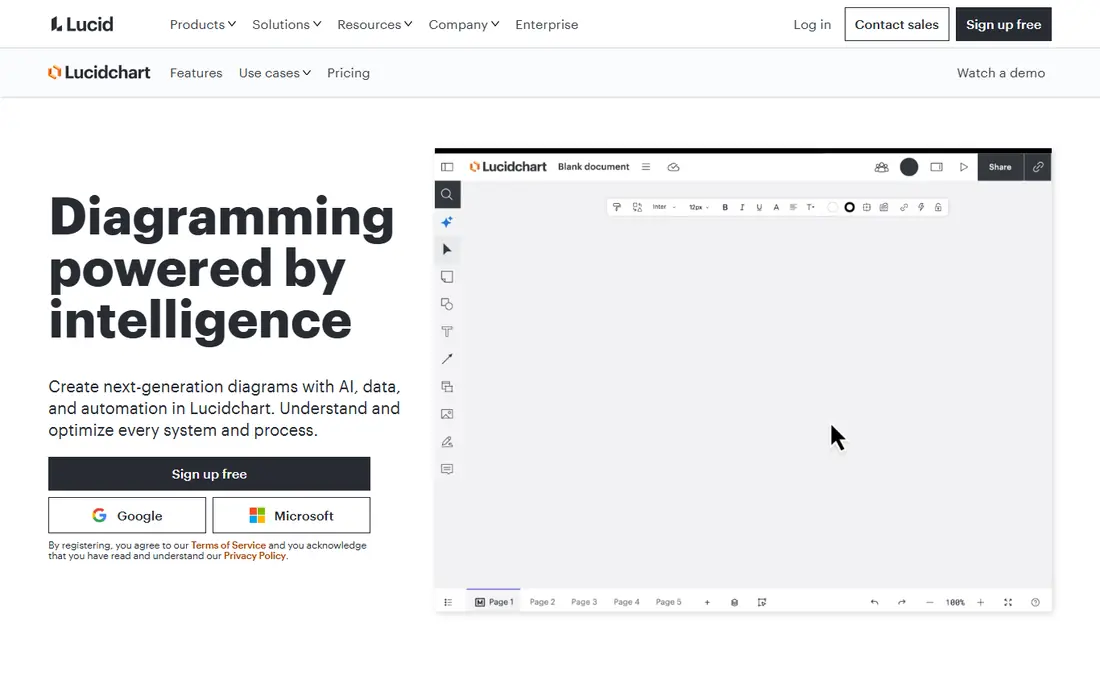
Here is the short version. Lucidchart is the most direct team alternative, with flowcharts, org charts and wireframes that several people can edit at once. It fits readers who want diagrams and flowcharts for teams, and its published feature set matches that promise rather than trying to cover every possible use case at once. The price picture is see website, with a free plan status of yes. The free tier caps what you can build, so regular diagram makers should budget for a paid plan. Before you sign up, check the current plan limits on the official site, because caps on users, usage or features are where most buyers get surprised after the first month.
- Large template library
- Real-time collaboration
- Integrations with Google and Microsoft tools
- Free tier limits documents
- Advanced features need paid plans
diagrams.net
Ideal for: Free diagramming without a subscription
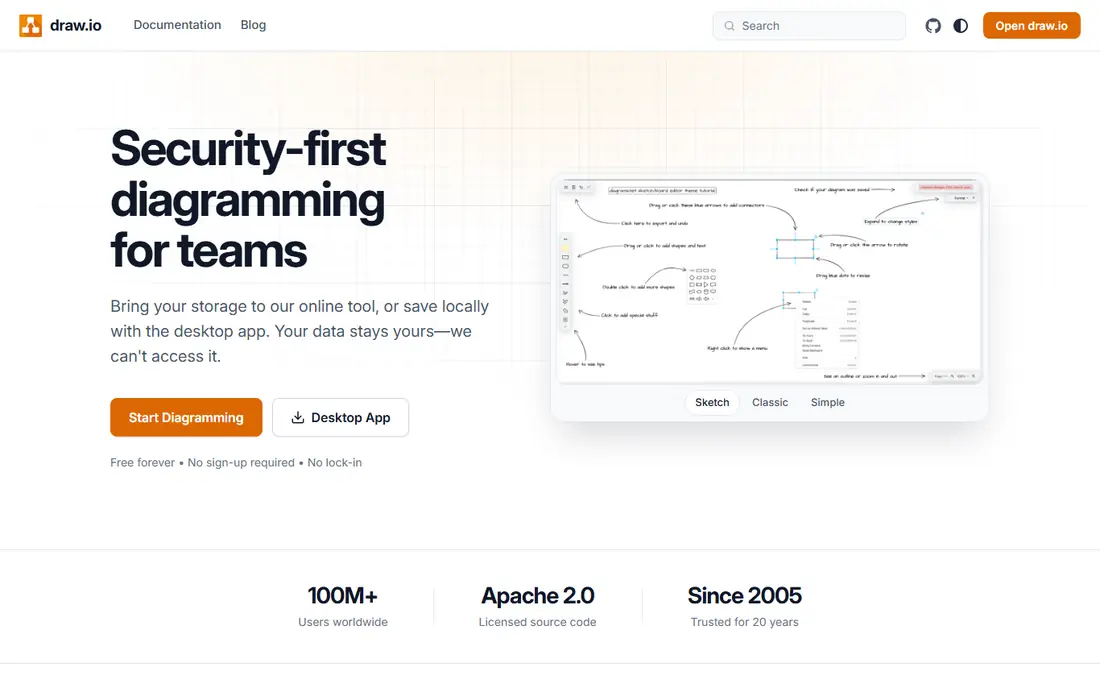
Start here if you want the safe default. diagrams.net, also known as draw.io, gives you a full diagram editor for free, with no account needed for basic use and files stored where you choose. It fits readers who want free diagramming without a subscription, and its published feature set matches that promise rather than trying to cover every possible use case at once. The price picture is free, with a free plan status of yes. Collaboration and polished templates lag behind paid rivals, so it suits individual makers more than large design teams. Before you sign up, check the current plan limits on the official site, because caps on users, usage or features are where most buyers get surprised after the first month.
- Completely free
- Works in the browser or desktop
- Stores files in Drive or locally
- Collaboration is simpler than Lucidchart
- Interface is more technical
Miro
Ideal for: Visual collaboration and whiteboarding

This one suits a specific kind of reader. Miro suits workshops and planning sessions where diagrams sit beside sticky notes, frames and comments on one shared board. It fits readers who want visual collaboration and whiteboarding, and its published feature set matches that promise rather than trying to cover every possible use case at once. The price picture is see website, with a free plan status of yes. For a single clean flowchart, Miro can feel like too much canvas, so use it when collaboration is the point. Before you sign up, check the current plan limits on the official site, because caps on users, usage or features are where most buyers get surprised after the first month.
- Infinite canvas
- Strong templates
- Real-time team collaboration
- Can feel sprawling for simple diagrams
- Pricing grows with team size
Microsoft Visio
Ideal for: Diagramming inside Microsoft 365
Consider this if the top picks do not fit. Microsoft Visio remains the standard in many large organisations, especially where Office and SharePoint already run the office. It fits readers who want diagramming inside microsoft 365, and its published feature set matches that promise rather than trying to cover every possible use case at once. The price picture is see website, with a free plan status of free trial. Mac users get a weaker experience than Windows users, so check the web app before you commit if your team is on Mac. Before you sign up, check the current plan limits on the official site, because caps on users, usage or features are where most buyers get surprised after the first month.
- Deep Office integration
- Strong shape libraries
- Enterprise support
- Windows desktop app is strongest
- Web version is simpler
- Cost adds up
Whimsical
Ideal for: Fast flowcharts and wireframes
A strong option for a narrower need. Whimsical wins on speed: you can build a clean flowchart in minutes without learning a complex tool. It fits readers who want fast flowcharts and wireframes, and its published feature set matches that promise rather than trying to cover every possible use case at once. The price picture is see website, with a free plan status of yes. Teams that need detailed technical diagrams may outgrow it, but for product and process diagrams it is hard to beat for pace. Before you sign up, check the current plan limits on the official site, because caps on users, usage or features are where most buyers get surprised after the first month.
- Very fast editor
- Clean output
- Flowcharts, wireframes and mind maps
- Fewer advanced diagram types
- Free tier limits boards
Creately
Ideal for: Diagrams plus visual project planning
Worth a close look before you decide. Creately covers a wide range of diagram types and adds planning views, which helps teams that diagram and track work in one place. It fits readers who want diagrams plus visual project planning, and its published feature set matches that promise rather than trying to cover every possible use case at once. The price picture is see website, with a free plan status of yes. The free tier is limited, and the interface packs in a lot, so new users should start with a template rather than a blank canvas. Before you sign up, check the current plan limits on the official site, because caps on users, usage or features are where most buyers get surprised after the first month.
- Many diagram types
- Collaboration
- Visual database and planning views
- Free tier is limited
- Interface can feel busy
yEd Graph Editor
Ideal for: Free automatic layout for complex graphs
This belongs on the shortlist for a reason. yEd is a free desktop editor from yWorks that shines on complex graphs, because its automatic layout tools arrange large networks cleanly. It fits readers who want free automatic layout for complex graphs, and its published feature set matches that promise rather than trying to cover every possible use case at once. The price picture is free, with a free plan status of yes. It looks dated and lacks team collaboration, so it suits technical users with complex diagrams rather than polished client presentations. Before you sign up, check the current plan limits on the official site, because caps on users, usage or features are where most buyers get surprised after the first month.
- Free desktop editor
- Powerful automatic layout
- Good for large graphs
- Interface looks dated
- Collaboration features are minimal
Excalidraw
Ideal for: Hand-drawn style diagrams and sketches
Do not overlook this one. Excalidraw gives diagrams a friendly hand-drawn feel, which works well for brainstorming, teaching and early product sketches. It fits readers who want hand-drawn style diagrams and sketches, and its published feature set matches that promise rather than trying to cover every possible use case at once. The price picture is free, with a free plan status of yes. It is not the tool for formal technical documentation, where precise shapes and libraries matter more than style. Before you sign up, check the current plan limits on the official site, because caps on users, usage or features are where most buyers get surprised after the first month.
- Free and open source
- Sketch-like style
- Easy sharing by link
- Fewer shape libraries than Lucidchart
- Best for informal diagrams
How we picked these
We started from official feature pages and pricing pages, then checked app store listings, privacy policies and public reviews to confirm each product still works and still fits the topic. Products that could not be verified, or that only partly matched the topic, were left out, even when they were well known. We favoured a mix of established leaders and strong smaller options, and we weighted price transparency, a usable free tier or trial, and honest limits more heavily than marketing claims. No product on this list paid for its place, and our pick for most people is the one we would suggest to a friend with ordinary needs and an ordinary budget.
How to pick a diagram tool that fits your work
Start with who will see the diagram. A client-facing process map needs clean shapes and export options, while a workshop sketch needs speed and collaboration more than polish. Next, check the diagram types you actually make: flowcharts, org charts, network diagrams and wireframes are not all covered equally well by every tool. Then check collaboration: if several people edit at once, a cloud tool beats a desktop file every time, but if you work alone, a free desktop editor may be all you need. Also check export formats and storage. Your diagrams should leave the tool as PDF, PNG or SVG, and you should know whether files live on the vendor cloud, in your Drive, or on your own machine. Try your most common diagram type in the top two tools before you pay, because a tool that feels good for a flowchart may struggle with a network map.
Frequently asked questions
What is the best OmniGraffle alternative?
Lucidchart is the strongest team alternative, diagrams.net is the best free option, and Miro suits collaborative workshops. Mac-only users who want a desktop app should also check the web versions carefully.
Is there a free OmniGraffle alternative?
Yes, diagrams.net, yEd and Excalidraw are free, and Lucidchart, Miro, Whimsical and Creately offer free tiers. Free tiers usually limit documents, boards or features.
Does Lucidchart work on Mac?
Yes, Lucidchart runs in the browser, so it works on Mac, Windows and Chromebooks without installing anything. That browser base is one reason it suits mixed teams.
Can I collaborate on diagrams in real time?
Yes, Lucidchart, Miro and Creately support real-time collaboration, while diagrams.net and yEd are better for individual work. Check comment and sharing controls if you share diagrams outside your team.
What diagram types can these tools make?
Most cover flowcharts, org charts, mind maps and wireframes, while Visio and Lucidchart add network, floor plan and technical diagrams. Check the shape library for your specific diagram type before you choose.