Password Alternatives in 2026: 8 Tools Compared

- 1Password and Bitwarden suit most users, with strong security, passkey support, and cross-platform apps.
- Dashlane, NordPass, and Keeper add VPN, monitoring, or business features alongside password storage.
- Proton Pass and Enpass suit users who want privacy-focused or offline-first storage.
- Passkeys, now supported by major sites, reduce the need for passwords altogether for many accounts.
Quick comparison
| Product | Ideal for | Price from | Free version | |
|---|---|---|---|---|
 1Password | All-round password manager | See website | Free trial | Visit |
 Bitwarden | Open-source manager | Free | Yes | Visit |
 Dashlane | Manager plus VPN | See website | Yes | Visit |
 NordPass | Simple secure manager | See website | Yes | Visit |
 Keeper | Business security | See website | Free trial | Visit |
 LastPass | Familiar manager | See website | Yes | Visit |
 Proton Pass | Privacy-focused manager | See website | Yes | Visit |
 Enpass | Offline-first manager | See website | Free trial | Visit |
The best password alternatives
We compared official feature pages, pricing pages, and app-store listings for password managers and passkey tools available in October 2026. The keyword covers alternatives to passwords, so the list focuses on managers that store passwords and passkeys, plus passkey support that lets users sign in without a password.
Use a unique password or passkey for every important account, and turn on two-factor authentication where it is offered. No tool on this list makes a weak or reused password safe.
1Password
Ideal for: All-round password manager
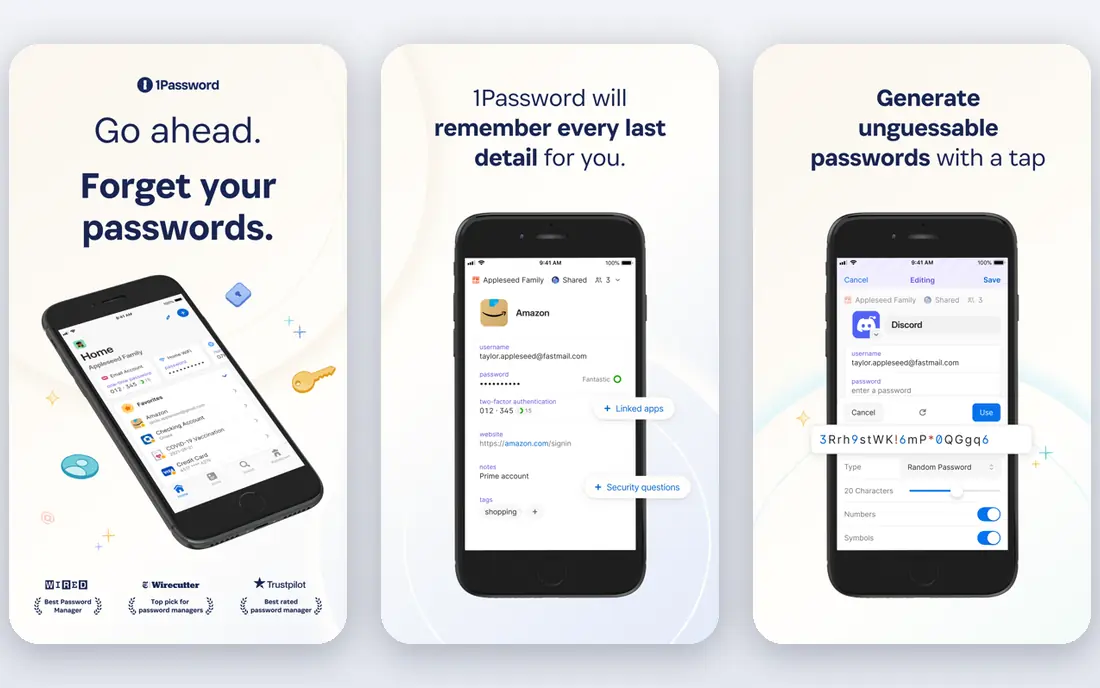
1Password is a password manager with apps for Windows, Mac, Linux, iOS, Android, and browsers, plus passkey support for sites that offer it. It stores passwords, secure notes, and credit cards in encrypted vaults, with Watchtower alerts for weak, reused, or breached passwords. Family and business plans add sharing and admin controls.
There is no free tier, though a trial covers evaluation. For most users who want a polished, reliable manager with strong passkey support, 1Password is the top pick.
- Strong security and passkey support
- Cross-platform apps
- Family and business plans
- No free tier
- Pricing is per user
Bitwarden
Ideal for: Open-source manager
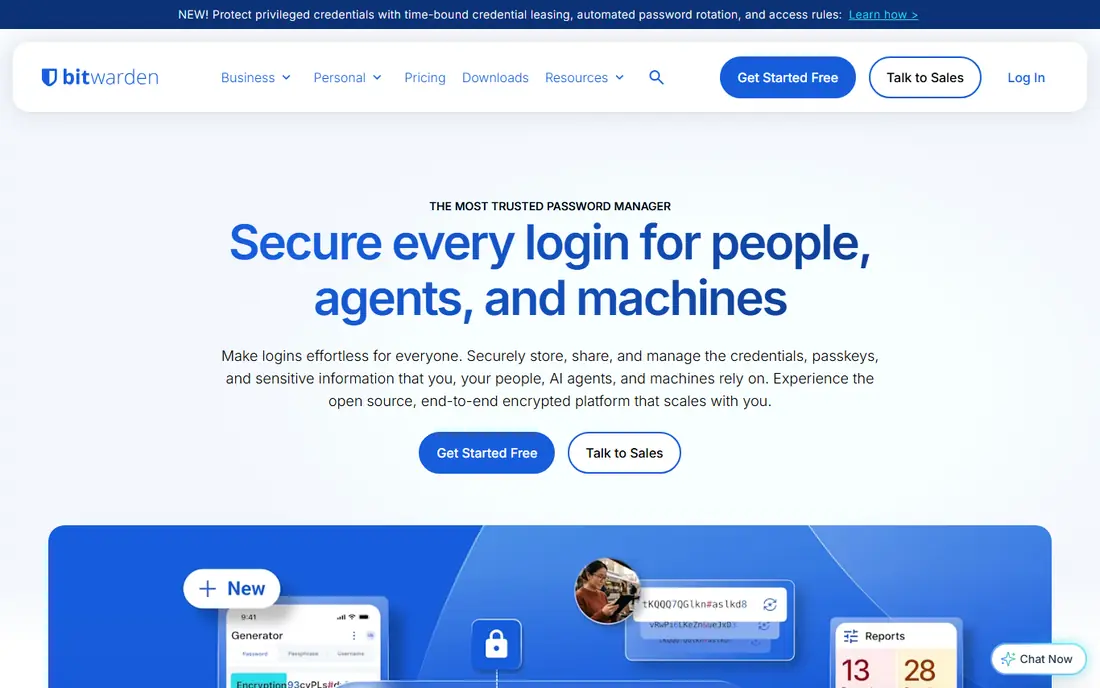
Bitwarden is a free, open-source password manager with apps for all major platforms and browsers, plus passkey support. Its free tier covers unlimited passwords and devices, while premium adds advanced two-factor options, file storage, and emergency access. Self-hosting is supported for users who want full control.
The interface is functional rather than polished, and some features need paid plans. For a user who wants a free, audited, open-source manager, Bitwarden is the best choice.
- Free and open source
- Self-hosting option
- Strong security audits
- Interface is functional rather than polished
- Some features need paid plans
Dashlane
Ideal for: Manager plus VPN
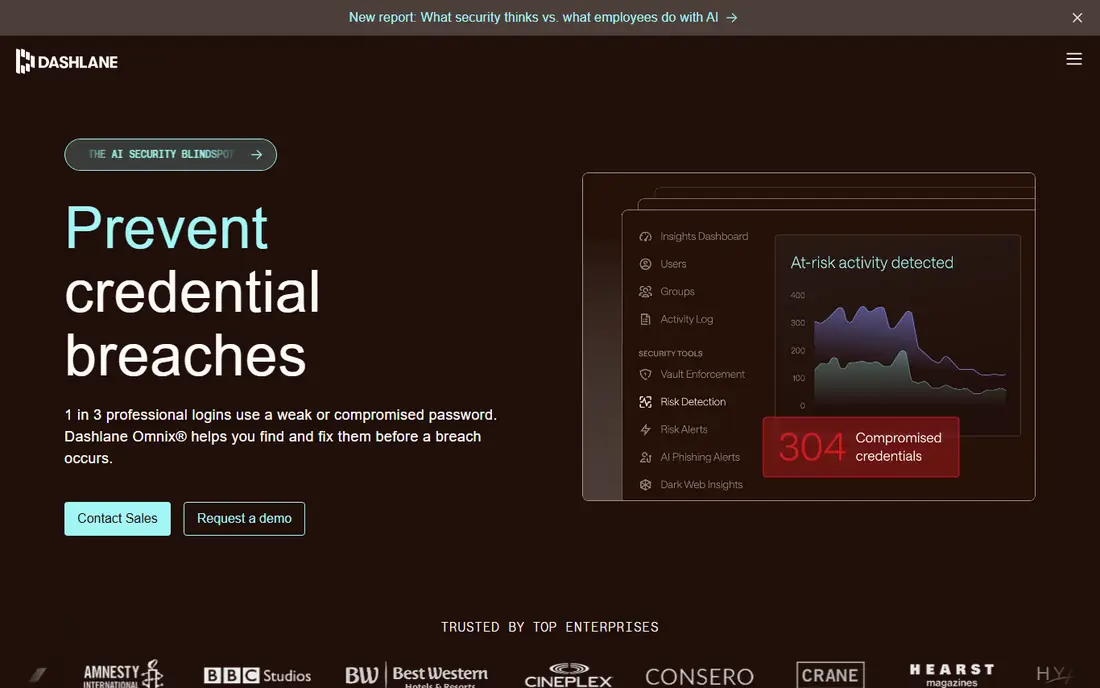
Dashlane is a password manager with a built-in VPN, dark web monitoring, and passkey support, covering Windows, Mac, iOS, Android, and browsers. Its free tier covers basic use with device limits, while premium adds unlimited devices, VPN, and monitoring. Its interface is polished and easy for beginners.
The free tier limits devices, and pricing is higher than Bitwarden's free or low-cost plans. For a user who wants a manager plus VPN and monitoring in one subscription, Dashlane is a convenient choice.
- Password manager plus VPN
- Dark web monitoring
- Passkey support
- Free tier limits devices
- Pricing is higher than Bitwarden
NordPass
Ideal for: Simple secure manager
NordPass, from the team behind NordVPN, is a password manager with a simple interface, strong encryption, and passkey support. It stores passwords, passkeys, and secure notes, with a free tier for one device and paid plans for unlimited devices and sharing. It integrates with other Nord products.
The free tier is limited to one device, and business features are thinner than Keeper's. For a user who wants a simple manager, especially inside the Nord ecosystem, NordPass is easy to use.
- Simple interface
- Strong encryption
- Passkey support
- Nord ecosystem
- Free tier limits to one device
- Fewer business features than Keeper
Keeper
Ideal for: Business security
Keeper is a password manager with strong business features, including admin controls, sharing, secure file storage, and compliance reporting. It supports passkeys, two-factor authentication, and breach monitoring, with apps for all major platforms. Its security certifications suit regulated industries.
The interface can feel busy for personal users, and pricing is per user. For a business that needs admin control and compliance alongside password management, Keeper is a strong choice.
- Strong business and admin features
- Secure file storage
- Passkey support
- Interface can feel busy
- Pricing is per user
LastPass
Ideal for: Familiar manager
LastPass is a long-standing password manager with apps for all major platforms, passkey support, and sharing features. Its free tier covers basic use with a limit to one device type, while premium adds unlimited devices, security dashboard, and emergency access.
Past security incidents mean users should weigh its track record against rivals such as 1Password and Bitwarden. For a user already familiar with LastPass who wants to stay, its core features still work well, but new users may prefer a rival.
- Long track record
- Familiar interface
- Passkey support
- Free tier limits to one device type
- Past security incidents need consideration
Proton Pass
Ideal for: Privacy-focused manager
Proton Pass, from Proton, is a privacy-focused password manager with end-to-end encryption, passkey support, and hide-my-email aliases that protect a real email address. It integrates with Proton Mail, VPN, and Drive, with a free tier and paid plans for more aliases and storage.
Proton Pass is newer than 1Password or Bitwarden, and some features are still maturing. For a user who values privacy and already uses Proton products, Proton Pass is a strong fit.
- Strong privacy focus
- Hide-my-email aliases
- Proton ecosystem integration
- Newer than rivals
- Some features still maturing
Enpass
Ideal for: Offline-first manager
Enpass is an offline-first password manager that stores vaults locally, with no account required and sync through a user's own cloud storage or Wi-Fi. It supports passkeys, secure notes, and breach monitoring, with a one-time purchase option alongside subscriptions. Apps cover all major platforms.
Sync needs manual setup, and the interface is functional rather than polished. For a user who wants offline storage without a vendor cloud, Enpass is a distinctive choice.
- Offline-first storage
- No account required
- One-time purchase option
- Sync needs manual setup
- Interface is functional
How we picked these
We compared official feature pages, pricing pages, and app-store listings for password managers available in October 2026. We favored tools with current products, passkey support, and strong security practices, including encryption and independent audits. We also checked sharing, recovery options, and passkey sync, since a manager must work for a whole household or team, not just one device. We did not include our own product in this list.
How to choose a password alternative
Start with passkeys where sites offer them, since a passkey removes the password entirely for that account. For remaining passwords, pick a manager you will actually use on every device: 1Password for polish, Bitwarden for free and open source, Proton Pass for privacy, or Enpass for offline storage.
Then set up recovery and two-factor authentication before you need them. Save a recovery kit or emergency access contact, turn on two-factor for your email and manager, and use unique passwords for every important account. A manager only helps if it is set up before a breach, not after.
A password manager only helps if the whole household or team uses it, so check sharing and recovery before you commit. Family plans should make sharing logins easy without exposing every vault, while business plans need admin controls, offboarding, and audit logs. Recovery is the part most users skip: set up emergency access or a recovery kit now, and store it somewhere safe outside the manager itself. Also test the manager on every device you own, including browsers and mobile apps, since a manager that autofills poorly on one device will push you back to reused passwords. For passkeys, confirm which sites you use support them and how the manager syncs passkeys across devices, since a passkey locked to one device creates a new lockout risk. Finally, turn on two-factor authentication for the manager itself, using an authenticator app or hardware key rather than SMS where possible.
Frequently asked questions
What is a passkey?
A passkey is a login method that replaces a password with a cryptographic key stored on your device, opened by biometrics or a PIN. Major sites such as Google, Apple, and Microsoft support passkeys, which resist phishing better than passwords.
What is the best password manager?
1Password suits most users for polish and passkey support, while Bitwarden suits users who want a free, open-source manager. Proton Pass suits privacy-focused users, and Keeper suits businesses that need admin controls.
Is Bitwarden free?
Yes. Bitwarden offers a free tier with unlimited passwords and devices, while premium adds advanced two-factor options, file storage, and emergency access at low cost.
Can I use a password manager on all my devices?
Yes. All of the managers on this list offer apps for Windows, Mac, iOS, Android, and browsers, with sync across devices. Enpass syncs through your own cloud storage, while others sync through their vendor cloud.
Are password managers safe?
Password managers use strong encryption, so a breach of the vendor's servers should not expose your passwords without your master password. Choose a manager with independent audits, use a strong master password, and turn on two-factor authentication for extra protection.
What happens if I forget my master password?
It depends on the manager. Most zero-knowledge managers cannot reset your master password for you, since they never store it, so recovery depends on emergency access, a recovery kit, or biometrics you set up in advance. Set up at least one recovery method when you first install the manager, and store the recovery kit somewhere safe, such as a printed copy in a locked drawer. Without a recovery method, a forgotten master password can mean losing access to the vault, which is why setup matters more than the choice of manager.