Best Screenr Review Alternatives in 2026: 8 Products Compared

- 1
 LoomQuick video messagesVisit
- 2
 ScreencastifyChrome screen recordingVisit
- 3
 CamtasiaPolished video editorVisit
- 4
 ScreenPalRecording plus hostingVisit
- 5
 OBS StudioFree streaming and recordingVisit
- Loom is our pick for most people, thanks to its balance of features, documentation, and price.
- Screencastify is a strong second choice if you want a different strength, especially for chrome screen recording.
- If cost is the main concern, check the free options first, including Camtasia and any free tier listed in the table below.
- For larger teams or stricter requirements, ScreenPal and OBS Studio are worth a closer look, since they cover scale and control in more depth.
- Always confirm current pricing on the vendor site before you buy, since plans and free tiers change during the year.
Quick comparison
| Product | Ideal for | Price from | Free version | |
|---|---|---|---|---|
| Loom | Quick video messages | See website | Yes | Visit |
| Screencastify | Chrome screen recording | See website | Yes | Visit |
| Camtasia | Polished video editor | See website | Free trial | Visit |
| ScreenPal | Recording plus hosting | See website | Yes | Visit |
| OBS Studio | Free streaming and recording | Free | Yes | Visit |
 Snagit | Screenshots plus short video | See website | Free trial | Visit |
 CloudApp | Fast capture and sharing | See website | Free trial | Visit |
 Vimeo Record | Video messages in Vimeo | See website | Yes | Visit |
The best screenr review alternatives
We compared official feature pages, pricing pages, app store listings, privacy policies, and public reviews to build this list. The options below cover the well-known leaders and smaller tools that earned a place on merit, and each one works in October 2026. Read the short notes, then use the buying guide at the end to narrow the list to one or two finalists for a trial.
Loom
Ideal for: Quick video messages
Loom makes quick video messages with fast recording, share links, and viewer insights. Teams use it to explain work without meetings. Its speed is the reason it spread so widely.
The free tier has limits on video counts and length, and editing is limited. Polished videos need an editor.
- Fast recording
- Sharing links
- Viewer insights
- Free tier limits
- Editing limits
Screencastify
Ideal for: Chrome screen recording

Screencastify is a Chrome extension for screen recording that suits teachers and teams. Its ease and Google Drive sharing make classroom use simple. Recording starts in seconds.
Its focus is Chrome, and the free tier has limits. Desktop app users may prefer a standalone recorder.
- Chrome extension
- Classroom friendly
- Easy sharing
- Chrome focus
- Free tier limits
Camtasia
Ideal for: Polished video editor
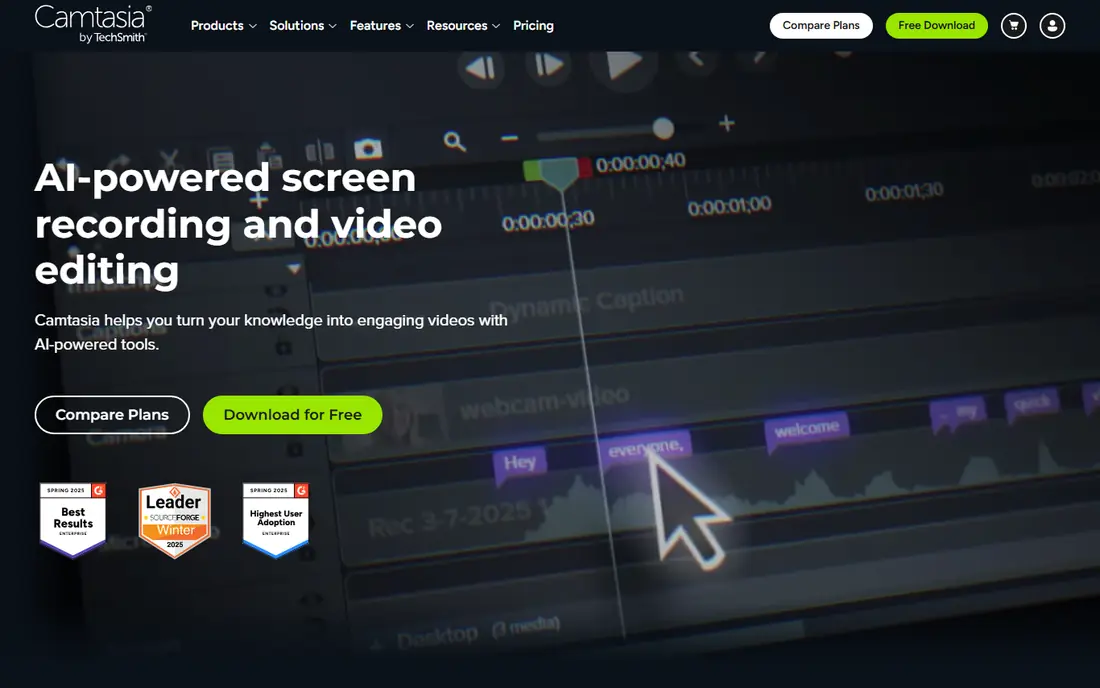
Camtasia combines screen recording with a polished editor, templates, and annotations. Its output suits tutorials and training videos. Creators who need edited, professional videos will value it.
It costs a one-time fee, and new users face a learning curve. Quick message senders may find it heavy.
- Recording plus editing
- Templates
- Annotations
- One-time cost
- Learning curve
ScreenPal
Ideal for: Recording plus hosting
ScreenPal, formerly Screencast-O-Matic, offers recording plus hosting with quizzes for education. Teachers and trainers get capture and delivery in one tool. Its plans are affordable.
The free tier has limits, and the interface has quirks. A trial will show whether its hosting fits your needs.
- Recording
- Hosting
- Quizzes for education
- Free tier limits
- Interface quirks
OBS Studio
Ideal for: Free streaming and recording
OBS Studio is a free, open source tool for recording and streaming with powerful scene controls. Streamers and creators get professional features at no cost. Its flexibility is huge.
The learning curve is steep, and there is no cloud hosting. Quick message recording is not its main job.
- Free and open
- Powerful scenes
- Streaming
- Learning curve
- No cloud hosting
Snagit
Ideal for: Screenshots plus short video
Snagit captures screenshots and short videos with annotations for support and training. Its image tools are excellent for guides. Support teams use it daily.
It costs a one-time fee, and it is not a full video editor. Long tutorials need Camtasia or another editor.
- Screenshots
- Annotations
- Short video
- One-time cost
- Not a full editor
CloudApp
Ideal for: Fast capture and sharing
CloudApp offers fast screen capture and sharing with annotations for teams. Its speed suits support and sales workflows. Share links make sending captures easy.
The free tier has limits, and the brand is smaller than Loom. Check sharing and storage limits first.
- Fast capture
- Share links
- Annotations
- Free tier limits
- Smaller brand
Vimeo Record
Ideal for: Video messages in Vimeo
Vimeo Record lets Vimeo users capture and share video messages with team features. Its hosting is reliable, and sharing is simple. Teams already on Vimeo get a natural fit.
It needs a Vimeo account, and editing is limited. Standalone recorder users may prefer a dedicated app.
- Vimeo hosting
- Team sharing
- Simple recording
- Vimeo account needed
- Editing limits
How we picked these
We started from the products that genuinely fit this topic and removed any that were discontinued, that did not serve US users, or that failed to match the core job. For each survivor, we checked the vendor official site for features and pricing, read app store listings where they exist, and looked at privacy policies and public reviews for known problems. We did not claim hands-on testing we did not do, and we left prices as See website wherever the vendor does not publish a clear figure.
Finally, we checked for known problems in public reviews and privacy policies, and we noted them where they matter, rather than hiding them. A product with a past privacy issue or a confusing renewal price still appears here if it is otherwise strong, but the write-up says so plainly, so you can weigh that risk yourself before you sign up.
We also weighed fit over fame. A famous product that only partly covers this topic lost out to a smaller tool that covers it well. That is why the list mixes leaders with strong smaller options, and why each write-up names one honest weakness alongside its strengths.
How to choose the right option for you
Start with the job, not the brand
Write down the one task you need done every week, then check which products do that task well without extra tools. Loom covers the common case for most buyers, while Snagit suits a narrower need. If a product needs three add-ons to do your core job, it is probably the wrong pick, however popular it is.
Check the true cost
Compare the plan you will actually use, not the headline price. Count seats, usage, and any add-ons, and check renewal pricing as well as the first-year price. Free tiers help for testing, but they often cap the exact feature you will need later, so read the limits before you commit a team to one.
Run a short trial with real work
Pick two finalists and run each on a real task for a week, not a demo script. Watch setup time, support replies, and how it handles your edge cases. Screencastify and Camtasia are good trial candidates for many buyers, since they show their strengths quickly. The product your team actually uses beats the one with the longest feature list.
Match the tool to your team size
A tool built for a thousand users can slow a team of five with setup, approvals, and training, while a tool built for solo users can break when a whole department adopts it. Check seat limits, permission controls, and admin features against your real headcount, not your hoped-for headcount. If you plan to grow, ask whether the next tier up keeps your data and settings intact, or forces a migration. The cheapest plan that fits today is often the right start, as long as the upgrade path is clear.
Check support, privacy, and exit options
Read the privacy policy for how your data is used, especially for tools that handle customer data, health data, or financial data. Check support hours and response channels too, since a cheap tool with slow support costs more in lost time than a pricier one with fast help. Finally, confirm you can export your data in a usable format. A tool that locks your work inside its own format makes switching painful later, and that exit cost should count in your decision just like the monthly price.
Frequently asked questions
What are screenr review alternatives?
Screenr Review Alternatives are tools and services that do the same core job as the original, with different prices, features, and trade-offs. The list above covers the strongest options we found that work in October 2026, from well-known leaders to smaller tools worth a look.
Which of these screenr review alternatives is best for most people?
For most buyers, Loom is the safest starting point, thanks to its balance of features and price. If your main need is chrome screen recording, start with Screencastify instead, and run a trial before you commit.
Are there free screenr review alternatives?
Yes, several options on this list offer a free tier or a free and open version, and the comparison table shows which ones. Free tiers usually cap usage or features, so check the limits against your real workload before you rely on one.
How much do screenr review alternatives cost?
Prices range from free to enterprise quotes, and the table lists the starting price we could verify for each product. Where a vendor does not publish a clear price, we wrote See website, and you should ask for a quote based on your seats and usage.
What should I check before I pay for one of these screenr review alternatives?
Check the plan limits, the renewal price, and the cancellation terms on the vendor site, and confirm the features you need are in the plan you will buy, not a higher tier. Read the privacy policy if the tool will hold customer or personal data, and test support with a real question during the trial. A short trial answers more than any sales page.
How hard is it to switch to a new option?
Switching effort depends on how much data and workflow you have built up. Export your data first, run the new tool alongside the old one for a short period, and move one team or project at a time. Most vendors on this list offer import tools or migration help.