Best SharePoint Alternatives in 2026: 8 Options Compared

- 1
 ConfluenceTechnical documentation teamsVisit
- 2
 NotionFlexible all in one workspacesVisit
- 3
 Google WorkspaceTeams leaving Microsoft toolsVisit
- 4
 ClickUpProject led teamsVisit
- 5
 BoxSecure file sharingVisit
- The strongest all round option for most readers in this group is Confluence, which pairs a clear fit with a plan structure that is easy to understand.
- Notion is the option to check first if price or a free plan matters most, while Google Workspace suits readers who need a more specialised feature set.
- Prices and free limits change often, so confirm the current plan page before you pay, and start with a free plan or trial when one is offered.
- The best choice depends on your current tools, your budget and how much setup time you can give it, not on the longest feature list.
Quick comparison
| Product | Ideal for | Price from | Free version | |
|---|---|---|---|---|
| Confluence | Technical documentation teams | $5.42 per user per month | Yes | Visit |
| Notion | Flexible all in one workspaces | $10 per user per month | Yes | Visit |
| Google Workspace | Teams leaving Microsoft tools | $7 per user per month | No | Visit |
| ClickUp | Project led teams | $7 per user per month | Yes | Visit |
| Box | Secure file sharing | $5 per user per month | Yes | Visit |
 Dropbox | Simple file sync | $15 per user per month | Yes | Visit |
 Nextcloud | Self hosted file collaboration | Free | Yes | Visit |
 Coda | Doc based team workflows | $10 per user per month | Yes | Visit |
The best sharepoint alternatives
We compared official feature pages, pricing pages, app store listings, privacy policies and public reviews for this group. The options below cover the well known leaders and strong smaller choices, and each one has a different strength. Read the fit line first, then check the price and the honest drawback before you decide.
Confluence
Ideal for: Technical documentation teams

For readers who want a clear starting point, this option earns its place because its page structure keeps large doc sets in order, and its link to Jira helps software teams keep specs close to the work. It fits readers who want technical documentation teams, and it is a sensible first test if that description matches your daily work. The public material we reviewed points to a clear use case here, rather than a vague promise to suit everyone. The learning curve is real for teams that only need simple pages, and the price rises as team size and plan tier grow. That limit matters most when you plan to use the service every day or share it with a team. Before you commit, check the current pricing page, the free plan limits and the cancellation terms, and try the free option or trial with a real task from your own work.
- Strong wiki structure
- Deep Jira links
- Templates for common docs
- Can feel heavy for small teams
- Advanced controls sit on higher plans
Notion
Ideal for: Flexible all in one workspaces
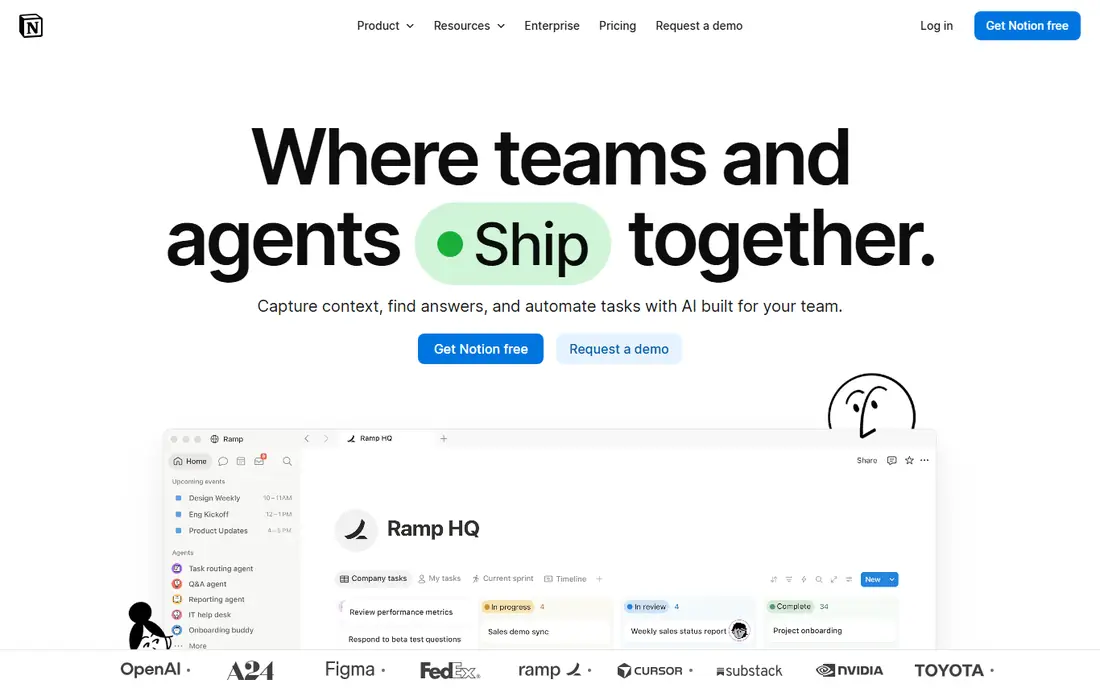
This is a practical choice when its mix of pages, databases and templates lets a team shape a workspace around its own process. It fits readers who want flexible all in one workspaces, and it is a sensible first test if that description matches your daily work. The public material we reviewed points to a clear use case here, rather than a vague promise to suit everyone. Without agreed naming and ownership rules, a flexible workspace can turn into a scattered set of pages. That limit matters most when you plan to use the service every day or share it with a team. Before you commit, check the current pricing page, the free plan limits and the cancellation terms, and try the free option or trial with a real task from your own work.
- Flexible pages and databases
- Broad template library
- Simple sharing
- Can grow messy without clear rules
- Large workspaces need care
Google Workspace
Ideal for: Teams leaving Microsoft tools
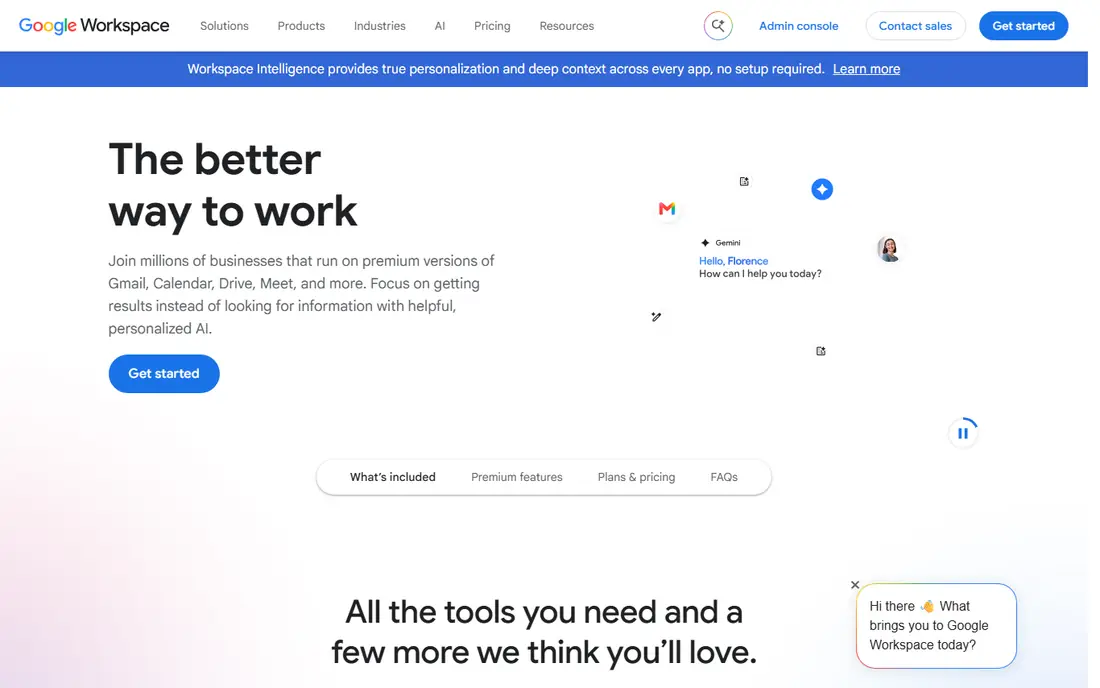
We put this option on the list because it bundles mail, storage and docs in one place, which cuts the number of separate tools a team must manage. It fits readers who want teams leaving microsoft tools, and it is a sensible first test if that description matches your daily work. The public material we reviewed points to a clear use case here, rather than a vague promise to suit everyone. Teams that need deep SharePoint style site permissions may find the model different, so check access controls before moving. That limit matters most when you plan to use the service every day or share it with a team. Before you commit, check the current pricing page, the free plan limits and the cancellation terms, and try the free option or trial with a real task from your own work.
- Real time co-editing
- Gmail and Drive in one bundle
- Strong search
- Storage limits vary by plan
- Admin controls need the right edition
ClickUp
Ideal for: Project led teams
If your main concern is fit rather than hype, consider this one because it ties docs to tasks, so a plan and its supporting notes stay in the same workspace. It fits readers who want project led teams, and it is a sensible first test if that description matches your daily work. The public material we reviewed points to a clear use case here, rather than a vague promise to suit everyone. The number of settings can slow the first weeks, so start with one project and a small set of views. That limit matters most when you plan to use the service every day or share it with a team. Before you commit, check the current pricing page, the free plan limits and the cancellation terms, and try the free option or trial with a real task from your own work.
- Docs plus tasks in one place
- Many views
- Broad integrations
- Feature depth can overwhelm new users
- Setup takes time
Box
Ideal for: Secure file sharing
This option stands out in this group because its controls for sharing and access suit teams that handle sensitive files with outside partners. It fits readers who want secure file sharing, and it is a sensible first test if that description matches your daily work. The public material we reviewed points to a clear use case here, rather than a vague promise to suit everyone. It is not a direct wiki replacement, so pair it with a docs tool if your team needs structured internal pages. That limit matters most when you plan to use the service every day or share it with a team. Before you commit, check the current pricing page, the free plan limits and the cancellation terms, and try the free option or trial with a real task from your own work.
- Strong sharing controls
- Governance features
- Broad app links
- Wiki features are limited
- Best as a file layer, not a full intranet
Dropbox
Ideal for: Simple file sync
A shortlist without this option would feel incomplete, since its sync is dependable for teams that move large files between people and devices. It fits readers who want simple file sync, and it is a sensible first test if that description matches your daily work. The public material we reviewed points to a clear use case here, rather than a vague promise to suit everyone. It works best as a file store, and teams that need a structured knowledge base will need another tool beside it. That limit matters most when you plan to use the service every day or share it with a team. Before you commit, check the current pricing page, the free plan limits and the cancellation terms, and try the free option or trial with a real task from your own work.
- Fast sync
- Simple sharing
- Paper docs for light notes
- Paid team plans cost more than basic storage
- Wiki depth is limited
Nextcloud
Ideal for: Self hosted file collaboration
This is worth a close look when it gives a team full control over where its files live, which matters for data control and compliance work. It fits readers who want self hosted file collaboration, and it is a sensible first test if that description matches your daily work. The public material we reviewed points to a clear use case here, rather than a vague promise to suit everyone. Running it well takes admin time for updates, backups and security, so small teams should weigh that cost. That limit matters most when you plan to use the service every day or share it with a team. Before you commit, check the current pricing page, the free plan limits and the cancellation terms, and try the free option or trial with a real task from your own work.
- Self hosting gives full data control
- Files, docs and chat options
- Open source base
- Self hosting needs technical upkeep
- Enterprise support is paid
Coda
Ideal for: Doc based team workflows
We included this option because its tables and automations turn a doc into a working tool for tracking and approvals. It fits readers who want doc based team workflows, and it is a sensible first test if that description matches your daily work. The public material we reviewed points to a clear use case here, rather than a vague promise to suit everyone. Teams that want a plain wiki may find the app building model more than they need, so test it on one workflow first. That limit matters most when you plan to use the service every day or share it with a team. Before you commit, check the current pricing page, the free plan limits and the cancellation terms, and try the free option or trial with a real task from your own work.
- Docs that act like apps
- Tables and automations
- Flexible layouts
- Smaller community than larger rivals
- Pricing needs care for large teams
How we picked these
We compared official feature pages, pricing pages, app store listings, privacy policies and public reviews. We kept only products that exist and work in October 2026 and that truly fit the topic, and we left out options that looked similar but served a different job. Where a price could not be verified on the vendor page, we wrote See website instead of guessing. We also weighed who each product is really for, what it does well in daily use, and where it falls short. A product can be excellent for one reader and a poor fit for another, so the write-ups below focus on fit, cost and limits rather than on praise alone.
How to choose a SharePoint replacement
Start by listing what SharePoint does for you today. Some teams need a wiki, others need file libraries, and others need an intranet home page. A tool that is excellent for one of those jobs can be weak at another, so match the replacement to the job that matters most. Next, check permissions, search and migration. Ask who can see each space, how search finds older pages, and how your current files and pages will move. A short trial with real content will show problems that a feature list hides. Finally, compare the full cost for your team size, including storage, admin time and any add on tools. A low per user price can still grow fast when you add storage, support or a second tool to cover a gap.
Frequently asked questions
What is the best free alternative to SharePoint?
For small teams, the free tiers of Confluence and Notion are useful starting points, and Nextcloud is free to self host. Free tiers have limits on users, storage or features, so check those limits against your team size before you build on them.
Can Google Workspace replace SharePoint?
It can replace much of the file and collaboration side, with Docs, Drive and Gmail in one bundle. Teams that rely on SharePoint site structures and deep permissions should test those workflows first, since the models differ.
Is it hard to move from SharePoint?
Migration effort depends on how much custom structure, permissions and linked content you have. Start with one site or team, move a small set of pages, and check links and access before you move the rest.
Do these tools work for large companies?
Several do, but large companies should check admin controls, compliance features and support terms. Enterprise plans often add the controls that smaller plans lack, so ask for those details in writing.