Best Take Control Alternatives in 2026: 8 Tools Compared

- 1
 TeamViewerRemote support across many platformsVisit
- 2
 AnyDeskFast low-latency remote sessionsVisit
- 3
 SplashtopBest-value remote access for solo usersVisit
- 4
 ConnectWise ScreenConnectIT support teams and managed providersVisit
- 5
 LogMeIn RescueEnterprise remote support with controlsVisit
- Our pick for most people is TeamViewer, because it balances price, features and ease of use for the widest group of readers.
- Free plans are real here, but the limits matter: check what AnyDesk and Splashtop actually include before you commit.
- Prices in this guide come from vendor pricing pages and current comparisons checked in October 2026, and they can change, so confirm the plan on the vendor site before you buy.
- The best choice depends on your budget, your experience level and how much support you want, not on which brand is most famous.
Quick comparison
| Product | Ideal for | Price from | Free version | |
|---|---|---|---|---|
| TeamViewer | Remote support across many platforms | See website | Yes | Visit |
| AnyDesk | Fast low-latency remote sessions | See website | Yes | Visit |
| Splashtop | Best-value remote access for solo users | See website | Free trial | Visit |
| ConnectWise ScreenConnect | IT support teams and managed providers | See website | Free trial | Visit |
| LogMeIn Rescue | Enterprise remote support with controls | See website | Free trial | Visit |
 RealVNC Connect | Secure lightweight remote access | See website | Yes | Visit |
 Zoho Assist | Budget remote support for small teams | See website | Yes | Visit |
 RemotePC | Low-cost remote access for small teams | See website | Free trial | Visit |
The best Take Control Alternatives in 2026
We compared official feature pages, pricing pages, app store listings, privacy policies and public reviews to build this list for take control alternatives. Every option below exists and works today, and each one earns its place for a different kind of reader.
TeamViewer
Ideal for: Remote support across many platforms
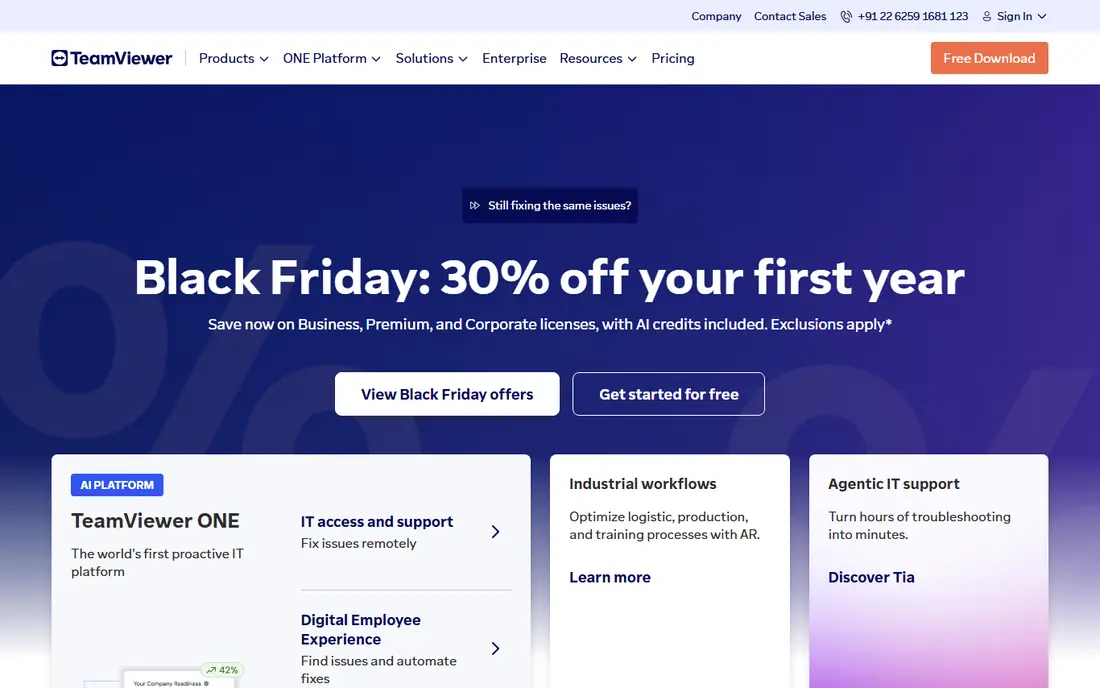
Here is the short version. TeamViewer is the safe default for remote support across Windows, Mac, Linux, iOS and Android. It fits readers who want remote support across many platforms, and its published feature set matches that promise rather than trying to cover every possible use case at once. When we weighed it against the rest of this list, the balance of price, scope and support stood out for that group, and the public reviews we read pointed in the same direction for that use case. The price picture is see website, with a free plan status of yes. The commercial price stings for solo users, and personal use detection sometimes flags legitimate use, so test carefully. Before you sign up, check the current plan limits on the official site, because caps on users, usage or features are where most buyers get surprised after the first month, and a plan that looks cheap can cost more once you add the seats or volume you actually need.
- Wide platform support
- Strong security
- Free personal use
- Commercial pricing is high for solo users
- Personal use detection can block sessions
AnyDesk
Ideal for: Fast low-latency remote sessions
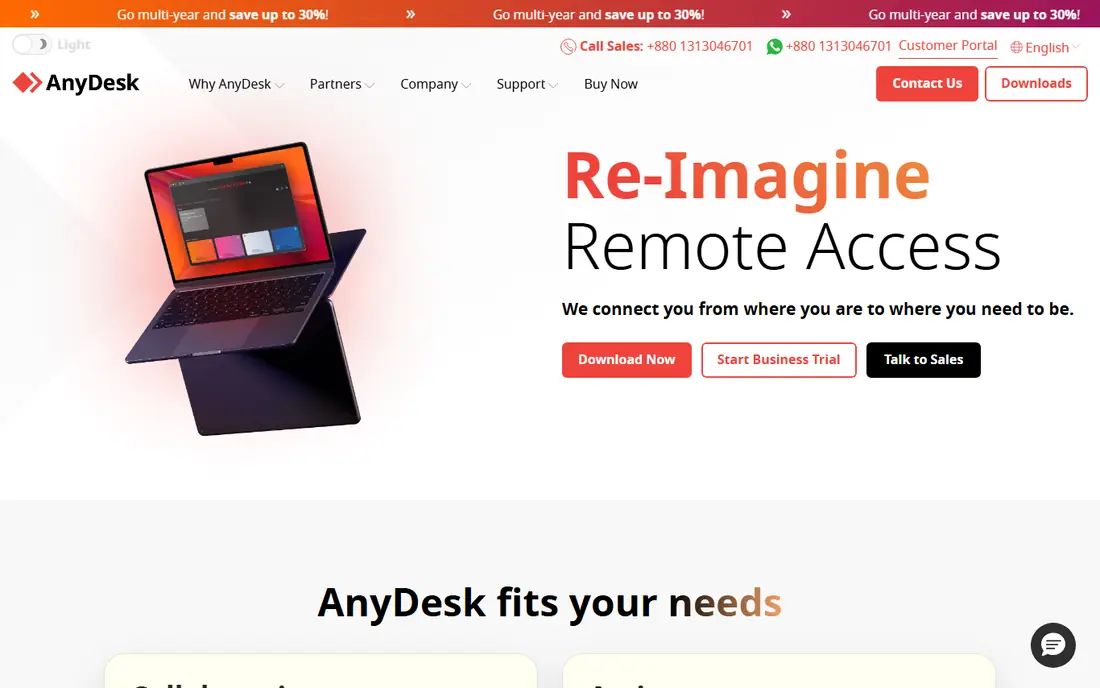
Start here if you want the safe default. AnyDesk feels fast even on weaker connections, which matters for design apps and busy support queues. It fits readers who want fast low-latency remote sessions, and its published feature set matches that promise rather than trying to cover every possible use case at once. When we weighed it against the rest of this list, the balance of price, scope and support stood out for that group, and the public reviews we read pointed in the same direction for that use case. The price picture is see website, with a free plan status of yes. Business features sit on higher plans, so check what your team actually needs before comparing headline prices. Before you sign up, check the current plan limits on the official site, because caps on users, usage or features are where most buyers get surprised after the first month, and a plan that looks cheap can cost more once you add the seats or volume you actually need.
- Lightweight client
- Low latency
- Good for demanding work
- Higher tiers needed for advanced admin
- Pricing has risen
Splashtop
Ideal for: Best-value remote access for solo users

This one suits a specific kind of reader. Splashtop undercuts big names for solo remote work, and streaming quality holds up for everyday tasks. It fits readers who want best-value remote access for solo users, and its published feature set matches that promise rather than trying to cover every possible use case at once. When we weighed it against the rest of this list, the balance of price, scope and support stood out for that group, and the public reviews we read pointed in the same direction for that use case. The price picture is see website, with a free plan status of free trial. IT approval can be harder in firms that only approve best-known brands, and compliance features wait on higher plans. Before you sign up, check the current plan limits on the official site, because caps on users, usage or features are where most buyers get surprised after the first month, and a plan that looks cheap can cost more once you add the seats or volume you actually need.
- Low price for solo access
- 4K streaming
- Multi-monitor support
- Session recording needs higher tiers
- Less name recognition in some firms
ConnectWise ScreenConnect
Ideal for: IT support teams and managed providers
Consider this if the top picks do not fit. ScreenConnect suits support teams juggling many endpoints, with queues, unattended access and audit trails. It fits readers who want it support teams and managed providers, and its published feature set matches that promise rather than trying to cover every possible use case at once. When we weighed it against the rest of this list, the balance of price, scope and support stood out for that group, and the public reviews we read pointed in the same direction for that use case. The price picture is see website, with a free plan status of free trial. It is overkill for one person reaching one PC, and per-technician pricing means small teams should trial it first. Before you sign up, check the current plan limits on the official site, because caps on users, usage or features are where most buyers get surprised after the first month, and a plan that looks cheap can cost more once you add the seats or volume you actually need.
- Session management
- Unattended access
- MSP tooling
- Price climbs with technicians
- Setup takes more work
LogMeIn Rescue
Ideal for: Enterprise remote support with controls
A strong option for a narrower need. LogMeIn Rescue suits larger support operations that need strict controls and reporting across many agents. It fits readers who want enterprise remote support with controls, and its published feature set matches that promise rather than trying to cover every possible use case at once. When we weighed it against the rest of this list, the balance of price, scope and support stood out for that group, and the public reviews we read pointed in the same direction for that use case. The price picture is see website, with a free plan status of free trial. Small teams will find price and setup hard to justify, so compare it only if you need that depth. Before you sign up, check the current plan limits on the official site, because caps on users, usage or features are where most buyers get surprised after the first month, and a plan that looks cheap can cost more once you add the seats or volume you actually need.
- Enterprise controls
- Unattended access
- Strong reporting
- High price for small teams
- Setup is heavier
RealVNC Connect
Ideal for: Secure lightweight remote access
Worth a close look before you decide. RealVNC Connect is a quiet, dependable choice for reaching servers where a heavy client is a liability. It fits readers who want secure lightweight remote access, and its published feature set matches that promise rather than trying to cover every possible use case at once. When we weighed it against the rest of this list, the balance of price, scope and support stood out for that group, and the public reviews we read pointed in the same direction for that use case. The price picture is see website, with a free plan status of yes. It lacks polished collaboration extras, so it suits access first and support conversations second. Before you sign up, check the current plan limits on the official site, because caps on users, usage or features are where most buyers get surprised after the first month, and a plan that looks cheap can cost more once you add the seats or volume you actually need.
- Lightweight and secure
- Good for servers
- Free tier
- Interface is plainer than rivals
- Fewer collaboration features
Zoho Assist
Ideal for: Budget remote support for small teams
This belongs on the shortlist for a reason. Zoho Assist gives small support teams attended and unattended access at a price that fits a small business. It fits readers who want budget remote support for small teams, and its published feature set matches that promise rather than trying to cover every possible use case at once. When we weighed it against the rest of this list, the balance of price, scope and support stood out for that group, and the public reviews we read pointed in the same direction for that use case. The price picture is see website, with a free plan status of yes. Tier limits on concurrent sessions matter for busy helpdesks, so count agents working at once before choosing. Before you sign up, check the current plan limits on the official site, because caps on users, usage or features are where most buyers get surprised after the first month, and a plan that looks cheap can cost more once you add the seats or volume you actually need.
- Low entry price
- Browser-based support
- Zoho Desk links
- Session limits vary by tier
- Fewer enterprise features
RemotePC
Ideal for: Low-cost remote access for small teams
Do not overlook this one. RemotePC suits small teams that want low-cost unattended access without enterprise complexity. It fits readers who want low-cost remote access for small teams, and its published feature set matches that promise rather than trying to cover every possible use case at once. When we weighed it against the rest of this list, the balance of price, scope and support stood out for that group, and the public reviews we read pointed in the same direction for that use case. The price picture is see website, with a free plan status of free trial. Larger support operations should compare ScreenConnect or Rescue for controls and reporting. Before you sign up, check the current plan limits on the official site, because caps on users, usage or features are where most buyers get surprised after the first month, and a plan that looks cheap can cost more once you add the seats or volume you actually need.
- Low price
- Unattended access
- File transfer
- Interface is simpler than rivals
- Fewer enterprise controls
How we picked these
We started from official feature pages and pricing pages, then checked app store listings, privacy policies and public reviews to confirm each product still works and still fits the topic. Products that could not be verified, or that only partly matched the topic, were left out, even when they were well known. We favoured a mix of established leaders and strong smaller options, and we weighted price transparency, a usable free tier or trial, and honest limits more heavily than marketing claims. No product on this list paid for its place, and our pick for most people is the one we would suggest to a friend with ordinary needs and an ordinary budget.
How to choose remote access software without locking users out
Start by separating personal access from support work, because the two need different tools. Personal access needs speed, price and simplicity, while support work needs unattended access, session logs and many machines. Check security next: two-factor authentication, encryption and revoking access matter more than a long feature list. Then test performance on your real connection, not a demo, because latency decides whether remote work feels usable. Check platform coverage, including phones and servers, and whether a free tier allows commercial use, since a personal plan that blocks business sessions is not a bargain.
Frequently asked questions
What is the best Take Control alternative?
TeamViewer is the safest all-rounder, AnyDesk leads on speed, Splashtop leads on value, and Zoho Assist suits small teams on a budget. The right pick depends on personal versus team support.
Is there a free Take Control alternative?
Yes, TeamViewer, AnyDesk, RealVNC and Zoho Assist offer free personal tiers. Check whether free tiers allow commercial use.
What should a support team look for?
Look for unattended access, session management, audit logs and strong access controls, plus coverage for every machine you support. Price per technician or computer matters as much as headline price.
Is remote access software safe?
Reputable tools use encryption and two-factor authentication, but safety also depends on strong passwords, revoked access for former staff, and updated software. Never share an access code with an unsolicited caller.
Can I try these before paying?
Most offer a free tier or trial, so run a trial on real support tickets before committing. Test unattended access, file transfer and multi-monitor handling, since those differ most.