Best Veed Io Alternatives in 2026: 7 Options Compared

- 1
 KapwingBrowser video editorVisit
- 2
 DescriptTranscript based video editingVisit
- 3
 Canva VideoTemplate video creationVisit
- 4
 ClipchampMicrosoft browser editorVisit
- 5
 Adobe ExpressQuick Adobe video and designVisit
- Our pick for most readers is Kapwing, because it covers the core needs of this category without forcing a complex setup.
- If budget is tight, start with Kapwing, Canva Video, Clipchamp, and check the free limits before you build a workflow around them.
- The best choice depends on your main job: match the tool to the task you do most often, not to the longest feature list.
- Test your shortlist with real data before you pay, since pricing, limits, and fit vary more in practice than on a feature page.
Quick comparison
| Product | Ideal for | Price from | Free version | |
|---|---|---|---|---|
| Kapwing | Browser video editor | See website | Yes | Visit |
| Descript | Transcript based video editing | See website | Free trial | Visit |
| Canva Video | Template video creation | See website | Yes | Visit |
| Clipchamp | Microsoft browser editor | See website | Yes | Visit |
| Adobe Express | Quick Adobe video and design | See website | Yes | Visit |
 InVideo | Template and AI video maker | See website | Free trial | Visit |
 Runway | AI video generation and editing | See website | Yes | Visit |
The best Veed.io alternatives
Veed is a browser based video editor with subtitles, templates, and AI tools. The alternatives below cover the same ground, from quick social clips to podcast editing and AI video. We compared official feature pages, pricing, and app listings to judge fit.
Kapwing
Ideal for: Browser video editor
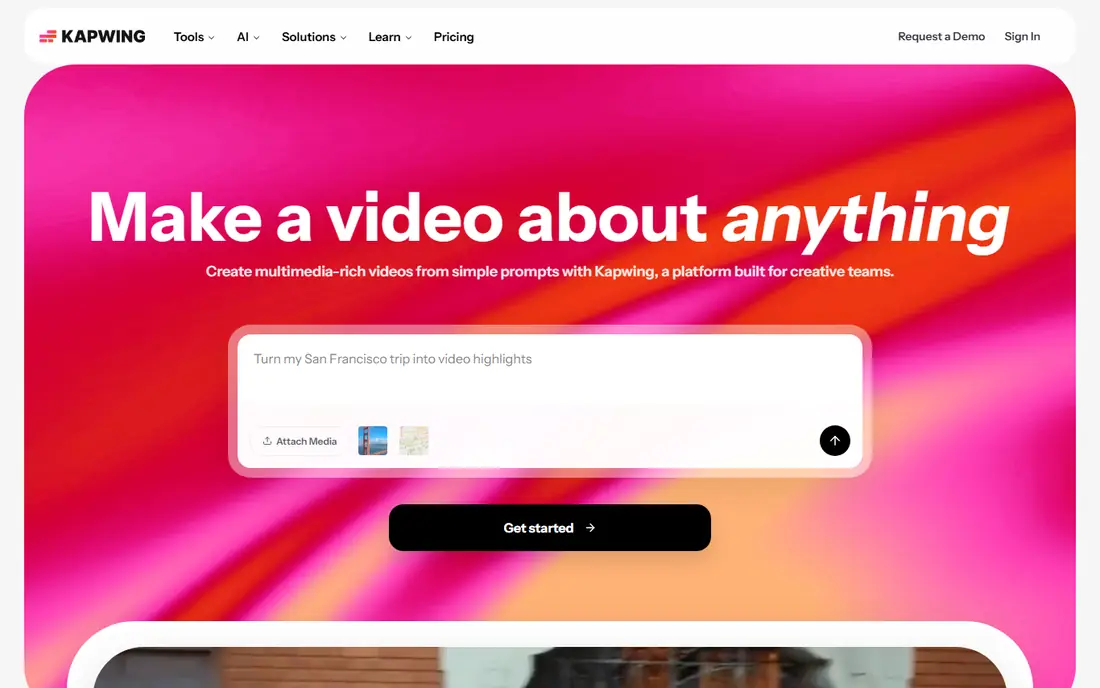
For teams or readers focused on browser video editor, Kapwing is a natural place to start. Kapwing is a fast browser editor for social clips, captions, and templates. For teams comparing options, the practical test is simple: run a real task through the tool and see how many steps it takes, and how clear the result feels.
Its free tier limits exports, so regular publishers usually need a paid plan. That catch does not disqualify the product, but it should shape your trial: test the weak spot first, and only buy once you know it does not block your main workflow.
A useful trial also tests support and onboarding, not just features. Ask a question, read the help docs, and see how quickly you get a clear answer, because that experience predicts how the tool will feel after purchase.
- Browser editing
- Captions and templates
- Collaboration
- Free exports carry limits
- Some features need paid plans
Descript
Ideal for: Transcript based video editing
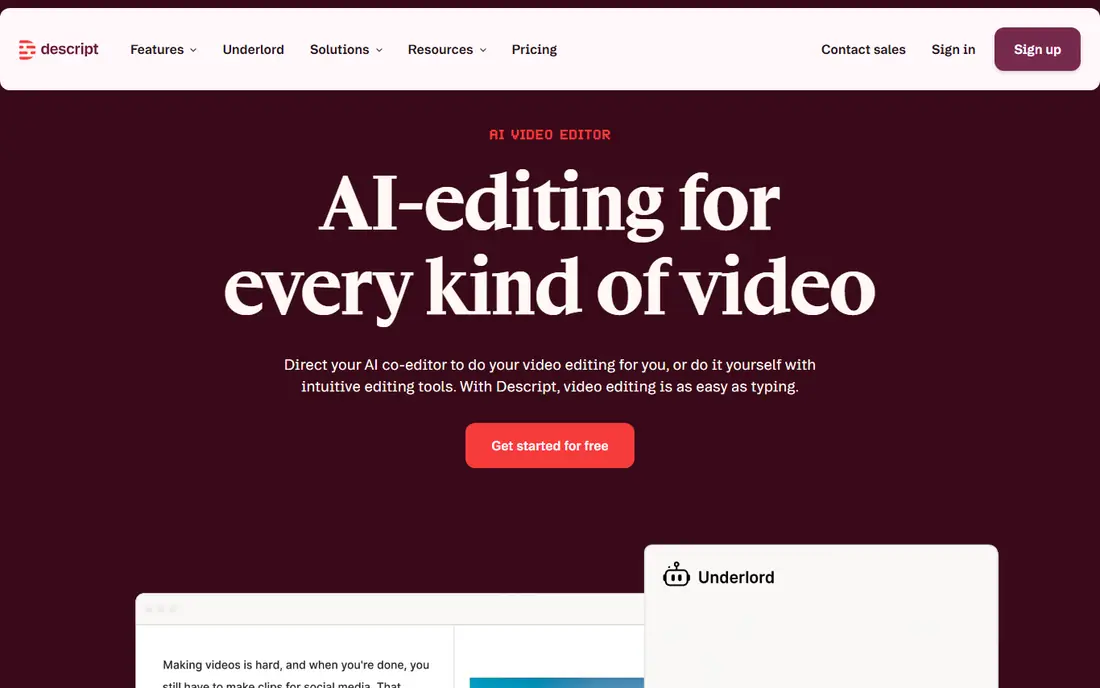
For teams or readers focused on transcript based video editing, Descript is a natural place to start. Descript lets you edit video by editing its transcript, which suits podcasts and talking head clips. That approach makes it a sensible shortlist candidate, provided you test it with your own data and your own team before you commit to a paid plan.
Visual effects work is thinner than in timeline focused editors. In our comparison of official feature pages, pricing, and public reviews, this balance of strength and weakness placed it firmly on the shortlist for its target audience.
If the tool passes that trial, check the renewal terms and the cost of adding users before you roll it out widely. A good fit at five users can become costly at fifty, so plan for growth now.
- Edit video by editing text
- Transcription
- Podcast tools
- Best for spoken content
- Less suited to visual effects work
Canva Video
Ideal for: Template video creation
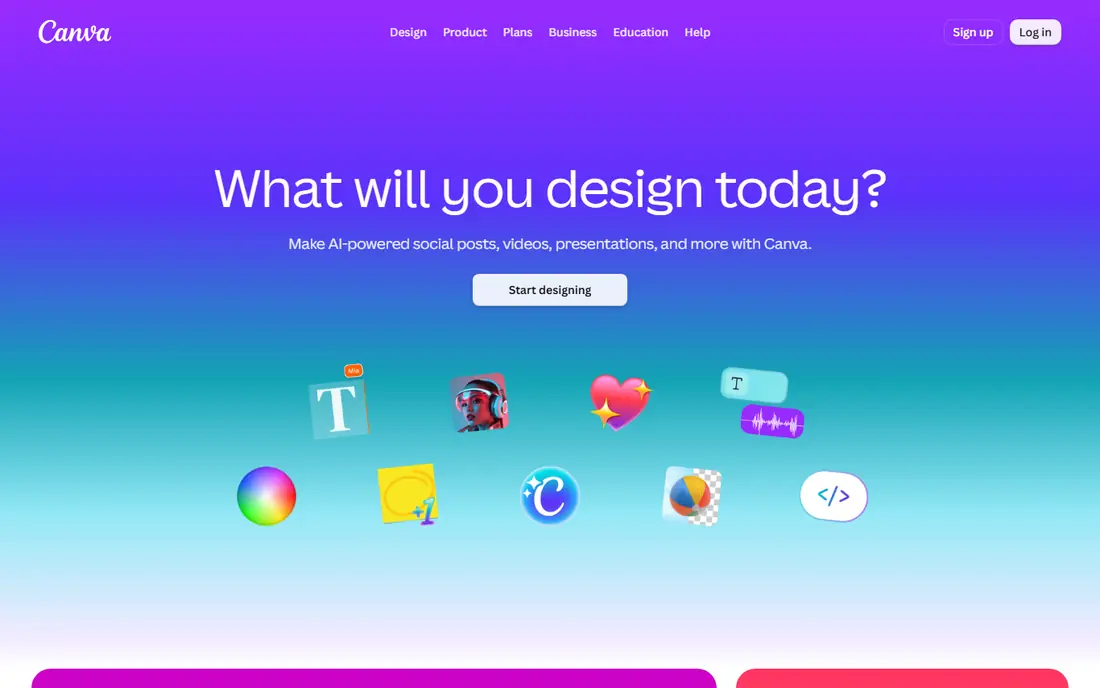
For teams or readers focused on template video creation, Canva Video is a natural place to start. Canva Video suits fast template based clips for social media and presentations. The value here is practical rather than theoretical, and it becomes clear once you use the tool for a real project instead of judging it from a feature page alone.
Its timeline control will frustrate editors needing precise cuts. If that limitation touches your core workflow, look at the next options in this list; if it does not, the strengths here may outweigh it for your team.
Finally, compare the total effort, not just the monthly price. Setup, training, and ongoing admin all cost time, and the cheapest option on paper is not always the cheapest once staff time is counted.
- Huge template library
- Easy drag and drop
- A free tier
- Timeline control is limited
- Not a full editor
Clipchamp
Ideal for: Microsoft browser editor
For teams or readers focused on microsoft browser editor, Clipchamp is a natural place to start. Clipchamp is a handy browser editor, especially for Microsoft 365 users. In practice, that focus shows up in the day to day workflow, where the features you use most often matter more than a long list of extras you may never open.
Its advanced features sit behind paid plans, and large projects need a capable browser. We weighed that trade off against the alternatives in this list, and the balance will suit some teams better than others, depending on budget and on how much depth you actually need.
Before you buy, run one realistic week through the tool, using the same projects, clients, or data you handle normally. A short, honest trial will reveal limits in reporting, speed, or support that a demo never shows.
- Browser editing
- Templates
- Microsoft integration
- Advanced features need paid plans
- Browser performance varies
Adobe Express
Ideal for: Quick Adobe video and design
For teams or readers focused on quick adobe video and design, Adobe Express is a natural place to start. Adobe Express suits quick branded clips and social posts with Adobe templates. For teams comparing options, the practical test is simple: run a real task through the tool and see how many steps it takes, and how clear the result feels.
Editors needing full timeline control should look at Premiere instead. That catch does not disqualify the product, but it should shape your trial: test the weak spot first, and only buy once you know it does not block your main workflow.
A useful trial also tests support and onboarding, not just features. Ask a question, read the help docs, and see how quickly you get a clear answer, because that experience predicts how the tool will feel after purchase.
- Templates and quick edits
- Adobe stock links
- A free tier
- Not a full Premiere replacement
- Advanced editing is limited
InVideo
Ideal for: Template and AI video maker
For teams or readers focused on template and ai video maker, InVideo is a natural place to start. InVideo speeds up template and AI assisted video creation for marketing clips. That approach makes it a sensible shortlist candidate, provided you test it with your own data and your own team before you commit to a paid plan.
Its template feel can show unless you customise carefully. In our comparison of official feature pages, pricing, and public reviews, this balance of strength and weakness placed it firmly on the shortlist for its target audience.
If the tool passes that trial, check the renewal terms and the cost of adding users before you roll it out widely. A good fit at five users can become costly at fifty, so plan for growth now.
- Many templates
- Text to video options
- Stock media
- Free tier limits and watermarks
- Template feel can show
Runway
Ideal for: AI video generation and editing
For teams or readers focused on ai video generation and editing, Runway is a natural place to start. Runway suits creators exploring AI video generation alongside editing tools. The value here is practical rather than theoretical, and it becomes clear once you use the tool for a real project instead of judging it from a feature page alone.
Simple trimming and caption work is faster in Kapwing or Clipchamp. If that limitation touches your core workflow, look at the next options in this list; if it does not, the strengths here may outweigh it for your team.
Finally, compare the total effort, not just the monthly price. Setup, training, and ongoing admin all cost time, and the cheapest option on paper is not always the cheapest once staff time is counted.
- AI video generation
- Creative editing tools
- Browser based
- AI generation costs credits
- Less suited to simple trimming
How we picked these
We compared official feature pages, pricing pages, app store listings, privacy policies, and public reviews for each product in this list. We looked for tools that exist and work in October 2026, that truly fit the topic, and that offer a clear reason to choose them over similar options. Where a price or free tier could not be verified from the vendor, we wrote See website rather than guessing.
We also weighed honest weaknesses alongside strengths, because every tool involves trade offs in price, depth, and ease of use. A product stayed on the list only if its strengths matched a real audience, even where its limits ruled it out for other readers. That is why the list mixes well known leaders with smaller options that suit specific needs.
Pricing and free tiers change often, so we treated vendor pricing pages as the authority and avoided repeating figures we could not confirm on the day of writing. Readers should check the linked official site for the current plan before buying, since trials, limits, and included features can change without notice. That caution applies especially to tools with quote based pricing, where the final cost depends on seats, usage, and contract terms.
How to choose an online video editor
Decide what you edit most. Social clips need templates and captions, while podcasts need transcript editing, and longer videos need timeline depth. A tool built for your format will save more time than a general editor.
Check export quality and watermark rules. Free tiers often cap resolution or add watermarks, so confirm export limits before you build a workflow around a free plan.
Frequently asked questions
What is the closest alternative to Veed?
Kapwing and Clipchamp are the closest browser editors, with templates, captions, and trimming. Descript suits podcast and talking head editing instead.
Are there free options?
Kapwing, Clipchamp, Canva, and Adobe Express offer free tiers, usually with watermarks or export limits. Check current limits before you publish.
Do these tools add subtitles automatically?
Yes, most offer automatic captions, with accuracy varying by audio quality. Budget time to correct captions for published videos.
Can I edit on mobile?
Some tools offer mobile apps or mobile web editing, while others work best on desktop browsers. Check the app listing for your device.
Which tool suits social media clips?
Kapwing and Canva suit fast social clips, while Descript suits spoken content that benefits from transcript editing.