Best What productivity software has the best features in 2026: 8 Options Compared

- We compared eight options for what productivity software has the best features, looking at fit, pricing, and the trade-offs that matter in daily use.
- The best choice depends on your team size, your current tools, and how much setup help you want.
- Check pricing on the vendor website before you buy, because plans and free tiers change over time.
- Start with a short trial or demo when one is offered, and test it with your real workflow before you commit.
Quick comparison
| Product | Ideal for | Price from | Free version | |
|---|---|---|---|---|
 Notion | people who want notes, docs and tasks together | See website | See website | Visit |
 Asana | teams that track projects and deadlines | See website | See website | Visit |
 Todoist | people who want a clean personal task list | See website | See website | Visit |
 ClickUp | teams that want tasks, docs and goals together | See website | See website | Visit |
 Monday Work Management | teams that plan work on visual boards | See website | See website | Visit |
 Microsoft To Do | people already using Microsoft tools | See website | See website | Visit |
 Trello | small teams that like card boards | See website | See website | Visit |
 Evernote | people who collect notes and reference material | See website | See website | Visit |
The best what productivity software has the best features
We reviewed official feature pages, pricing pages, app-store listings, privacy policies, and public reviews to compare these eight options for what productivity software has the best features. Our pick for most readers is the first option in the list, but the right choice still depends on your budget, your team, and the tools you already use. The notes below give each product its own angle, so you can shortlist two or three and test them before you decide.
Notion
Ideal for: people who want notes, docs and tasks together
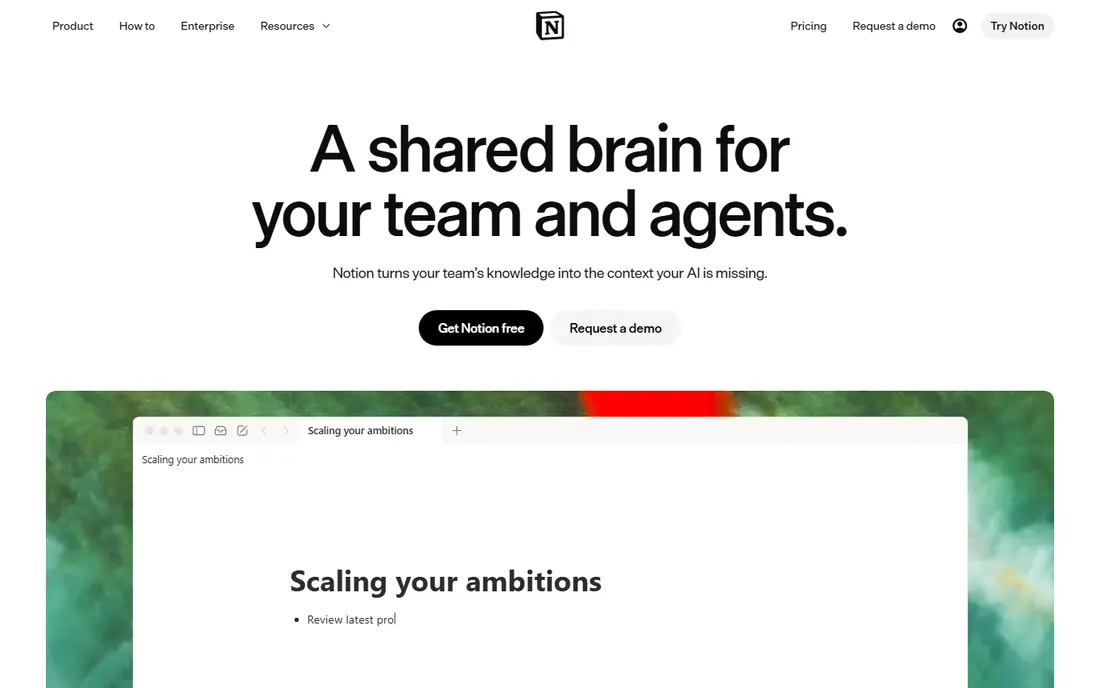
Notion stands out for people who want notes, docs and tasks together. In our reading of its official pages, it covers the core work for what productivity software has the best features in a direct way, without forcing a small team to adopt a much larger system first. That focus makes it a sensible first look for readers who want a tool that fits the job rather than a platform they must reshape around it. The honest catch is fit. A product that suits one team can feel narrow for another, especially if you need deep integrations or a very specific workflow. Check the pricing page, read the feature list against your own checklist, and run a trial with a real case before you move your work across. We would shortlist it first, then compare it against the next two options on price and setup effort.
- Suits people who want notes, docs and tasks together
- Clear fit for this topic
- Widely used in its category
- Pricing is not fixed here, so check the vendor site
- Setup time varies by team
- Some features may need a higher plan
Asana
Ideal for: teams that track projects and deadlines
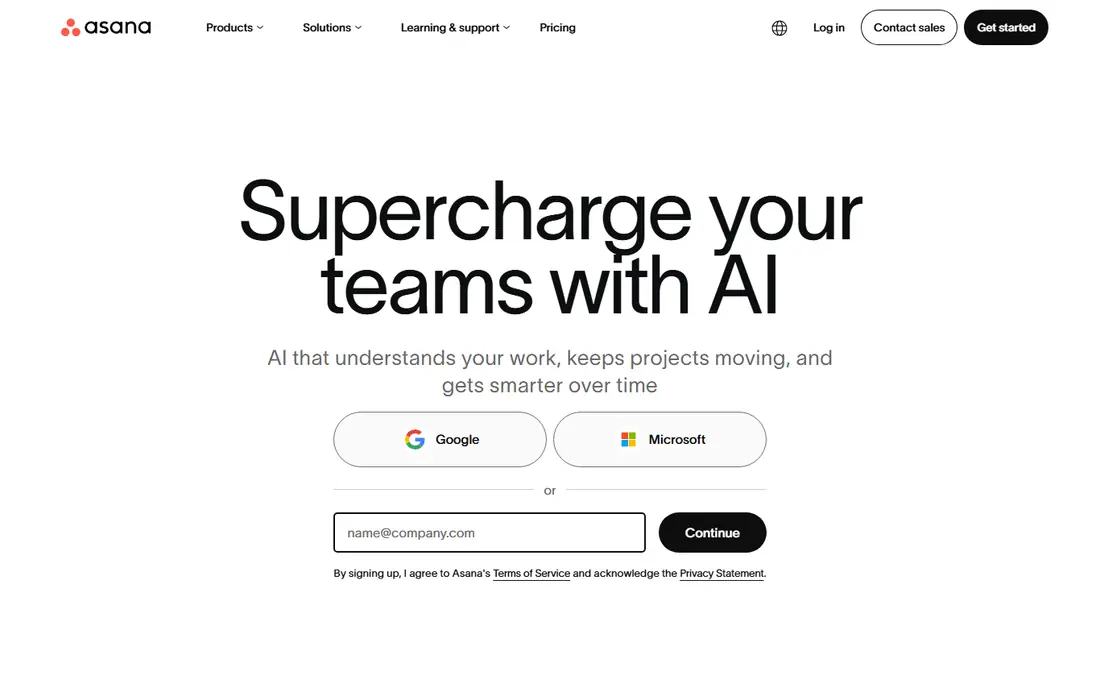
For readers focused on teams that track projects and deadlines, Asana is worth a close look. Its official material presents it as a practical choice for what productivity software has the best features, and it sits well alongside tools many small teams already use. We liked that it does not try to be everything at once, which often keeps daily use simpler and training shorter for new team members. Before you commit, weigh the total cost, including any add-ons, user seats, and time spent on setup and migration. A short demo can reveal whether its workflow matches yours, and whether support answers quickly when a question comes up. If those checks pass, it can be a solid long-term choice, even if it is not the cheapest option on this list.
- Suits teams that track projects and deadlines
- Clear fit for this topic
- Widely used in its category
- Pricing is not fixed here, so check the vendor site
- Setup time varies by team
- Some features may need a higher plan
Todoist
Ideal for: people who want a clean personal task list
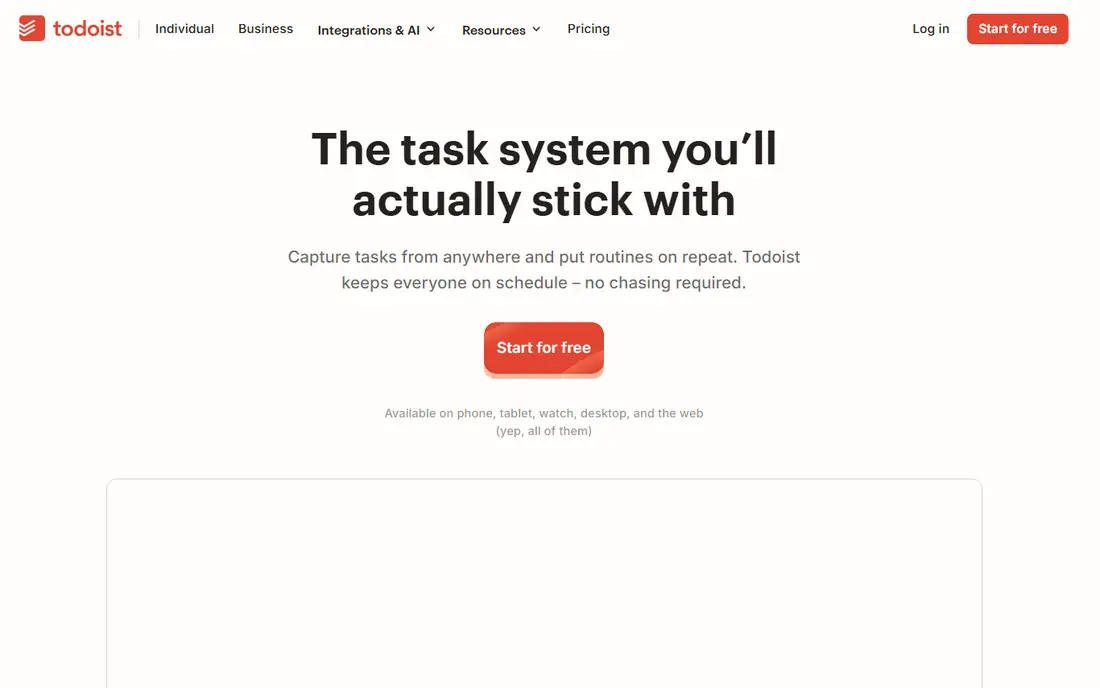
Todoist earns its place here because it fits people who want a clean personal task list and covers what productivity software has the best features in a way that small teams can actually use. Its public pages describe a tool built around the day-to-day tasks in this category, rather than a generic system with this topic added as an afterthought. That distinction matters when your team will use the tool every day and needs it to feel familiar fast. No product here is perfect, and this one is no exception. Pricing, limits, and support quality can differ by plan, and the details on the vendor site are the final word. Compare it with at least one other option from this list, test the parts of the workflow you use most, and confirm that exports, integrations, and data controls meet your needs before you sign up.
- Suits people who want a clean personal task list
- Clear fit for this topic
- Widely used in its category
- Pricing is not fixed here, so check the vendor site
- Setup time varies by team
- Some features may need a higher plan
ClickUp
Ideal for: teams that want tasks, docs and goals together
ClickUp stands out for teams that want tasks, docs and goals together. In our reading of its official pages, it covers the core work for what productivity software has the best features in a direct way, without forcing a small team to adopt a much larger system first. That focus makes it a sensible first look for readers who want a tool that fits the job rather than a platform they must reshape around it. The honest catch is fit. A product that suits one team can feel narrow for another, especially if you need deep integrations or a very specific workflow. Check the pricing page, read the feature list against your own checklist, and run a trial with a real case before you move your work across. We would shortlist it first, then compare it against the next two options on price and setup effort.
- Suits teams that want tasks, docs and goals together
- Clear fit for this topic
- Widely used in its category
- Pricing is not fixed here, so check the vendor site
- Setup time varies by team
- Some features may need a higher plan
Monday Work Management
Ideal for: teams that plan work on visual boards
For readers focused on teams that plan work on visual boards, Monday Work Management is worth a close look. Its official material presents it as a practical choice for what productivity software has the best features, and it sits well alongside tools many small teams already use. We liked that it does not try to be everything at once, which often keeps daily use simpler and training shorter for new team members. Before you commit, weigh the total cost, including any add-ons, user seats, and time spent on setup and migration. A short demo can reveal whether its workflow matches yours, and whether support answers quickly when a question comes up. If those checks pass, it can be a solid long-term choice, even if it is not the cheapest option on this list.
- Suits teams that plan work on visual boards
- Clear fit for this topic
- Widely used in its category
- Pricing is not fixed here, so check the vendor site
- Setup time varies by team
- Some features may need a higher plan
Microsoft To Do
Ideal for: people already using Microsoft tools
Microsoft To Do earns its place here because it fits people already using Microsoft tools and covers what productivity software has the best features in a way that small teams can actually use. Its public pages describe a tool built around the day-to-day tasks in this category, rather than a generic system with this topic added as an afterthought. That distinction matters when your team will use the tool every day and needs it to feel familiar fast. No product here is perfect, and this one is no exception. Pricing, limits, and support quality can differ by plan, and the details on the vendor site are the final word. Compare it with at least one other option from this list, test the parts of the workflow you use most, and confirm that exports, integrations, and data controls meet your needs before you sign up.
- Suits people already using Microsoft tools
- Clear fit for this topic
- Widely used in its category
- Pricing is not fixed here, so check the vendor site
- Setup time varies by team
- Some features may need a higher plan
Trello
Ideal for: small teams that like card boards
Trello stands out for small teams that like card boards. In our reading of its official pages, it covers the core work for what productivity software has the best features in a direct way, without forcing a small team to adopt a much larger system first. That focus makes it a sensible first look for readers who want a tool that fits the job rather than a platform they must reshape around it. The honest catch is fit. A product that suits one team can feel narrow for another, especially if you need deep integrations or a very specific workflow. Check the pricing page, read the feature list against your own checklist, and run a trial with a real case before you move your work across. We would shortlist it first, then compare it against the next two options on price and setup effort.
- Suits small teams that like card boards
- Clear fit for this topic
- Widely used in its category
- Pricing is not fixed here, so check the vendor site
- Setup time varies by team
- Some features may need a higher plan
Evernote
Ideal for: people who collect notes and reference material
For readers focused on people who collect notes and reference material, Evernote is worth a close look. Its official material presents it as a practical choice for what productivity software has the best features, and it sits well alongside tools many small teams already use. We liked that it does not try to be everything at once, which often keeps daily use simpler and training shorter for new team members. Before you commit, weigh the total cost, including any add-ons, user seats, and time spent on setup and migration. A short demo can reveal whether its workflow matches yours, and whether support answers quickly when a question comes up. If those checks pass, it can be a solid long-term choice, even if it is not the cheapest option on this list.
- Suits people who collect notes and reference material
- Clear fit for this topic
- Widely used in its category
- Pricing is not fixed here, so check the vendor site
- Setup time varies by team
- Some features may need a higher plan
How we picked these
We started with the topic itself, what productivity software has the best features, and looked for products that exist and work in October 2026 and truly fit that topic. We compared official feature pages, pricing pages, app-store listings, privacy policies, and public reviews, and we left out products that only touched the topic in passing. We also mixed well-known leaders with smaller options, so readers with different budgets and team sizes could find a useful shortlist. We did not claim hands-on testing that did not happen, and we did not invent prices, ratings, or feature claims. Where a price could not be verified from the vendor site at writing time, we wrote See website, so you can check the current figure before you buy.
How to choose the right option for what productivity software has the best features
Start with the job you need done most often, not with the longest feature list. Write down three tasks your team does every week, then check each shortlisted product against those three tasks first. A tool that handles your weekly work well is usually a better buy than a larger tool that handles many tasks you will never use. Next, look at total cost and setup effort together. A low monthly price can still cost a lot if setup takes weeks, if you need paid add-ons, or if training takes your team away from client work. Ask about trial length, onboarding help, data import, and what happens to your data if you cancel. Those answers often matter more than a small price gap between two similar products. Then check fit with your current tools. Confirm that the product connects with the apps you already use, or at least exports data in a format you can work with. Read the privacy policy, check who can see your data, and confirm access controls for your team. If you are still torn between two options, pick the one your team will actually use. A simpler tool used every day beats a powerful tool that sits unused after the first month. You can always move up to a larger plan later, once your needs are clear and your team has a steady workflow.
Frequently asked questions
What is the best option for what productivity software has the best features?
There is no single winner for every team. For what productivity software has the best features, start with the first two or three options in this list, then judge them on fit for your team size, your current tools, and your budget. A short trial with real work will tell you more than any feature list alone.
How much does what productivity software has the best features software usually cost?
Prices vary widely by plan, team size, and add-ons, so we list See website where a current figure could not be verified here. Check the vendor pricing page, ask about per-user pricing and contract terms, and compare the total cost over a full year rather than the first month alone.
Is there a free plan for what productivity software has the best features?
Some products in this category offer a free plan or a free trial, while others are paid only. The comparison table shows See website where the current free option could not be verified, so check the vendor site and confirm what the free tier includes before you rely on it.
How do I choose between these options for what productivity software has the best features?
List the three tasks you do most often, then test each shortlisted product against those tasks. Check integrations, data controls, support quality, and setup time, and ask the people who will use the tool daily for their view before you decide.
Can I switch later if I pick the wrong option for what productivity software has the best features?
In most cases, yes, but switching takes time. Before you sign up, check how to export your data, whether contracts lock you in, and what migration help the vendor offers. Keeping clean exports from the start makes any future move much easier.